This guide walks you through the steps to perform HP Omen 15 ce0xx RAM and SSD upgrade. If you're planning a similar upgrade, follow along to get it done smoothly and efficiently.
The HP Omen 15-ce0xx, a 2017 gaming laptop, strikes a great balance between powerful performance and an eye-catching design. It's a top choice for gamers and anyone in need of a high-performance machine.
However, over time, users may experience slower speeds and limited storage. The solution? Upgrading the RAM and SSD in the HP Omen 15-ce0xx could give it a significant performance boost.
The HP Omen 15-ce0xx typically has two storage slots: one SATA slot for a hard drive and one M.2 slot for an SSD. The hard drive is usually used for data storage, while the SSD is for the operating system. You can upgrade the smaller SSD to a larger model, or replace the HDD with a 2.5-inch SATA SSD for better performance.
The laptop typically comes with either 8GB or 16GB of RAM, but it can be upgraded to a maximum of 32GB or even 64GB, depending on the motherboard. To check your PC's maximum supported RAM, follow these steps:
Step 1. Press Win + R to open the Run dialog box.
Step 2. Type “cmd” and hit Enter.
Step 3. In the Command Prompt, type “wmic memphysical get maxcapacityex” and press Enter. The result will show you the maximum RAM your system can support.
Before upgrading the RAM and SSD in your HP Omen 15-ce0xx, it’s crucial to select compatible components. Here are some key factors to consider when choosing the right SSD and RAM for your laptop:
✍ SSD selection:
▸ Storage capacity: Choose an SSD that fits your needs in terms of available space.
▸ Performance: Pay attention to the read and write speeds for optimal performance.
▸ SSD type: Decide between M.2 SATA or NVMe SSD based on your laptop’s compatibility and performance requirements.
▸ Budget: Ensure the SSD fits within your budget while meeting the performance needs of your system.
✍ RAM selection:
▸ RAM generation: Check whether your laptop supports DDR3, DDR4, or DDR5 RAM, depending on your system’s specifications.
▸ RAM speed: Opt for RAM that matches the speed supported by your laptop for the best performance.
▸ Pairing RAM: It’s important to install two identical RAM modules for optimal performance and system stability.
Upgrading the SSD in your HP Omen 15-ce0xx is a great way to boost performance and storage. Follow these steps to successfully upgrade your laptop’s SSD.
Before you can use your new SSD, it needs to be initialized. This process can be done using Disk Management, a built-in utility in Windows for managing storage devices. Here's how to do it:
Step 1. Use an SSD enclosure adapter to connect the new SSD to your computer.
Step 2. Press Win + X to open the Quick Link menu, then select Disk Management.
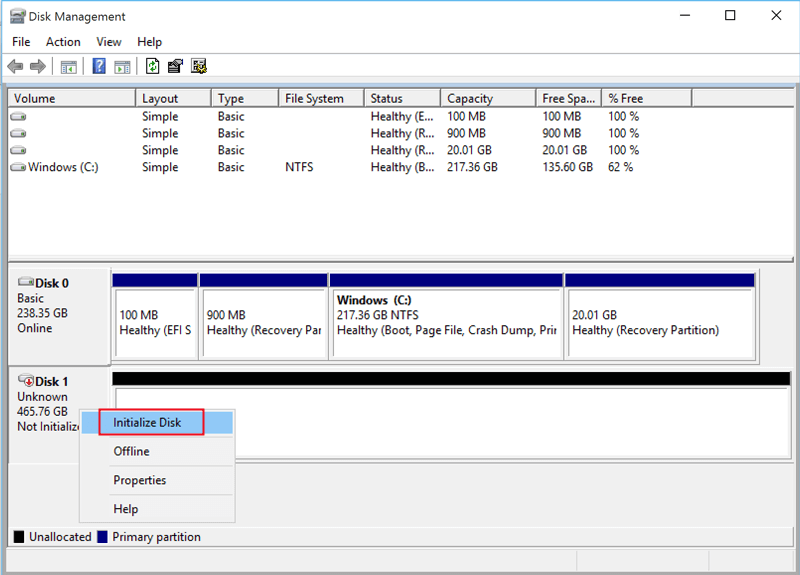
Step 3. You should see a prompt asking you to initialize the new drive. Choose MBR or GPT based on your needs, and click OK to confirm. If the prompt doesn’t appear, right-click the Unknown SSD and select Initialize.
Step 4. Leave the new SSD connected to your laptop and proceed to the next step—copying data from the old drive.
Once the new SSD is initialized, you can start the upgrade process. There are two options for upgrading:
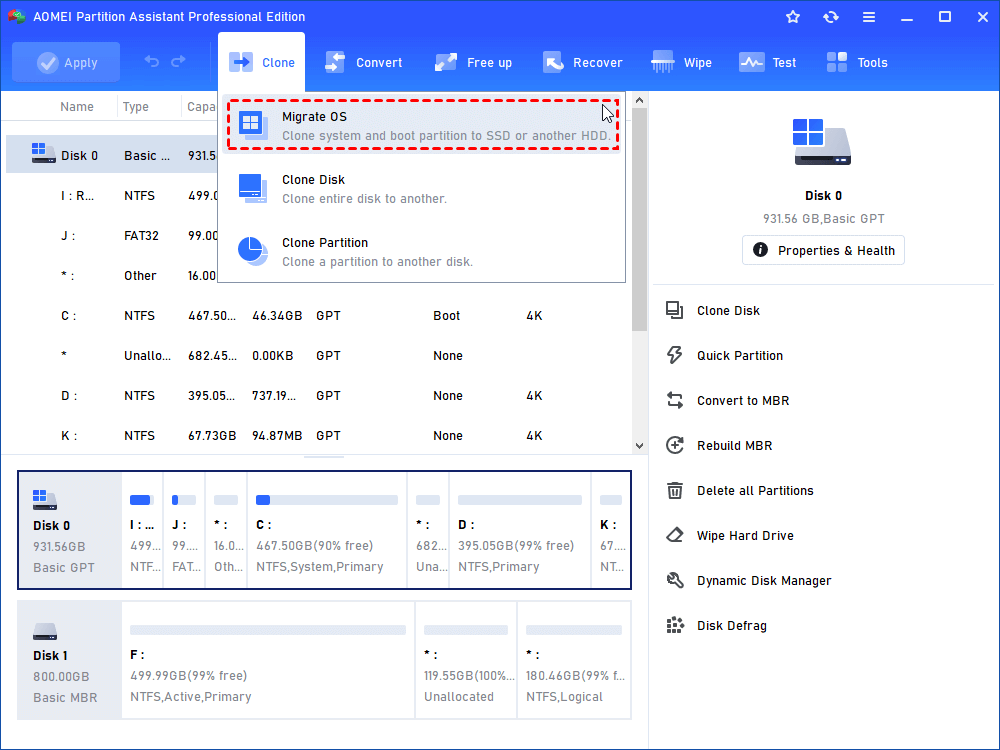
If you want to upgrade without reinstalling Windows, you can clone the existing system disk to the new SSD. AOMEI Partition Assistant is a helpful tool for this. One of the key features of AOMEI Partition Assistant is its “Migrate OS” feature, which allows you to clone only the system-related partitions, making the transition efficient and space-saving. After the migration, just set the new SSD as the first boot device in BIOS, and you're good to go—Windows will boot from the new drive as if nothing changed.
Step 1. Install and open AOMEI Partition Assistant Professional. Click Migrate OS under Clone.
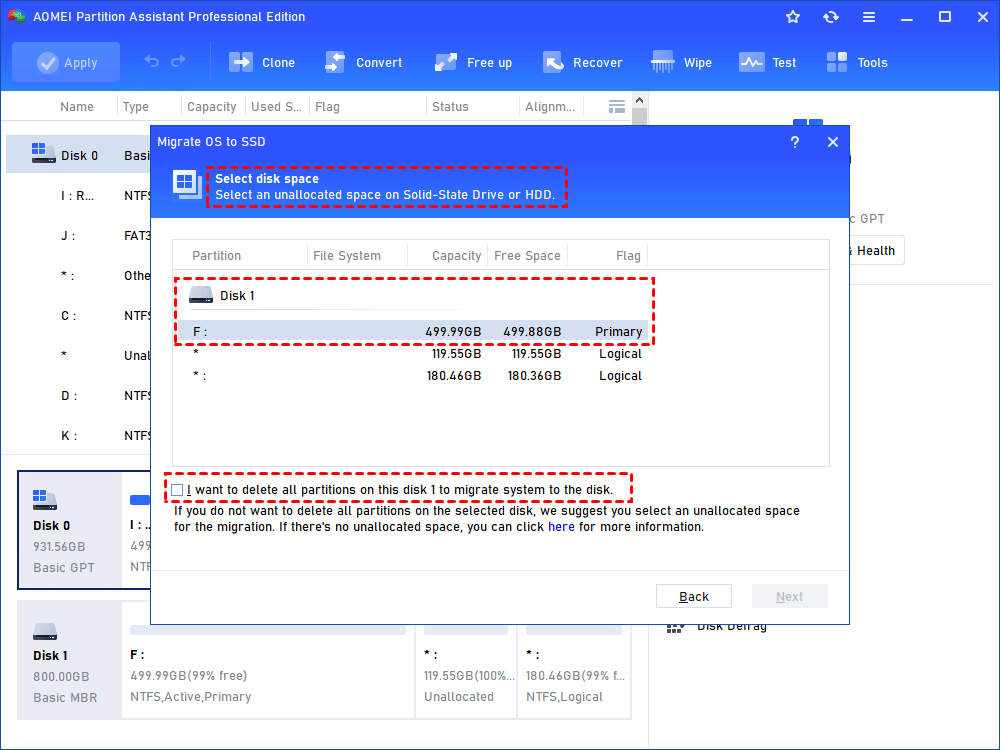
Step 2. Choose an unallocated space on the target hard drive and click Next.
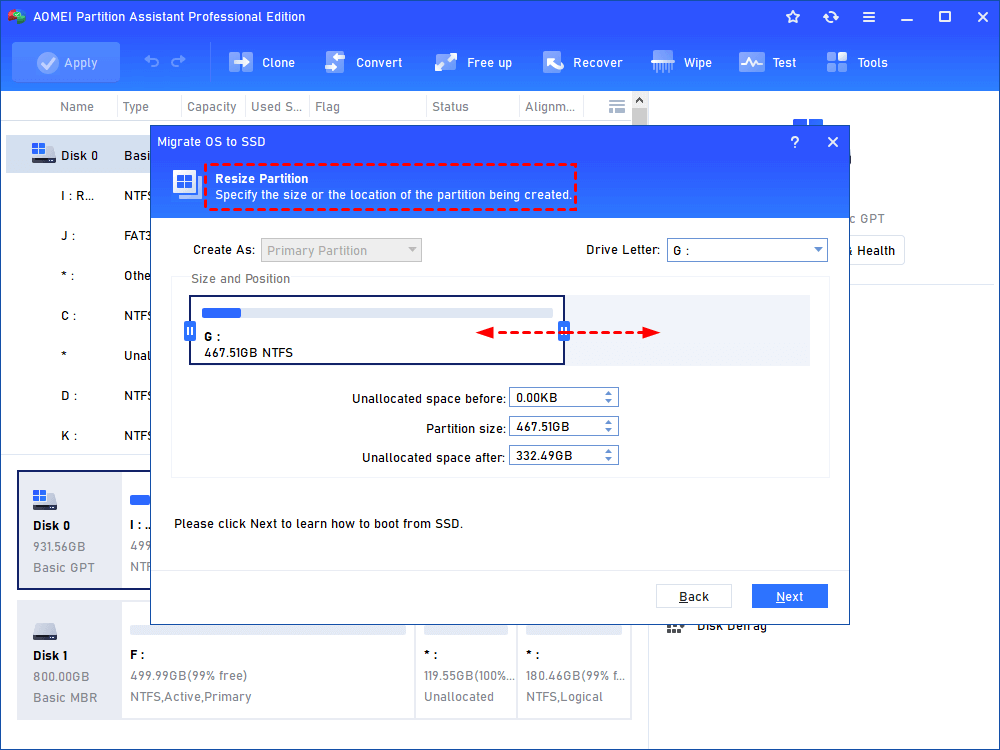
Step 3. In this window, you can change the size of the system partition.
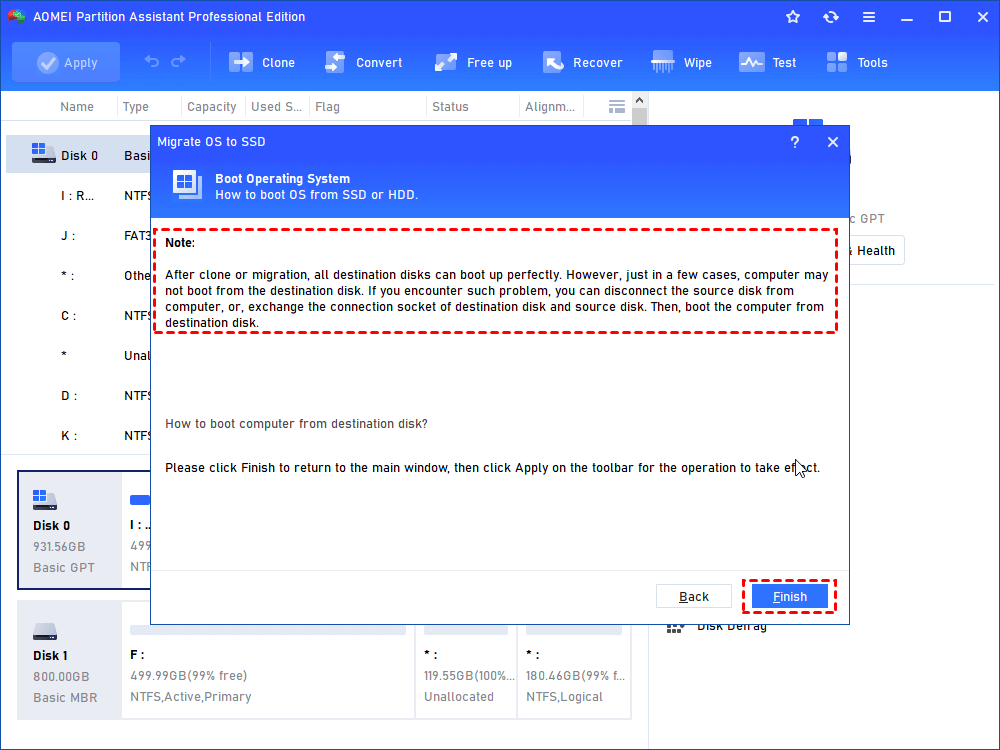
Step 4. Attend to Note about how to change boot drive, which might be helpful after migration.
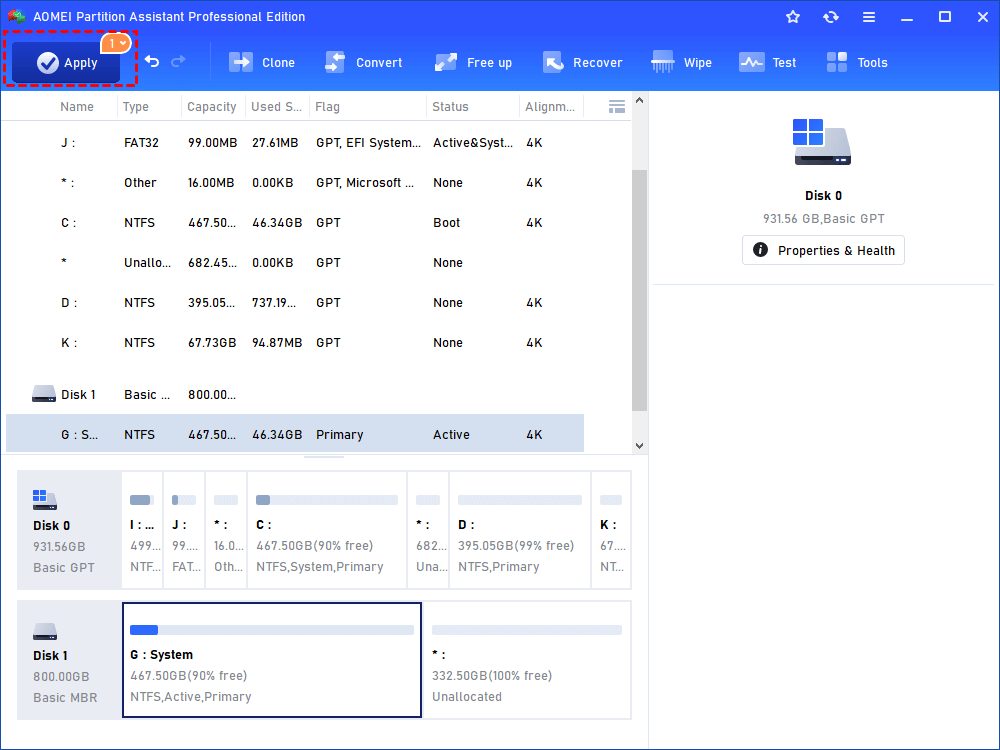
Step 5. In this screen, you can review the result. Click Apply and Proceed after confirmation.
Alternatively, you can swap the old HDD with a larger SATA SSD for more storage. You can use AOMEI Partition Assistant’s Clone Disk feature to transfer all your data to the new SSD.
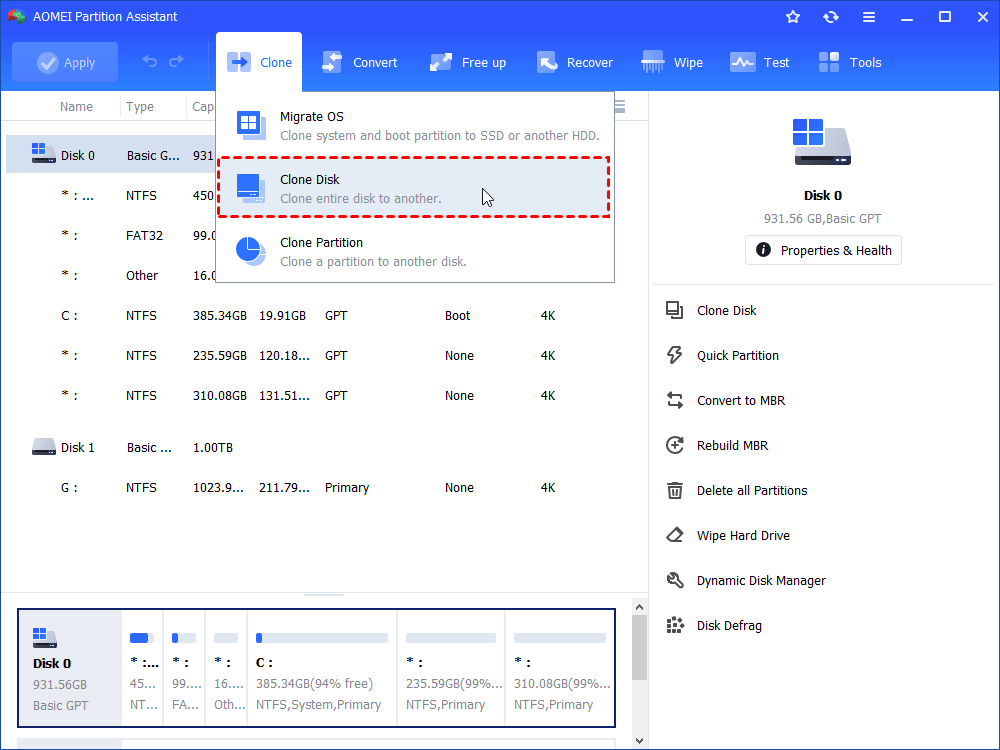
Step 1. Install and launch AOMEI Partition Assistant, click "Clone" in the main interface and select "Clone Disk".
Step 2. Choose the hard disk that you need to clone as the source disk and click "Next".
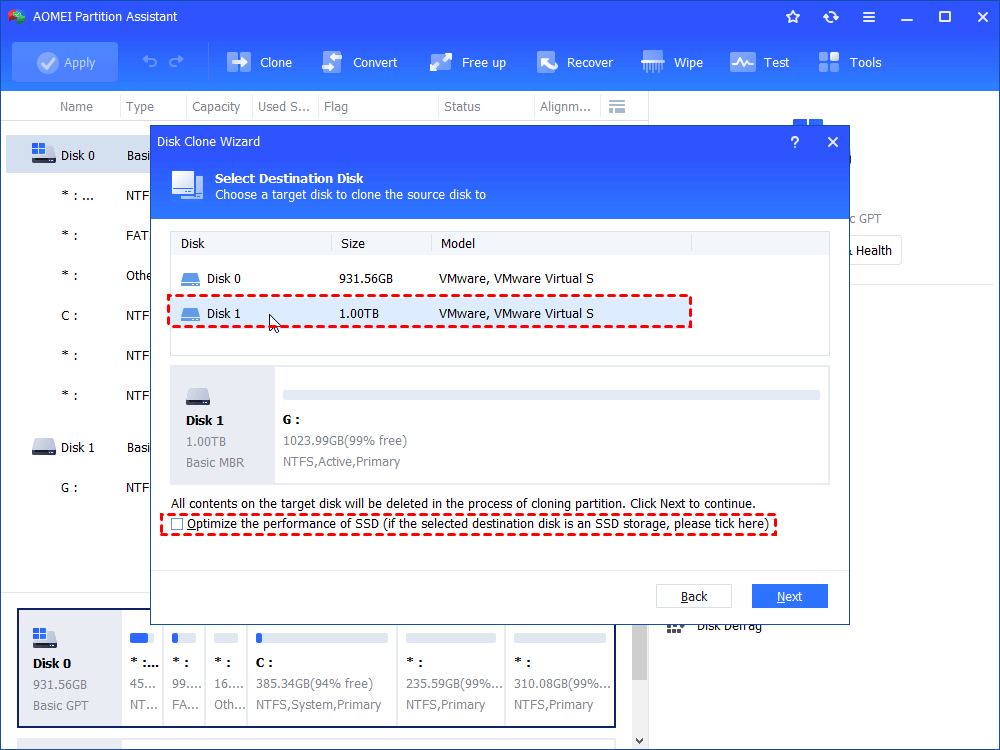
Step 3. Select the destination disk to store the data on the source disk, and then click "Next".
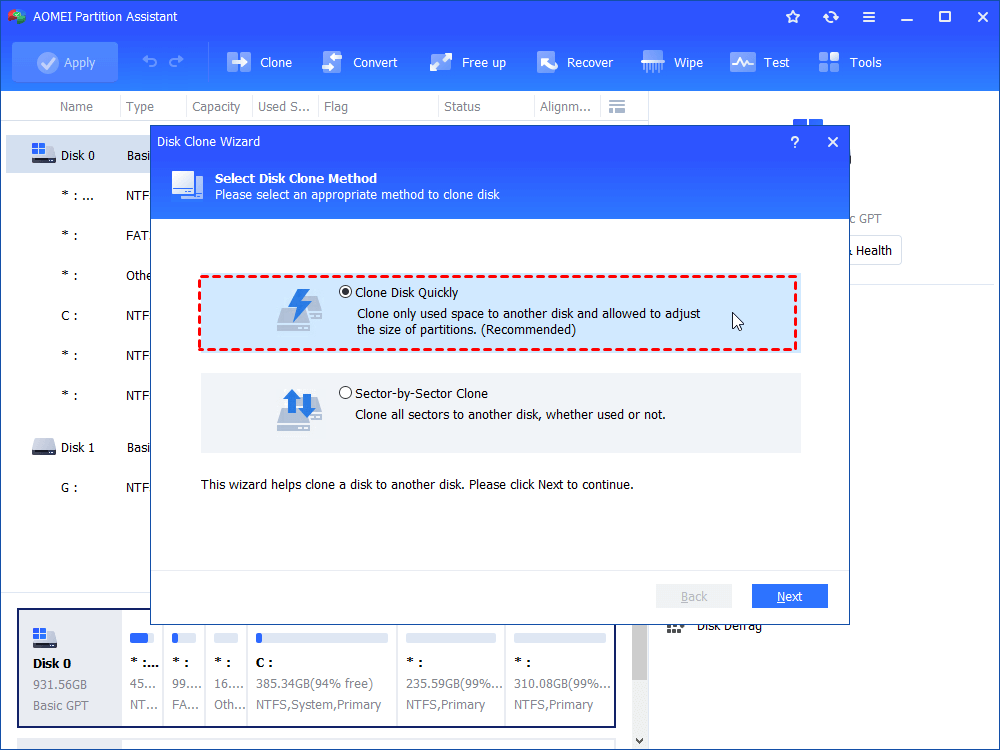
Step 4. Then, you can check the source and destination disk in the next window or change to “Sector to Sector clone”, and click the "Confirm" button to continue if there is no problem.
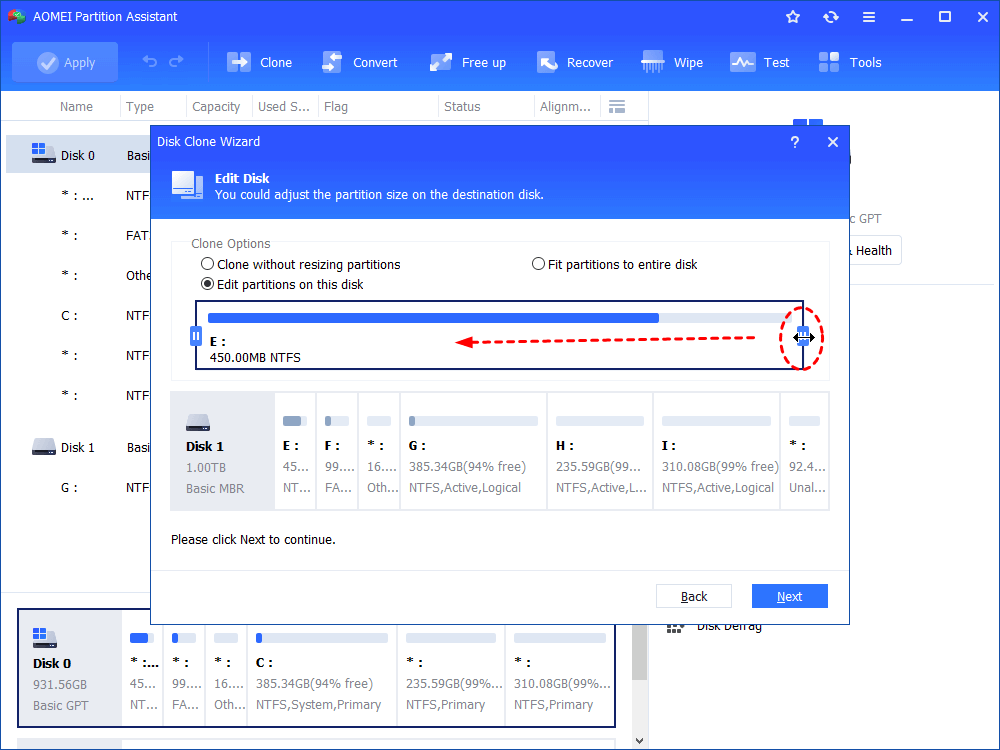
Here, you can also click the "Settings" button to adjust the partition size on the destination disk or tick "4k alignment" to improve the reading and writing speed of SSD if the target disk is an SSD drive.
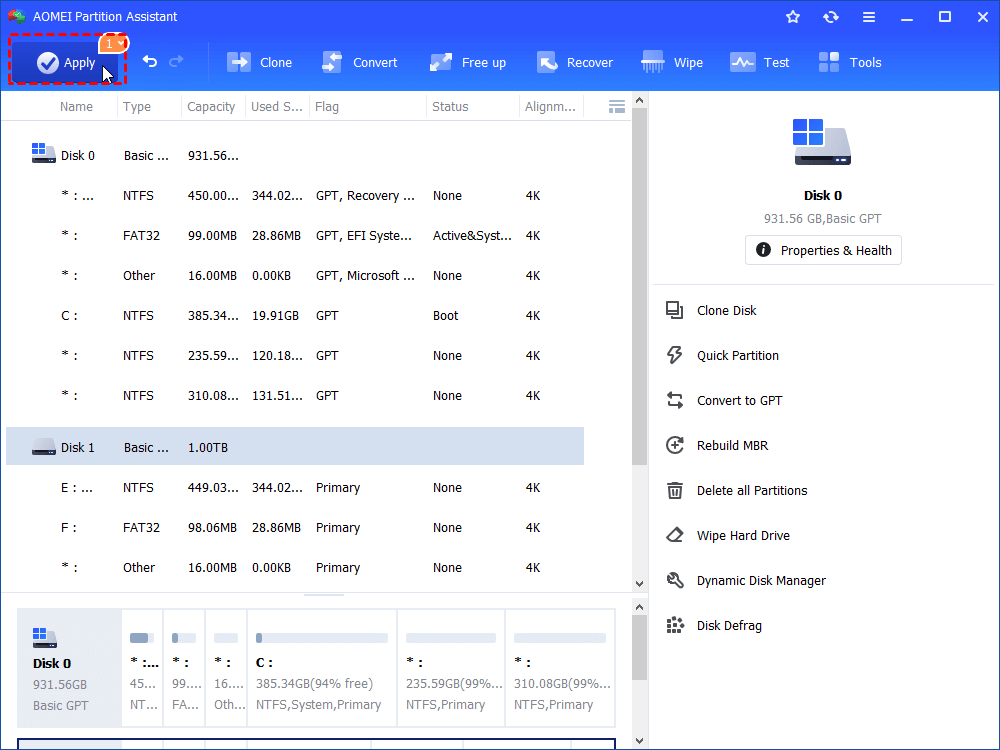
Step 5. At last, click "Apply" and "Proceed" in the main interface to start cloning the hard drive.
Step 6. After cloning, you can remove the old HDD or enter BIOS to change boot priority to boot from cloned disk.
To upgrade the SSD on your HP Omen 15-ce0xx laptop, you’ll need to remove the old SSD or HDD and install the new SSD. Before getting started, gather the following tools:
➢ Phillips screwdriver
➢ Small pry tool
➢ Screw tray (to keep screws organized)
➢ Anti-static wrist strap (recommended for safety)
Then, follow these steps to complete the upgrade:
Step 1. Place the laptop on a flat surface with the bottom facing up. Use the Phillips screwdriver to remove all visible screws from the back cover.
Step 2. Use a plastic pry tool or a credit card to gently lift the bottom panel. Start from one corner and carefully work your way around to avoid damaging the clips.
Step 3. Once the cover is off, locate the storage bay where the SSD or HDD is installed.
Option 1. Replace the Old SSD with a New SSD
1. Remove the screw securing the current SSD.
2. Gently lift and pull the SSD out of the M.2 slot.
3. Align the new SSD with the slot and insert it at a slight angle until it fits snugly.
4. Secure the new SSD with the screw.
Option 2. Replace the Old HDD with a Larger SSD
1. Detach the SATA cable from the motherboard carefully.
2. Lift the HDD from the connector side and remove it.
3. Take off the metal runners/brackets and the SATA connector from the old HDD.
4. Attach these components to the new 2.5" SSD.
5. Place the SSD into the slot and reconnect the SATA cable to the motherboard.
Step 4. Place the bottom cover back onto the laptop and screw it into place securely.
Step 5. Connect the power adapter and turn on your laptop. Enter the BIOS or Windows to confirm that the new SSD is recognized and functioning correctly.
Once verified, your SSD upgrade is complete and your HP Omen 15-ce0xx is ready for faster performance and expanded storage.
Upgrading the RAM in your HP Omen 15-ce0xx can significantly boost your system’s performance. Follow these steps to complete the RAM upgrade:
Step 1. First, follow the steps outlined in the HP Omen 15-ce0xx SSD Upgrade guide to remove the bottom cover of the laptop.
Step 2. Once the bottom panel is removed, locate the RAM slots on the motherboard.
Step 3. Push the clamps on either side of each RAM stick to release it. Gently pull the RAM module out of its slot.
Step 4. Take the new RAM module and align the notch with the groove in the slot. Insert the RAM carefully and press down until it clicks into place, locking it securely.
Step 5. If your laptop has more than one RAM slot, repeat the process for the second module.
Once the RAM modules are securely installed, you can reassemble your laptop and power it on to check that the upgrade was successful.
By following this guide, you should now have a clear understanding of how to upgrade the RAM and SSD in your HP Omen 15-ce0xx. This post provides a comprehensive, step-by-step process for both the RAM and SSD upgrades, along with tips on selecting compatible components.
To make the upgrade smoother, you can use AOMEI Partition Assistant to migrate your operating system and data from the old drive to the new SSD. This tool can also help you in other aspects such as resizing/moving partitions, deleting partitions, converting MBR to GPT, etc.