If you find we couldn’t delete the selected partition, don’t panic. This guide outlines five effective methods you can use to troubleshoot and successfully delete the stubborn partition.
There are several reasons why you might not be able to delete a selected partition. Here are some common causes:
Partition is in use: If the partition you're trying to delete is currently in use (such as being the system or boot partition), Windows or other operating systems will not allow you to delete it until it’s no longer active.
Partition has a system or recovery partition: Some partitions, like the ones holding system files, boot information, or recovery data, are protected by the operating system to prevent accidental deletion.
Permissions issue: You may not have the necessary administrative rights to delete the partition. Make sure you're logged in as an administrator or have elevated privileges.
The partition is locked: Certain software tools or security measures, like disk encryption or BitLocker, might lock the partition to prevent it from being modified or deleted.
Corrupted partition: A partition may be corrupted or damaged, preventing the deletion process. Disk errors or bad sectors could cause problems.
The partition is part of a dynamic disk: Dynamic disks support features like spanned or striped volumes. Deleting partitions on dynamic disks requires additional steps.
File system errors: If the file system on the partition is corrupted, the system might prevent deletion to avoid further data loss.
To overcome these issues, you might need to boot into a recovery environment or use specialized tools (like AOMEI Partition Assistant or Diskpart in command prompt) to delete the partition safely. Let me know if you need specific steps!
If you're facing the error message "We couldn't delete the selected partition," here are some possible ways to fix the issue:
Sometimes, the partition might have some lingering data or issues that prevent it from being deleted. Formatting the partition before attempting to delete it can resolve the problem.
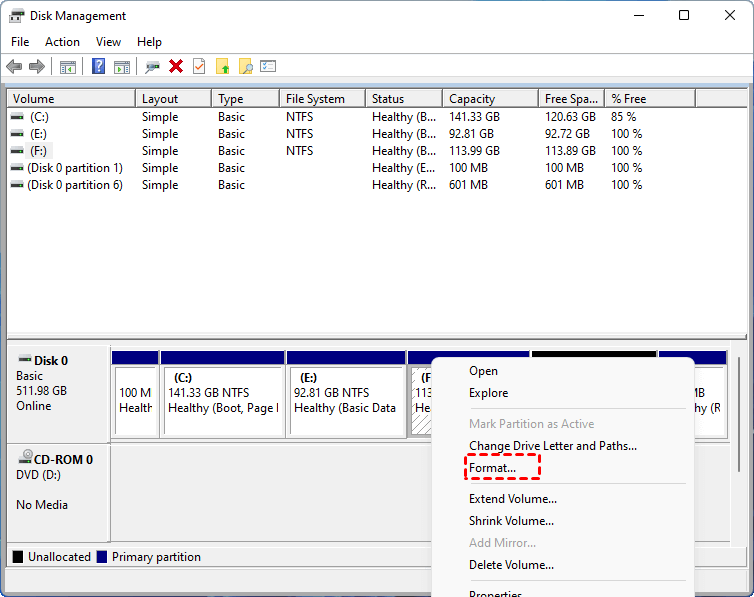
Step 1. Open Start to search for Disk Management and click the top result to open the tool.
Step 2. Right-click the partition you want to delete and choose Format.
Step 3. After the format is complete, try deleting the partition again.
If the partition deletion error occurs during a Windows installation or repair, it could be a problem with the installation media. Recreating it might resolve the issue.
Step 1. Download the Windows Media Creation Tool from Microsoft's official website.
Step 2. Use it to create new Windows installation media on a USB drive.
Step 3. Boot from the USB drive and try to delete the partition from the Windows setup screen.
If you're unable to delete a selected partition using the Windows Setup tool, AOMEI Partition Assistant provides a powerful and user-friendly alternative to get the job done.
AOMEI Partition Assistant is an all-in-one disk management software designed to handle complex partition operations with ease, even when Windows fails to do so. When you encounter the error “We couldn’t delete the selected partition”, it usually indicates that the partition is protected, in use, or has some kind of hidden system data. AOMEI Partition Assistant can bypass these limitations.
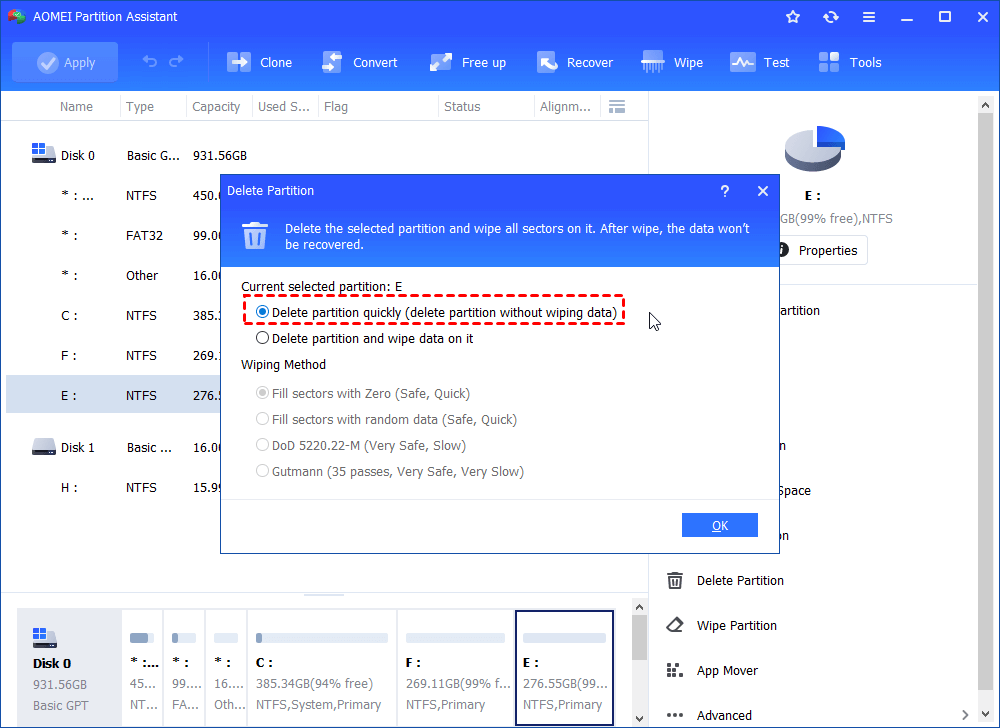
Step 1. Install and open AOMEI Partition Assistant. You can see all disks and partitions on your computer, right-click the target partitio,n and click “Delete Partition”.
Step 2. Choose "Delete partition quickly (delete partition without wiping data)" and click "OK" in the popped-up window.
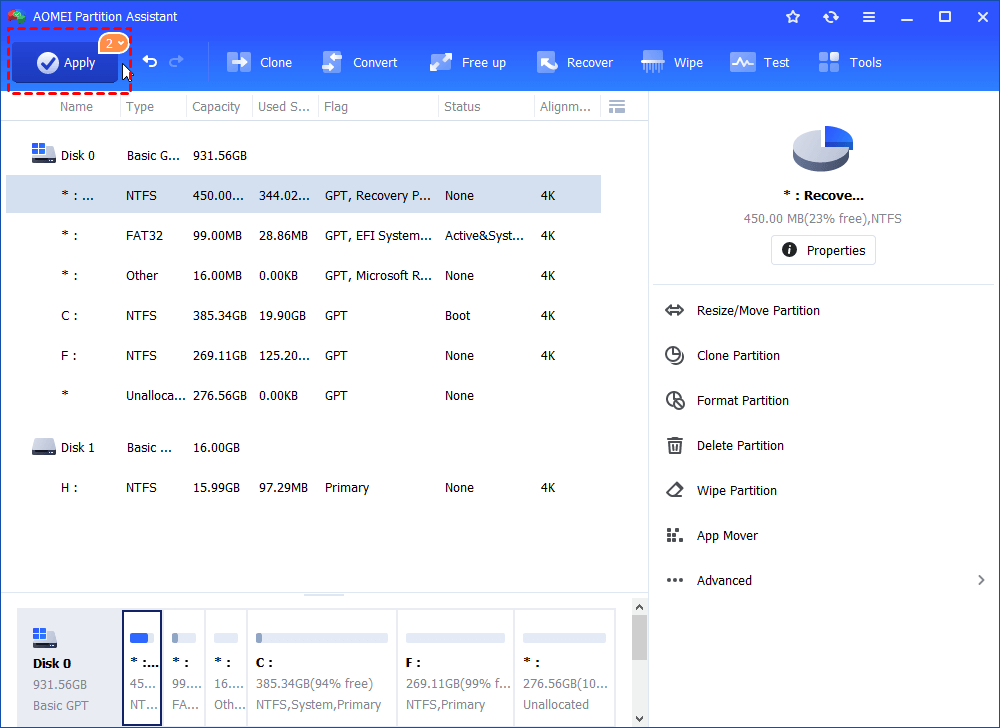
Step 3. Click “Apply” and “Proceed” to confirm the whole operation.
If none of the previous solutions resolve the issue, you can attempt to clean the entire disk. Keep in mind that this method will erase all data and partitions on the drive. Ensure that you back up or recover any important files before proceeding. Here are two ways to clean the disk:
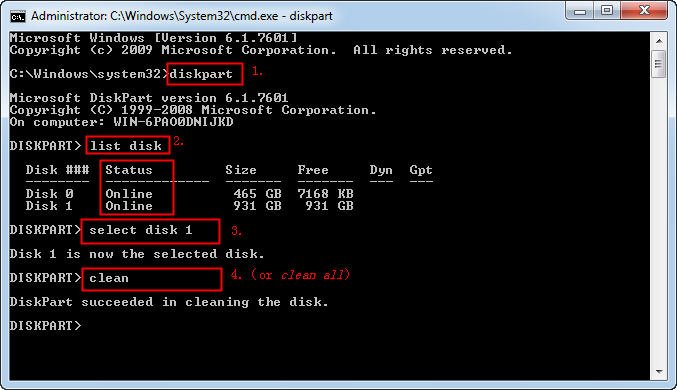
When you encounter the "Windows Setup: We couldn’t delete the selected partition" error, press Shift + F10 or Shift + Fn + F10 to open the Command Prompt.
Enter the following commands one by one to clean the disk:
Diskpart (this opens the DiskPart tool)
List disk (displays all disks connected to the system)
Select disk 1 (replace * with the disk number you wish to clean)
Clean (erases all data and partitions on the selected disk)
Step 1. Install and launch AOMEI Partition Assistant, click the "Wipe" main tab and select "Wipe Hard Disk" option. (You can also right-click the Disk you want to wipe and select the "Wipe Hard Drive" option.)
Step 2. Select the disk you want to wipe and click "OK" to continue.
In this stage, you can also select a wiping method to wipe the selected hard drive according to your requirements and click "OK". (By default, the wiping method is Fill in 0.)
Step 3. You can preview the shrink operation by viewing the "Pending Operations". To commit the "Pending Operations", please click "Apply" and "Proceed".
If none of the previous solutions resolve the issue, it’s possible that the hard drive itself is failing. To check for hardware issues, you can use S.M.A.R.T. tools or software like AOMEI Partition Assistant. If the tool detects bad sectors or blocks, this indicates a failing hard drive, and replacement may be necessary.
To check for hard drive errors using AOMEI Partition Assistant, follow this guide:
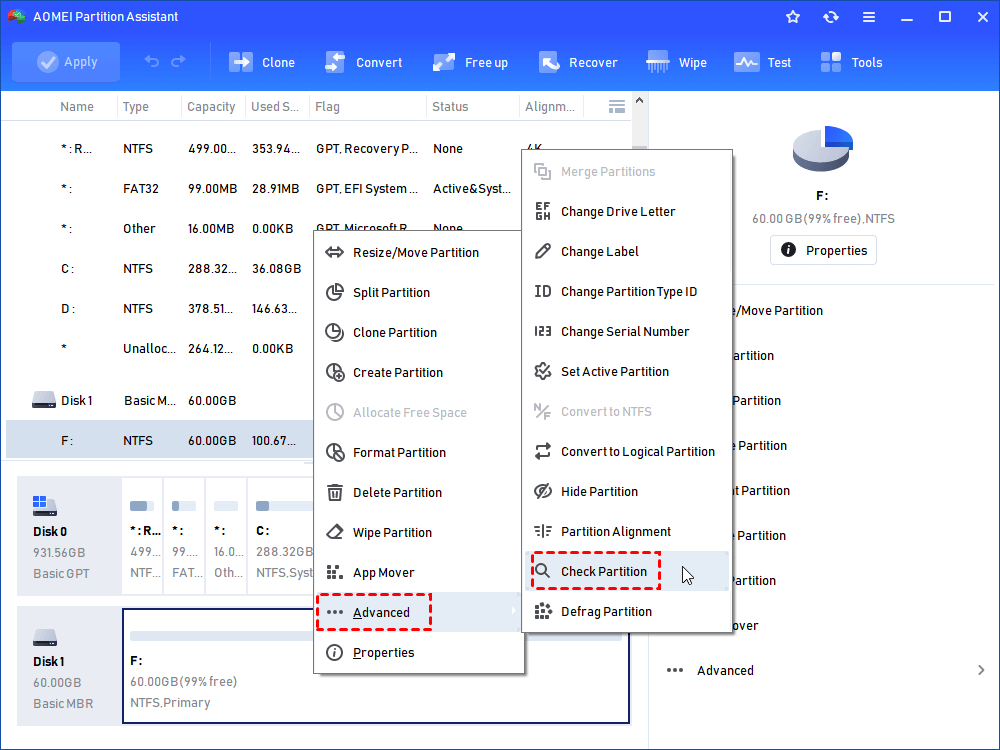
Step 1. In the main interface, right-click the target drive and then click "Check Partition".
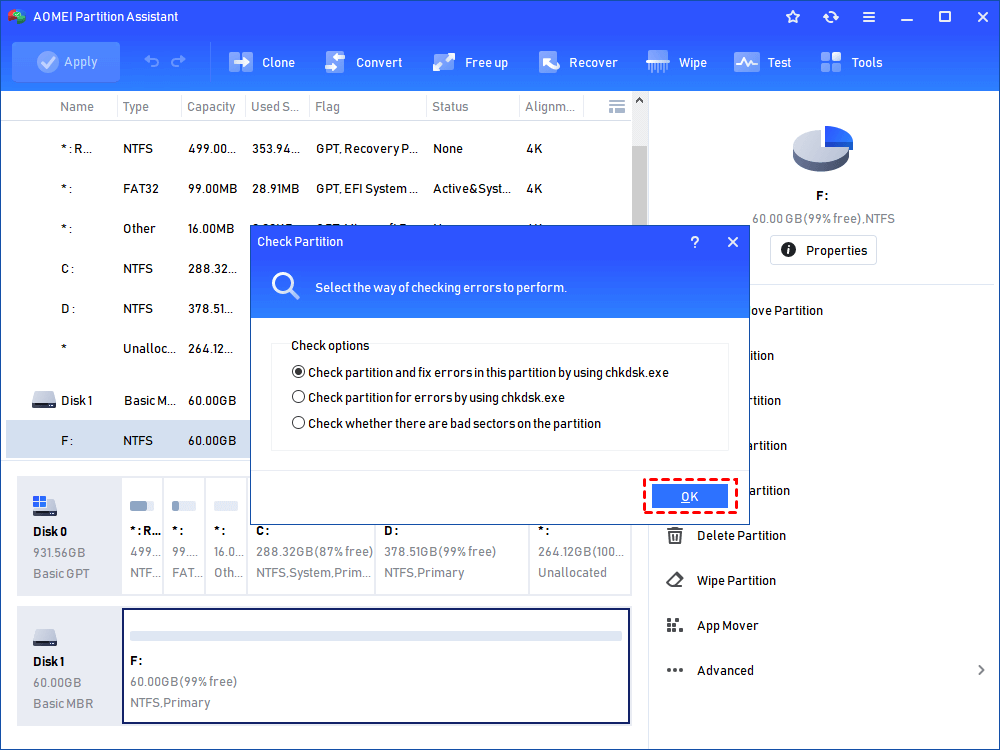
Step 2. Choose the "Check partition and fix errors in this partition by using chkdsk.exe" option, then click "OK".
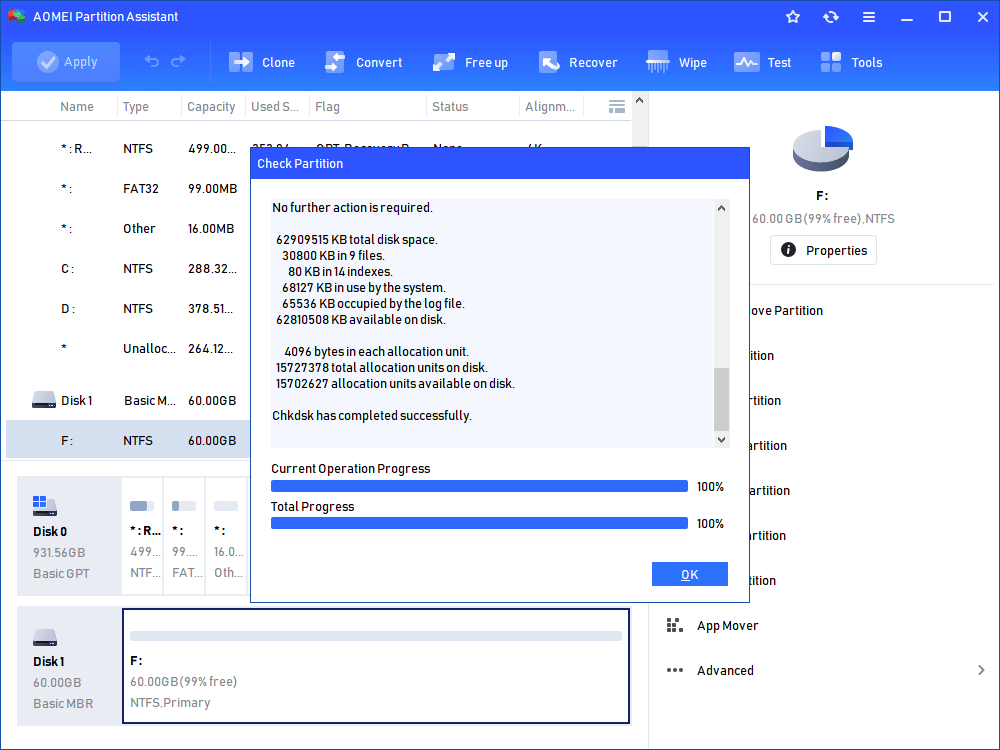
Step 3. Wait for a while and click "OK" when it's finished.
During Windows installation, you might encounter the error message: "We couldn’t delete the selected partition".This article provides five solutions to help resolve this issue. AOMEI Partition Assistant is especially useful for force-deleting stubborn partitions or handling complex disk setups safely when Windows tools fail. Always back up important data before proceeding with disk operations.