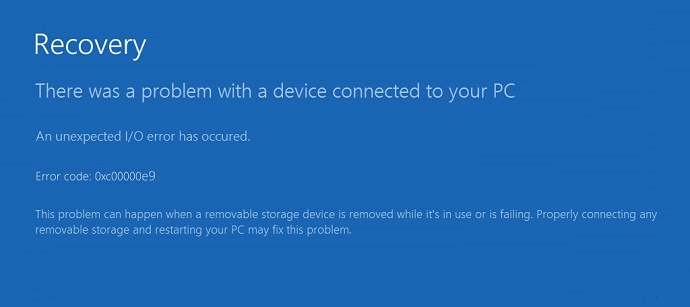
Delve into the complexities surrounding the unsettling message "a file error has occurred" and unlock insights into diagnosing and remedying this common issue. Discover practical strategies and expert tips to navigate through file errors with confidence and efficiency.
A file error has occurred. It's a phrase that strikes fear and frustration into the hearts of computer users everywhere. Whether you're a seasoned tech expert or a casual user, encountering this message can be a daunting experience. But fear not, for in this comprehensive guide, we'll unravel the mysteries behind this enigmatic error and equip you with the knowledge and solutions needed to overcome it.
At its core, the message "a file error has occurred" signifies that something has gone awry within the file system of your computer. This could manifest in various ways, from being unable to access certain files or folders to experiencing unexpected crashes and data loss. The causes behind such errors can be multifaceted, often stemming from issues within the operating system, hardware failures, or software conflicts.
1. Operating System Glitches: Sometimes, glitches or bugs within the operating system itself can trigger file errors. This could be due to corrupted system files, outdated software, or incomplete updates.
2. Hardware Malfunctions: Faulty hardware components such as hard drives or memory modules can also contribute to file errors. Physical damage, bad sectors, or failing hardware can disrupt the normal operation of your system, leading to data corruption and errors.
3. Software Conflicts: Incompatible or poorly coded software applications can clash with each other or the operating system, resulting in file errors and system instability. This is especially common when installing or uninstalling programs, where residual files or registry entries may linger and cause conflicts.
1. Launch Command Prompt as administrator.
2. Type "sfc /scannow" and press Enter.
3. Allow the scan to complete and follow on-screen instructions to repair corrupted system files.
4. Restart your computer to apply changes.
1. Open File Explorer and right-click on the drive experiencing file errors.
2. Select Properties, navigate to the Tools tab, and click on "Check" under Error checking.
3. Follow the prompts to scan and repair disk errors.
4. Restart your computer after the process completes.
1. Visit the manufacturer's website for your hardware components and download the latest drivers.
2. Ensure your operating system and software applications are up to date with the latest patches and updates.
3. Use reputable software tools to scan for and remove malware or potentially unwanted programs (PUPs) that may be causing file errors.
1. **System File Checker (SFC)**: A built-in Windows utility that scans and repairs corrupted system files.
2. **Check Disk (CHKDSK)**: A command-line tool used to check for and repair errors on hard drives and storage devices.
3. **Malware**: Malicious software designed to disrupt, damage, or gain unauthorized access to computer systems.
4. **Hardware Diagnostics**: Diagnostic tools and utilities used to identify and troubleshoot hardware-related issues and failures.
5. **Registry Entries**: Configuration settings stored in the Windows registry database that control system behavior and application settings.
**Q1: Why do file errors occur randomly?**
A: File errors can occur randomly due to a variety of factors, including software glitches, hardware malfunctions, or conflicts between applications and the operating system.
**Q2: Can file errors lead to data loss?**
A: Yes, file errors can potentially lead to data loss if not addressed promptly. It's essential to backup your important files regularly to mitigate the risk of data loss due to file errors or system failures.
**Q3: How can I prevent file errors in the future?**
A: To prevent file errors, ensure your system is regularly updated with the latest software patches and security updates. Additionally, perform routine maintenance tasks such as disk cleanup, defragmentation, and hardware diagnostics to keep your system healthy.
**Q4: Are there any diagnostic tools available to troubleshoot file errors?**
A: Yes, Windows operating systems come equipped with built-in diagnostic tools such as System File Checker (SFC) and Check Disk (CHKDSK) to help identify and repair file system errors.
**Q5: Can third-party software cause file errors?**
A: Yes, third-party software applications, especially those with low compatibility or stability issues, can sometimes trigger file errors or system crashes. It's essential to use reputable software from trusted sources to minimize the risk of compatibility issues and conflicts.
In conclusion, encountering the message "a file error has occurred" can be a daunting experience, but armed with the knowledge and solutions provided in this guide, you can confidently navigate through troubled waters and overcome these challenges. By understanding the underlying causes of file errors, implementing proactive maintenance strategies, and leveraging diagnostic tools, you can keep your system running smoothly and safeguard your valuable data against potential loss or corruption. Remember, when it comes to file errors, knowledge is power, and with the right approach, you can conquer the conundrum and keep your digital world in order.