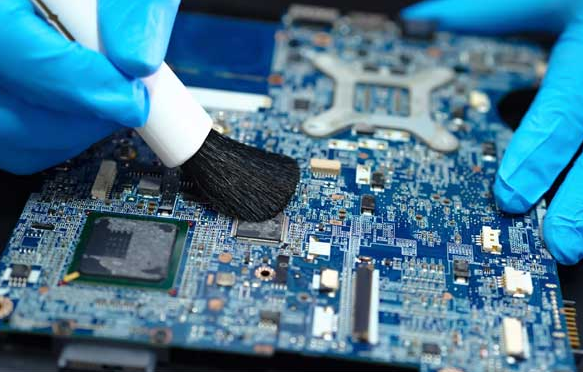
Explore the common problem of CPU is not compatible with Windows 10 8.1 8 error. This article provides insights into troubleshooting methods and solutions to address the issue, ensuring smooth operation and compatibility with your Windows operating system.
Are you encountering the dreaded "CPU is not compatible with Windows 10, 8.1, 8 error" message when trying to install or upgrade your operating system? Don't fret! This troubleshooting guide is here to help you understand the problem, explore potential causes, and provide effective solutions to resolve this compatibility issue.
If you're facing the "CPU is not compatible with Windows 10, 8.1, 8 error," it means that your computer's processor is not recognized as compatible with the version of Windows you're attempting to install or upgrade to. This can be a frustrating roadblock, but understanding the underlying causes can help you navigate towards a solution.
Potential Causes of the Error
1. **Outdated Processor**: One of the most common reasons for this error is using an outdated processor that does not meet the minimum requirements for the Windows operating system you're trying to install.
2. **Unsupported Architecture**: Your processor might not support the architecture required by the Windows version, such as 32-bit or 64-bit.
3. **BIOS Settings**: Incorrect BIOS settings or outdated firmware can also trigger compatibility issues between your CPU and Windows.
Now that we've identified the problem and its potential causes, let's delve into effective solutions to tackle the "CPU is not compatible with Windows 10, 8.1, 8 error."
1. **Check Processor Compatibility**:
First and foremost, verify if your processor is compatible with the Windows version you intend to install. Visit the official Microsoft website or consult your processor manufacturer's documentation for compatibility information.
2. **Update BIOS Firmware**:
Access your computer's BIOS settings and ensure that you're running the latest firmware version provided by your motherboard manufacturer. Updating the BIOS can often resolve compatibility issues between the CPU and Windows.
3. **Upgrade Your Processor**:
If your current processor is not compatible with the desired Windows version, consider upgrading to a compatible CPU that meets the system requirements.
4. **Perform a Clean Installation**:
Sometimes, performing a clean installation of Windows can bypass compatibility errors caused by previous installations or system configurations.
5. **Contact Technical Support**:
If you're unsure about the compatibility of your processor or need assistance with BIOS updates, don't hesitate to reach out to technical support channels provided by Microsoft or your computer's manufacturer.
Q1: How do I check if my processor is compatible with Windows 10, 8.1, or 8?
A: You can check the official Microsoft website for a list of supported processors or refer to your processor manufacturer's documentation for compatibility information.
Q2: Can I upgrade my processor to resolve the compatibility issue?
A: Yes, upgrading to a compatible processor that meets the system requirements of your desired Windows version can often resolve the compatibility error.
Q3: What should I do if updating the BIOS doesn't fix the problem?
A: If updating the BIOS firmware doesn't resolve the compatibility issue, consider contacting technical support for further assistance and troubleshooting steps.
Q4: Will reinstalling Windows help resolve the compatibility error?
A: Performing a clean installation of Windows can sometimes bypass compatibility errors caused by previous installations or system configurations.
Q5: Are there any alternative solutions to resolve the "CPU is not compatible" error?
A: In some cases, tweaking advanced BIOS settings or seeking professional assistance from computer technicians may offer alternative solutions.
1. **Central Processing Unit (CPU)**: The primary component of a computer responsible for executing instructions and performing calculations. 2. **BIOS Firmware**: Basic Input/Output System firmware that initializes hardware components during the boot process and provides low-level system control.
3. **Architecture**: The design or structure of a computer system, including the instruction set and data pathways used by the processor.
4. **System Requirements**: The minimum hardware and software specifications required to run a particular operating system or software application.
5. **Clean Installation**: Installing an operating system or software on a computer without retaining any previous data or configurations.
1. **Research System Requirements**: Before installing or upgrading Windows, thoroughly research the system requirements to ensure compatibility with your hardware components.
2. **Regularly Update BIOS**: Keep your computer's BIOS firmware up-to-date to mitigate compatibility issues and enhance system performance.
3. **Consult Manufacturer Documentation**: Refer to the documentation provided by your processor and motherboard manufacturers for guidance on compatibility and troubleshooting.
Encountering the "CPU is not compatible with Windows 10, 8.1, 8 error" can be a frustrating experience, but armed with the knowledge and solutions provided in this troubleshooting guide, you're well-equipped to overcome this obstacle. By following the steps outlined here and understanding the underlying causes, you can effectively resolve CPU compatibility issues and ensure a smooth Windows installation or upgrade process.