Uncover the reasons behind why the first aid process has failed and explore comprehensive troubleshooting techniques to address this common issue. Dive into expert guidance and take control of your system's health.
In the realm of system maintenance and data recovery, encountering issues with first aid process has failed can be frustrating and concerning. Whether you're dealing with a failed disk repair attempt or encountering errors during the first aid process, understanding the underlying causes and effective troubleshooting methods are essential for restoring your system's health and integrity.
The "first aid process has failed" error message often emerges when attempting to repair disk errors or perform system diagnostics. This error can stem from various factors, including hardware issues, software conflicts, or file system corruption.
1. **Disk Corruption**: Disk corruption is a common culprit behind failed first aid processes. It can occur due to sudden power outages, physical damage to the disk, or software glitches.
2. **Software Incompatibility**: Incompatible or outdated disk repair utilities may fail to address underlying disk issues, leading to the first aid process failure.
3. **Hardware Malfunction**: Hardware malfunctions such as failing disk drives or faulty connections can impede the first aid process and result in failure to repair disk errors effectively.
1. **Boot into Recovery Mode**: Restart your Mac and hold down Command + R to enter Recovery Mode.
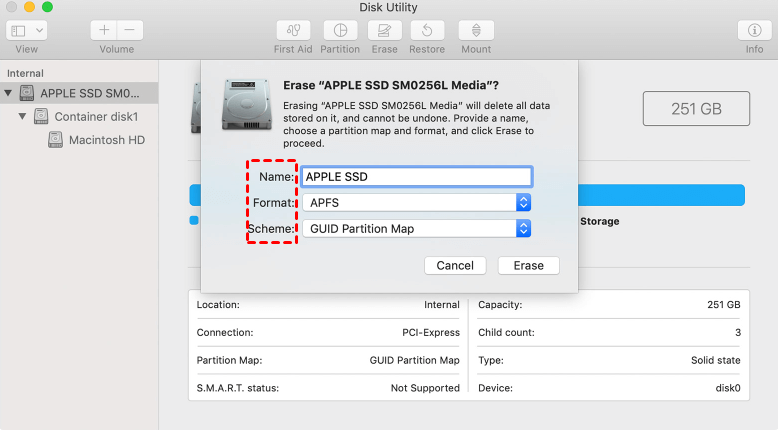
2. **Open Disk Utility**: From the macOS Utilities menu, select Disk Utility to launch the disk repair tool.
3. **Run First Aid**: Select the disk or volume experiencing issues and click on the First Aid button to initiate the repair process.
4. **Follow On-Screen Instructions**: Follow the on-screen instructions to complete the disk repair procedure.
5. **Restart Your Mac**: Once the first aid process is complete, restart your Mac to check if the issue has been resolved.
1. **Access Terminal**: Launch Terminal from the macOS Utilities menu in Recovery Mode.
2. **Enter Command**: Type "diskutil verifyDisk disk0" (replace "disk0" with the appropriate disk identifier) and press Enter to verify the integrity of the disk.
3. **Review Results**: Examine the results of the disk verification process to identify any errors or inconsistencies.
4. **Attempt Repair**: If errors are detected, run the "diskutil repairDisk disk0" command to attempt disk repair.
1. **Inspect Disk Connections**: Ensure that all cables connecting your disk drives are securely plugged in and not damaged.
2. **Test with Another Mac**: If possible, test the problematic disk on another Mac to determine if the issue is hardware-related.
3. **Consult Hardware Documentation**: Refer to the manufacturer's documentation for troubleshooting steps specific to your hardware components.
1. **Disk Corruption**:
The process of data loss or damage occurring on a disk due to various factors such as physical damage, software errors, or malware.
2. **Disk Utility**:
A built-in macOS tool that allows users to manage disks, partitions, and volumes, including disk repair and maintenance functions.
3. **Recovery Mode**:
A special boot mode in macOS that provides access to troubleshooting and recovery utilities for repairing disk errors and reinstalling macOS.
1. **Back Up Your Data Regularly**:
Create backups of your important files and data to safeguard against data loss in the event of disk errors or failures.
2. **Stay Informed**:
Keep abreast of software updates, hardware maintenance best practices, and troubleshooting techniques to address disk-related issues effectively.
3. **Seek Professional Assistance**:
If you encounter persistent disk problems or data loss, consider seeking assistance from professional data recovery services or IT specialists.
Navigating the complexities of disk errors and first aid process failures can be daunting, but armed with the right knowledge and tools, you can troubleshoot and resolve these issues effectively. By understanding the root causes of the first aid process has failed, implementing appropriate solutions, and adopting proactive data management practices, you can maintain the health and reliability of your system's storage devices. Don't let the frustration of a failed first aid process derail your productivity—take control and troubleshoot with confidence.
**Q1: Why did the first aid process fail?**
A: The first aid process may fail due to disk corruption, software incompatibility, or hardware malfunctions.
**Q2: How can I fix the first aid process failure?**
A: You can resolve the issue by running Disk Utility in Recovery Mode, verifying disk integrity using Terminal, or checking hardware connections and components.
**Q3: What should I do if Disk Utility fails to repair disk errors?**
A: If Disk Utility fails to repair disk errors, try running disk verification and repair commands in Terminal or consult professional data recovery services.
**Q4: Can I recover data from a disk with a failed first aid process?**
A: Depending on the extent of disk damage, data recovery may still be possible using specialized software or professional services.
**Q5: How can I prevent first aid process failures in the future?**
A: To prevent first aid process failures, regularly back up your data, update disk repair utilities, and ensure proper hardware maintenance.