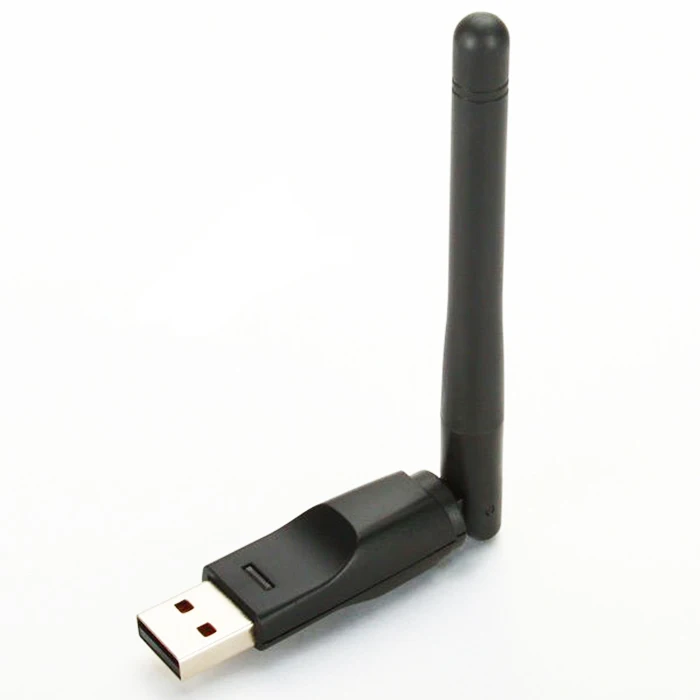
Unleash the full potential of your wireless connectivity with the Ralink 802.11 N WLAN driver Windows 10. In this guide, we explore the key benefits, troubleshooting tips, and step-by-step solutions to enhance your network experience. Elevate your digital journey with improved speed, stability, and reliability.
Wireless connectivity is an integral part of our digital lives, and having a reliable driver is crucial to ensure a seamless experience on Windows 10. In this guide, we'll explore the nuances of the Ralink 802.11 N WLAN driver Windows 10, addressing common issues, providing practical solutions, and enhancing your overall wireless journey.
In the ever-evolving landscape of technology, users often encounter connectivity issues with their wireless networks. Understanding the problems and their potential causes is the first step towards unlocking a better wireless experience on Windows 10.
1. **Interference and Signal Strength:** Weak signals or interference from other devices can lead to unstable connections.
2. **Outdated Drivers:** Using an outdated or incompatible driver may result in connectivity issues.
3. **Configuration Problems:** Incorrect network settings and configurations can hinder smooth wireless functioning.
4. **Hardware Limitations:** Aging hardware components may struggle to keep up with the demands of modern wireless networks.
Now that we've identified the potential challenges, let's delve into actionable solutions to enhance your wireless connectivity.
1. **Positioning Your Router:** Strategically place your router to maximize signal coverage.
2. **Signal Boosters:** Consider investing in signal boosters for extended coverage.
3. **Channel Selection:** Experiment with different channels to minimize interference.
1. **Check for Updates:** Regularly update your Ralink driver to access the latest features and bug fixes.
2. **Manual Installation:** If needed, manually install the driver by downloading it from a reliable source.
1. **Check Network Settings:** Ensure that your network settings align with your requirements.
2. **Resetting Configurations:** Resetting your network configurations can resolve persistent issues.
1. **Consider Newer Hardware:** If your existing hardware is outdated, upgrading to newer components might be necessary.
*Q1: How can I check if my Ralink driver is up to date?*
*A:* Navigate to the Device Manager, locate your network adapter, right-click, and select "Update driver."
*Q2: Are there any compatibility issues with Ralink drivers on Windows 10?*
*A:* Ralink drivers are generally compatible with Windows 10. Ensure you download the correct version from the official website.
*Q3: Can I use third-party driver update tools for Ralink drivers?*
*A:* It's recommended to obtain drivers directly from the official Ralink website to ensure reliability and security.
*Q4: What should I do if my wireless connection is consistently dropping?*
*A:* Check signal strength, update your Ralink driver, and consider adjusting router settings for a stable connection.
*Q5: Is it possible to roll back to a previous Ralink driver version?*
*A:* Yes, you can roll back to a previous driver version through the Device Manager.
1. *WPA3 Security Protocol*
2. *Dual-Band Compatibility*
3. *MU-MIMO Technology*
4. *Beamforming*
5. *802.11ac Standard*
6. *SSID (Service Set Identifier)*
7. *Packet Loss*
8. *Frequency Bands*
1. *Regularly Update Your Ralink Driver*
2. *Invest in Quality Networking Hardware*
3. *Secure Your Network with WPA3 Encryption*
4. *Position Your Router Strategically*
5. *Monitor Signal Strength Periodically*
6. *Utilize Dual-Band Capabilities*
In conclusion, the Ralink 802.11 N WLAN driver Windows 10 has the potential to transform your wireless experience on Windows 10. By addressing common issues, implementing practical solutions, and staying informed about relevant tech terms, you can elevate your connectivity to new heights. Unlock the full power of your wireless network and embrace a seamless digital journey.