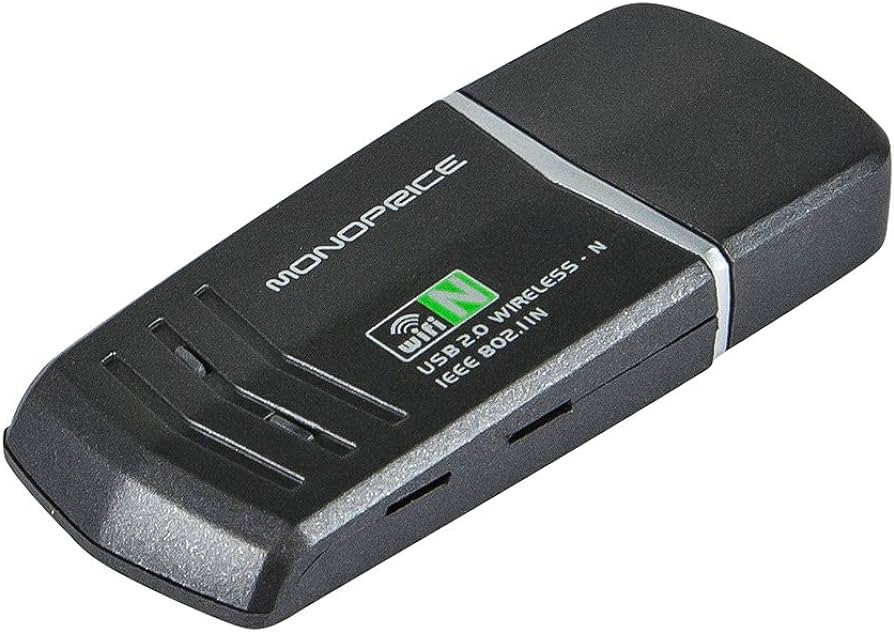
Experience a connectivity revolution on your device with the Ralink 802.11 N WLAN driver Windows 7 32 bit. Dive into a world of seamless networking as we explore the driver's capabilities, troubleshooting tips, and step-by-step installation guide. Say goodbye to connectivity hurdles and embrace a smoother online journey.
Are you tired of sluggish internet speeds and connectivity issues on your Windows 7 32-bit device? The solution to your network woes might be just a driver away. In this guide, we'll explore the power of the Ralink 802.11 N WLAN driver Windows 7 32 bit and how it can transform your wireless experience. Let's dive into the details and unleash the full potential of your connectivity.
In the world of wireless connections, a slow or unreliable network can be a major hindrance. Users of Windows 7 32-bit systems often encounter issues such as laggy internet speeds, frequent disconnections, or difficulty in establishing a connection. The root causes can vary, including outdated or incompatible drivers, interference from other devices, or network configuration issues.
- Access the Device Manager.
- Locate the network adapters section.
- Right-click on your wireless adapter and select "Update driver."
- Choose the option to search for updated driver software automatically.
- Adjust your router settings to operate on a less congested channel.
- Enable Quality of Service (QoS) settings to prioritize your device's network traffic.
- Identify and eliminate potential sources of interference, such as other electronic devices or neighboring networks.
- Position your router in a central location for better signal distribution.
*Q1: How do I check if my Ralink 802.11 N WLAN driver is outdated?*
**A:** Navigate to the Device Manager, locate your wireless adapter, right-click, and select "Properties." Go to the "Driver" tab and check for the driver version and release date.
*Q2: Can I use the Ralink driver on Windows 7 64-bit?*
**A:** The Ralink 802.11 N WLAN driver is designed for Windows 7 32-bit. For 64-bit systems, ensure you download the appropriate driver version.
*Q3: What is the recommended channel for optimal Wi-Fi performance?*
**A:** Channels 1, 6, and 11 are considered non-overlapping and are recommended for minimal interference.
*Q4: Should I uninstall the old driver before updating to Ralink 802.11 N?*
**A:** Yes, it's advisable to uninstall the old driver before updating to prevent conflicts. Use the Device Manager to uninstall the current driver.
*Q5: Can Ralink 802.11 N WLAN driver improve gaming performance?*
**A:** Yes, a stable and fast wireless connection provided by the Ralink driver can enhance online gaming performance.
*Q6: Is it necessary to restart my computer after updating the driver?*
**A:** Yes, restarting your computer ensures that the changes take effect and the new driver is properly loaded.
1. **Wireless Protocol:**
The set of rules that define how data is transmitted wirelessly between devices.
2. **Interference:**
Disturbances or disruptions in a wireless signal caused by other electronic devices or networks.
3. **Quality of Service (QoS):**
A feature that prioritizes certain types of network traffic to ensure a better user experience.
4. **Router Configuration:**
Adjusting settings on your router to optimize network performance.
5. **Device Manager:**
A Windows utility that allows users to view and control the hardware attached to their computer.
6. **Driver Compatibility:**
Ensuring that the driver software is suitable for the specific version and architecture of the operating system.
7. **Channel Congestion:**
Occurs when multiple Wi-Fi networks nearby use the same wireless channel, leading to interference.
1. Position your router strategically for optimal signal coverage.
2. Regularly update your Ralink 802.11 N WLAN driver for the latest improvements.
3. Use a wireless range extender if your current router's signal doesn't cover your entire space.
4. Secure your Wi-Fi network with a strong password to prevent unauthorized access.
5. Consider upgrading your router for advanced features and better performance.
In conclusion, the Ralink 802.11 N WLAN driver Windows 7 32 bit can be the key to unlocking seamless connectivity on your Windows 7 32-bit device. By understanding the challenges, implementing solutions, and staying informed about relevant tech terms, you can navigate the world of wireless networking with confidence. Supercharge your wireless connection today and experience a new level of online brilliance.