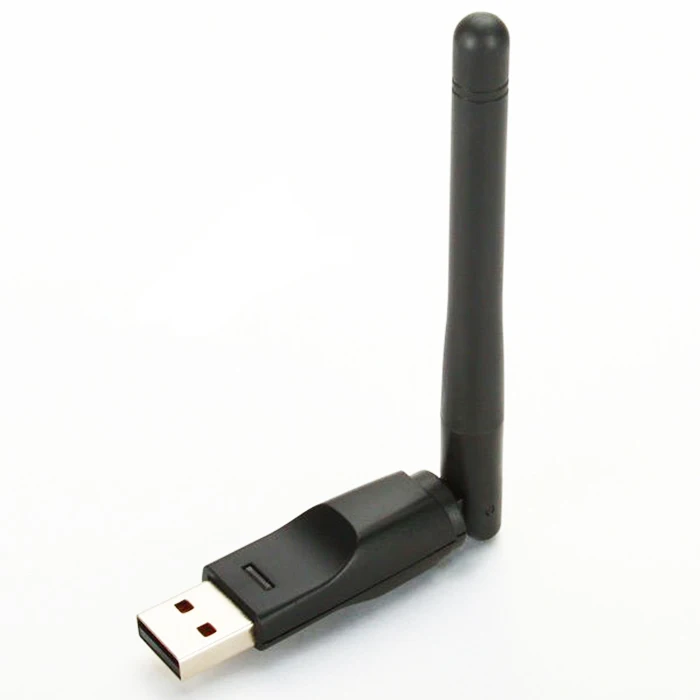
Embark on a journey to optimize your wireless experience as we delve into the realm of Ralink 802.11 USB Wireless LAN Card driver Windows 7. Uncover the solutions to potential connectivity challenges and learn how updating your drivers can elevate your device's performance. Join us in exploring the essential steps to ensure a smooth and uninterrupted connection on your Windows 7 system.
In the ever-evolving landscape of technology, a seamless wireless connection is non-negotiable. If you find yourself grappling with connectivity issues on your Windows 7 system, the culprit might be outdated or malfunctioning drivers for your Ralink 802.11 USB Wireless LAN Card driver Windows 7. Fear not, as we embark on a journey to troubleshoot, optimize, and unleash the full potential of your wireless experience.
Is your wireless connection lagging, dropping, or failing to perform at its peak? The heart of the issue often lies in outdated or faulty drivers for your Ralink 802.11 USB Wireless LAN Card. These drivers act as the communication bridge between your device and the network, and any hiccups in this bridge can lead to connectivity woes.
1. *Outdated Drivers:*
Over time, software evolves, and outdated drivers may struggle to keep up with the latest network protocols.
2. *Interference:*
Electronic interference from other devices or networks can disrupt your wireless connection.
3. *Configuration Errors:*
Incorrect settings or misconfigurations may impede the card's ability to establish a stable connection.
Now that we've identified the problem, let's dive into the solutions.
1. *Navigate to Device Manager:* Right-click on the Start button, and select Device Manager.
2. *Locate Network Adapters:* Expand the Network Adapters section.
3. *Update Driver:* Right-click on your Ralink 802.11 USB Wireless LAN Card, and select Update Driver.
4. *Automatic Search:* Choose "Search automatically for updated driver software."
5. *Install the Updated Driver:* Follow the on-screen instructions to install the latest driver.
1. *Identify Interference Sources:* Check for nearby electronic devices causing interference.
2. *Change Channel Settings:* Access your router settings and change the wireless channel to minimize interference.
1. *Verify SSID and Password:* Ensure the correct network name (SSID) and password are entered.
2. *IP Configuration:* Set your network connection to obtain an IP address automatically.
1. *Open Command Prompt:* Run as Administrator.
2. *Execute Commands:* Type "netsh int ip reset" and press Enter.
3. *Restart Your Computer:* Reboot to apply changes.
**Q1: How often should I update my Ralink 802.11 USB Wireless LAN Card driver?**
**A:** It's advisable to check for driver updates every three to six months to ensure optimal performance.
**Q2: Can interference from other devices be the sole reason for connectivity issues?**
**A:** While interference is a common culprit, other factors like outdated drivers or network misconfigurations can contribute.
**Q3: Are there specific routers compatible with the Ralink 802.11 USB Wireless LAN Card?**
**A:** Ralink cards are designed to work with a wide range of routers. Ensure compatibility by checking specifications.
1. *SSID (Service Set Identifier):* Network name that identifies a wireless network.
2. *IP Address:* Unique numerical label assigned to each device connected to a computer network.
3. *TCP/IP Stack:* Set of protocols governing how data is sent and received over the internet.
1. *Position Your Router Strategically:* Place it in a central location to ensure optimal coverage.
2. *Use Strong Passwords:* Secure your network to prevent unauthorized access.
3. *Regularly Check for Updates:* Keep both your Ralink card driver and router firmware up to date.
In conclusion, optimizing your Ralink 802.11 USB Wireless LAN Card driver Windows 7 is the key to unlocking lightning-fast, uninterrupted connectivity. By understanding and addressing the root causes of connectivity issues, updating drivers, and implementing best practices, you can elevate your wireless experience to new heights. Don't let connectivity challenges hinder your online endeavors – unleash the full potential of your wireless LAN card and embrace seamless connectivity!