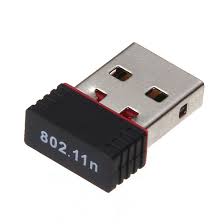
Are you tired of sluggish WiFi on your Windows 8.1 device? Dive into the world of enhanced connectivity as we explore the power of the Ralink 802.11 WiFi Adapter driver for Windows 8.1. This article unveils the common issues, effective solutions, and the key steps to optimize your wireless experience on Windows 8.1. Turbocharge your connectivity today!
In the fast-paced digital era, a slow or unreliable internet connection can be a major bottleneck. If you're experiencing connectivity issues on your Windows 8.1 device, the culprit might be outdated or inefficient drivers, specifically the Ralink 802.11 WiFi Adapter driver for Windows 8.1. Let's delve into the common problems, explore effective solutions, and ensure you're making the most out of your wireless connectivity.
Slow internet speeds, frequent disconnections, and a generally subpar wireless experience—are the issues that users often face with the Ralink 802.11 WiFi Adapter driver on Windows 8.1. The problem is not just about the inconvenience; it's about hindering productivity and frustrating user experiences.
1. **Outdated Drivers:**
Over time, technology evolves, and outdated drivers struggle to keep up, resulting in performance issues.
2. **Interference:**
External factors like interference from other electronic devices or physical obstructions can disrupt the WiFi signal.
3. **Configuration Problems:**
Incorrect configuration settings can lead to connectivity hiccups.
1. Go to the Device Manager.
2. Locate the Ralink 802.11 WiFi Adapter.
3. Right-click and select "Update Driver."
4. Choose "Search automatically for updated driver software."
5. Follow the on-screen instructions to complete the update.
1. Reposition your router for better coverage.
2. Minimize interference by placing the router away from other electronic devices.
3. Invest in a WiFi extender for larger spaces.
1. Access your router's settings through a web browser.
2. Ensure that the WiFi password is correct.
3. Adjust channel settings to minimize interference.
*Q1: Why is my Ralink 802.11 WiFi Adapter not connecting?*
A: This issue may arise due to outdated drivers or incorrect configuration settings. Update your drivers and check your router's configuration.
*Q2: How often should I update my WiFi adapter driver?*
A: Regularly check for updates, at least once every three months, to ensure optimal performance.
*Q3: Can interference from other devices affect WiFi performance?*
A: Yes, electronic devices like cordless phones and microwaves can interfere with the WiFi signal.
*Q4: Is a WiFi extender necessary for a small apartment?*
A: While not necessary, a WiFi extender can enhance coverage in larger spaces.
*Q5: Can I use the Ralink 802.11 WiFi Adapter on other operating systems?*
A: Compatibility varies; check the manufacturer's specifications for supported operating systems.
1. **Wireless Protocol:**
The set of rules governing communication between devices over a wireless network.
2. **Frequency Band:**
The range of frequencies used for transmitting data wirelessly.
3. **Router Configuration:**
Adjusting settings in the router to optimize network performance.
4. **Interference:**
Disruption caused by external signals affecting the WiFi signal.
5. **Channel Optimization:**
Selecting the least congested channel for WiFi communication.
1. Regularly update your Ralink 802.11 WiFi Adapter driver for optimal performance.
2. Keep your router firmware up-to-date to address security vulnerabilities.
3. Consider investing in a dual-band router for improved connectivity.
As we wrap up, remember that a seamless wireless experience begins with an updated and well-configured Ralink 802.11 WiFi Adapter driver for Windows 8.1. By understanding the issues, implementing effective solutions, and embracing a few pro tips, you can turbocharge your connectivity on Windows 8.1. Say goodbye to connectivity woes and welcome a faster, more reliable wireless experience!