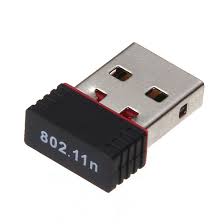
Embark on a journey of seamless connectivity as we delve into the essential details of the Ralink 802.11 Wireless Adapter Driver Windows 7. Uncover the solutions to potential challenges, optimize your wireless experience, and ensure your Windows 7 system operates at its peak performance. Elevate your connectivity effortlessly with the insights shared in this comprehensive exploration.
Wireless connectivity is at the heart of our digital experience, and having the right driver is crucial for optimal performance. In this comprehensive guide, we unveil the intricacies of the Ralink 802.11 Wireless Adapter Driver Windows 7. Let's delve into the key aspects that can enhance your connectivity and troubleshoot common issues.
What's the Issue? In the realm of wireless adapters, users often encounter challenges that hinder their seamless experience. Understanding these issues is the first step towards finding effective solutions.
1. **Outdated Drivers:** Using outdated drivers can lead to compatibility issues and degraded performance.
2. **Interference:** Wireless signals can be disrupted by various interferences, affecting the adapter's functionality.
3. **Configuration Problems:** Incorrect settings and configurations may impede the proper functioning of the wireless adapter.
1. Navigate to the Device Manager.
2. Locate the Ralink 802.11 Wireless Adapter.
3. Right-click and select "Update Driver."
4. Choose the option to search automatically for updated driver software.
1. Identify potential sources of interference (other electronic devices, neighboring networks).
2. Position your wireless router away from these sources.
3. Select a less congested wireless channel.
1. Access your router settings through a web browser.
2. Ensure the SSID and security settings match between the router and adapter.
3. Adjust channel settings for optimal performance.
**Q1:** How often should I update my wireless adapter driver?
**A:** Regular updates are recommended, ideally every few months, to ensure compatibility and performance improvements.
**Q2:** Can interference from other devices affect my wireless connection?
**A:** Yes, interference from devices like cordless phones and microwaves can disrupt wireless signals.
**Q3:** What security measures should I implement for my wireless network?
**A:** Use WPA3 encryption, a strong passphrase, and consider MAC address filtering for added security.
**Q4:** Are there alternative drivers compatible with Ralink 802.11 adapters?
**A:** While Ralink provides official drivers, some users explore community-developed drivers. However, caution is advised.
**Q5:** How can I troubleshoot if my connection drops frequently?
**A:** Check for interference, update drivers, and ensure your router firmware is up to date.
Demystifying Tech Terms
1. **SSID (Service Set Identifier):** Network name broadcasted by a wireless router.
2. **WPA3 Encryption:** The latest Wi-Fi Protected Access protocol for enhanced security.
3. **MAC Address Filtering:** Restricting access to a network based on device MAC addresses.
4. **Device Manager:** Windows tool for managing hardware devices and drivers.
5. **Router Firmware:** Software embedded in a router providing its operating system.
1. Regularly update your wireless adapter driver.
2. Position your router in a central location for optimal coverage.
3. Secure your network with a strong passphrase.
4. Use the latest WPA3 encryption for heightened security.
5. Consider a dual-band router for improved performance.
In conclusion, the Ralink 802.11 Wireless Adapter Driver Windows 7 is a key player in ensuring your wireless connectivity remains seamless. By addressing common issues, updating drivers, and implementing best practices, you can unlock the full potential of your wireless network. Elevate your connectivity experience with these insights and enjoy a smoother digital journey.