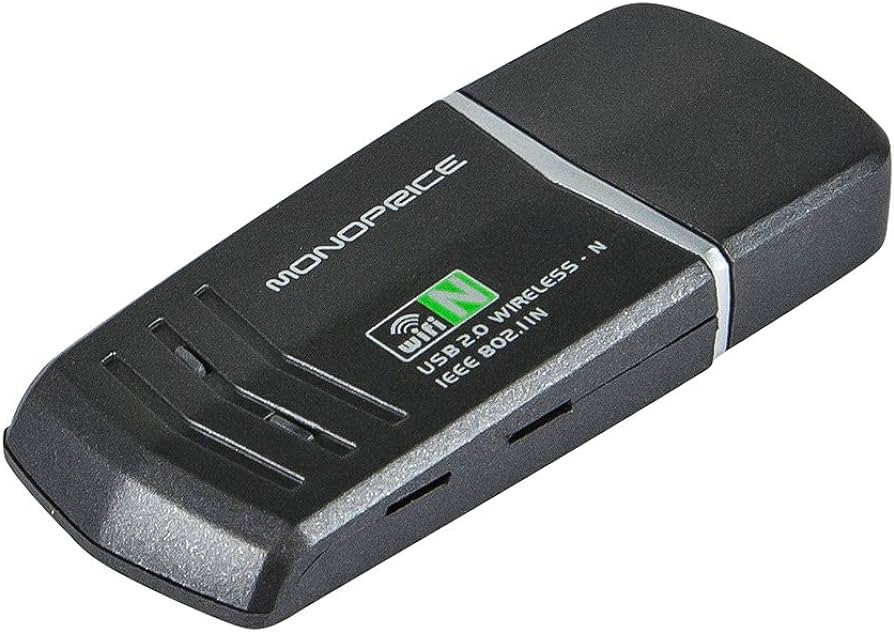
Delve into the world of high-speed wireless connectivity as we explore the wonders of the Ralink driver Windows 7 802.11 n. This article unveils the secrets to maximizing your network speeds, ensuring a seamless and swift online experience. Whether you're streaming, gaming, or simply browsing, unlocking the potential of your wireless connection has never been more exciting!
In the world of wireless connectivity, speed is paramount. If you find yourself grappling with sluggish network speeds on Windows 7, the Ralink driver Windows 7 802.11 n is your ticket to a faster, more seamless online experience.
Slow wireless speeds can be a frustrating barrier to productivity, entertainment, and overall online satisfaction. The Ralink driver for Windows 7 802.11n addresses this challenge head-on, promising to elevate your wireless experience to new heights.
*1. Outdated Drivers:* Outdated or incompatible drivers are a common culprit behind slow wireless speeds. The Ralink driver ensures that your network adapter is operating at its full potential.
*2. Interference Issues:* Wireless signals can face interference from various sources, such as other electronic devices and competing networks. The Ralink driver optimizes signal strength, mitigating interference-related slowdowns.
*3. Network Configuration:* Incorrect network settings or suboptimal configurations can hinder speed. This article guides you through solutions to fine-tune your network settings for optimal performance.
1. Identify Your Current Driver Version
2. Download the Latest Ralink Driver
3. Install the New Driver
4. Restart Your System
5. Verify Successful Installation
1. Access Router Settings
2. Choose the Optimal Wireless Channel
3. Enable Quality of Service (QoS)
4. Adjust Bandwidth Settings
5. Save and Restart Router
1. Identify Potential Interference Sources
2. Relocate Wireless Devices
3. Use 5GHz Band
4. Update Firmware
5. Invest in Quality Hardware
*Q1: How do I check my current driver version?*
*A:* Navigate to Device Manager, locate your network adapter, right-click, and select Properties. Go to the Driver tab to find the current version.
*Q2: Can I update the Ralink driver manually?*
*A:* Yes, you can manually download and install the latest driver from the official Ralink website. Follow the provided instructions for a seamless update.
*Q3: What is the optimal wireless channel?*
*A:* The optimal channel is one with the least interference. Use tools like Wi-Fi analyzers to identify the least congested channel in your area.
*Q4: Will optimizing network settings affect other devices?*
*A:* No, optimizing network settings primarily enhances the performance of the connected device. Other devices on the network remain unaffected.
*Q5: How often should I update my Ralink driver?*
*A:* Regular driver updates are recommended. Check for updates quarterly or whenever you experience connectivity issues.
1. *Network Adapter:* The hardware component that allows your device to connect to a network.
2. *Router Settings:* Configuration options for your wireless router, including channels, bandwidth, and QoS.
3. *Firmware:* Software embedded in hardware, such as routers, providing low-level control for the device's specific hardware.
1. *Position Your Router Strategically:*
Place your router in a central location to ensure equal signal distribution throughout your space.
2. *Regularly Update Network Drivers:*
Keep all network-related drivers up to date to benefit from performance improvements and security fixes.
3. *Invest in Quality Hardware:*
High-quality routers and network adapters can significantly enhance your wireless experience.
In conclusion, the Ralink driver Windows 7 802.11 n is your key to unlocking blazing-fast wireless speeds. By addressing common causes of sluggish performance and providing practical solutions, this article empowers you to optimize your network and enjoy a seamless online experience. Don't let slow speeds hold you back – elevate your wireless connectivity today!