When you encounter Disk Cleanup not working when removing junk files, you can read this article to get 3 solutions. Follow it to let Disk Cleanup work properly and easily remove junk files on your computer.
Disk Cleanup is a built-in Windows tool designed to free up space by removing unnecessary files from your computer. Although it has been replaced by a newer tool in the Settings app, it is still available as a legacy feature in Windows 10 and 11. However, some users face issues like Disk Cleanup not working, not opening, or failing to delete files, especially after a system update. This happens because of corrupted update files, incomplete installations, or changes in system settings.
If you encounter these problems, you can try several solutions to fix them. Alternatively, you can switch to a reliable alternative tool to remove junk files, keep your PC clean, enhance system performance, and protect it from viruses or malware.
Built-in Windows tools can sometimes be difficult to use and unstable, just like the issue Disk Cleanup not working or not open issue. If you find yourself facing these challenges, considering using a third-party solution like PartitionAssistant Cleanup may be a good idea. This software is designed to clean up junk files on your PC while offering a simple and efficient way to optimize your system.
The software conducts a deep scan of your PC, categorizing junk files and automatically selecting the ones that are safe to delete. This eliminates the need for manual checks, simplifying the process of freeing up disk space. However, if you prefer, you can still review and select specific files for deletion to maximize your storage space.
PartitionAssistant Cleanup provides features such as junk file cleanup and deleting large files, all within a single program. Here’s why it stands out as an excellent choice for cleaning disk:
User-friendly: It eliminates the need for technical expertise.
No manual cleanup necessary: The software automates the process, saving you time.
All-in-one solution: Every optimization tool you need is integrated into one application. It also offers find and remove duplicate files for removing useless files.
The Best Windows Disk Partition Manager and PC Optimizer
Step 1. Install and launch PartitionAssistant Cleanup. Click the "Clean Junk Files" tab.
Step 2. Click the "Scan Now" button to start the process of scanning junk files.
Step 3. After the scan process is finished. All system junk files (including recycle bin files, temporary files, log files, invalid shortcuts, and so on) and registry junk files (including DLL registry, system registry, and program registry) will be displayed.
Step 4. You can also click the button behind to view the junk files details.
Step 5. And, you can click the button behind to locate the file.
Step 6. By default, the program will select some junk files to clean up, for example, temporary files, log files, and so on. You can also manually check to select more or uncheck to deselect fewer listed junk files. Or, click "Select All" to select all junk files to clean up if you need to clean up all.
After selecting junk files that are not needed anymore, you can click the "Clean Now"button to start the cleanup.
Step 7. The process of the cleanup might take time, and the selected files will be cleaned up. After the process is finished, you will get a cleanup completed window displaying how many files you have cleaned and not yet cleaned.
Why is Disk Cleanupnot working? It could be due to corrupted system files, outdated Windows, or other reasons. Running the System File Checker (SFC), updating Windows, or temporarily disabling third-party programs can often fix the issue. In this section, we will share the detailed steps for fixing Disk Cleanup not working or won't open issue. If the problem persists, using a third-party tool like AOMEI Partition Assistant may provide a more reliable solution for cleaning and optimizing your disk.
SFC, short of System File Checker, is a Microsoft Windows application that allows users to search for and recover broken Windows system files. You use it through CMD.
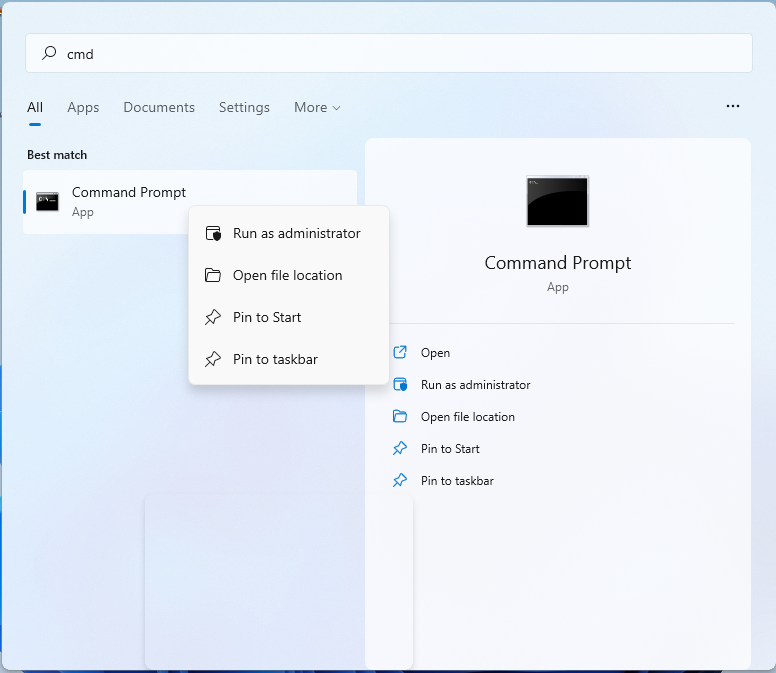
Step 1. Type “cmd” in the Search box. Right-click Command Prompt and choose “Run as Administrator”.
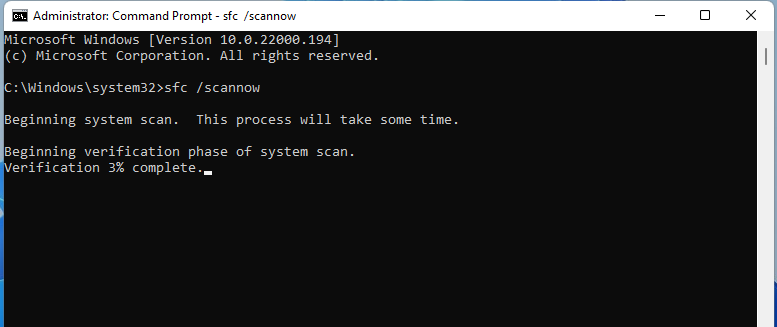
Step 2. Type “sfc /scannow” and press "Enter".
After that, you need to reboot your computer.
DISM is a command-line utility that can handle a wide range of servicing duties. It is capable of querying, configuring, installing, and uninstalling Windows features such as locale settings, optional components, device drivers, and Windows updates. What’s more, it also can restore damaged or corrupt Windows files by obtaining a fresh copy from the Internet.
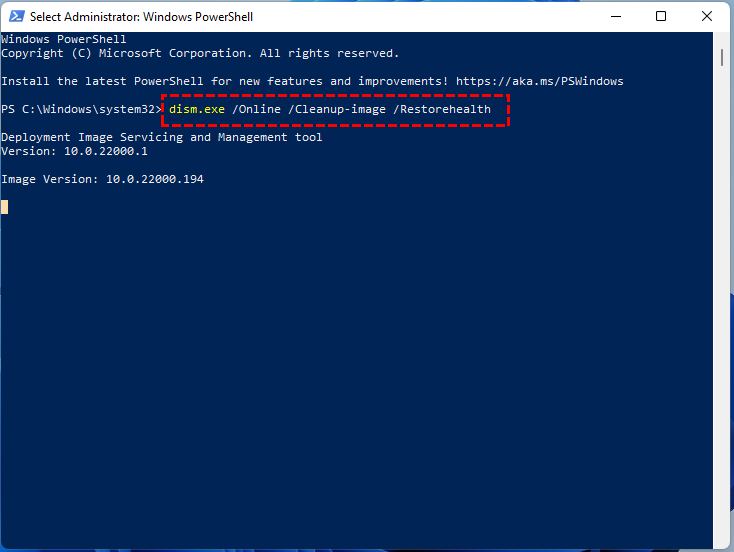
Step 1. Type “PowerShell” in the Windows search bar. Right-click the best match and choose “Run as Administrator”.
Step 2. Type “dism.exe /Online /Cleanup-image /Restorehealth” and hit “Enter”.
Wait for the process to finish and close the windows to try Disk Cleanup.
If corrupt temporary files are present, Disk Cleanup might not open on Windows 11, 10, 8 ,7. To resolve this issue. You can manually delete temporary files to fix the "Disk Cleanup not working" problem on Windows 11, 10, 8 ,7. please refer to the following steps:
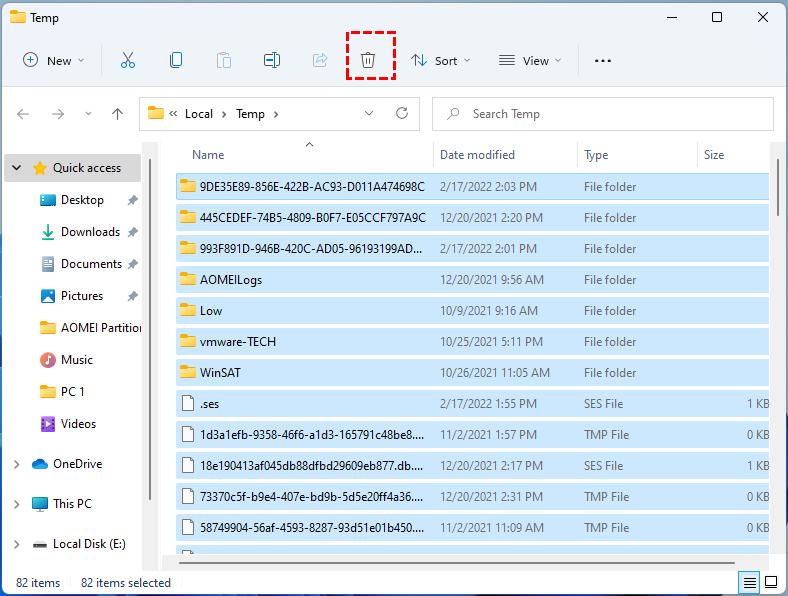
Step 1. Press “Windows + R”, type in “%temp%” and hit Enter.
Step 2. Here, you can select the temp files and delete them.
Disk Cleanup not working issue is common, particularly after updates or due to system file corruption. When it fails to work, built-in troubleshooting methods like running SFC or deleting temporary files can often resolve the problem. However, for a more efficient and hassle-free experience, third-party solutions like PartitionAssistant Cleanup offer powerful, user-friendly alternatives. These tools not only simplify disk optimization but also ensure your system stays clean, secure, and running at its best.
The Best Windows Disk Partition Manager and PC Optimizer