This passage introduces the best file manager for Windows computers. The powerful Windows file management software can help you remove duplicate, large, and junk files effectively.
Is there a better file manager than Explorer that I can download? I'm looking for the best file manager to organize files and folder app for my Windows 10 computer. If you know a good app please let me know. Thank you!
- Question from www.reddit.com
A good file manager helps keep your files organized and your computer running efficiently. Over time, downloading the same file multiple times can take up valuable storage space. Duplicate images, documents, and other files can clutter your system. On top of that, junk files—like temporary files and old registry entries—accumulate, slowing down performance.
Large files can also cause similar issues. Manually finding and deleting them takes time and effort, and some files or folders may be hidden or stored in different locations. If not managed properly, they will quickly fill up your storage again.
This is where reliable Windows file management software comes in. It not only helps you find and remove unnecessary files but also provides these key benefits:
🔷Free up disk space – Unnecessaryfiles take up a lot of storage. Removing them ensures you have enough space for important files and apps.
🔷 Reduce clutter – Multiple versions of the same file can create confusion. A file manager helps organize them, making it easier to find what you need.
🔷 Improve system performance – Too many unnecessary files slow down your computer. Cleaning them up boosts speed and responsiveness.
With the right file management software, you can keep your Windows PC clean, organized, and running smoothly.
If you need the best file management software for Windows PCs, PartitionAssistant Cleanup is a great choice. Unlike manual methods that require you to find and delete files one by one, this software simplifies the process with powerful automation. It not only helps clear out duplicate, large, and junk files but also ensures you don’t accidentally delete important system files.
The Best Windows Disk Partition Manager and PC Optimizer
If you need to remove duplicate files easily, PartitionAssistant Cleanup can automatically detects duplicate files across your system. It offers customizable options to manage duplicates safely, reducing the risk of accidentally deleting important files.
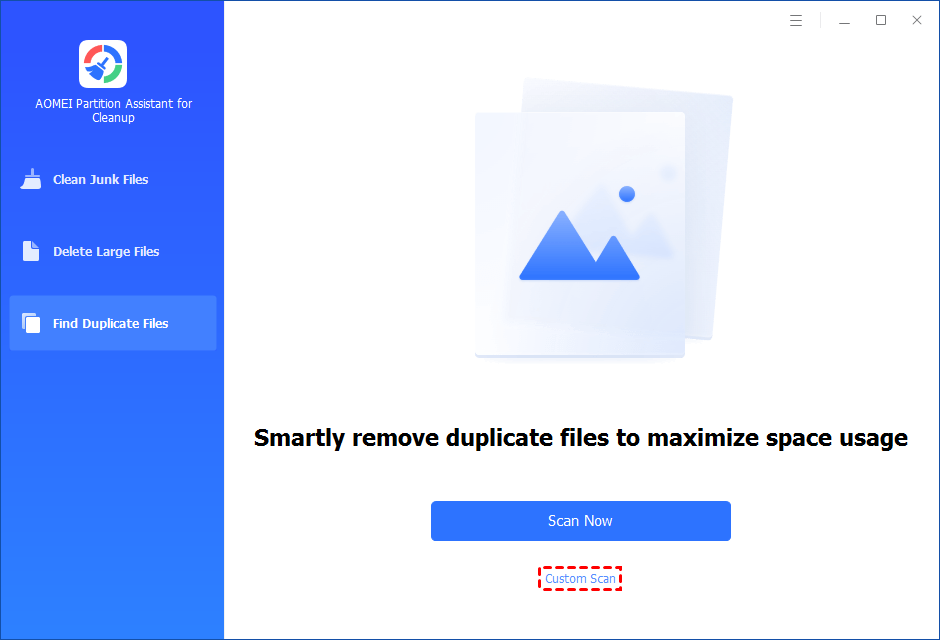
Step 1. Install and launch PartitionAssistant Cleanup. Click the "Find Duplicate Files" tab. You can either click "Scan Now" to start the scan of your system C: drive. Or, click "Custom Scan" to manually select paths to be scanned. (Here, we take the "Custom Scan" as an example.)
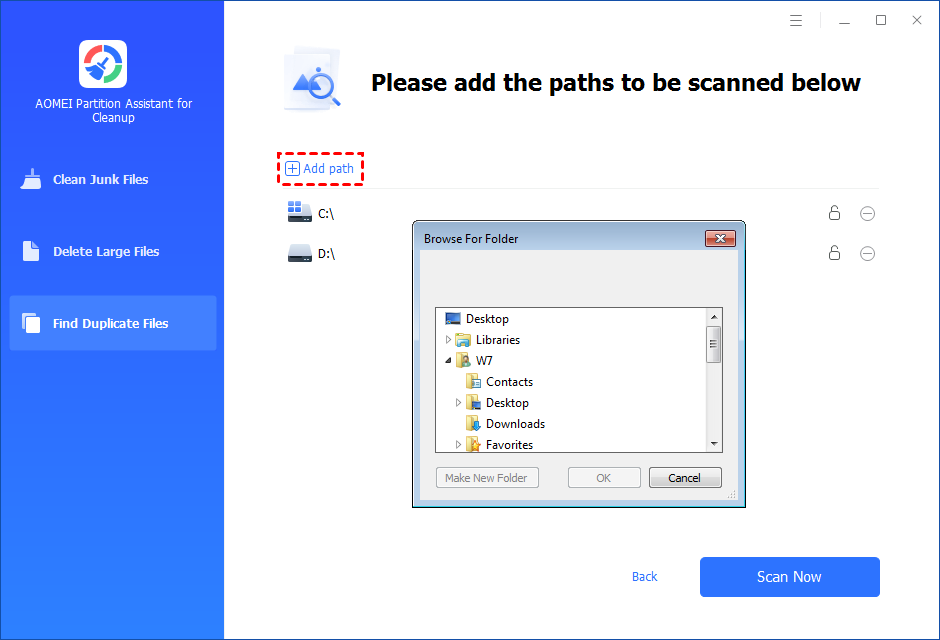
Step 2. After clicking "Custom Scan", all local and external drives on your PC will be displayed. You can also click the "Add Path" button, and then a browse folder window will pop up. So you can add more paths on this PC, like Desktop, Downloads, and other folder paths.
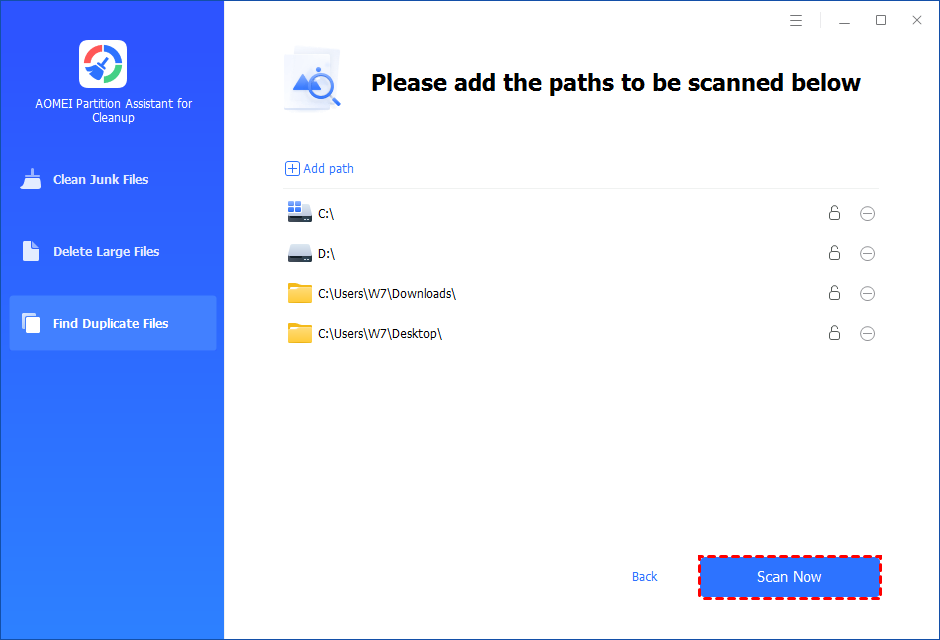
Step 3. Once necessary paths are added, you can click the "Scan Now" button to start the scan process.
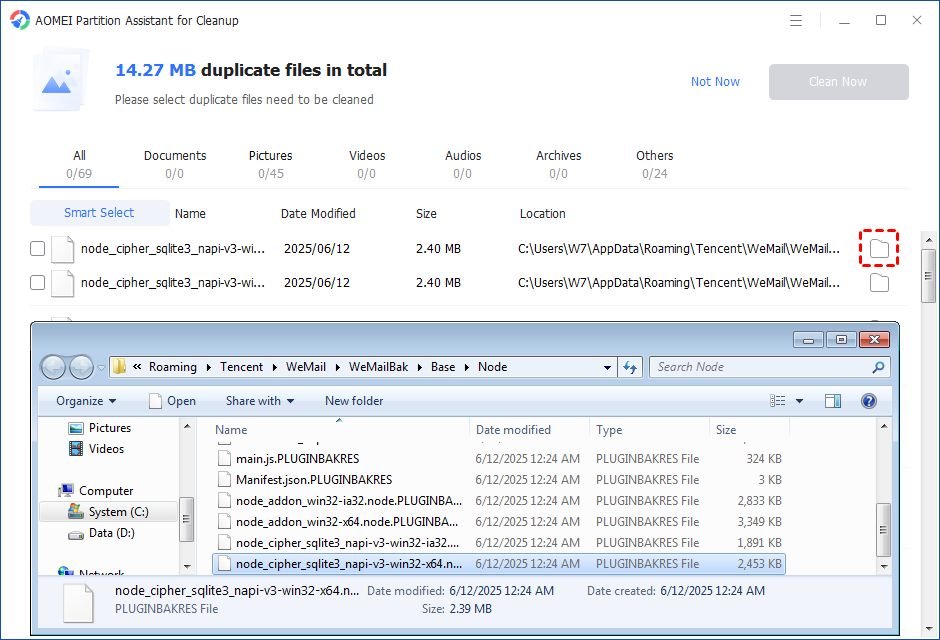
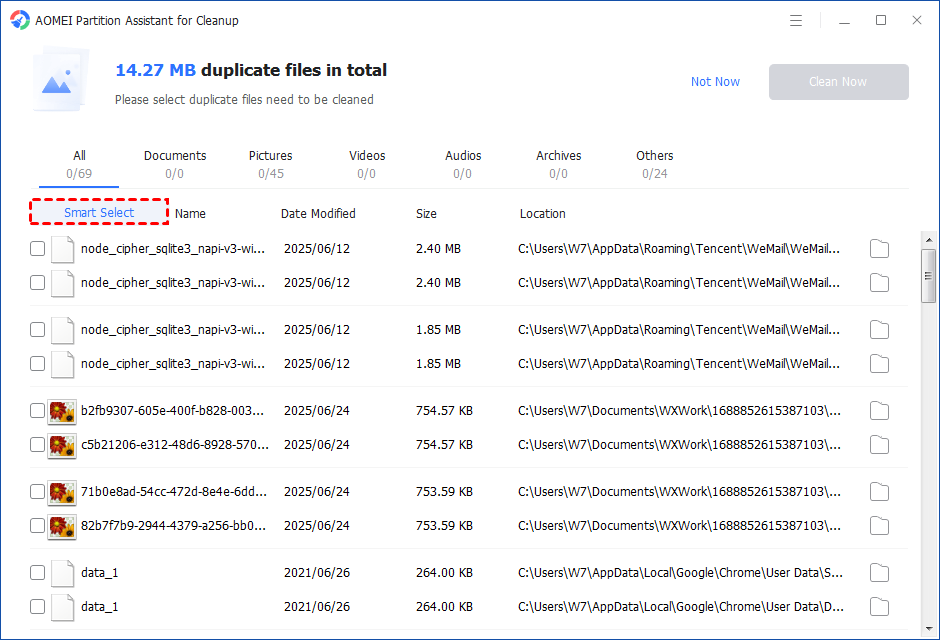
Step 4. The scan process might take time. After the scan is complete, all duplicate files will be listed. You can click the button behind to locate them.
Step 5. You can either manually select duplicate files, or click the "Smart Select" button to automatically select unnecessary duplicate files to delete.
Tips: If the "Smart Select" is ticked, only the oldest duplicate file will be unticked. It means that all duplicate files except the oldest one will be ticked to delete. (The oldest file means the file that was created first. This file will not be deleted. All other duplicate files are conside red copies of the oldest file. )
If you manually select all copies of duplicate files, you will get a pop-up warning window to keep at least one copy of the duplicate files. If you indeed want to delete all copies of duplicate files, you can click "OK" so all copies of duplicate files will be selected to delete.
After unnecessary duplicate files are selected, please click the "Clean Now" button to start the deletion.
Step 6. The deletion might take time. After the process is finished, the selected files will be deleted, and you will get a cleaning completed window displaying how much data you deleted in total.
If you're unsure about the properties of large files, you might accidentally delete important system files, which can cause your computer to malfunction. To avoid this risk, PartitionAssistant Cleanup offers an easy and safe solution.
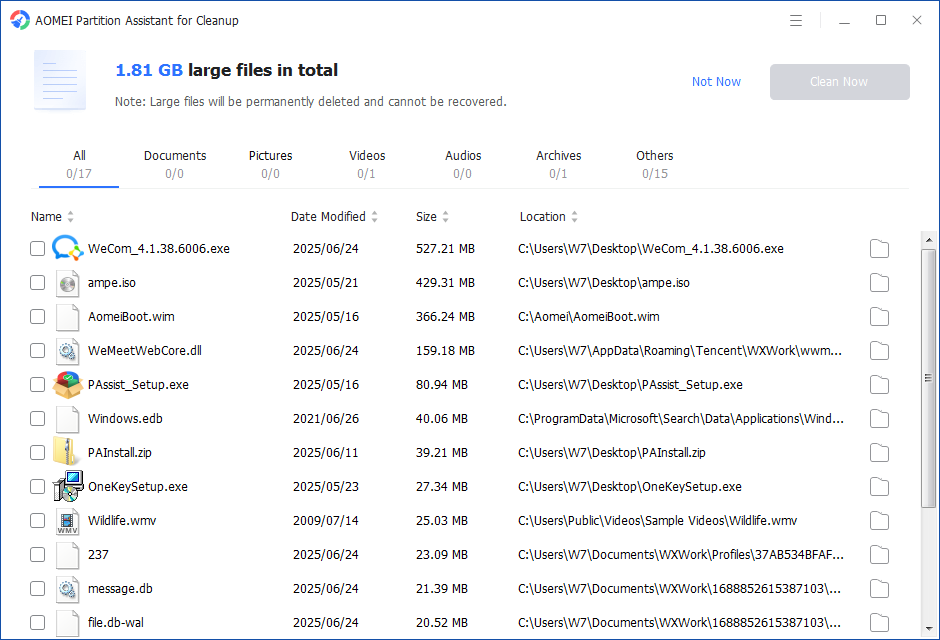
The "Delete Large Files" feature automatically scans both disks and folders, listing files larger than 16MB. Files that may require caution are highlighted in red, ensuring you handle them carefully. With just one click on "Delete Now," you can remove unnecessary files quickly.
The Best Windows Disk Partition Manager and PC Optimizer
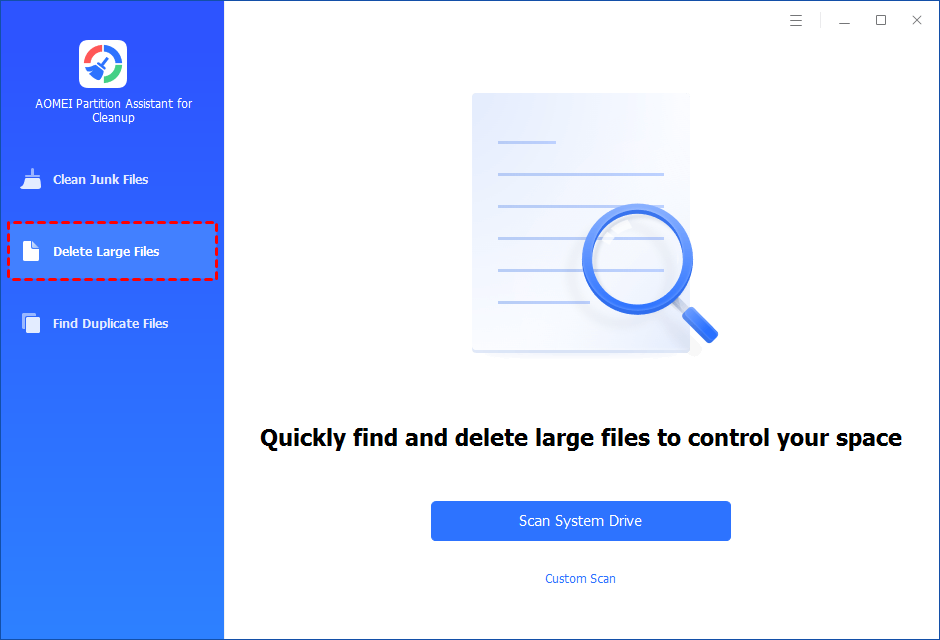
Step 1. Install and launch PartitionAssistant Cleanup. Click the "Delete Large Files" tab.
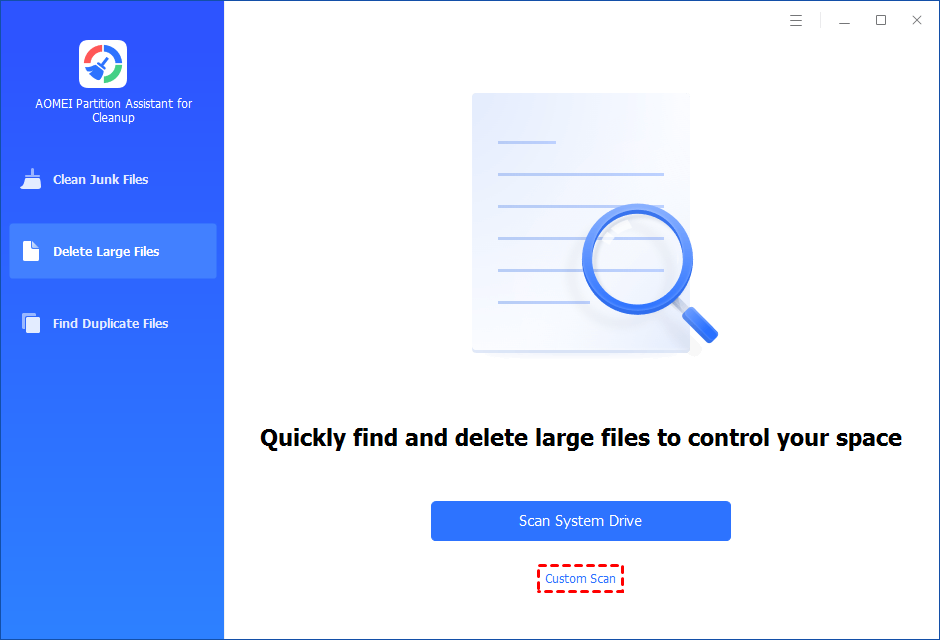
Step 2. You can either click "Scan System Drive" to start the scan of your system C: drive. Or, click "Custom Scan" to manually select paths to be scanned. (Here, we take the "Custom Scan" as an example.)
Step 3. After clicking "Custom Scan", all local and external drives on your PC and the common Desktop, Documents, and Downloads paths will be displayed. You can manually select paths to be scanned. Once necessary paths are added, you can click the "Scan Now" button to start the scan process.
Step 4. The scan process might take time. After the scan is complete, all large files found will be listed.
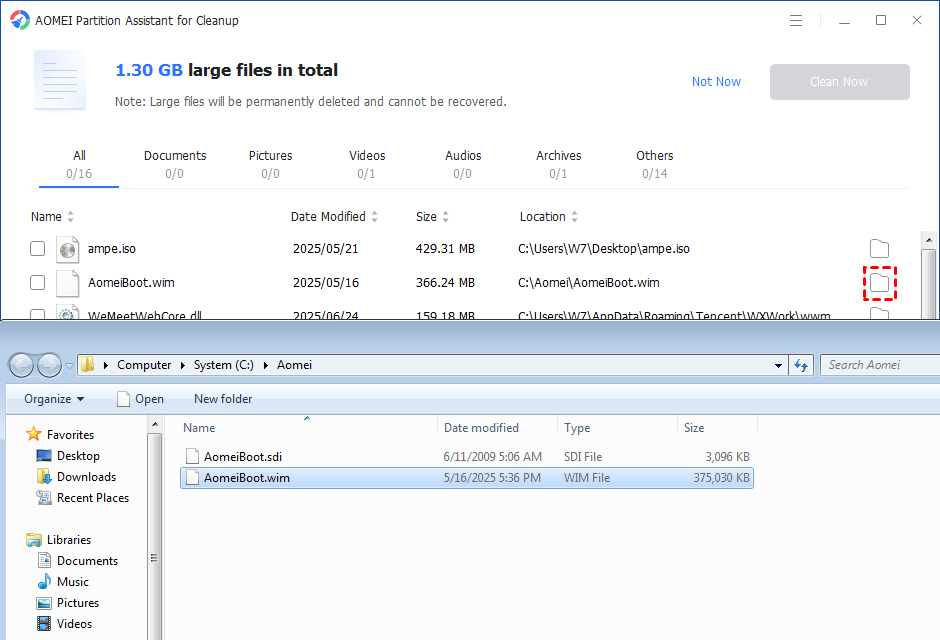
Step 5. You can also check the large files and click the button behind to locate them.
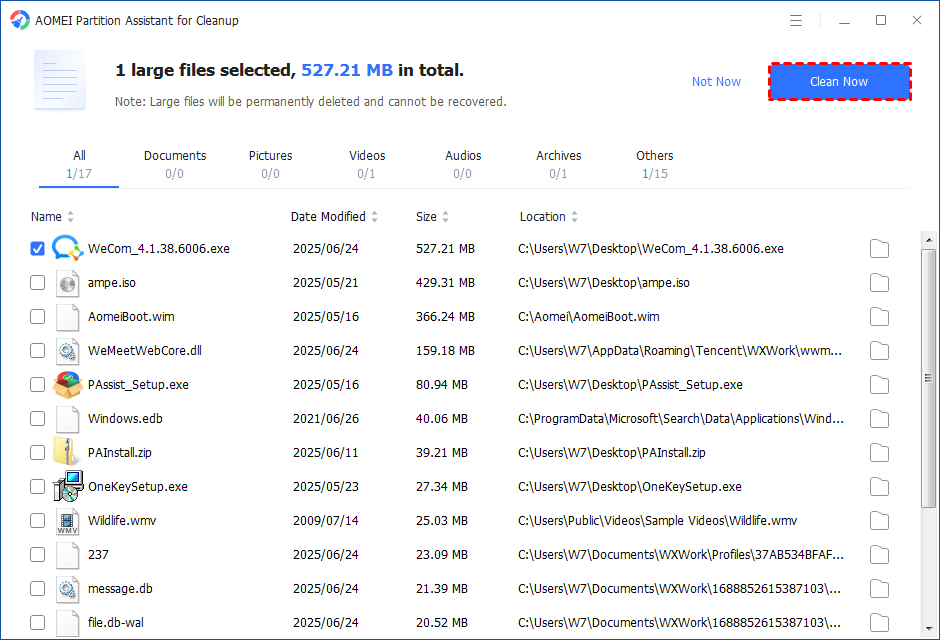
Step 6. Tick the files you want to delete, and then click the "Clean Now" button to start the deletion.
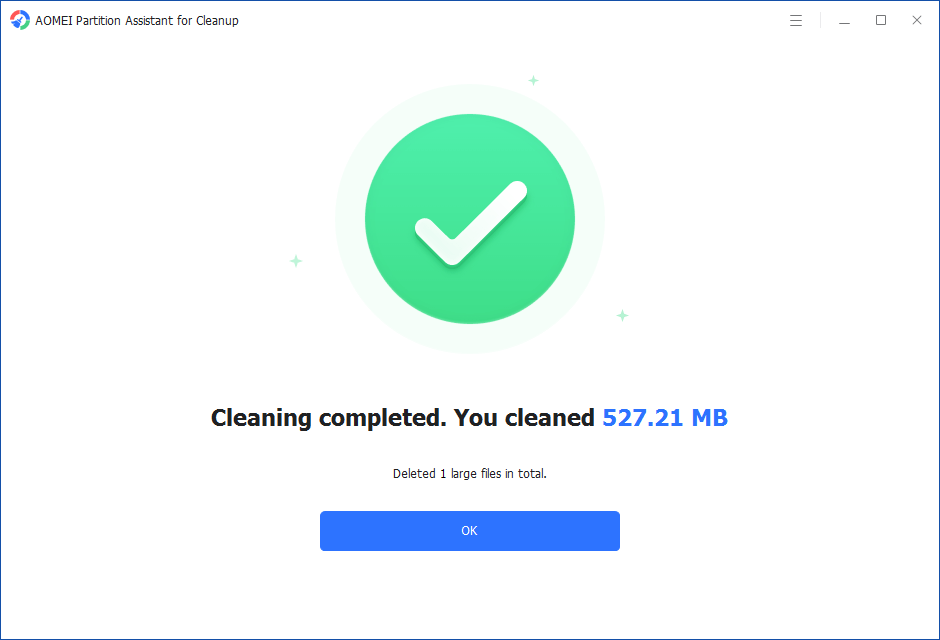
Step 7. The deletion might take time. After the process is finished, the selected files will be deleted, and you will get a cleaning completed window displaying how much data you deleted in total.
Step 5. Just for a while, the large files will be deleted successfully, and then you will see a warm notification suggesting you clean up your PC regularly.
The "PC Cleaner" feature in PartitionAssistant Cleanup thoroughly scans your computer to remove all types of junk files with just a few clicks. It clears unwanted files, including junk files in the recycle bin, temporary files, cache files, and program residual files.
If your computer or C drive is full, and you just want to expand storage without deleting any file, it also offers tools like resize partition, merge partition, and clone data disk to help manage your storage efficiently. By the way, if you mistakenly delete the wrong files, the best Windows file management software allows you to recover lost data instantly as well.
The Best Windows Disk Partition Manager and PC Optimizer
Step 1. Install and launch PartitionAssistant Cleanup. Click the "Clean Junk Files" tab.
Step 2. Click the "Scan Now" button to start the process of scanning junk files.
Step 3. After the scan process is finished. All system junk files (including recycle bin files, temporary files, log files, invalid shortcuts, and so on) and registry junk files (including DLL registry, system registry, and program registry) will be displayed.
Step 4. You can also click the button behind to view the junk files details.
Step 5. And, you can click the button behind to locate the file.
Step 6. By default, the program will select some junk files to clean up, for example, temporary files, log files, and so on. You can also manually check to select more or uncheck to deselect fewer listed junk files. Or, click "Select All" to select all junk files to clean up if you need to clean up all.
After selecting junk files that are not needed anymore, you can click the "Clean Now"button to start the cleanup.
Step 7. The process of the cleanup might take time, and the selected files will be cleaned up. After the process is finished, you will get a cleanup completed window displaying how many files you have cleaned and not yet cleaned.
A reliable file manager for Windows PCs is essential for keeping device organized and running smoothly. By using software like PartitionAssistant Cleanup, you can easily remove duplicate, large, and junk files, freeing up valuable disk space and improving system performance. It simplifies the process of managing files, ensuring you don't accidentally delete important data, and provides useful features for expanding storage or recovering lost files. With its powerful, user-friendly tools, PartitionAssistant Cleanup is an excellent choice for efficient file management.