Want to know how to uninstall Valorant fully? Here is a comprehensive guide. If you just need to free up space, you can also learn how to move Valorant to another drive.
Valorant is a popular first-person shooter developed by Riot Games. It has quickly become a hit among gamers and esports fans. But before playing, you might wonder how much space it needs on your computer.
The initial download of Valorant is small—only about 66 MB for the installer. However, after you launch the installer and download the full game, it takes up around 28.4 GB. Once installed and updated, the total space used can grow to 30–40 GB. To make sure the game runs smoothly and can receive future updates, it’s best to have at least 50–60 GB of free disk space.
However, a user from Reddit says:
Is VALORANT suposed to take up 639 GB of storage? I know the game has a lot of content, but 600GB feels like a lot. How can I fix that? Uninstall and reinstall it?
In response to this question, the most likely reason is a bug. Valorant should never take up 639 GB of storage: that’s far beyond its normal size. The most direct solution is to uninstall the game and then reinstall it. So, how can you correctly uninstall Valorant and avoid bugs? In this article, we will show you how to do that.
To completely remove Valorant from your Windows PC without unwanted traces behind that may cause further bugs, follow these steps in order:
Right-click the Vanguard icon located in the bottom-right corner of your taskbar. Select "Exit Vanguard" from the menu.
A prompt will appear asking if you want to continue — click "Yes" to stop the Vanguard anti-cheat service.
Press Windows + I to open the Settings app. Go to the Apps section. Scroll through the list and find "Riot Vanguard". Click on it, then select "Uninstall", and follow the on-screen steps to remove it.
Still in the Apps section of the Settings app, find "Valorant" in the list. Click "Uninstall" and follow the instructions to delete the game from your PC.
After uninstalling, restart your computer. Open File Explorer, click the address bar, and paste: C:\Riot Games
If there are any leftover folders, delete them manually.
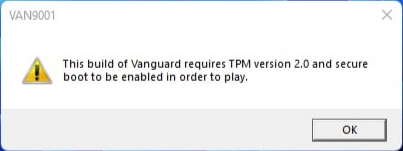
By following these steps, you’ll fully uninstall Vanguard and Valorant from your system. Restart your PC afterward to make sure everything is completely removed. Then you can reinstall Valorant. A fresh installation can fix many common errors and bugs of Valorant, including Valorant Secure Boot VAN9001, VAN 128, VAN -102, VAN -104, and more.
If you're getting a "not enough disk space" error when running Valorant and the game is taking up around 60–100 GB, not 600+ GB, but you don't want to reinstall it, there’s a simple solution: try moving Valorant to another drive.
To free up space without uninstalling Valorant, you can move it to another drive with enough space. However, simply copying and pasting the game files won't work. This can cause the game to fail when launching and may lead to wasted time and effort.
To move Valorant safely and easily, it's recommended to use AOMEI Partition Assistant. This professional app migration tool lets you transfer installed programs or folders to another drive without losing any data. It features a simple interface and clear guidance, making it easy for anyone to use, even without technical skills.
In addition to moving apps like Valorant, AOMEI also supports other advanced disk and partition operations. For example, if you want to upgrade your SSD for better gaming experience, you can use it to copy game disk. You can download it for free and follow the instructions to move Valorant to a different drive with ease.
The Best Windows Disk Partition Manager and PC Optimizer
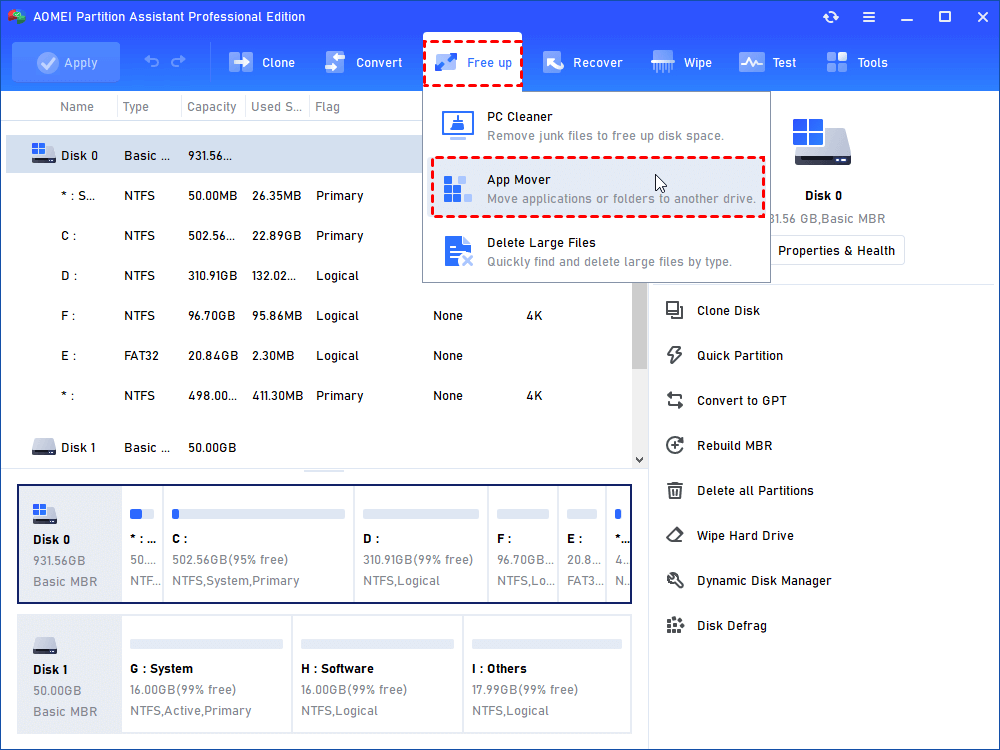
Step 1. Open AOMEI Partition Assistant Pro and click App Mover from Free up.
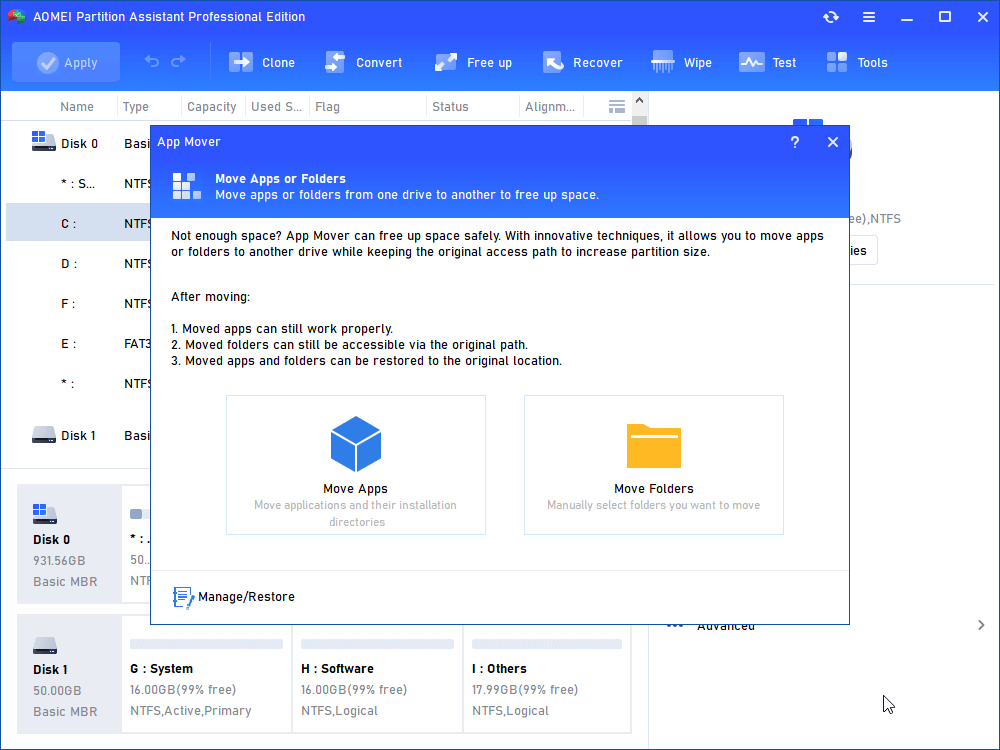
Step 2. Here, click “App Mover”.
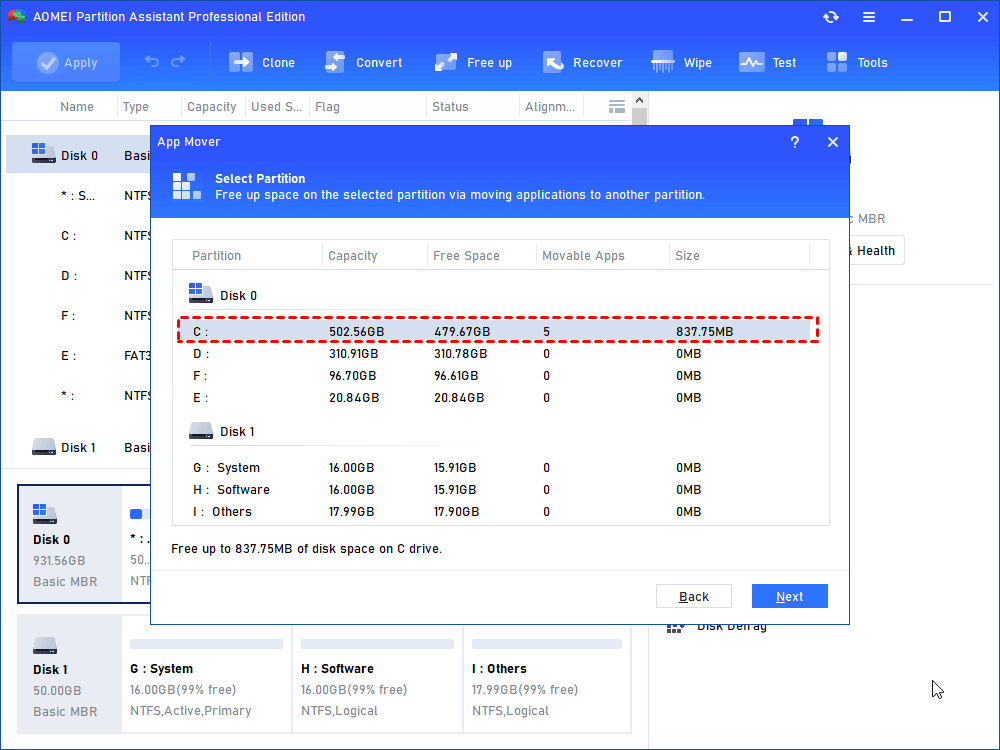
Step 3. In this window, select the disk where the Valorant is located, and then click "Next".
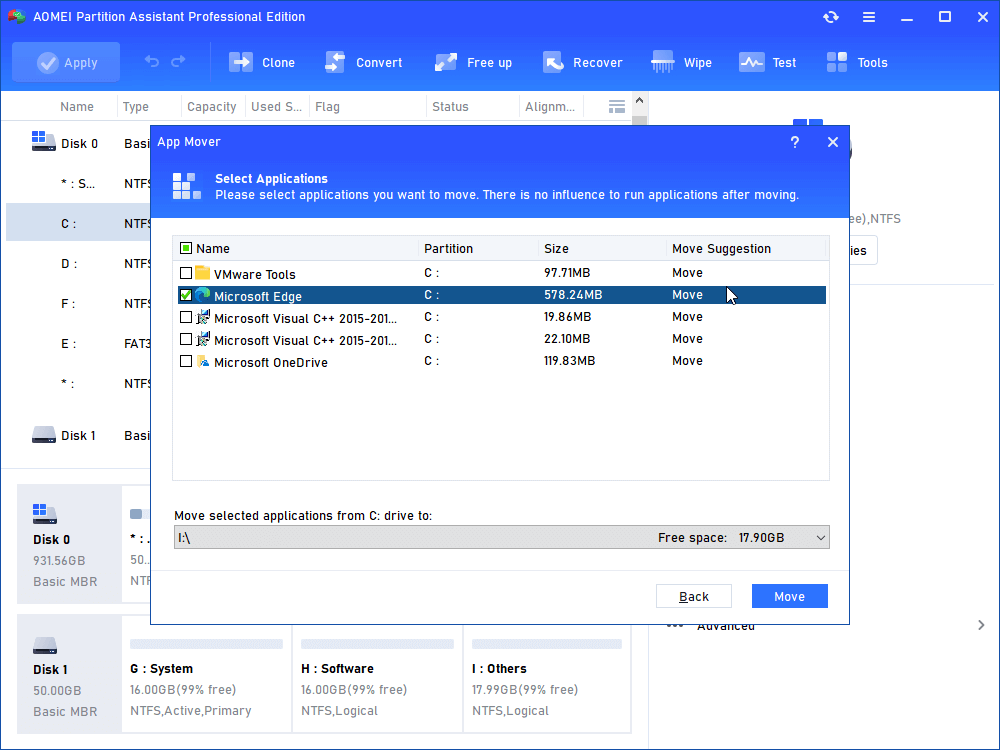
Step 4. Select the Valorant. Then, select the drive where you want to move to, and click "Move".
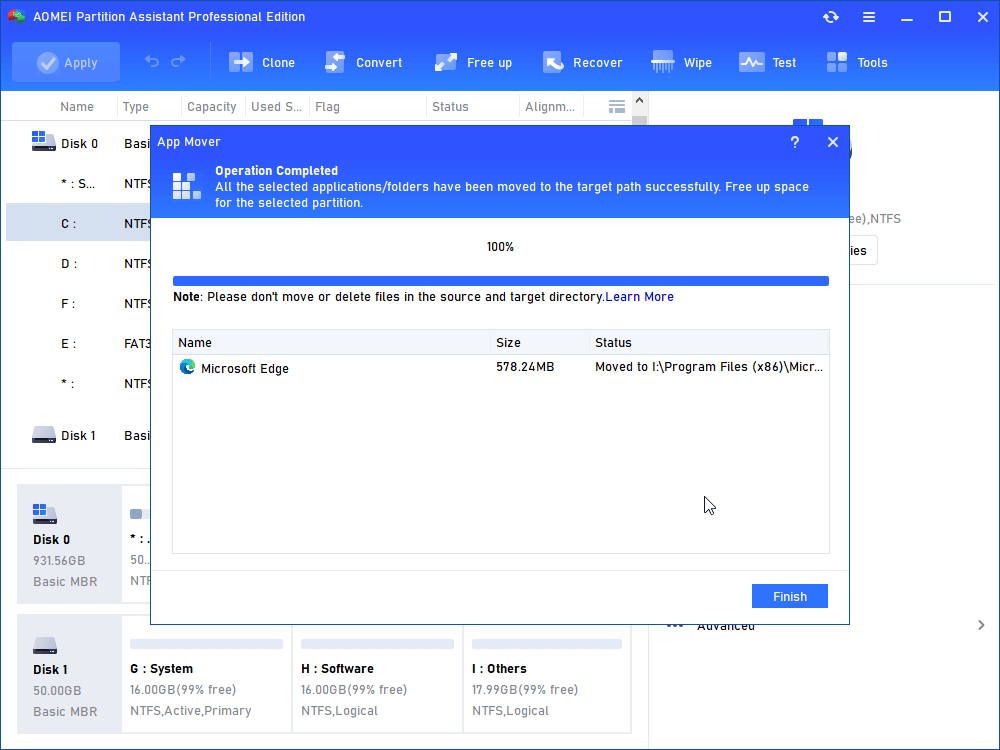
Step 5. Wait a moment, Valorant will be moved to target drive.
This is the whole process of how to move Valorant from one drive to another.
This guide shares how to uninstall Valorant completely to fix the storage bugs and errors. Valorant doesn’t usually take up much space, typically around 30–40 GB after installation and updates. If you notice the game using hundreds of gigabytes, it’s likely a bug, and a full uninstall and reinstall should fix it. This article also explained how to completely remove Valorant and Vanguard to prevent leftover files from causing issues. And if you simply want to free up space, using AOMEI Partition Assistant to move Valorant to another drive is a safe and effective solution. Whether you're fixing bugs or managing storage, these steps will help keep your game running smoothly.
The Best Windows Disk Partition Manager and PC Optimizer