
 AOMEI Partition Assistant
How to Fix Valorant Secure Boot Error Windows 11?
The Valorant secure boot error Windows 11 with code VAN9001 can be easily fixed. This guide will tell you how to turn on Secure Boot for Valorant with ease.

By Irene / Updated on June 30, 2025


Why does the Valorant Secure Boot error in Windows 11 occur?
The Valorant error code VAN9001 on Windows 11 usually appears because the game’s anti-cheat system, Riot Vanguard, requires both Secure Boot and TPM 2.0 to be enabled and working properly. If either of these is turned off, not set up correctly in the BIOS/UEFI, or not supported by your computer, the game will not run. This often happens when the system is using Legacy/CSM boot mode instead of UEFI, or the disk is using the MBR format, which doesn't support Secure Boot.
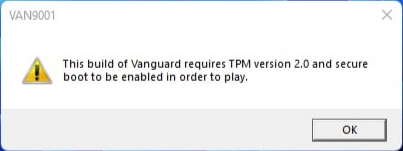
It can also occur if the BIOS settings were not fully applied, or if the TPM chip is missing, turned off, or outdated. Even if Windows 11 was installed by skipping the TPM or Secure Boot checks, Valorant still requires them to be active. Other causes include damaged game files, blocked Vanguard services by third-party software, old drivers, or a system that falsely reports Secure Boot as enabled before a full restart. This error ensures Valorant only runs on secure and trusted systems.
How to enable Secure Boot for Valorant?
If your PC supports Secure Boot but it hasn’t been enabled, the following guide provides detailed steps to turn it on.
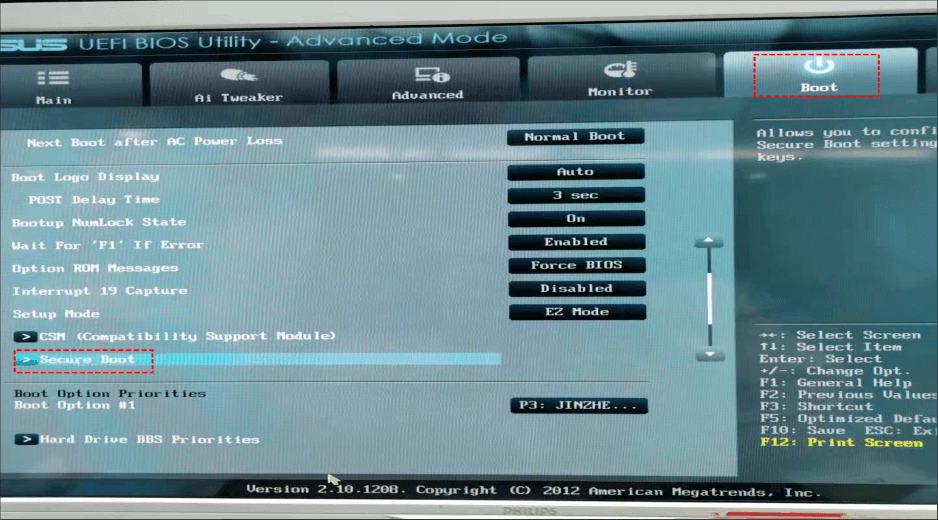
Step 1. Reboot your computer open the BIOS system (the keys are different depending on computer hosts). Then, click on “Boot” and select “Secure Boot”. To easily access to it, you can use a handy tool, which can also help you easily bypass Secure Boot for Windows 11 upgrade.
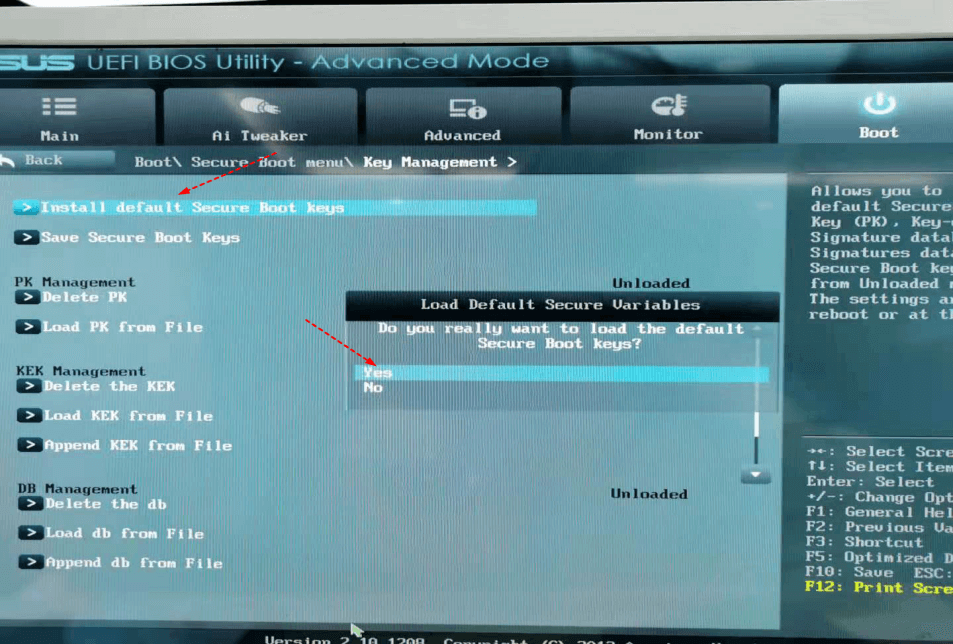
Step 2. Now, you can secure boot is shut down. Click on “Key Management”. Select “Install default Secure Boot Keys” to enable secure boot.
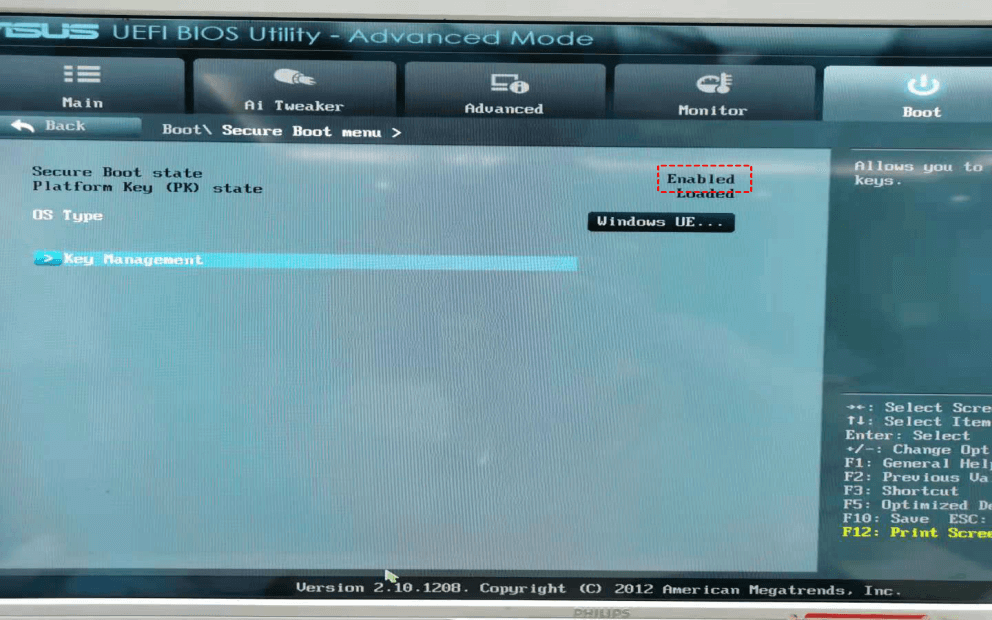
Step 3. Finally, return to the previous column and you can see Secure Boot is enabled.
Convert MBR to GPT Disk to enable Secure Boot
UEFI BIOS mode works with the GPT partition format, not MBR. If your system is set to Legacy Boot and uses an MBR disk, Secure Boot won’t function, leading to the “Secure Boot state unavailable” error. To fix this, you’ll need to switch to UEFI and convert your boot disk from MBR to GPT. On Windows 10 or 11, you can use the built-in MBR2GPT.exe tool, or opt for AOMEI Partition Assistant for a safer conversion without losing data.
 AOMEI Partition Assistant
The Best Windows Disk Partition Manager and PC Optimizer
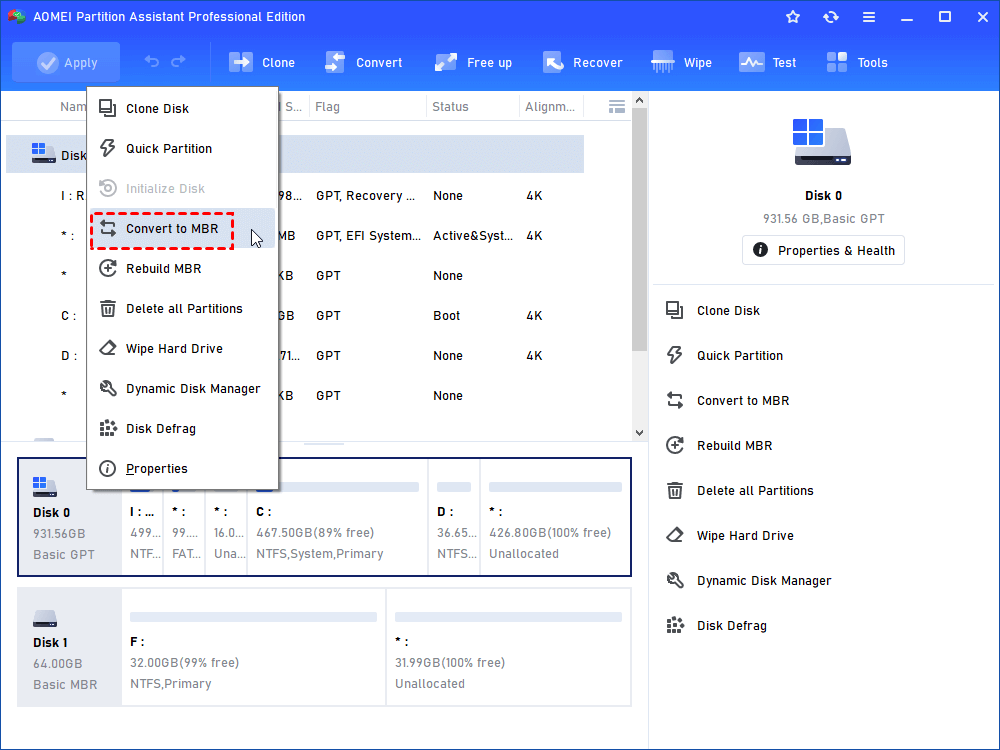
Step 1. Install it, and launch the program. In the main window, you should right-click on the disk that you want to convert and choose the "Convert to MBR" option.
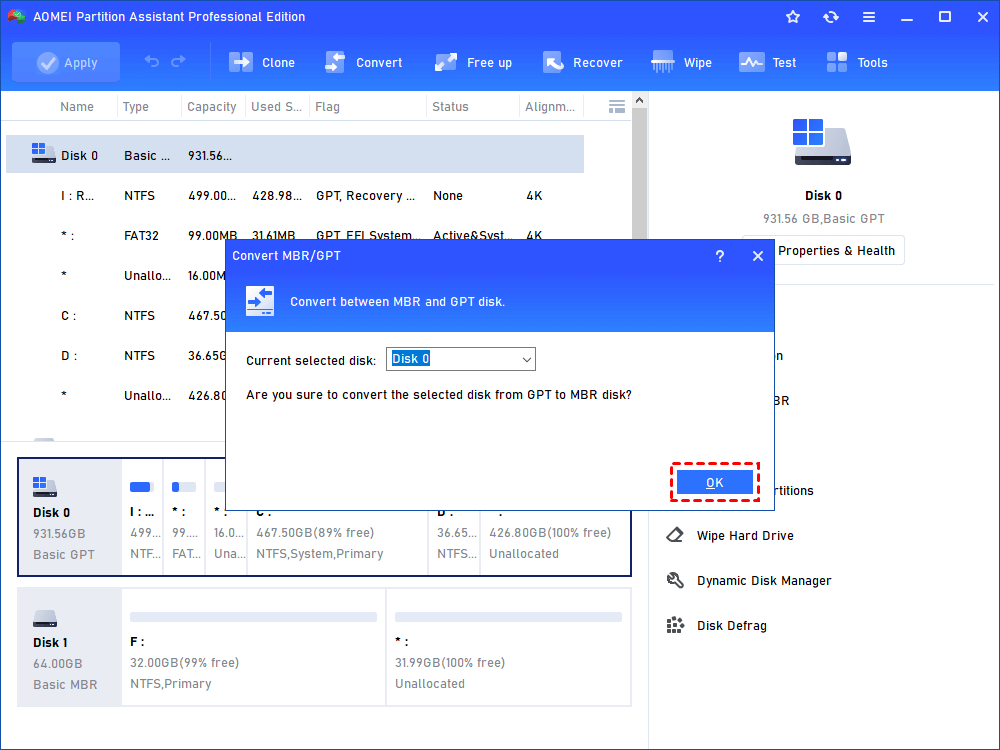
Step 2. Click "OK" to continue.
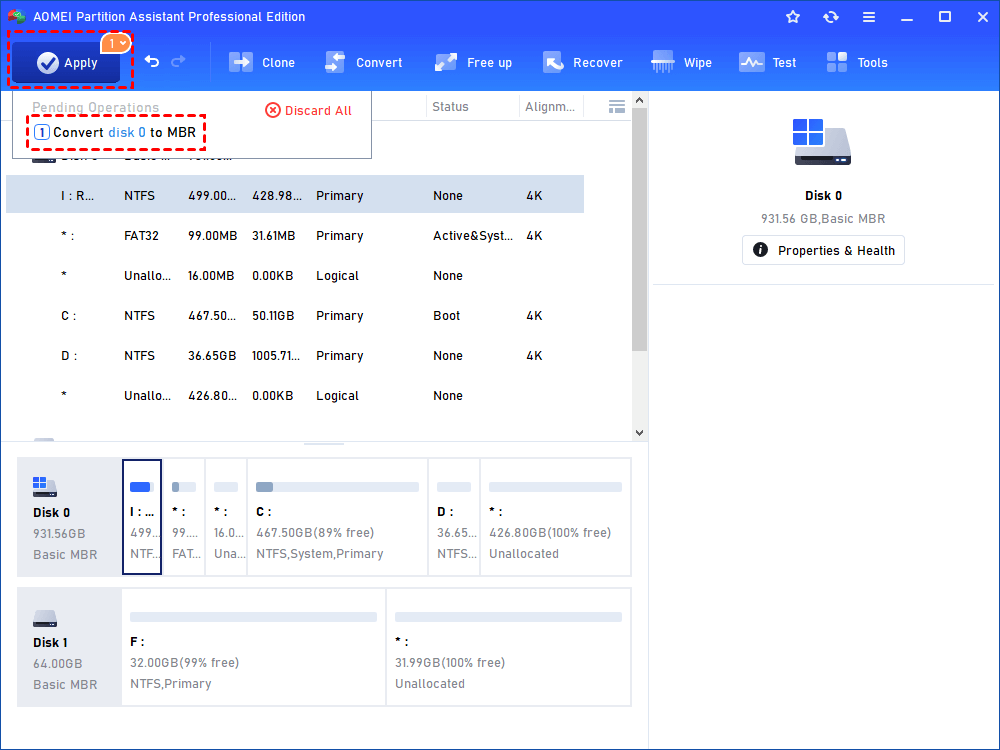
Step 3. Click "Apply" to perform the pending operations.
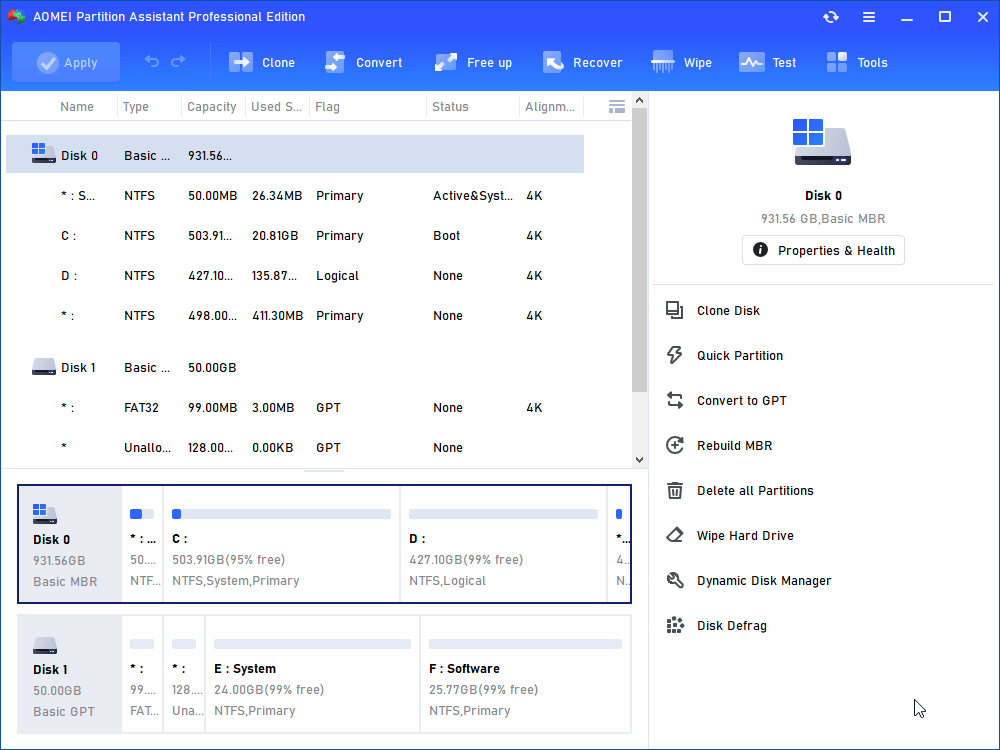
After that, you have converted to GPT successfully. To convert GPT to MBR, just right-click the GPT disk and select the "Convert to GPT" option and then follow the steps to make it done.
To boot the PC successfully after the system/boot disk has been converted from MBR to GPT, please switch boot mode from Legacy BIOS to UEFI mode. You may need to check your PC (or motherboards) manual to find specific instructions on how to change the settings.
If your Windows cannot boot up as normal, or you need to convert MBR to GPT/GPT to MBR during the Windows 10 installation, you can first create a Windows PE bootable Media via AOMEI Partition Assistant on another working computer, then load your computer from the bootable USB and do as above to convert disk between MBR and GPT without operating system.
Conclusion
The VAN9001 error in Valorant happens mainly because Secure Boot and TPM 2.0 are not enabled or properly configured. To fix this, you need to switch to UEFI mode, enable Secure Boot in BIOS, and convert your system disk from MBR to GPT if needed. With the right setup and tools, like AOMEI Partition Assistant, you can make these changes safely and ensure your system meets the security requirements to run Valorant smoothly on Windows 11.
