AOMEI Partition Assistant
5 Solutions to Fixboot Access Denied on Windows 10 Or 11
Run "bootrec/fixboot" command but the access is denied? Here we gather 5 methods to help you solve the "fixboot access denied Windows 10" error in Windows 11, 10, 8, and 7.

By Lucas / Updated on January 15, 2026


Get Access is denied error while running bootrec/fixboot
If the Windows upgrade failed, or you cannot boot your computer, one way to fix such errors is to run the command "bootrec /fixboot". However, some users encounter the "Fixboot Access is denied" error message. According to the feedback of some users, Windows 10 1707 is most likely to meet bootrec/fixboot access denied error.

Why does fixboot access denied Windows 10 error happen?
-
Boot Configuration Data (BCD) Issues: If the BCD store is corrupted or improperly configured, it can prevent the bootrec /fixboot command from executing properly. This can happen due to improper shutdowns, failed updates, or disk errors.
-
Insufficient Permissions: Running the command without administrative privileges can lead to an "Access is denied" error. Ensure you are running the Command Prompt as an administrator.
-
Secure Boot Interference: Secure Boot can sometimes interfere with bootrec commands. Disabling Secure Boot in the BIOS/UEFI settings might be necessary to allow the command to run.
-
Incorrect Partition Active Status: The system partition might not be set as active, causing the bootrec /fixboot command to fail. Ensuring the correct partition is marked as active can resolve this issue.
-
UEFI and GPT Configuration: On UEFI systems with GPT partitions, the command might not work as expected. Ensuring that the system is properly configured for UEFI and GPT can help mitigate this problem.
How to fix the FixBoot Access Denied in Windows 10
To fix the "bootrec/fixboot access denied", the following methods are worth a try.
Method 1. Repair Bootloader
To repair Bootloader, you should prepare a Windows 10 installation disc.
Step 1. Boot from Windows 10 installation disc and press any key to continue.
Step 2. Then navigate to Repair your computer->Troubleshoot->Advanced options->Command Prompt.
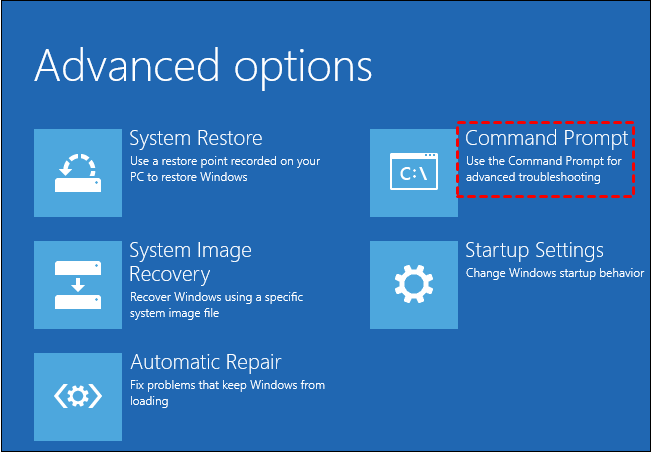
Step 3. Type diskpart in the command prompt.
Step 4. Type the following command and press Enter after each command.
•list disk
•sel disk 0 (where 0 stands for the boot drive)
•list vol (note which volume is the EFI partition, mine is 4)
•sel vol 4
•assign letter=N:
•exit
Step 5. Type N: (the drive letter you just assigned and hit Enter.)
Step 6. After assigned a drive letter, you can format the EFI partition by typing format N: /FS:FAT32.
Step 7. Now, type bcdboot C:\windows /s N: /f UEFI and hit Enter. This command will repair your Bootloader.
Then try the bootrec /fixboot command again, fixboot access denied in Windows 10 could be solved.
Method 2. Run Startup Repair
Step 1. Boot from Windows 10 installation disc and press any key to continue.
Step 2. Then navigate to Repair your computer->Troubleshoot->Advanced options->Startup Repair.
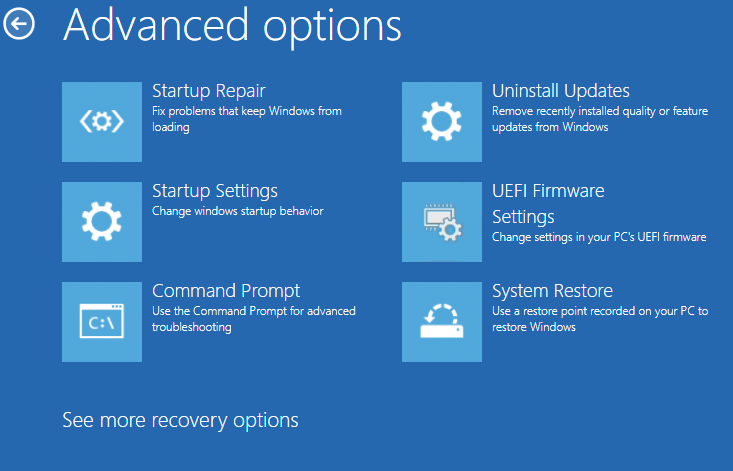
Step 3. Wait for the result of the automatic repair and follow the instructions to solve problems.
Method 3. Repair your boot sector or rebuild BCD
Step 1. Still, boot from the installation disc.
Step 2. Navigate to Repair your computer->Troubleshoot->Advanced options->Command Prompt.
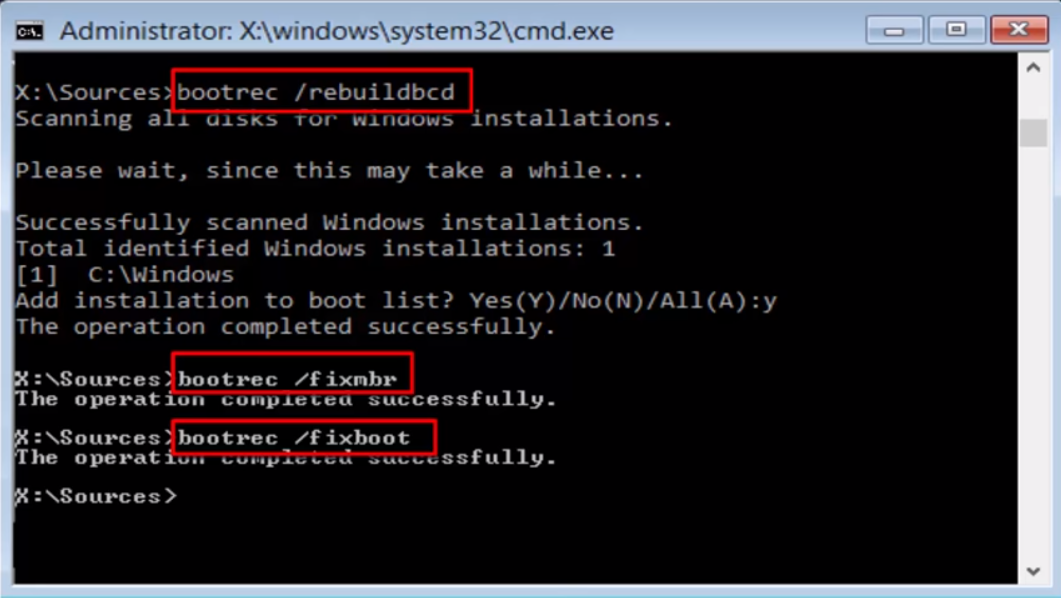
Step 3. Type the following command and press Enter after each command.
•Bootrec /rebuildbcd
•Bootrec /fixmbr
•Bootrec /fixboot
Method 4. Run CHKDSK
Step 1. After booting the computer from the Windows installation disk, skip the first-screen language selection and choose to Repair your computer.
Step 2. Select Troubleshoot and then Command Prompt.
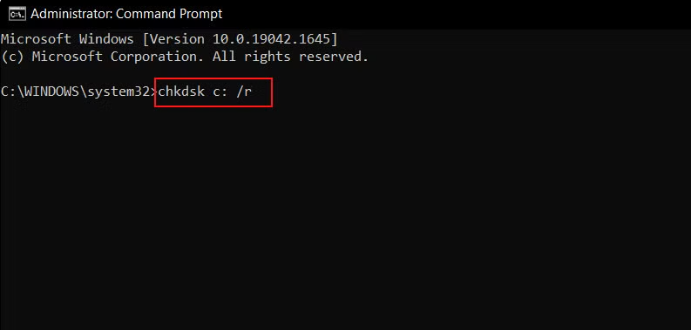
Step 3. In command prompt type chkdsk c: /r and hit Enter. This assumes Windows is installed on your C: drive. If the drive letter for your system partition is different, type the real one. (You can run diskpart > list volume to check.)
Method 5. Check disk and rebuild MBR
If the above mentioned 4 methods cannot solve fixboot access denied in Windows 10, you can turn to free AOMEI Partition Assistant to make a bootable USB and enter into Windows PE to check disk error and rebuild MBR. Whether you're a beginner or an IT technician, AOMEI Partition Assistant provides the essential tools to keep your system running smoothly and recover from common disk-related problems.
Step 1. Download AOMEI Partition Assistant and launch it on a running machine. Insert a USB drive.
Step 2. At the left column, click Tools > Make Bootable Media. Then click Next to continue.
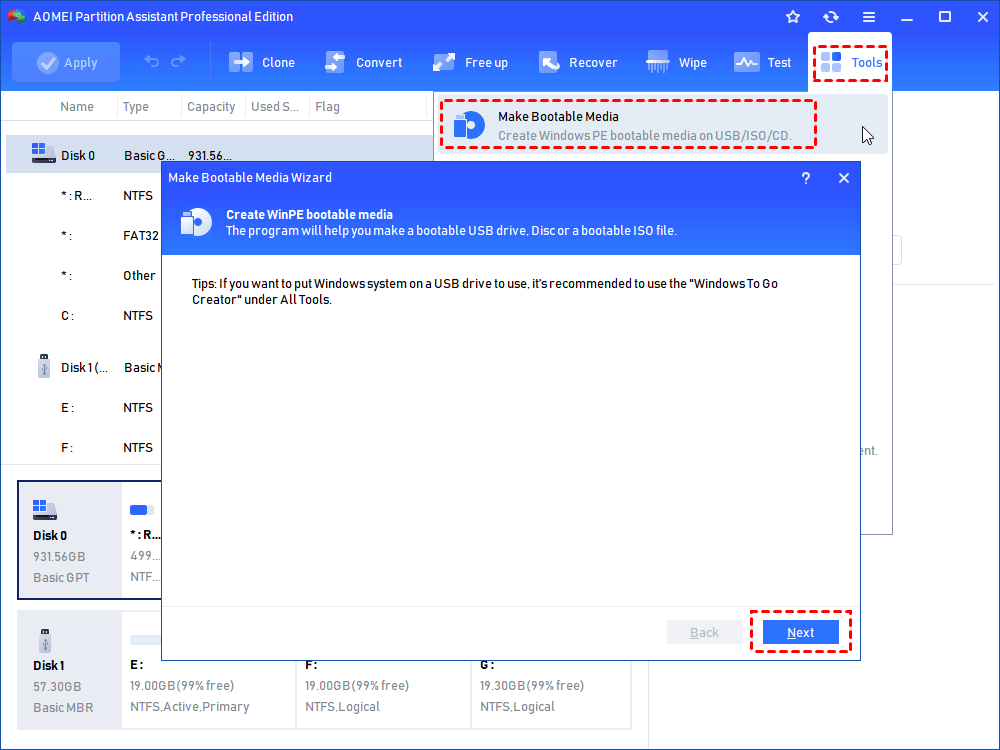
Step 3. Click USB Boot Device and then click Proceed.
Step 4. It will remind you the USB drive needs to be formatted and all the data on it will lose. If there are important files on it, make sure you have backed up the USB in advance.
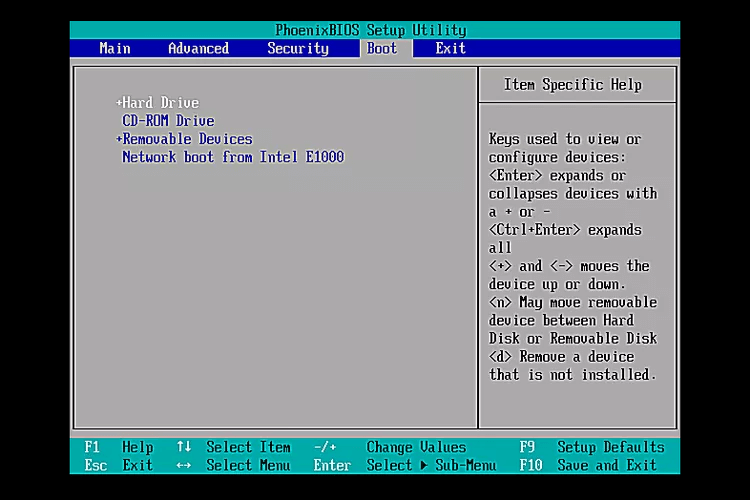
Step 5. After making bootable USB drive, insert it into the computer which has a boot issue, change boot order and boot from. It will bring you to the main interface of AOMEI Partition Assistant in Windows PE.
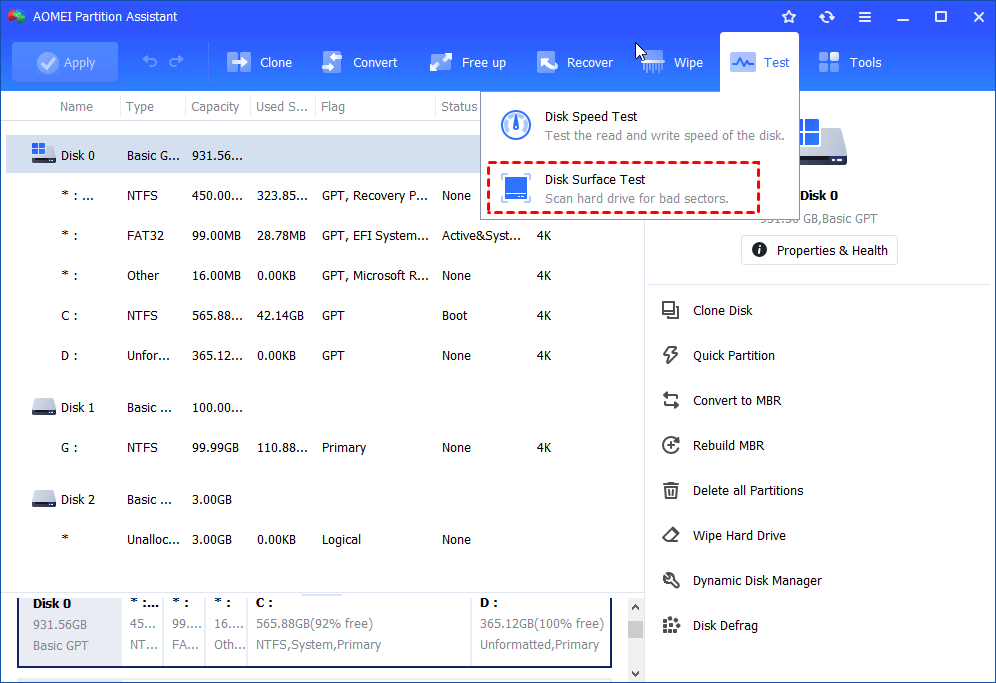
Step 6. Then you could use AOMEI Partition Assistant to check disk errors in the system hard drive with Disk Surface Test feature.
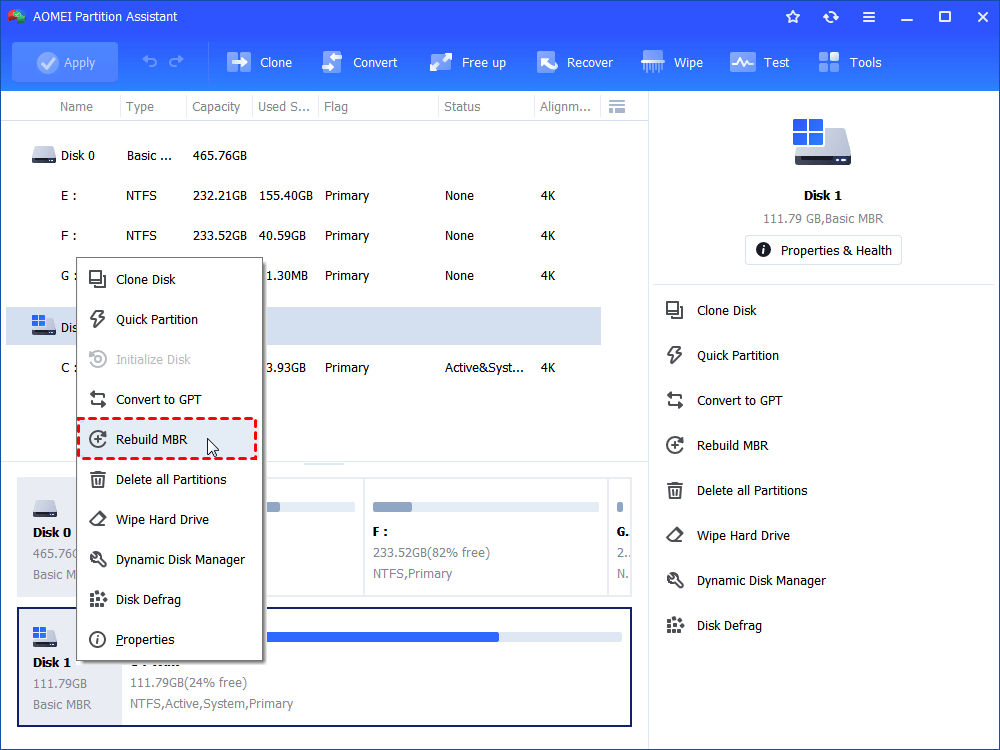
Step 7. The Rebuild MBR feature allows you to repair Bootloader issue.
Step 8. Restart the computer and check if the issue is solved.
In addition, the Boot Repair feature is a dedicated function in AOMEI Partition Assistant that’s specifically designed to repair corrupted or damaged boot environments in Windows systems. Whether you're facing errors like “Operating system not found”, “Bootmgr is missing”, or “Fixboot Access Denied”, this feature can automatically diagnose and rebuild essential boot files without requiring complex command-line operations.
Step 1. Install AOMEI Partition Assistant on a working PC and connect a USB drive with enough storage to this PC.
Step 2. Open this software and select the Boot Repair tool below the Recover section.

Step 3. Click the create a bootable disk option to create a WinPE Boot Repair USB drive.

Step 4. Plug the created drive into the non-booting computer, then enter the BIOS settings to change the boot order so that the computer boots from it. It will automatically load the Boot Repair tool and perform a scan of boot entries.

Step 5. Once the process completes, you will see all scan results, including system paths, system versions, and boot status. Select the repairable boot entries you want to repair and click the Repair button.
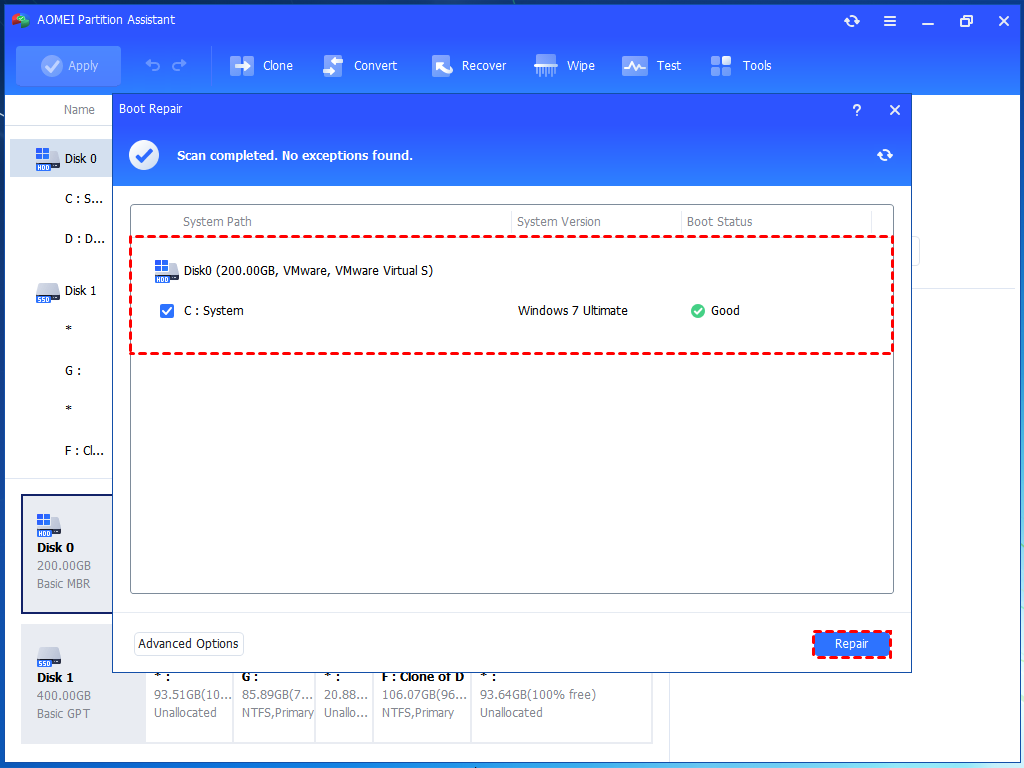
Step 6. Wait for the repair process to finish, then remove the bootable USB drive and boot the PC from the original system drive.

Summary
As you know, system issues happen from time to time, and it may cause data loss. After solving fixboot access denied in Windows 10 issue, you may consider making an image backup in case of system crash.
And AOMEI Partition Assistant provides more functions to help you to manage your computer and disk. you can use it to unboot the USB to normal after repairing your PC. if you upgrade to professional edition, you can enjoy more features, including convert system disk between MBR and GPT partition styles, SSD Secure Erase Wizard, migrate OS between MBR and GPT hard drive with smooth boot, etc.
FAQs about bootrec/fixboot access denied
1. What does the "Access is denied" error mean when running bootrec /fixboot?
This error indicates that the command was unable to execute due to permission issues or configuration problems related to the boot files or system partitions.
2. Could Secure Boot be causing the "Access is denied" error?
Yes, Secure Boot can interfere with bootrec commands. Try disabling Secure Boot in your BIOS/UEFI settings and then run the command again.
3. How can I verify if the correct partition is set as active?
Use the DiskPart utility to check and set the active partition. In the Command Prompt, type diskpart, then list disk, select disk X (replace X with your disk number), list partition, select partition Y (replace Y with the partition number), and active.
4. What if the System Reserved Partition is causing the error?
Ensure that the System Reserved Partition is present, not corrupted, and has sufficient free space. You might need to resize the partition or repair it using partition management tools.