
 PartitionAssistant Recovery


6 Solutions to ATTEMPTED_WRITE_TO_CM_PROTECTED_STORAGE
If you're dealing with the ATTEMPTED_WRITE_TO_CM_PROTECTED_STORAGE Blue Screen of Death (BSOD) error on your Windows PC, this post is here to help. It provides practical solutions to diagnose the issue and guide you through the necessary steps to resolve it effectively.

Par Hedy / Mis à jour le July 11, 2025


Causes of ATTEMPTED_WRITE_TO_CM_PROTECTED_STORAGE
Encountering the ATTEMPTED_WRITE_TO_CM_PROTECTED_STORAGE Blue Screen of Death (BSOD) can be both alarming and disruptive. To resolve it effectively, it's essential to understand what might be triggering the error. Below is a breakdown of several common culprits that could be responsible:
• Insufficient free space on the system drive
• Malware infections or virus attacks
• Outdated, incompatible, or faulty drivers
• Missing or corrupted Windows system files
• Disk-related issues such as bad sectors or file system errors
• Physical hardware failure or instability
• And other system-level conflicts
Once you're familiar with these potential causes, it's time to move on to the solutions that can help restore system stability and eliminate the BSOD for good.
How to fix ATTEMPTED_WRITE_TO_CM_PROTECTED_STORAGE
To tackle the ATTEMPTED_WRITE_TO_CM_PROTECTED_STORAGE BSOD, several targeted solutions can be applied depending on the underlying cause. Whether it's a driver issue, disk error, or corrupted system file, the following fixes are worth trying when this critical error disrupts your system. Give each method a go until stability is restored and the blue screen disappears.
Solution 1. Scan your system for viruses
In certain situations, malware infections or hidden viruses can trigger the ATTEMPTED_WRITE_TO_CM_PROTECTED_STORAGE blue screen error by corrupting essential system components. Performing a comprehensive virus scan is a practical step to identify and eliminate these threats before they cause further damage.
You can use a trusted third-party antivirus tool or rely on Windows Security (formerly known as Windows Defender). Here’s how to run a full system scan using Windows Security:
Step 1. Press Windows + I to open the Settings menu.
Step 2. Navigate to Update & Security, then click Windows Security in the sidebar. From there, select Virus & threat protection on the right.
Step 3. In the new window, click Scan options to view all available scanning methods.
Step 4. Choose Full scan, then hit Scan now to begin checking every file and application on your system.
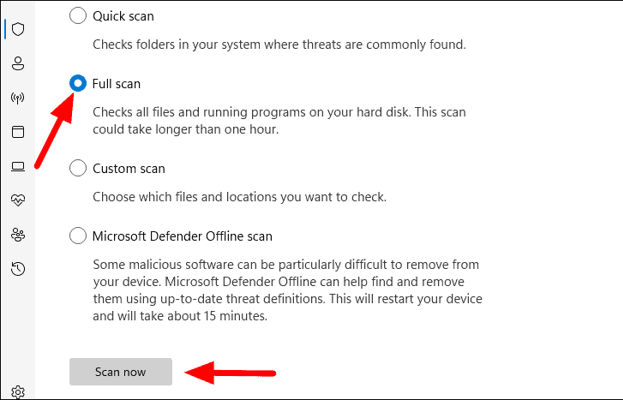
Step 5. If any malicious items are found, click Start actions to remove the threats and secure your system.
Solution 2. Run SFC and DISM scans
Corrupted or missing system files are often behind the 0x0000011C ATTEMPTED_WRITE_TO_CM_PROTECTED_STORAGE error. To address this, running built-in Windows repair tools—SFC (System File Checker) and DISM (Deployment Imaging Service and Management Tool)—can help restore system integrity.
Follow these steps to perform the repairs:
Step 1. In the Windows search bar, type cmd, right-click on Command Prompt, and choose Run as administrator.
Step 2. In the Command Prompt window, enter the following command and press Enter:
sfc /scannow

Step 3. Allow the scan to complete. It may take some time, so be patient. Once done, restart your PC.
Step 4. After rebooting, open Command Prompt as administrator again and run the following command:
DISM /Online /Cleanup-Image /RestoreHealth
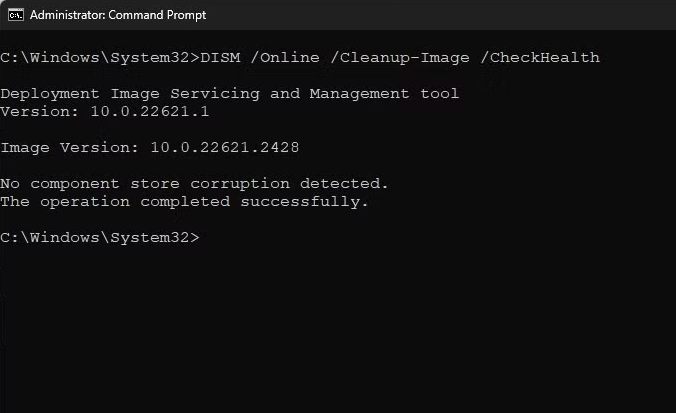
Step 5. Wait for the process to finish. Then, restart your computer once more and check if the BSOD issue has been resolved.
Step 6. Running both tools ensures that system files are verified and any damaged components are repaired using fresh copies from Windows Update.
Solution 3. Free up disk space
Having adequate disk space is crucial for Windows to function properly. If the ATTEMPTED_WRITE_TO_CM_PROTECTED_STORAGE blue screen appears, one possible cause could be low available storage. Clearing out unnecessary files and large unused data can help free up valuable space and improve system performance.
To identify what’s consuming your drive, consider using a disk space analyzer. PartitionAssistant Cleanup is a reliable option. This powerful tool scans your hard drive and provides a detailed breakdown of space usage, making it easier to pinpoint what’s taking up room.
Using such an all-in-one utility makes maintaining your system's health more efficient and less time-consuming.
 PartitionAssistant Cleanup
Free Up Disk Space To Keep Your PC Running Smoothly and Efficiently
Option 1. PC Cleaner
Step 1. Install and launch PartitionAssistant Cleanup. Click the "Clean Junk Files" tab.

Step 2. Click the "Scan Now" button to start the process of scanning junk files.

Step 3. After the scan process is finished. All system junk files (including recycle bin files, temporary files, log files, invalid shortcuts, and so on) and registry junk files (including DLL registry, system registry, and program registry) will be displayed.

You can also click the button behind to view the junk files details.

Step 4. And, you can click the button behind to locate the file.

By default, the program will select some junk files to clean up, for example, temporary files, log files, and so on. You can also manually check to select more or uncheck to deselect fewer listed junk files. Or, click "Select All" to select all junk files to clean up if you need to clean up all.
Step 5. After selecting junk files that are not needed anymore, you can click the "Clean Now"button to start the cleanup.

The process of the cleanup might take time, and the selected files will be cleaned up. After the process is finished, you will get a cleanup completed window displaying how many files you have cleaned and not yet cleaned.

Option 2. Delete Large Files
Step 1. Install and launch PartitionAssistant Cleanup. Click the "Delete Large Files" tab.
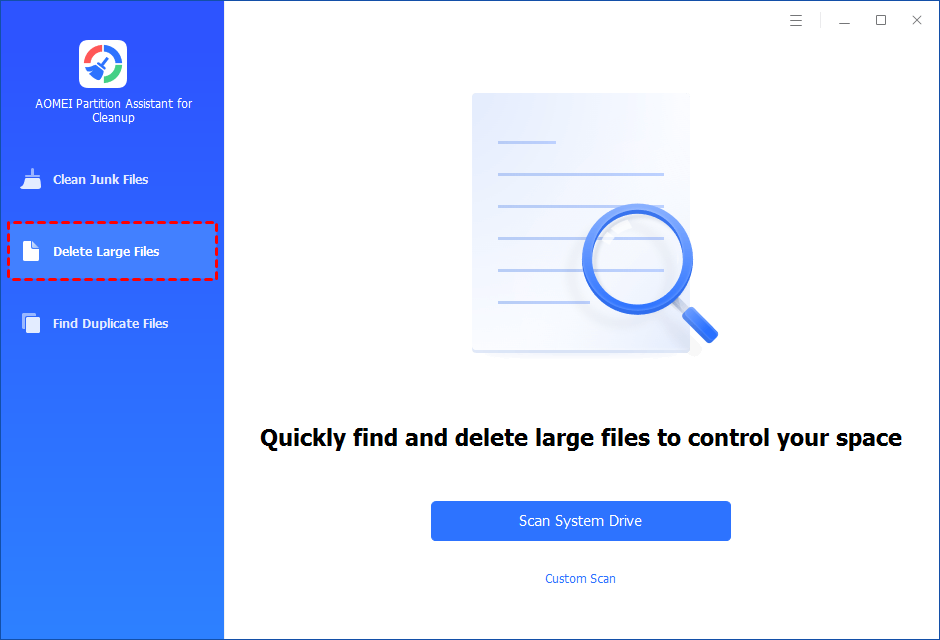
Step 2. You can either click "Scan System Drive" to start the scan of your system C: drive. Or, click "Custom Scan" to manually select paths to be scanned. (Here, we take the "Custom Scan" as an example.)
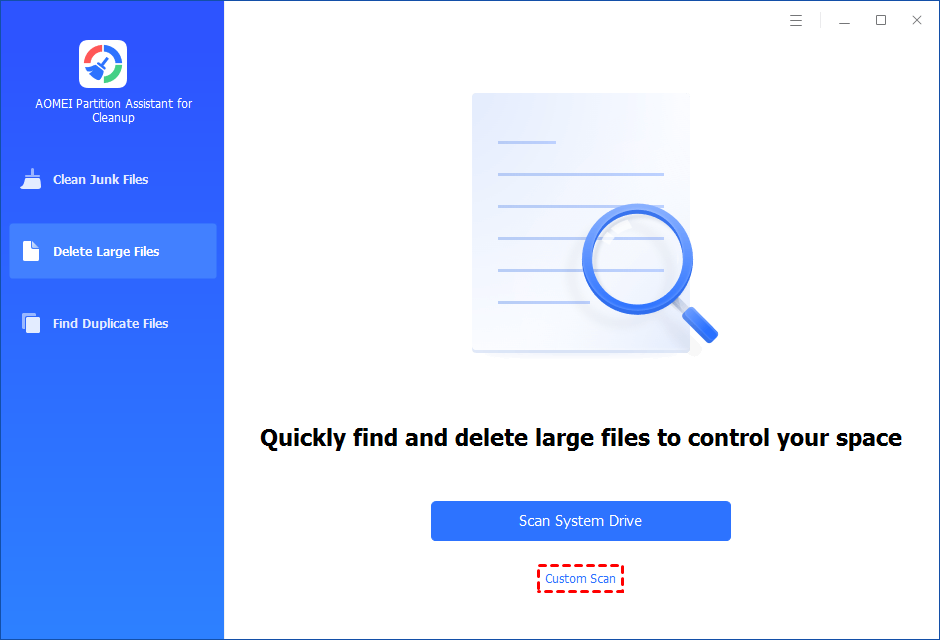
Step 3. After clicking "Custom Scan", all local and external drives on your PC and the common Desktop, Documents, and Downloads paths will be displayed. You can manually select paths to be scanned. Once necessary paths are added, you can click the "Scan Now" button to start the scan process.

The scan process might take time. After the scan is complete, all large files found will be listed.
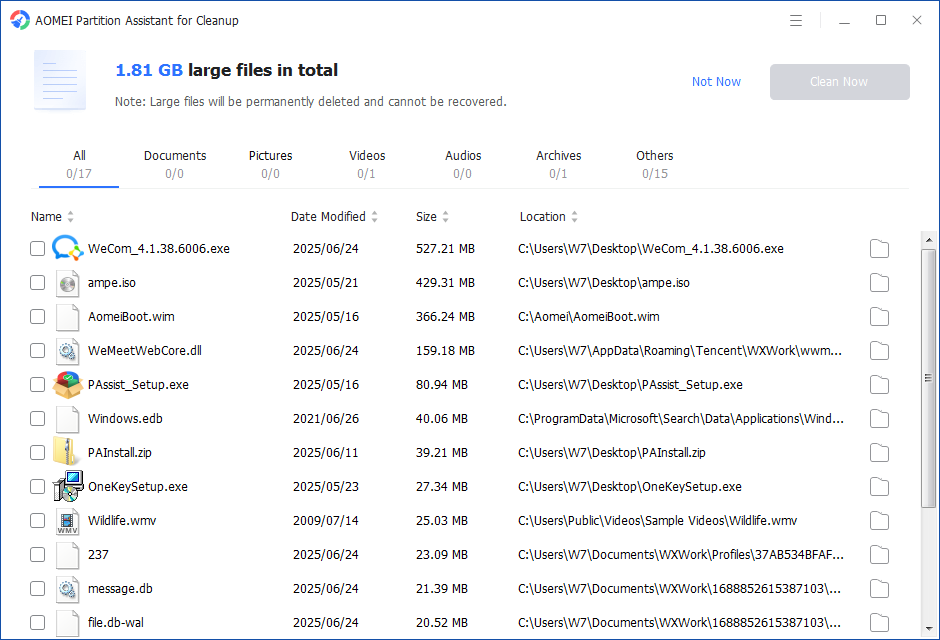
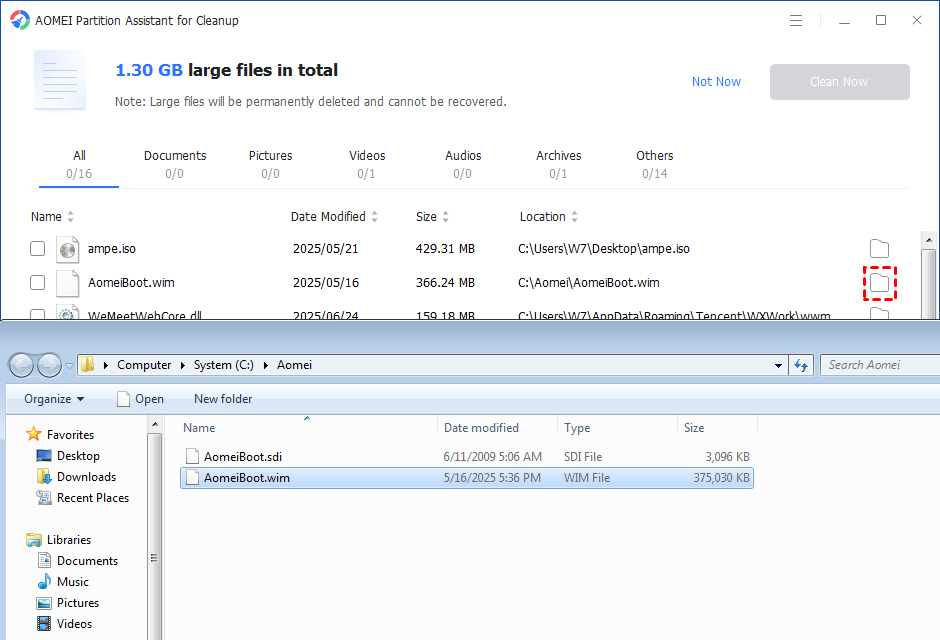
You can also check the large files and click the button behind to locate them.
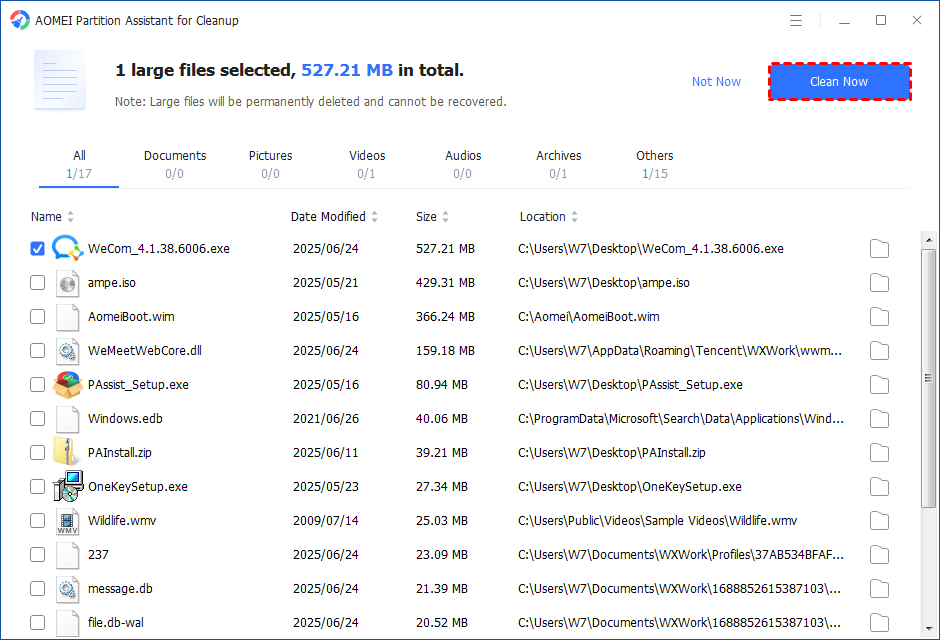
Step 4. Tick the files you want to delete, and then click the "Clean Now" button to start the deletion.
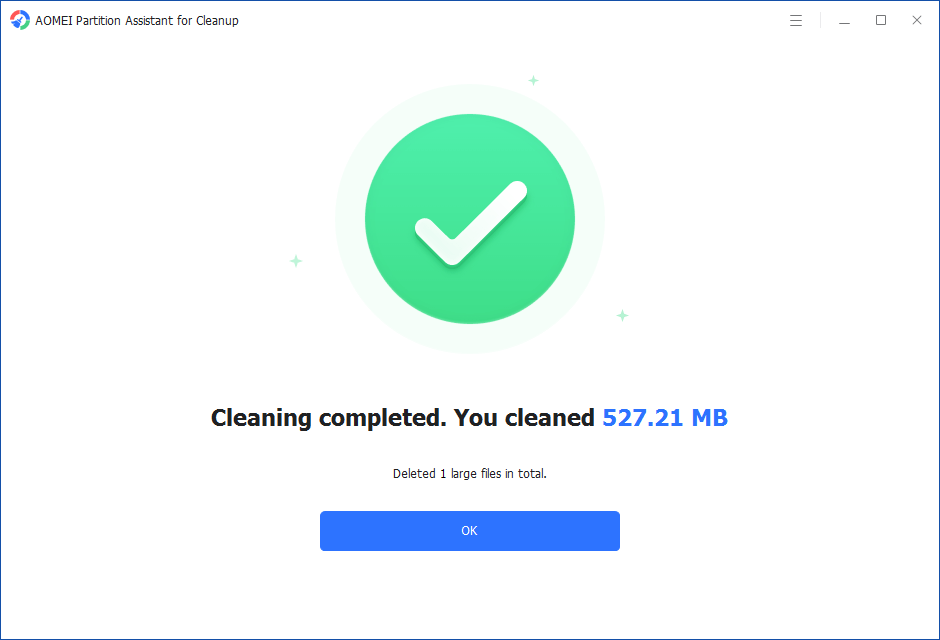
Step 5. The deletion might take time. After the process is finished, the selected files will be deleted, and you will get a cleaning completed window displaying how much data you deleted in total.
Solution 4. Check for disk errors
Corrupted file systems or faulty sectors on your hard drive can often lead to the ATTEMPTED_WRITE_TO_CM_PROTECTED_STORAGE blue screen. To rule out these issues, it’s wise to run a thorough disk check.
Step 1. Start by opening Command Prompt with administrative privileges. Then enter the following command:
chkdsk C: /f /r

Step 2. Make sure to replace C with the correct drive letter. This command not only scans for and repairs file system errors but also detects bad sectors and attempts to recover any readable data.
For a more advanced approach, consider using AOMEI Partition Assistant. This tool provides in-depth disk health diagnostics and allows you to check for bad sectors with just a few clicks, making it a user-friendly alternative to manual command-line methods.
Solution 5. Test your RAM
Faulty or unstable RAM is a common source of system crashes and BSOD errors, including the ATTEMPTED_WRITE_TO_CM_PROTECTED_STORAGE bug. If memory corruption is suspected, it's essential to run a diagnostic test to check your computer’s RAM health.
You can use the built-in Windows Memory Diagnostic tool to perform this check. Follow these steps:
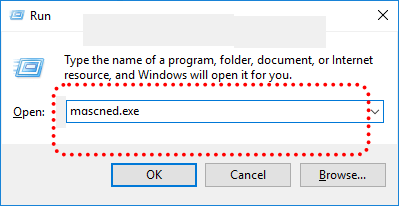
Step 1. Press Windows + R to open the Run dialog box.
Step 2. Type “mdsched.exe” and click OK. This will launch the Windows Memory Diagnostic utility.
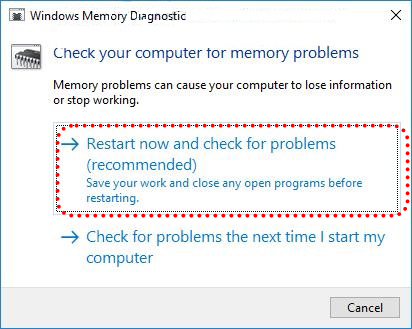
Step 3. In the window that appears, choose Restart now and check for problems (recommended).
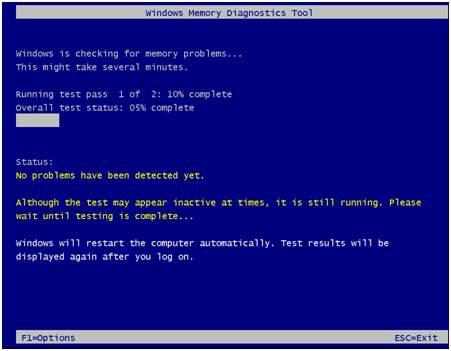
Step 4. Your system will reboot and automatically begin testing the memory for errors. Once the scan completes, results will be displayed after the next login. Detecting and resolving memory issues early can help prevent future crashes and improve overall system stability.
Solution 6. Update your drivers
An outdated or damaged device driver can trigger the ATTEMPTED_WRITE_TO_CM_PROTECTED_STORAGE (0x0000011C) error. When this happens, updating the problematic driver is a logical next step to restore system stability.
Here’s how to update drivers through Device Manager:
Step 1. Right-click the Start button and select Device Manager from the menu.
Step 2. Inside Device Manager, expand each hardware category by double-clicking them. Look for any drivers marked with a yellow warning icon.
Step 3. Right-click the problematic driver and choose Update driver.
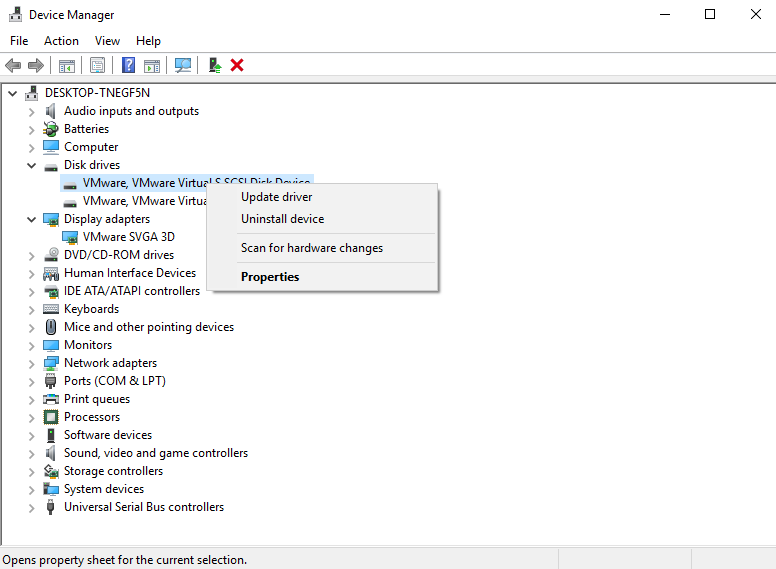
Step 4. In the update window, click Search automatically for drivers. Windows will then search your system and the internet for the latest version and install it if available.
Step 5. Once the update is complete, restart your PC to apply the changes. Keeping your drivers up to date can help prevent a wide range of BSODs and system errors.
Conclusion
This guide has explored the causes behind the ATTEMPTED_WRITE_TO_CM_PROTECTED_STORAGE blue screen error and provided a series of effective troubleshooting methods to help you resolve it. If you're currently dealing with this issue, work through the solutions step by step until the error is eliminated and your system is stable once again.
