
 AOMEI Partition Assistant
BitLocker Recovery Key Not Working After Update? Here’s the Fix
Fix the 'BitLocker password not working' error. This guide provides detailed solutions for when BitLocker doesn't ask for a password and your recovery key fails. Explore built-in and alternative tools.

By Lucas / Updated on August 11, 2025


Encountering the blue BitLocker recovery screen is stressful, but it's even more frustrating when you find your BitLocker recovery key not working after an update. You're locked out of your own data, and the key you carefully saved is suddenly being rejected. This is a surprisingly common issue, often triggered by Windows updates, firmware changes, or BIOS modifications that alter the system's security posture.
Don't panic. This guide will explain why this happens and provide a comprehensive set of solutions to help you regain access to your encrypted drive and get your system working again.
Why is your BitLocker recovery key not working after update?
Understanding the root cause can help you fix the issue and prevent it from happening again. This section delves into the technical reasons why a system update can trigger a BitLocker recovery event and cause your key to fail.
BitLocker works by creating a secure link with your computer's hardware and boot configuration, primarily through the Trusted Platform Module (TPM). When you install a major Windows update or your manufacturer pushes a BIOS/UEFI firmware update, it can change the boot environment. BitLocker detects this change as a potential security threat and, as a precaution, demands the recovery key to ensure the access attempt is legitimate. Your key might not be working due to:
BIOS/UEFI Changes: An update may have changed settings like Secure Boot or the boot order, invalidating the platform validation profile that BitLocker relies on.
Incorrect Key Entry: The 48-digit recovery key is long and complex. A simple typo is a common reason for failure.
Keyboard Layout Issues: In the pre-boot environment, the keyboard layout might default to US English, causing characters to be misinterpreted if you use a different layout.
File System Corruption: The update process could have caused minor corruption on the drive, interfering with the recovery process.
How to fix when your BitLocker password not working
When you're stuck on the recovery screen and your BitLocker password is not working, the primary problem, you need a clear action plan. The following fixes are ordered from the simplest checks to more advanced technical solutions, including a last-resort option.
Fix 1. Input the Correct BitLocker Recovery Key or Password
Before attempting more complex solutions, it is essential to ensure you are using the correct credentials. This step sounds basic, but it's the most common point of failure.
Step 1. Verify the Key: Carefully re-read your 48-digit recovery key. Pay close attention to ambiguous characters like the number '0' versus the letter 'O', or the number '1' versus the letter 'I'.
Step 2. Locate the Correct Key: Where did you save your key? Check all possible locations:
Your Microsoft Account (visit https://account.microsoft.com/devices/recoverykey). A printout you saved.
A text file on a USB flash drive.
Your work or school account if the computer is managed by an organization.
Step 3. Check Keyboard Layout: If your password contains special characters, ensure your keyboard is not defaulting to an unexpected layout in the recovery environment.
Fix 2. Use "manage-bde" to get out of the BitLocker Recovery Screen
If the key is correct but still not accepted, you can use the Command Prompt in the Windows Recovery Environment (WinRE) to unlock the drive.
Step 1. On the BitLocker recovery screen, press the Esc key for more recovery options, then select Skip this drive.
Step 2. Navigate to Troubleshoot > Advanced options > Command Prompt.
Step 3. In the Command Prompt, type manage-bde -status and press Enter to see the status of your encrypted drives and identify the drive letter.

Step 4. To unlock the drive, type the following command, replacing C: with your drive letter and YOUR-48-DIGIT-KEY with your actual recovery key:
manage-bde -unlock C: -rp YOUR-48-DIGIT-KEY
Step 5. Once the drive is unlocked, you should temporarily suspend BitLocker protection to allow Windows to boot normally. Use this command:
manage-bde -protectors -disable C:
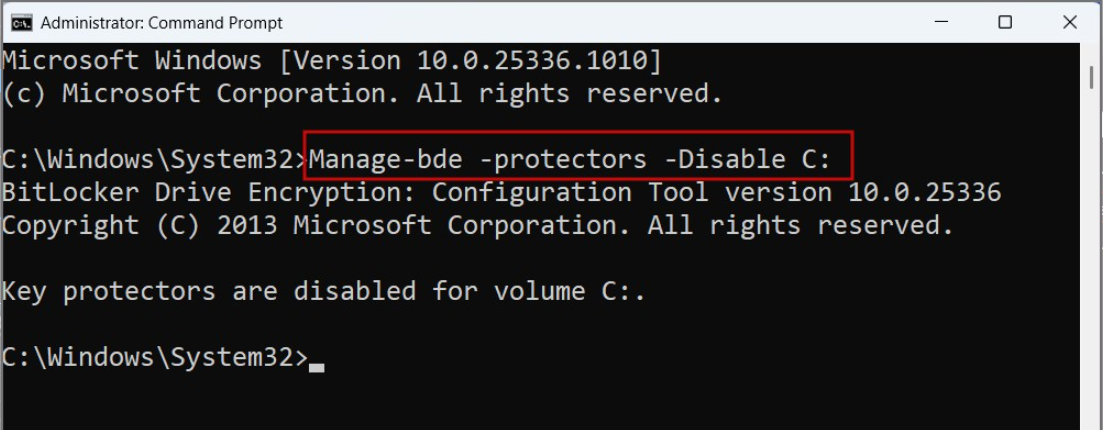
Step 6. Close the Command Prompt and restart your computer. It should now boot into Windows. Once inside Windows, remember to re-enable BitLocker protection.
Fix 3. Reformat the Drive
This should be your absolute last resort, as it will permanently delete all data on the drive. Only proceed if you have a backup of your important files or if the data is not critical.
Follow steps 1 and 2 from the previous fix to open the Command Prompt in WinRE. Type:
diskpart
list disk (display all connected disks. Identify the number of your BitLocker-encrypted disk.)
select disk X (replace X with the disk number).
clean (erase all partition data from the disk.)
create partition primary
format fs=ntfs (quick format the new partition with the NTFS file system.)
exit twice to close Diskpart and the Command Prompt, then restart your PC. You will need to reinstall Windows.
Fix 4. Enable or Disable the Secure Boot
Sometimes, a BIOS update toggles the Secure Boot setting, which confuses BitLocker. Reverting this change can solve the problem.
Step 1. Restart your computer and enter the BIOS/UEFI settings. This is usually done by pressing a specific key during startup, such as F2, F10, F12, or DEL. The key will be displayed on the screen briefly.
Step 2. Look for the Boot or Security tab.
Step 3. Find the Secure Boot option.
Step 4. If Secure Boot is Enabled, try Disabling it. If it's already Disabled, try Enabling it.
Save your changes and exit the BIOS. Your computer will restart. Check if it now boots past the BitLocker screen. If it works, you can enter Windows and suspend and then resume BitLocker to re-establish a new baseline with the current BIOS settings.
Alternative BitLocker tool to Windows built-in solution
While Windows' built-in BitLocker is powerful, managing it can sometimes be cumbersome, leading to situations where a BitLocker recovery key not working after update becomes a major crisis. For a more streamlined and preventative approach, a dedicated disk management utility like AOMEI Partition Assistant Professional is an excellent alternative.
AOMEI Partition Assistant Professional is a comprehensive software suite that simplifies complex disk operations. It includes a dedicated "BitLocker" management feature that provides a user-friendly interface to encrypt drives and, crucially, offers a more robust process for backing up your recovery key.
This proactive approach can save you from future lockouts. It ensures that when you enable encryption, you are explicitly prompted to save the key in multiple, easy-to-access formats, reducing the chance of losing it.
 100% Secure
Step 1. Find the encrypted drive you would like to decrypt and click the option "Turn off BitLocker".
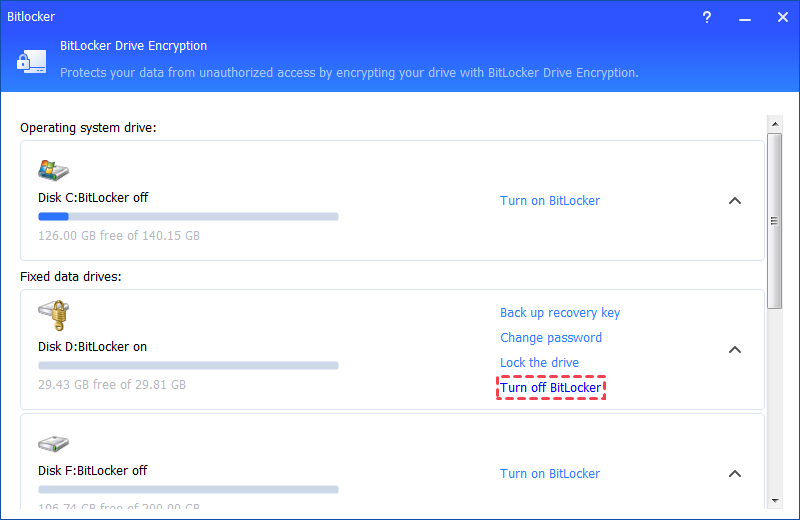
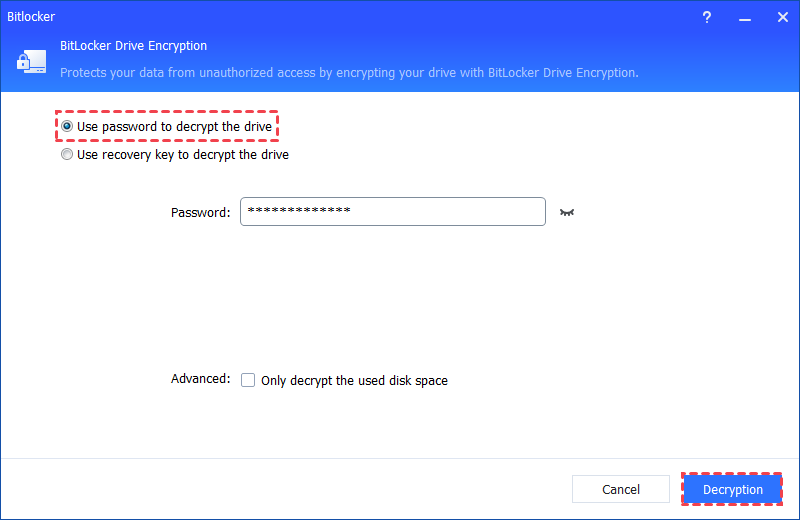
Step 2. There are 2 ways available to decrypt the drive: Use password to decrypt the drive and Use recovery key to decrypt the drive. Please select either way as per your need.
If you select "Use a password to decrypt the drive", please enter the right password and then click the "Decrypt" button.
If you select "Use a recovery key to decrypt the drive", please enter the recovery key saved in the TXT file or printed when you encrypted the drive, and then click the "Decrypt" button.
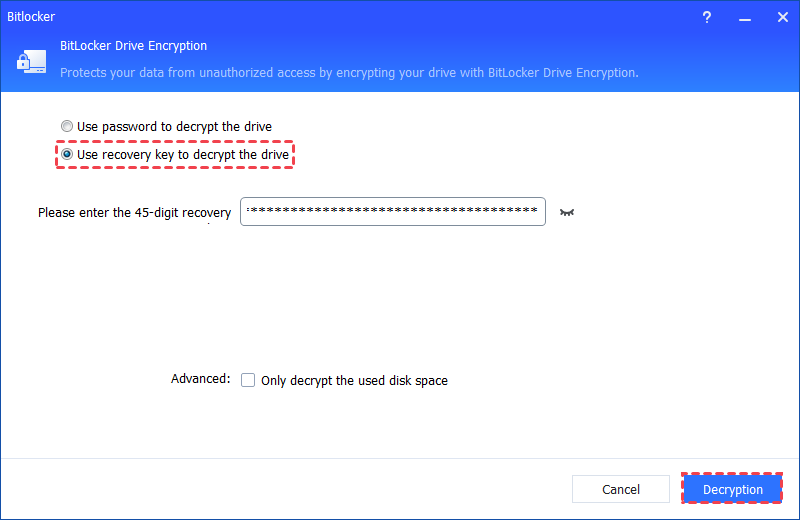
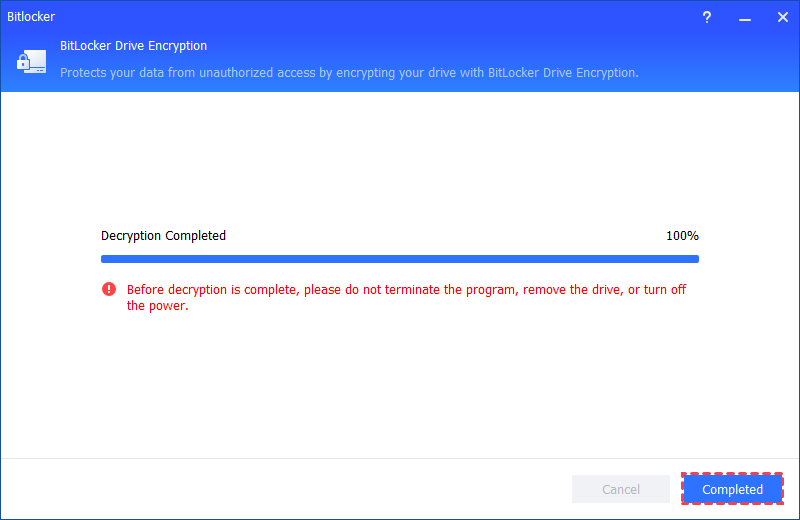
Step 3. Then, the decryption process will start and it might take time to decrypt the drive. Once the decryption process is finished, please click "Completed". Finally, the BitLocker on the drive is decrypted.
Ending
Facing a situation where your BitLocker recovery key is not working after an update can feel like hitting a digital brick wall. However, by systematically working through the solutions—from simple credential checks to advanced manage-bde commands and BIOS adjustments—you can often resolve the issue. Reformatting remains a viable, albeit destructive, last resort. To avoid future headaches, consider a proactive approach.
Using a tool like AOMEI Partition Assistant Professional to manage your BitLocker encryption provides a clearer, more controlled process, especially regarding the crucial backup of your recovery key. Proper management is the best defense against being locked out of your own data.
