
 AOMEI Partition Assistant
[Full Guide] Can An External Hard Drive Replace An Internal Hard Drive?
This article answers whether an external hard drive can replace an internal hard drive. Learn the differences, limits, and how to replace an internal HDD with an external HDD step by step.

By Irene / Updated on September 18, 2025


Can an external hard drive replace an internal hard drive?
You might be wondering if an external hard drive can replace an internal one. In many cases, it’s possible, but it depends on the type of drive and your operating system. Some external drives can be “shucked”—meaning you remove the drive from its case and disconnect the SATA-to-USB adapter—so you can connect it directly to your computer like an internal drive. However, newer external drives may not work this way because their USB controllers are soldered directly to the drive.
Replacing an internal drive with an external one can improve performance if your external drive uses SATA instead of USB, or it can serve as permanent storage if it stays connected. Note that before Windows 10, your main system drive (C:) could not be an external drive due to system performance restrictions.
To use an external drive as an internal one, first remove it from its case and unplug its SATA connector. Then open your computer, locate the internal drive bay, and connect the drive using the proper SATA cables. After installation, you can use disk cloning tools like AOMEI Partition Assistant to copy your existing data, ensuring your external drive functions just like your internal one.
How to clone internal hard drive data to an external one?
Cloning your internal hard drive to an external drive is easy with the right software. AOMEI Partition Assistant is a good choice for Windows 11, 10, 8, and 7. It can copy the entire hard drive, including hidden partitions, or just specific partitions to your external drive. Using its “Clone Disk Quickly” option, you can even clone to a smaller disk, as long as the target disk has enough space for the used data on your OS drive.
If you only want to clone your operating system, the “Migrate OS to SSD” feature lets you copy just the OS-related partitions. The software has a user-friendly interface, so it is easy to follow even if you are new to disk cloning.
-
Connect your external hard drive to your computer and make sure Windows recognizes it.
-
Backup any important data on the external drive, as cloning will erase all its contents.
-
Install and run AOMEI Partition Assistant on your PC.
 AOMEI Partition Assistant
The Best Windows Disk Partition Manager and PC Optimizer
Then, you can have a closer look at how to clone internal hard drive that Windows installed to an external drive via this hard drive cloning software, AOMEI Partition Assistant.
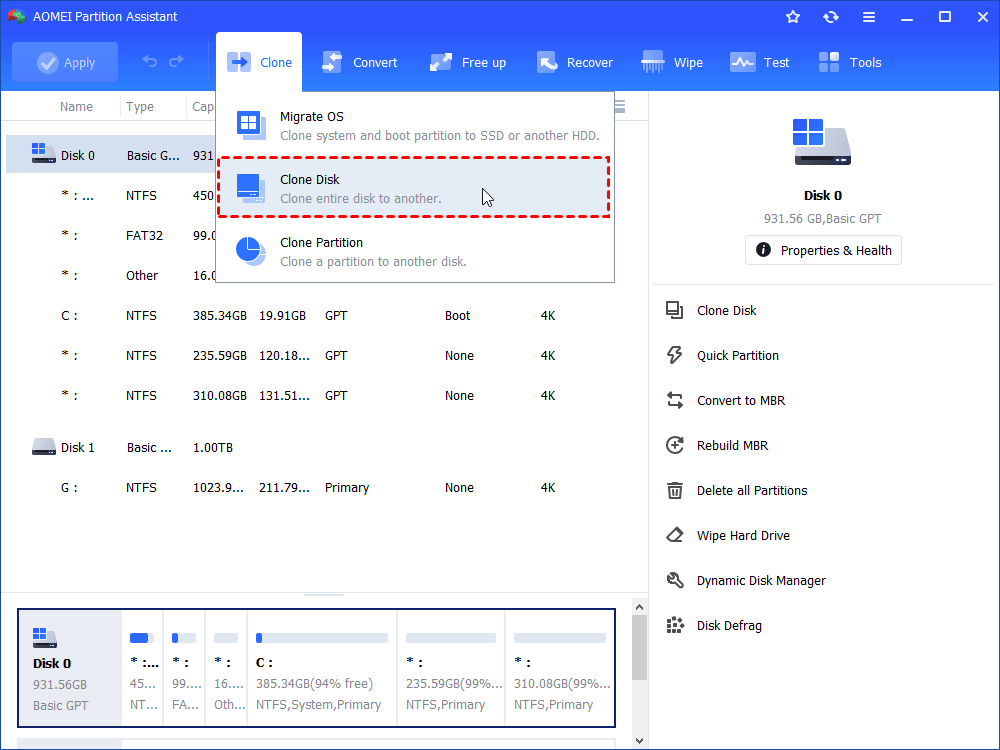
Step 1. Install and launch AOMEI Partition Assistant, click "Clone" in the main interface and select "Clone Disk".
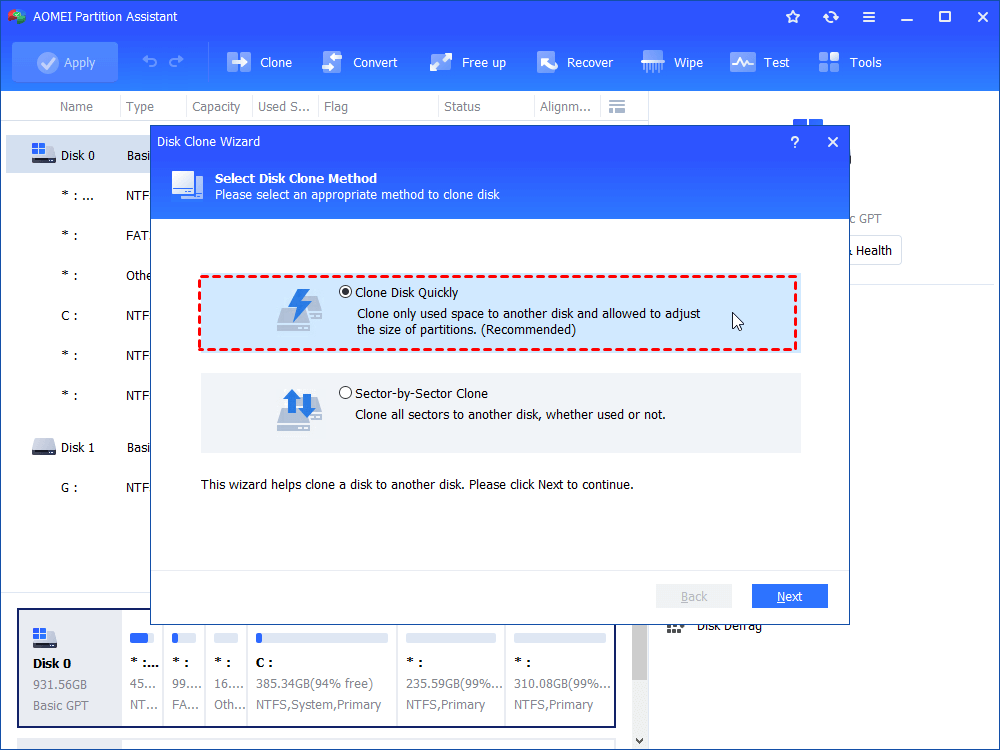
Step 2. Choose the hard disk that you need to clone as the source disk and click "Next".
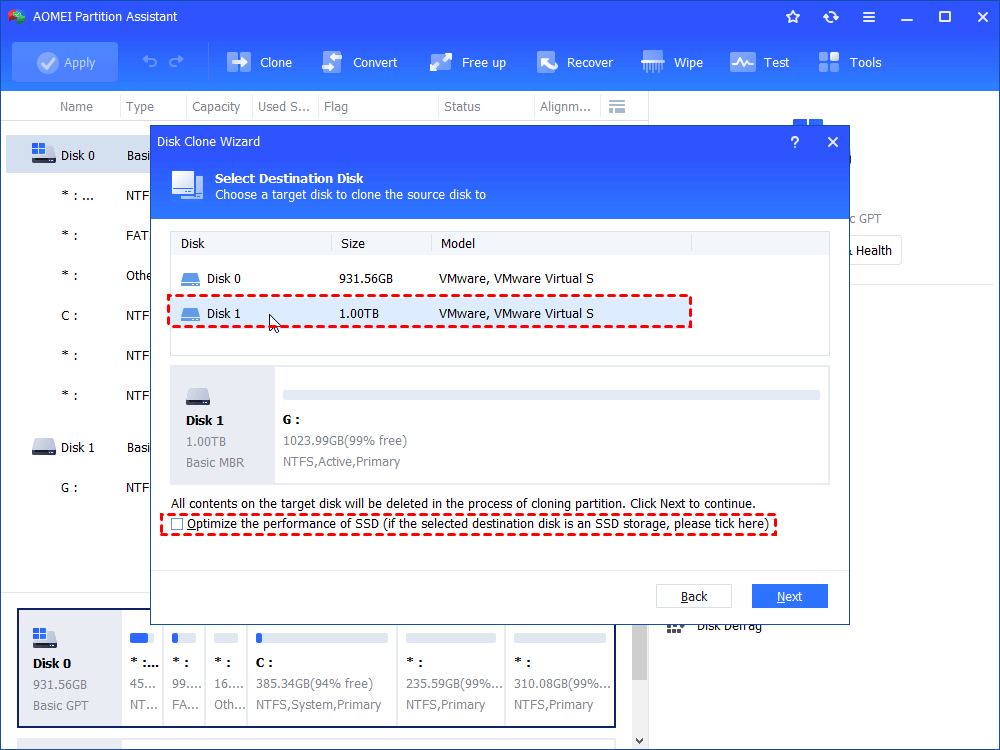
Step 3. Select the destination disk to store the data on the source disk, and then click "Next".
Step 4. Then, you can check the source and destination disk in the next window or change to “Sector to Sector clone”, and click the "Confirm" button to continue if there is no problem.
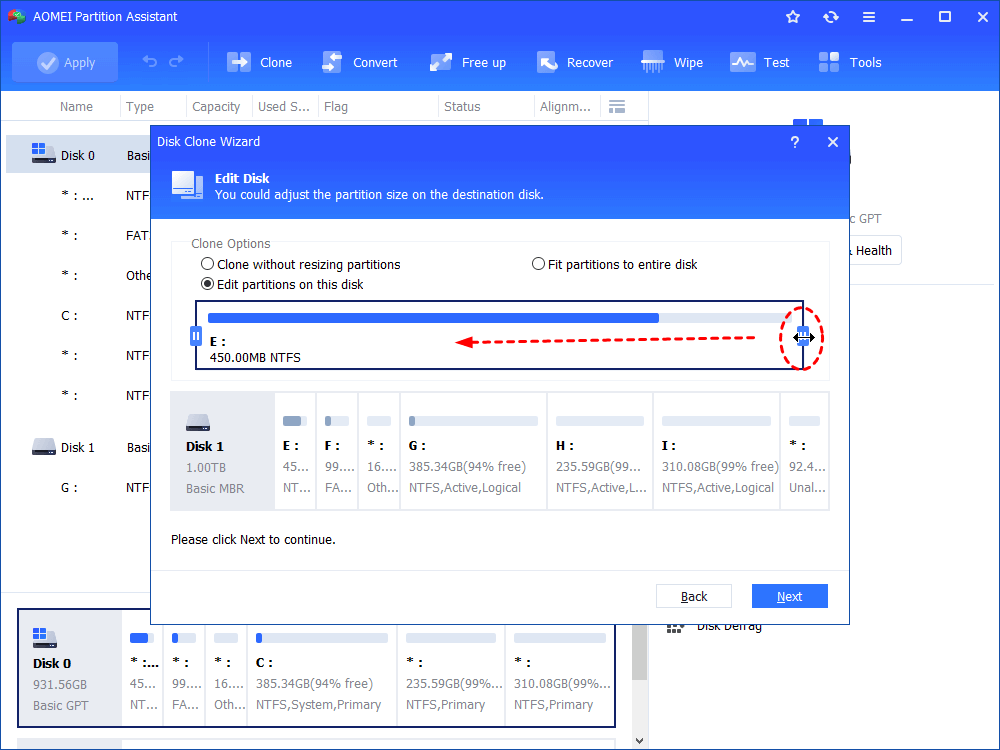
Here, you can also click the "Settings" button to adjust the partition size on the destination disk or tick "4k alignment" to improve the reading and writing speed of SSD if the target disk is an SSD drive.

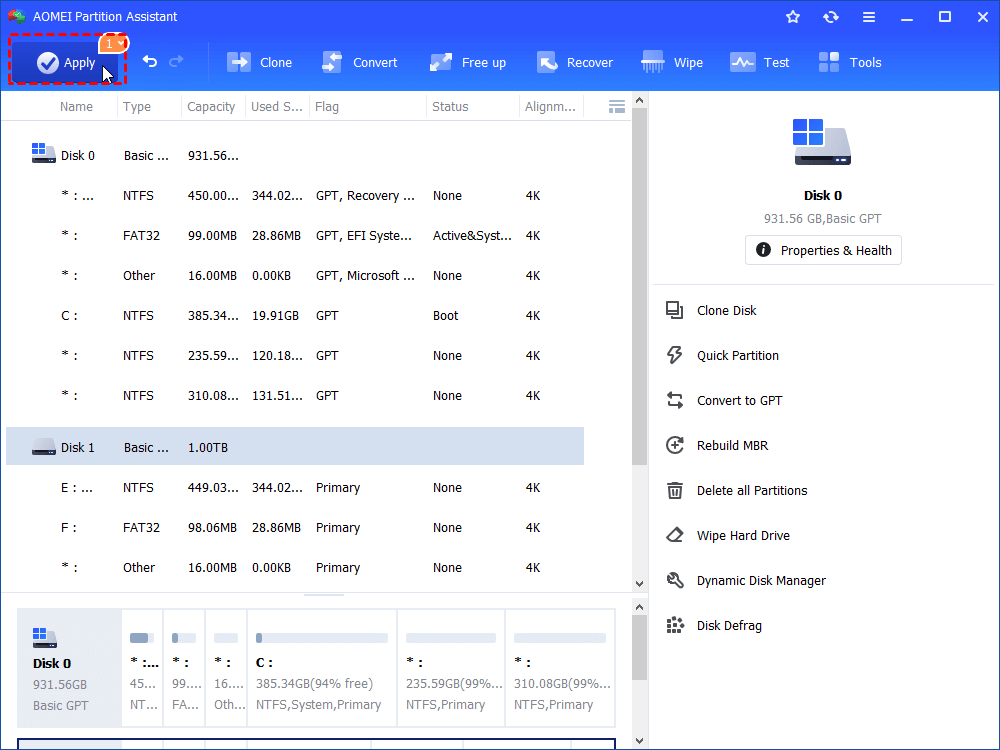
Step 5. At last, click "Apply" and "Proceed" in the main interface to start cloning the hard drive.
-
Reboot is required because the cloning operation runs in PreOS mode.
-
If you use Sector-by-Sector Clone, you cannot change the partition size during cloning.
-
AOMEI Partition Assistant works with Windows 11, 10, 8.1, 8, and 7. To clone a disk on Windows Server, use AOMEI Partition Assistant Server.
Conclusion
So, can an external hard drive replace an internal hard drive? In many cases, yes! But it depends on the drive type and your system setup. By removing the external drive from its case and connecting it through SATA, you can use it just like an internal drive. If you want to keep your data safe or move everything from your old disk, hard drive cloning software such as AOMEI Partition Assistant makes the process smooth and reliable. Whether you plan to replace a hard drive, upgrade storage, or clone internal hard drive data to an external one, the right tools and steps will help you complete the task successfully.
