
 AOMEI Partition Assistant
[Fixed] Can’t Extend Windows 10 Partition
If you can’t extend Windows 10 partition, you can refer some nice solutions in this post where you will see how to fix Disk Management extend volume greyed out and how to use professional tool to easier manage disk space.

By Lucas / Updated on January 8, 2025


Is the Extend Volume greyed out when you attempt to increase the capacity of the C drive or another partition on Windows 11/10? This post will address the reason for the greyed-out Extend Volume Option and the resolution of the "can't extend Windows 10 partition" error on computers on this page.
4 Cases & solutions to fix [can’t extend Windows 10 partition]
Now, we will list some common cases and how to solve “can't extend volume” issue under each case.
Case 1. There is no unallocated space on the disk
A volume cannot be extended if there is no unallocated capacity on the hard disk. What’s worse, this unallocated space must be on the right behind the target partition you wish to enlarge, otherwise, Disk Management will show extend volume greyed out error. Unless you delete the partition right next to the target partition, you’ll not allow to do anything.
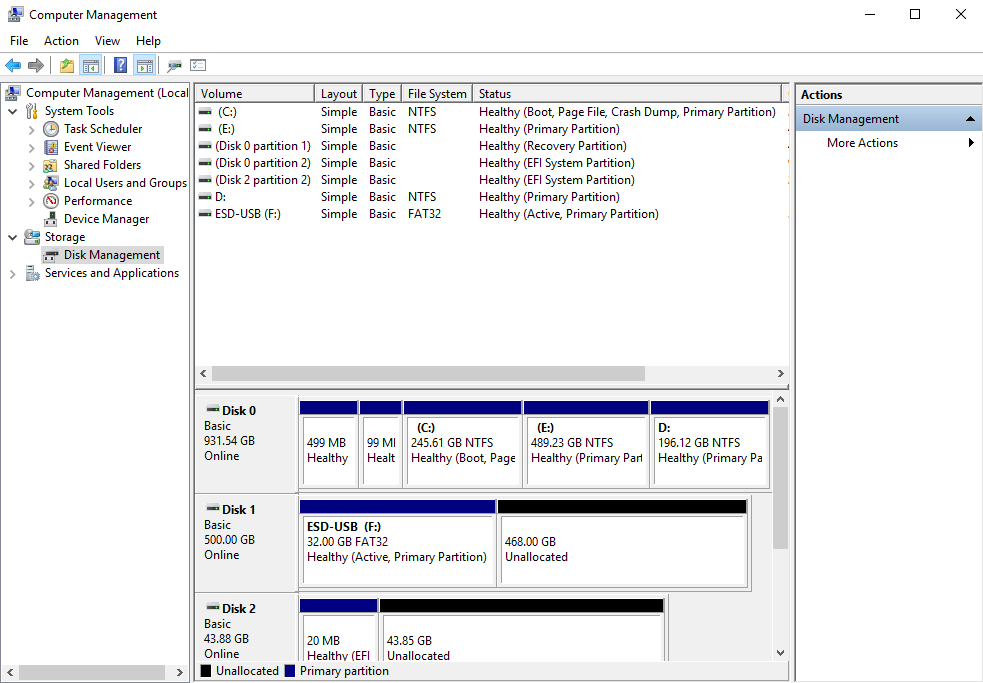
In this case, you can choose AOMEI Partition Assistant to efficiently solve the problem. It is compatible with Windows 11/10/8/7 and offers a variety of solutions for extending Windows partition. The "1-Click Adjust Space" function is the most efficient method for adjusting the free space on your disks. It is capable of adjusting the space of several partitions simultaneously by simply dragging the dots adjacent to the head and tail of the partitions. This method enables the rapid and effortless modification of the disk layout on the target disks.
 100% Secure
Step 1. Install and launch AOMEI Partition Assistant. Right-click a partition (here is D: partition) you want to adjust space and select "1-Click Adjust Space".
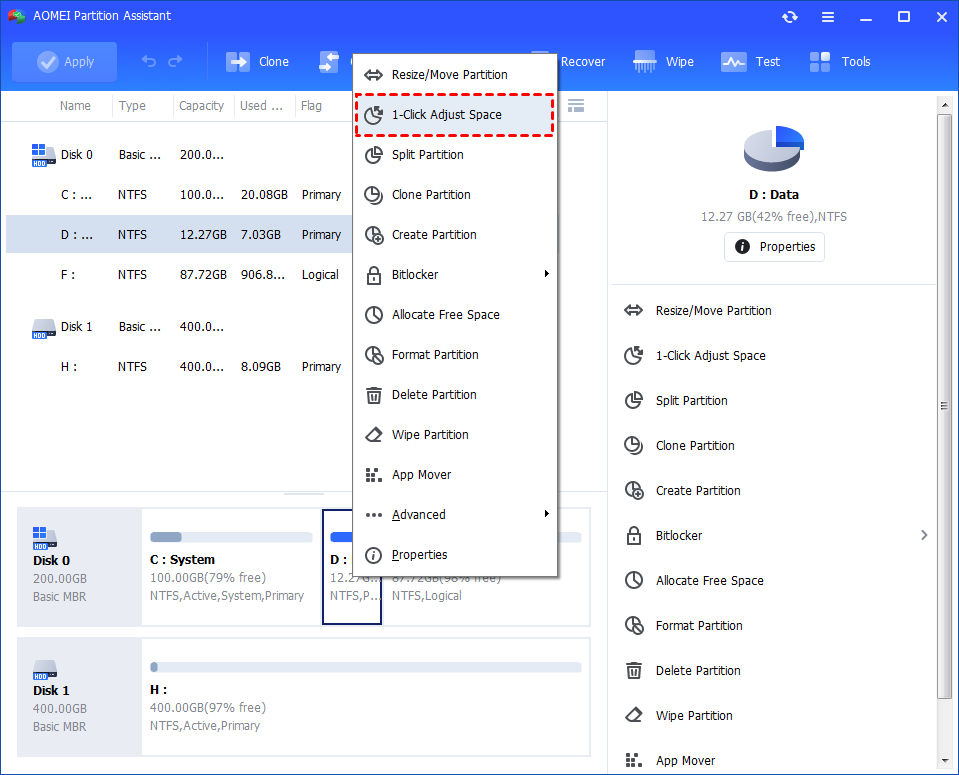
Note: It cannot select unallocated space to adjust because the feature is just for partition space adjustment. If there is unallocated space and you want to use it to expand a partition, you can use the feature "Merge Partition".
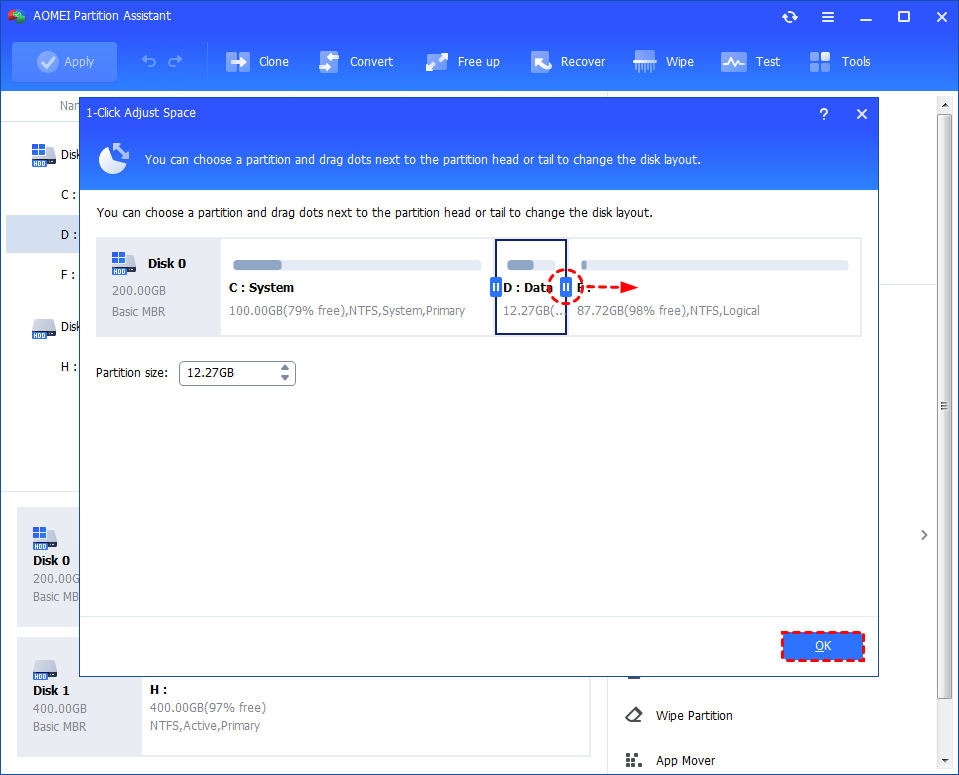
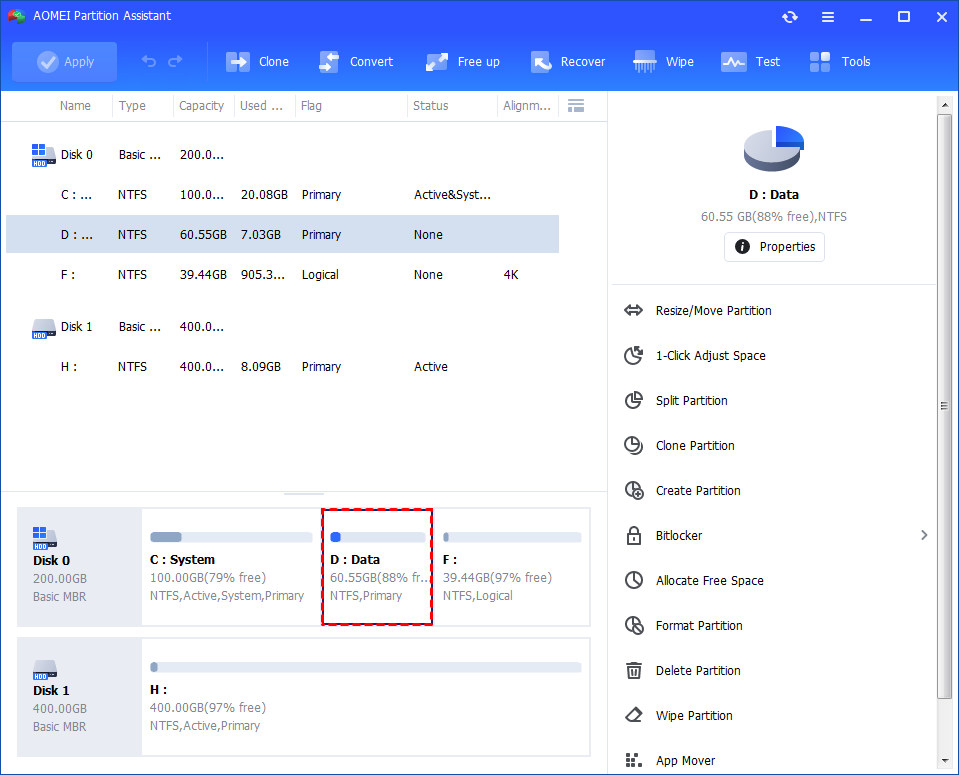
Step 2. If you want to use the space on F: to expand D: you can simply drag the dot near the partition F: head backward to shrink the partition F: and enlarge the partition D: simultaneously. Then click "OK". You can simultaneously drag the dot near the partition C: tail forward to shrink the partition C: so the D: will also be enlarged with the space of C: at the same time. In this case, you can adjust all partition space (C:, D:, and F:) on the disk.
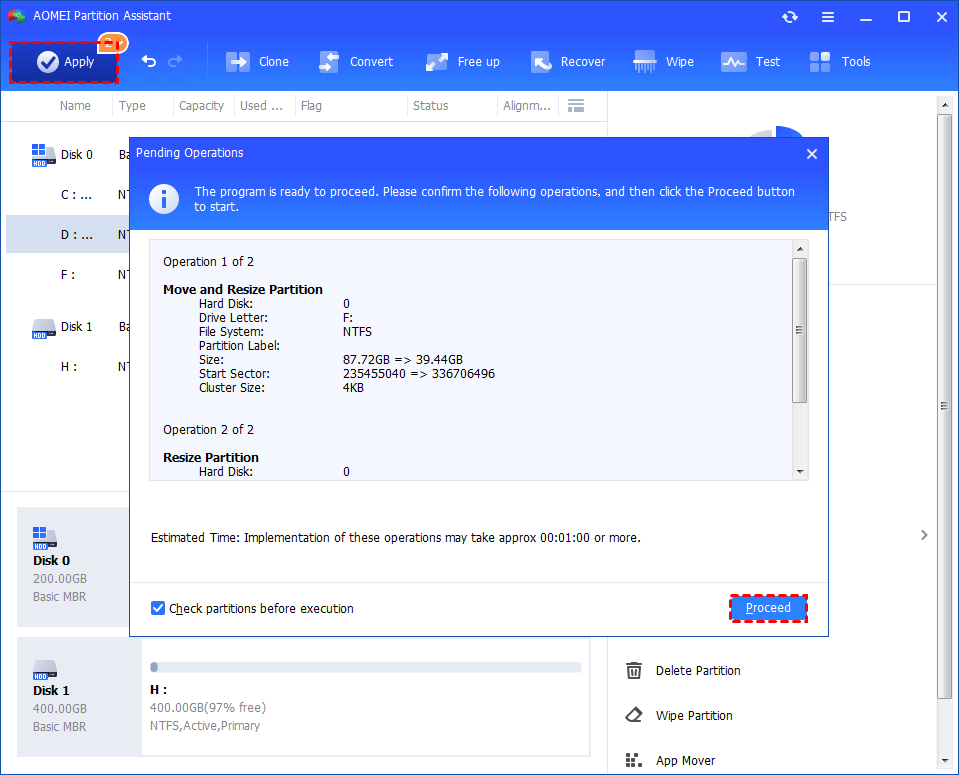
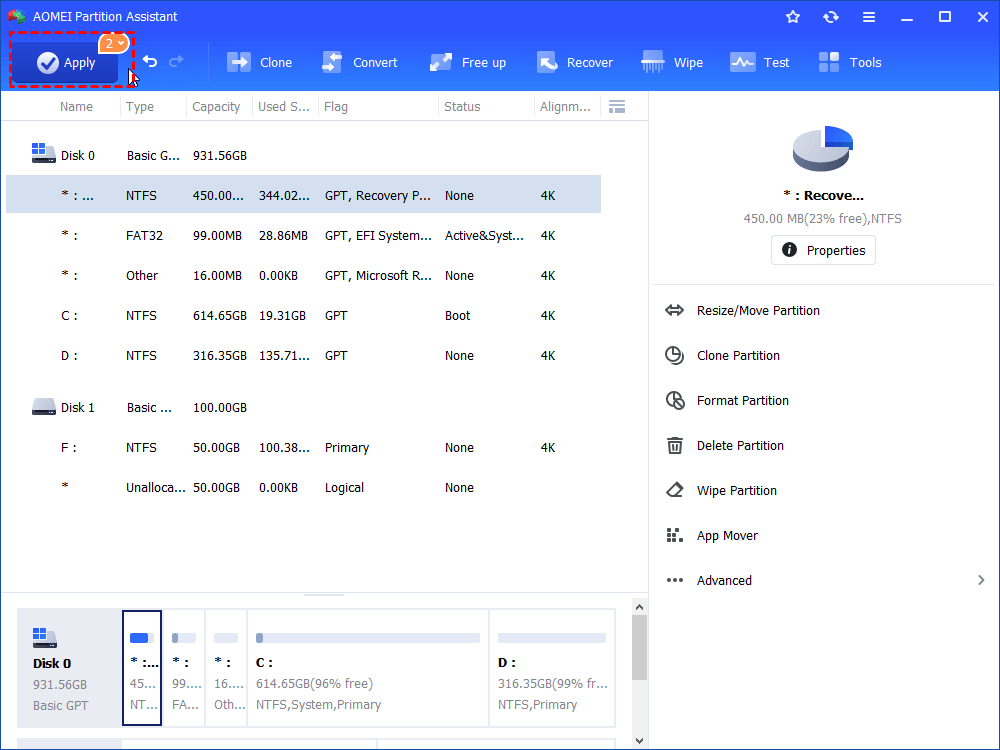
Step 3. You can preview the operation by viewing the "Pending Operations". To commit the "Pending Operations", please click "Apply" and "Proceed".
Step 4. The process will start and you can check the progress. It might take time to finish the operation.
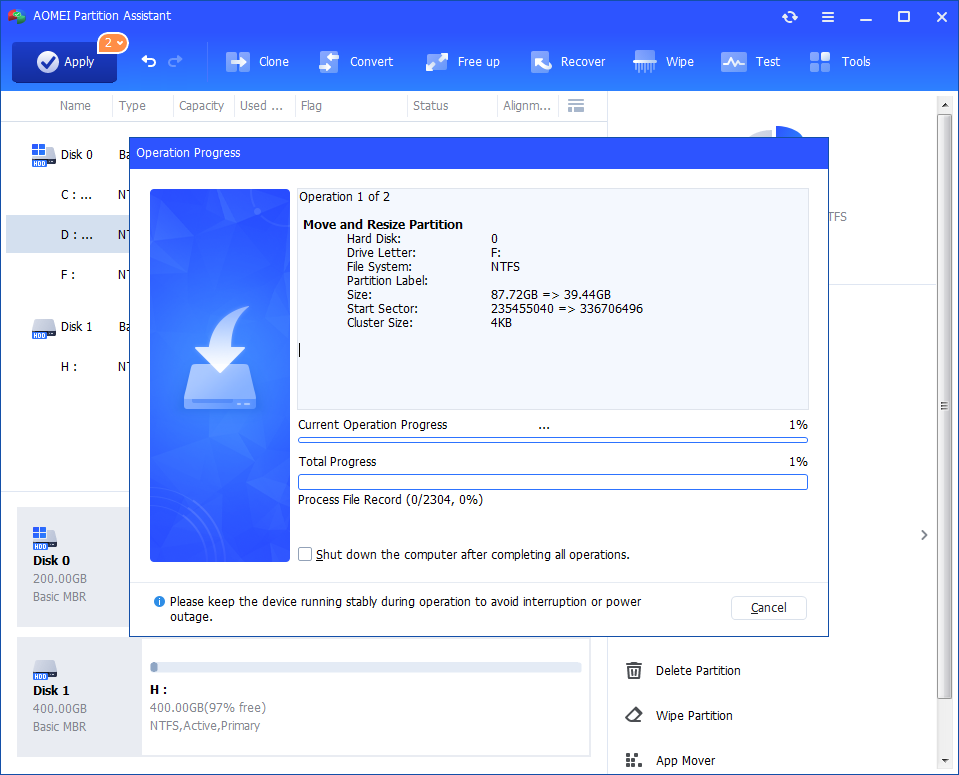
Step 5. Wait for the operation to be finished. After it is completed successfully, you will find D: is enlarged and both D: and F: are adjusted.
Case 2. The unallocated space is non-adjacent
Another tricky case is non-adjacent unallocated space on the disk. As we’ve noted only adjacent unallocated space can be used to extend volume in Disk Management and Diskpart (CMD), so this situation also can’t extend Windows 10 partition successfully.

But, don’t worry, AOMEI Partition Assistant has “Merge Partition” function, you can directly merge non-adjacent partition to another one.
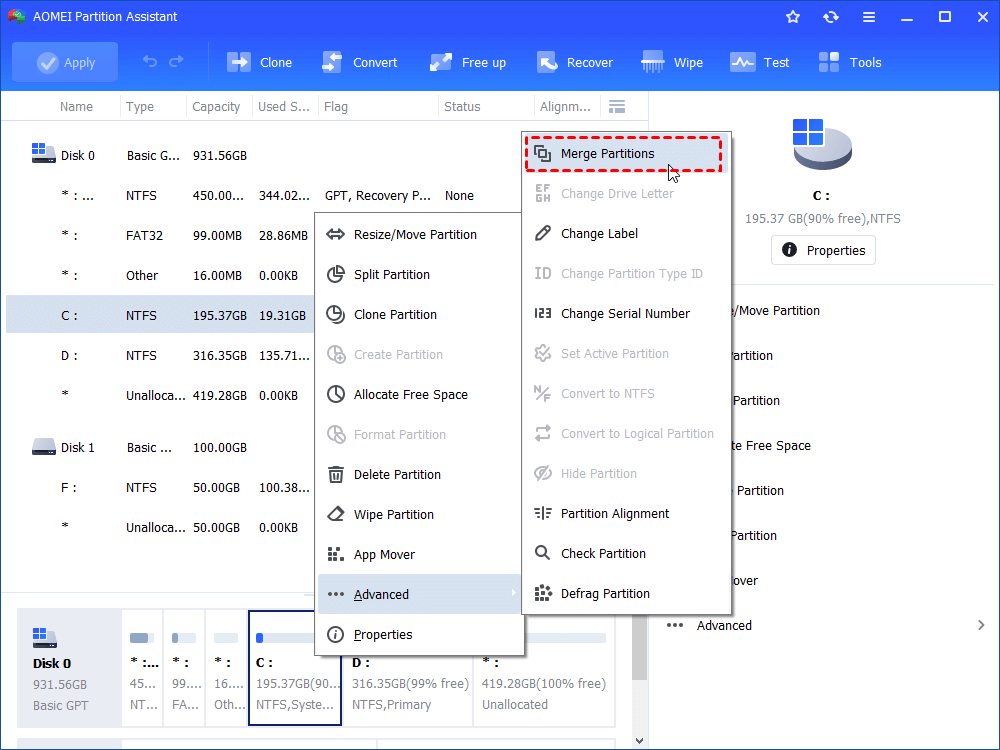
100% SecureStep 1. Install and run it. Right-click the partition you want to add the unallocated space to and then choose Advanced > Merge Partitions (e.g. C partition).
Step 2. Select the unallocated space and then click OK.
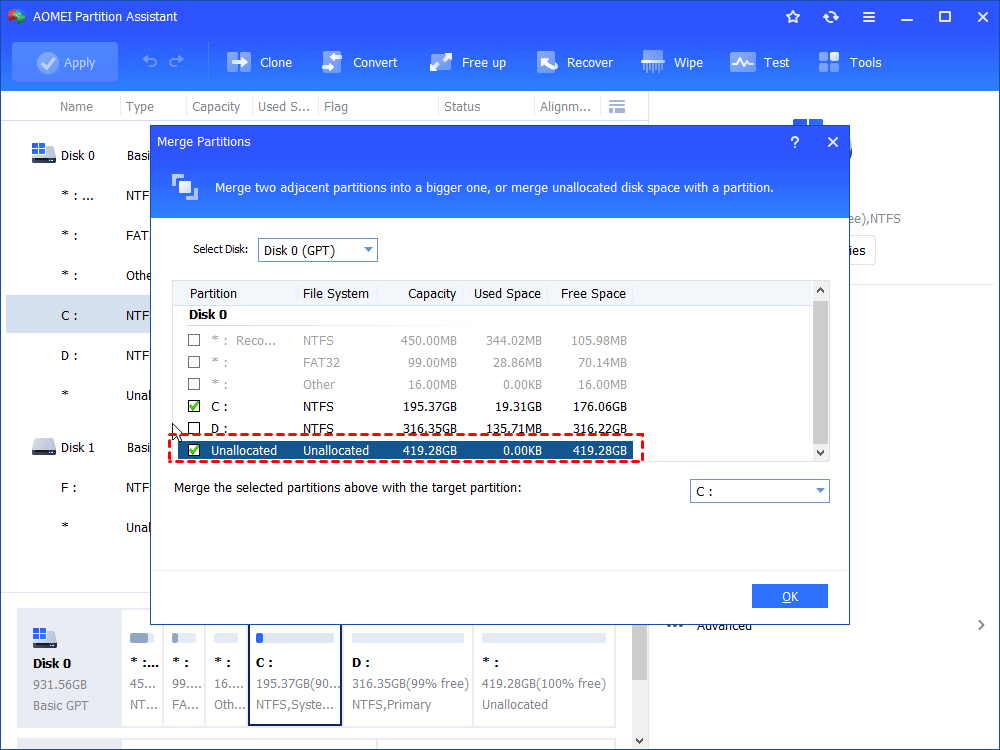
Step 3. In the pop-up window, you will realize the size of partition has been increased. To perform the operation, please click Apply.
Case 3. The partition has a different format
Disk Management is unable to directly extend FAT32, exFAT, and EXT partitions as a result of the Windows limitation. So, you can’t use FAT32 format partition to extend NTFS partition. You can format the FAT32 partition to NTFS before your use it, but also you will lose all data on the formatted partition.
For users who may need to format FAT32, you can use AOMEI Partition Assistant to convert FAT32 to NTFS without formatting, which means you can get a NTFS partition but you won’t lose any data. Then, you can try to extend your partition via the mentioned functions.
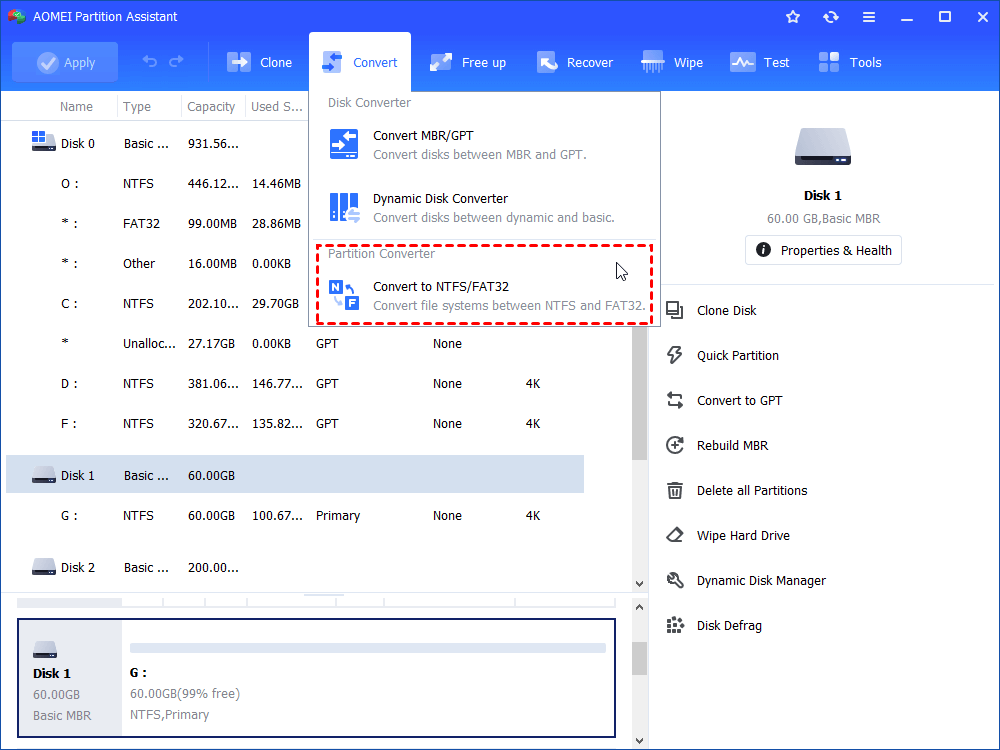
Step 1. Install and run the AOMEI software. Click “Convert” in the top toolbar, and choose “Convert to NTFS/FAT32”.
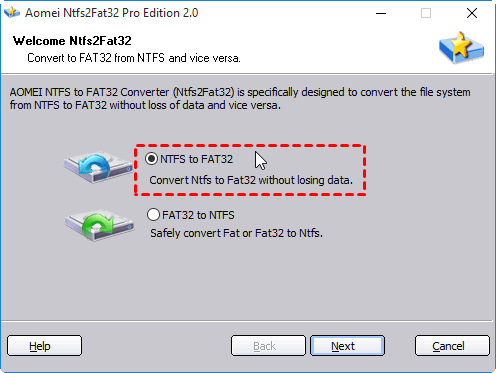
Step 2. Choose the way of converting. Here you need to choose NTFS to FAT32.
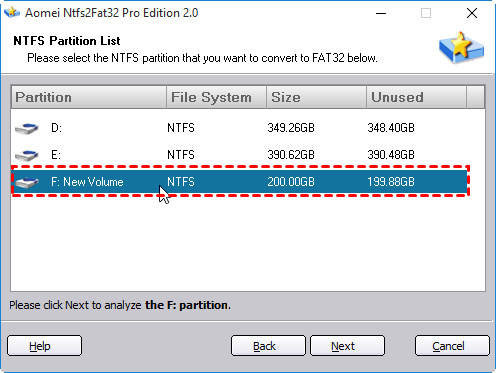
Step 3. Choose NTFS partition from the list. You can tell the partition through the partition size and drive letter.
Note: If the partition that is going to be converted has compressed, encrypted file or larger than 4GB, the program will point out and all compressed and encrypted files will be shown to you, decompress and decrypt directly just by clicking "Start to decompress these compressed files" and "Start to decrypt these encrypted files".
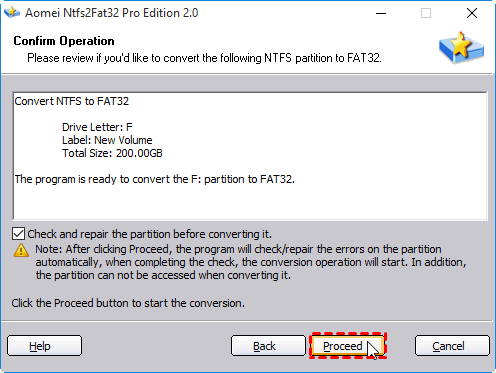
Step 4. Review the operation and click on Proceed.
Case 4. You’re using the MBR partition scheme
This is an infrequent occurrence, but it occasionally occurs on an MBR partition. If a single volume is created and its capacity exceeds 2TB, the partition cannot be further extended. The Extend Volume Option will subsequently become grayed out.
In this scenario, it is possible to surpass the limit by converting the MBR disk to a GPT disk. We advise against employing Disk Management to operate, as it necessitates the deletion of all partitions to convert a disk.
AOMEI Partition Assistant will perform the task due to its disk conversion feature. For assistance, please consult the Convert MBR to GPT guide.
To sum up
In this post, we show you 4 cases why you can't extend volume in Disk Management. If you can't extend Windows 10 partition, you can try the solutions according to your situation. AOMEI Partition Assistant has fewer limitations when you need a tool to manage disk space, you can flexibly adjust the free space on each partition at once. Besides, you can experience other functions such as app mover, and clean junk files to clean boot partition space to keep your system running smoothly.
