
 AOMEI Partition Assistant
[Answered] Does Defragmenting Free Up Disk Space?
Does defragmenting free up disk space? No, it doesn’t. But it can help improve your PC performance. If you want to free up space, this guide also introduces several methods for you.

By Irene / Updated on July 16, 2025


Does defragmenting free up disk space?
No, defragmenting a disk usually does not free up space. It doesn’t delete any files or reduce the amount of data stored. What does defragging do? Defragmentation works by rearranging scattered files and putting pieces of data closer together. This helps the hard drive read files more quickly and improves overall performance.

Sometimes, it may free up a very small amount of space by combining empty areas, but the change is often too small to notice. When files are broken into pieces and spread across the disk, the hard drive has to work harder to read them, which increases loading time.
After defragmenting, your computer may run faster and more efficiently. However, do not defragment an SSD. SSDs don’t need it, and doing so can damage them and reduce their lifespan.
How to defragment a disk?
Generally, you can defragment a disk with command line. However, a simple defragmentation tool can make the process easier and help prevent errors that might happen when using manual commands. AOMEI Partition Assistant is a reliable choice. Its Disk Defrag feature lets you check one disk for fragmentation and defragment another if needed. After the scan, you’ll see how fragmented each drive is. This information helps you decide whether a defrag is necessary. If your external drive isn’t using the NTFS file system, you’ll need to convert it to NTFS before starting the defragmentation.
 AOMEI Partition Assistant
The Best Windows Disk Partition Manager and PC Optimizer
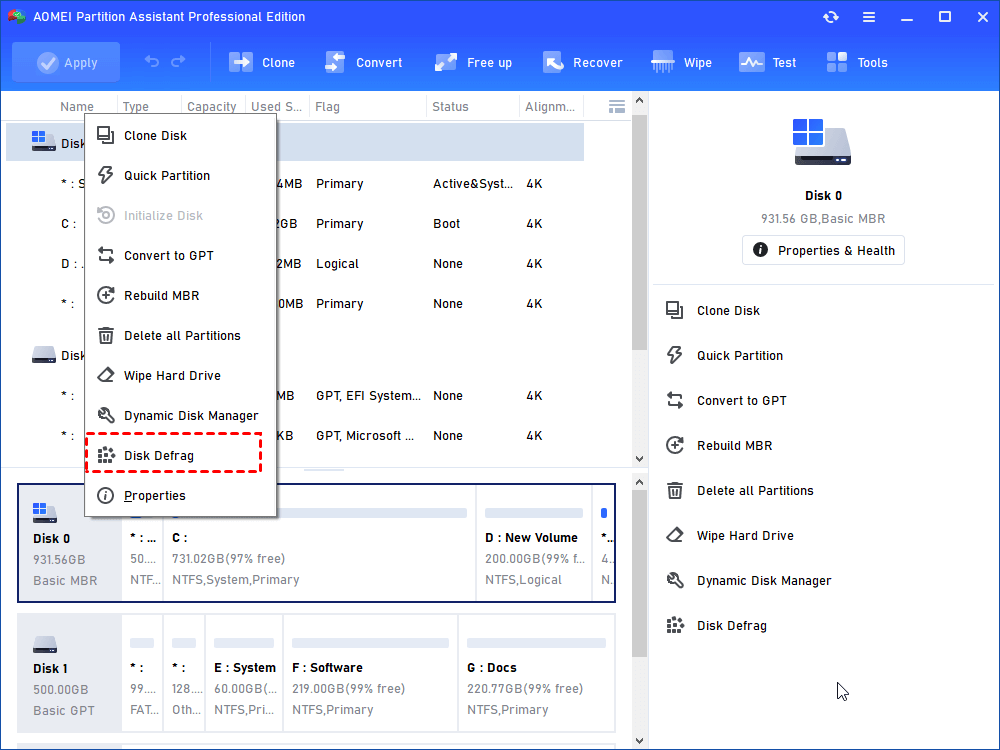
Step 1. Install and run AOMEI Partition Assistant, right-click on the disk and select "Disk Defrag".
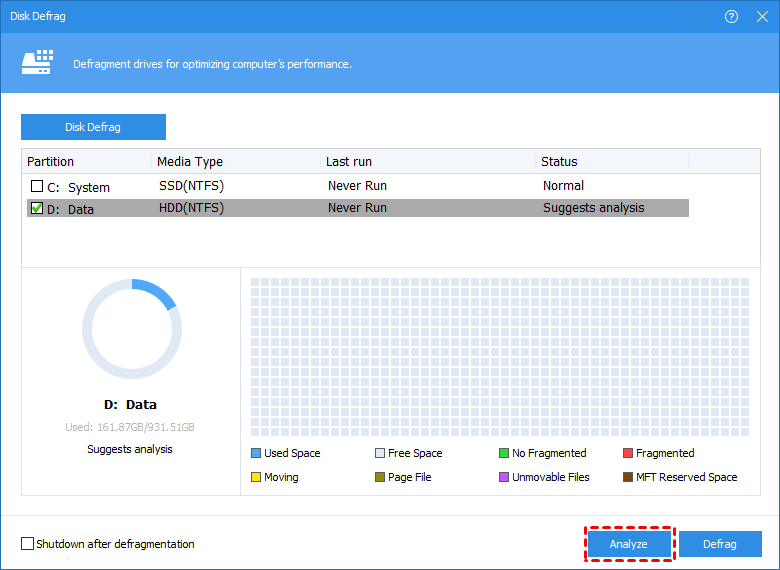
Step 2. Check the partition needed to be analyzed and click "Analyze". Please note you need to check the partition, not select it. Because this function currently only supports NTFS partitions, so it will only list NTFS partitions on SSD, HDD, and USB drives.
Tip: You could click "Pause" to halt the process and resume later, or click "Stop" to terminate the analysis process completely.
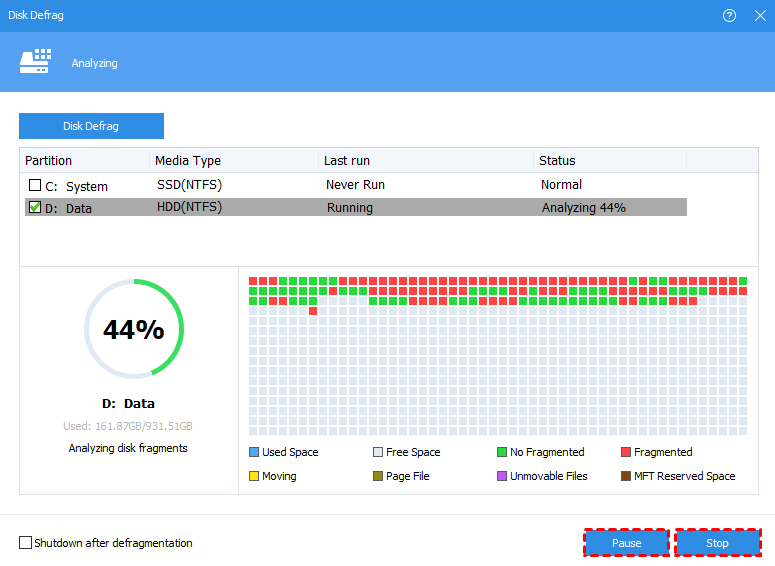
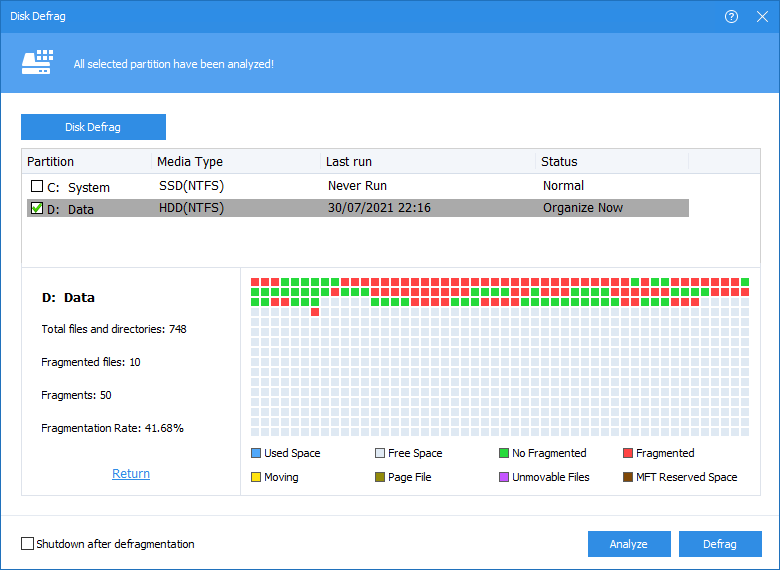
Step 3: When the analysis is complete, the program will score partition based on the fragmentation rate.
There are 3 statuses according to the score:
• Suggest to defragment: 60≤Score<90. The current partition has some fragments, which suggest running defragmentation.
• Defragment now: Score<60. There are many fragments in the current partition, suggest running the defragmentation immediately.
You can check the distribution of fragments through the Tetris view.
Step 4. After the analysis is completed, you can click on "Details" to see more information about the analysis results:
Total files and directories Fragmented files Fragments Fragmentation Rate
Step 5. Click the "Defrag" button to start the defragmentation.
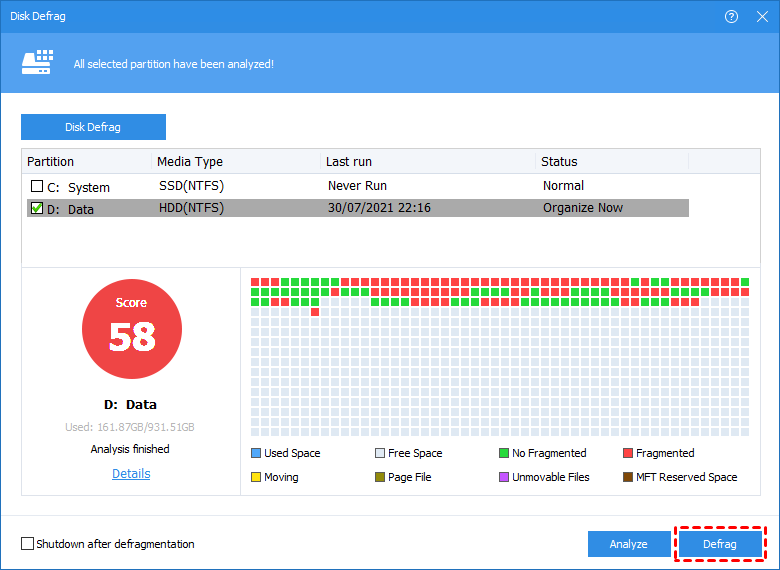
Tip: You could click "Pause" to halt the procedure and resume later, or click "Stop" to terminate the process completely.
After the defragmentation is completed, the partition will be scored according to the defragmentation result.
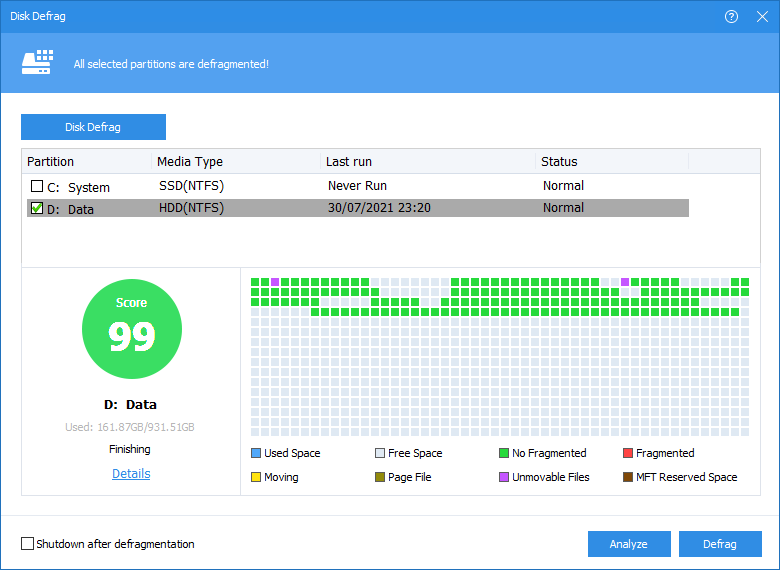
Note: If the fragment files are in use, they cannot be defragmented. You can set a schedule to defrag to run automatic defrag regularly.
How to free up your disk space?
When your C drive is nearly full with the operating system and applications, your computer may start to slow down, freeze, or even crash. To solve this issue efficiently, upgrading to AOMEI Partition Assistant is highly recommended. It offers several practical tools to help free up space and improve system performance.
✔ Merge Partitions: Combine two partitions into one to give more space to the drive that needs it.
✔ App Mover: Move installed programs from the C drive to another drive with enough free space.
✔ Delete Large Files: Identify and remove large files that are using too much space on your drive.
There are many features in this tool that can help improve performance. For example, the “Allocate Free Space” function lets you move space from a drive that has extra to one that is full—helping your system run more smoothly.
AOMEI Partition AssistantThe Best Windows Disk Partition Manager and PC Optimizer
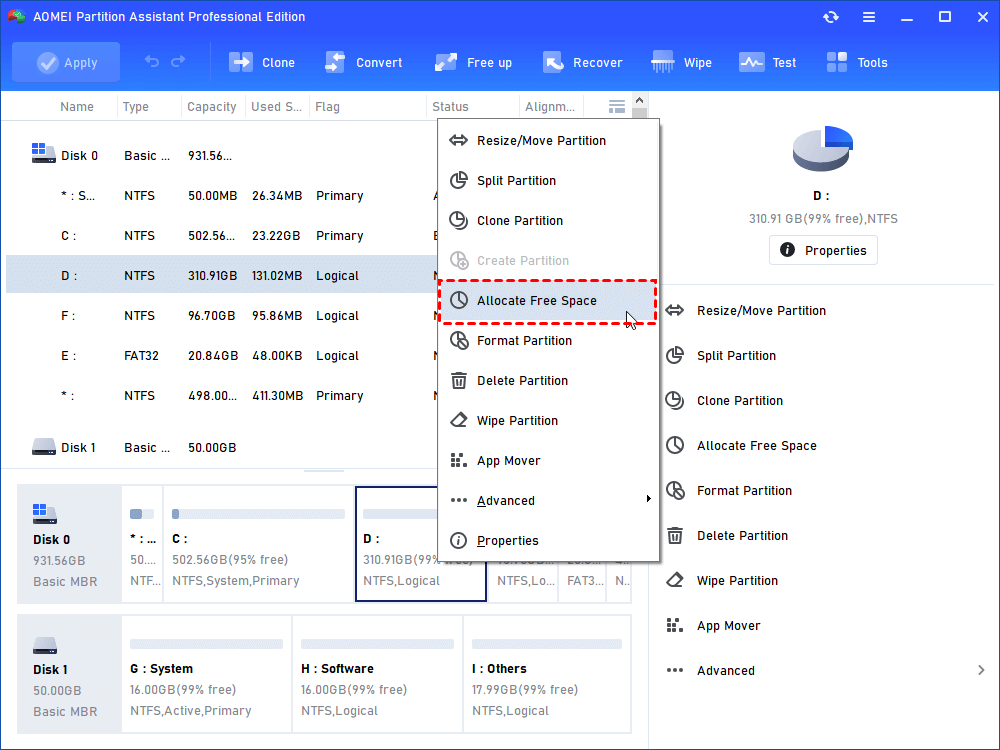
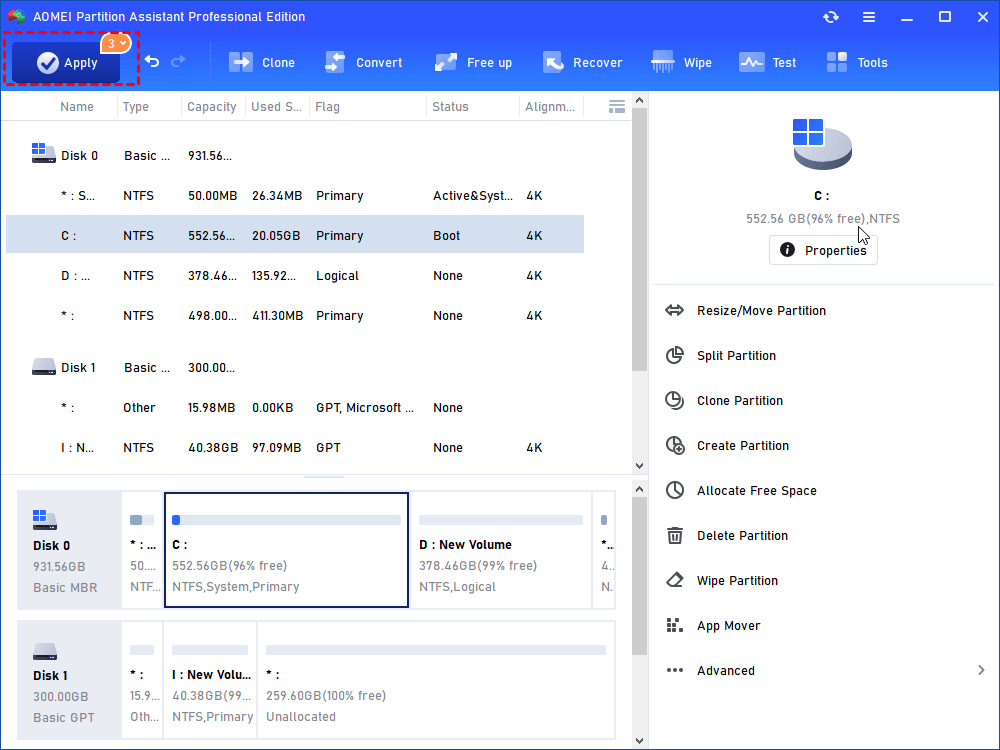
Step 1. Launch AOMEI Partition Assistant, right-click on a partition that has enough space and select “Allocate Free Space” in the dropdown menu.
Step 2. In the next window, preset the size of the free space you want to allocate and the target partition you want to allocate the free space to. When done, click on “OK”
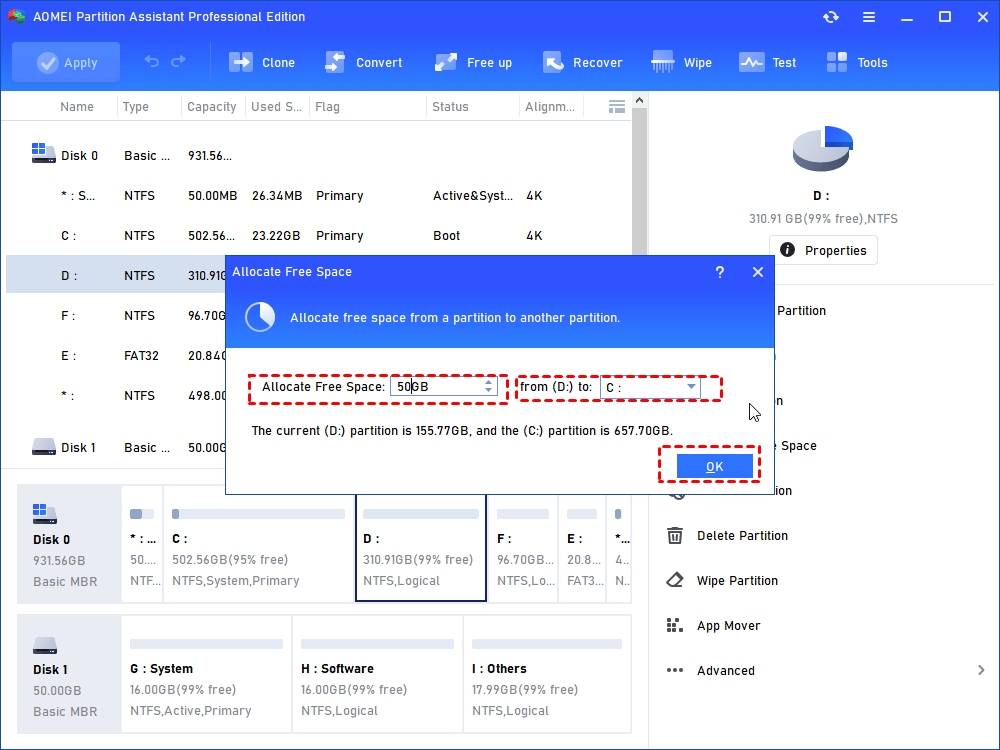
Step 3. After returning to the home interface, hit “Apply” on the upper left and then, hit “Proceed” to start the space allocation.
Conclusion
Defragmenting your disk can boost your computer’s speed and performance, but it does not noticeably free up space. Instead, it simply reorganizes scattered data to make file access faster. For actual disk space cleanup and optimization, tools like AOMEI Partition Assistant offer practical features, such as merging partitions, moving apps, and allocating free space that can effectively expand storage and enhance system performance.
