
 AOMEI Partition Assistant
1-Key to Extend Recovery Partition without Deleting Others
Sometimes you need to extend recovery partition to fix Windows update fail error caused by insufficient recovery partition. In this guide, you can extend recovery partition safely.

By Lucas / Updated on January 8, 2025


Overview of recovery partition in Windows computer
When Windows is installed on a GPT disk, a Recovery Partition (System Reserved Partition on MBR disk) and an EFI system partition without a drive letter will be created. The Recovery Partition size for Windows 10 is approximately 450MB or 500MB, while it is 200MB for Windows 8/8.1 and 100MB for Windows 7. The recovery partition size for Windows 11 is contingent upon the specific configuration of your system; however, the standard range for Windows 11 recovery partitions is 500 MB to 1 GB.
The recovery partition enables the restoration of the OS to a specific state. Therefore, it is not detrimental to the system's launching process and does not necessitate deletion. The partition will also be generated following a system upgrade, such as from Windows 7 to Windows 8/8.1/10 or a simple update. Unsurprisingly, Windows 11 has generated multiple recovery partitions.
By default, the Recovery drive is concealed and cannot be accessed through Windows Explorer. Therefore, the issue in the example pertains to that particular update. The drive letter of the partition can be removed to resolve the issue. Additionally, it is possible to disable the limited disk space check in the Registry Editor.
Use CMD to extend recovery partition in Windows
Command Prompt is a built-in utility on Windows computers that can help users conduct entered commands and perform advanced administrative functions. You can also use it to increase the Recovery Partition size to address the Recovery Partition full issue.
Step 1. Press the Win + S keys simultaneously to open the Search window and type “cmd” in the search window. Then, right-click Command Prompt, and select Run as administrator.
Step 2. Type “reagentc /info” and press Enter to check the WinRE status. If the WinRE is enabled, type “reagentc /disable” to turn off WinRE.
Step 3. Shrink the OS partition and prepare the disk for a new Recovery Partition. Here are the commands, and don’t forget to press Enter after each command:
diskpart
list disk
sel disk [OS disk index] (This should be the same disk index as the Windows Recovery Environment (WinRE).)
sel part
shrink desired=250 minimum=250
sel part
delete partition override
Step 4. Create a new Recovery Partition. Different partition styles have different commands. You need to check if the disk is GPT or MBR by seeing the return result of the “list disk” command. If there is an asterisk (*), it means that the disk is GPT. Otherwise, it is MBR.
create partition primary id=de94bba4-06d1-4d40-a16a-bfd50179d6ac
gpt attributes =0x8000000000000001
create partition primary id=27
format quick fs=ntfs label= “Windows RE tools”
Step 5. Type the command “run list vol” and press Enter. Next, type “exit” to exit the Diskpart.
Step 6. Type “reagent /enable” and press Enter to enable the WinRE. After that, type “reagent /info” to make sure to check the information about the Recovery Partition.
An easier alternative tool to CMD to extend recovery partition
Besides using Command Prompt to increase Recovery Partition size, you can also use AOMEI Partition Assistant to extend Recovery Partition. It is a reliable and professional disk partition manager that can help you increase your Recovery Partition size with simplicity.
This handy tool's “1-Click Adjust Space” feature can adjust a partition space by dragging the dots next to the partitions' head and tail. In this way, you can easily and quickly change the disk layout on the target disks without typing any complicated commands.
 100% Secure
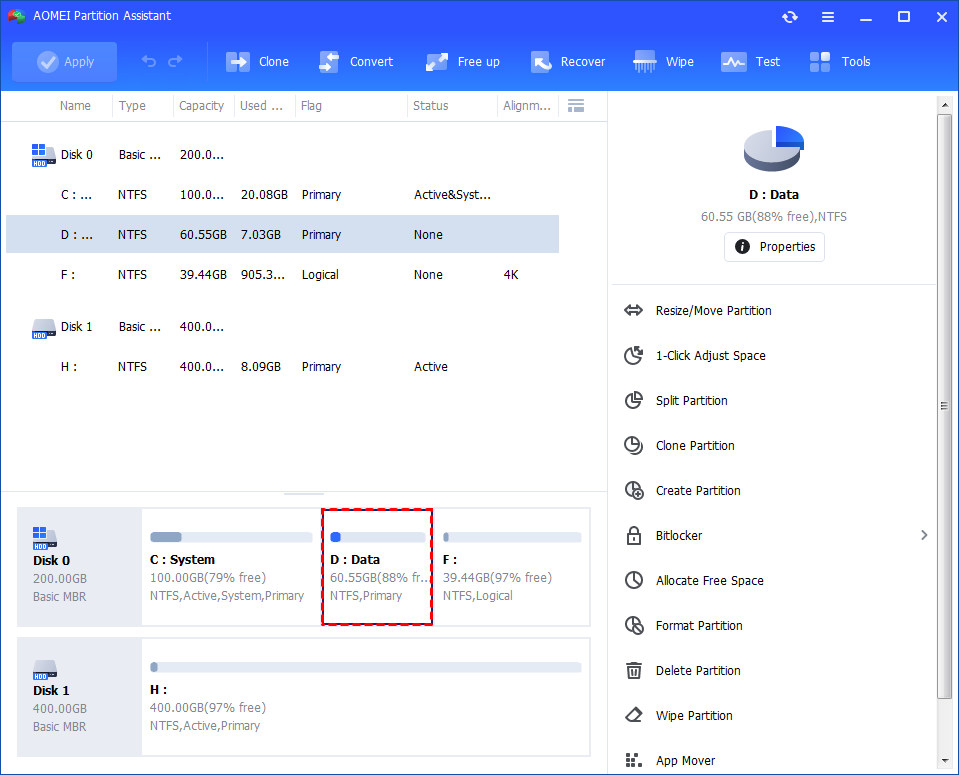
Step 1. Install and launch AOMEI Partition Assistant. Right-click a partition (here is D: partition) you want to adjust space and select "1-Click Adjust Space".
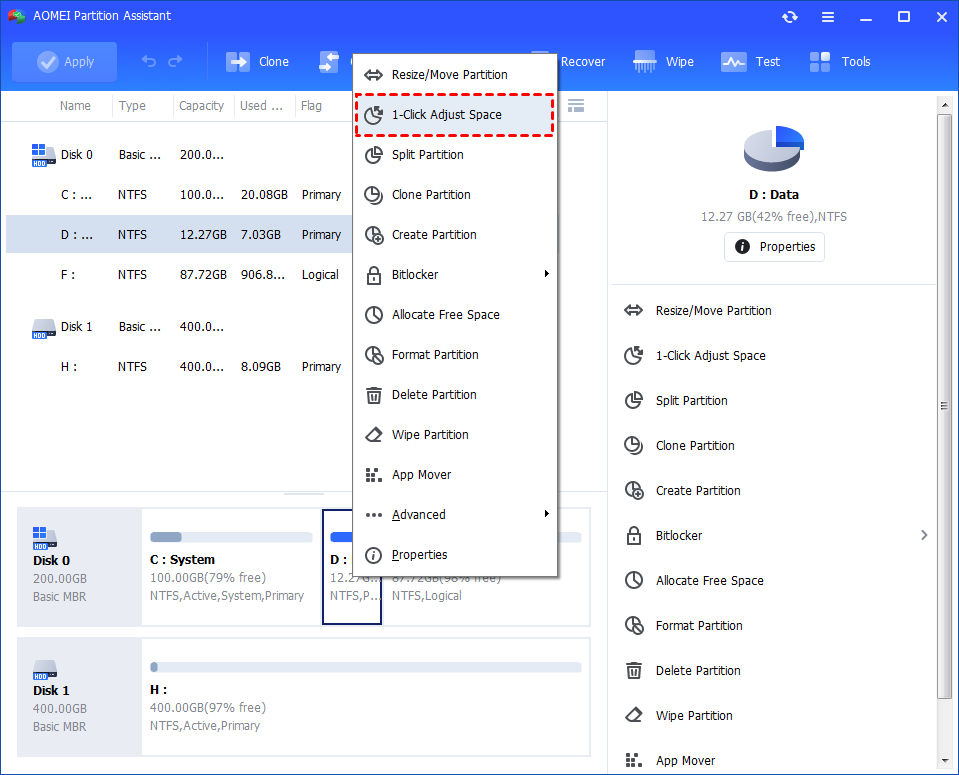
Note: It cannot select unallocated space to adjust because the feature is just for partition space adjustment. If there is unallocated space and you want to use it to expand a partition, you can use the feature "Merge Partition".
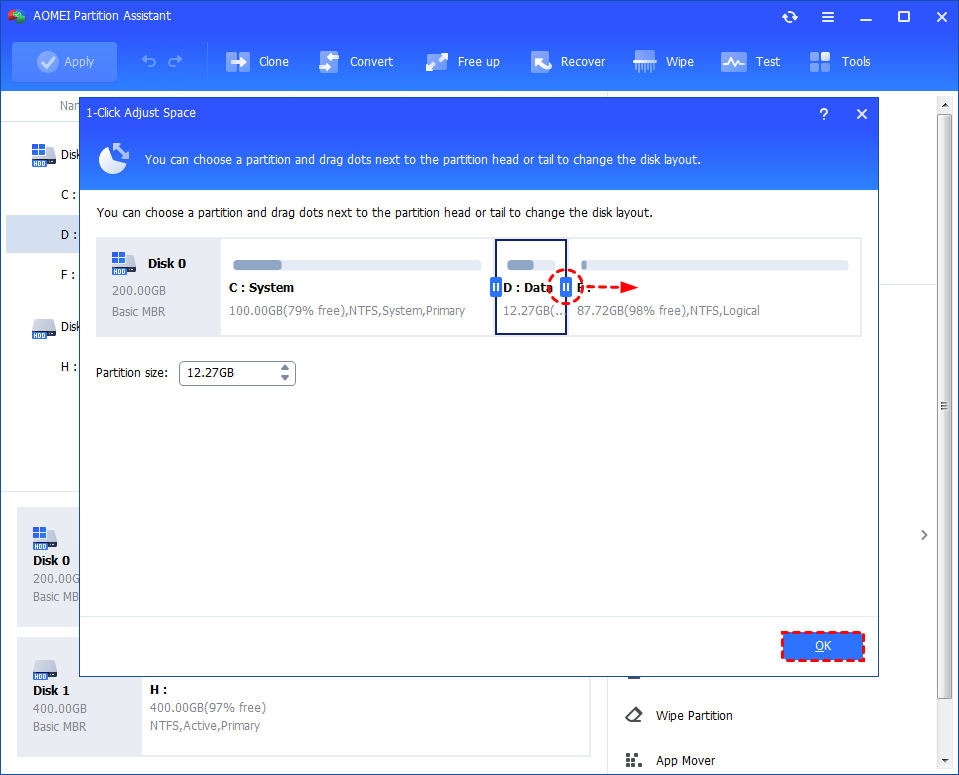
Step 2. If you want to use the space on F: to expand D: you can simply drag the dot near the partition F: head backward to shrink the partition F: and enlarge the partition D: simultaneously. Then click "OK".
You can simultaneously drag the dot near the partition C: tail forward to shrink the partition C: so the D: will also be enlarged with the space of C: at the same time. In this case, you can adjust the disk's partition space (C:, D:, and F:).
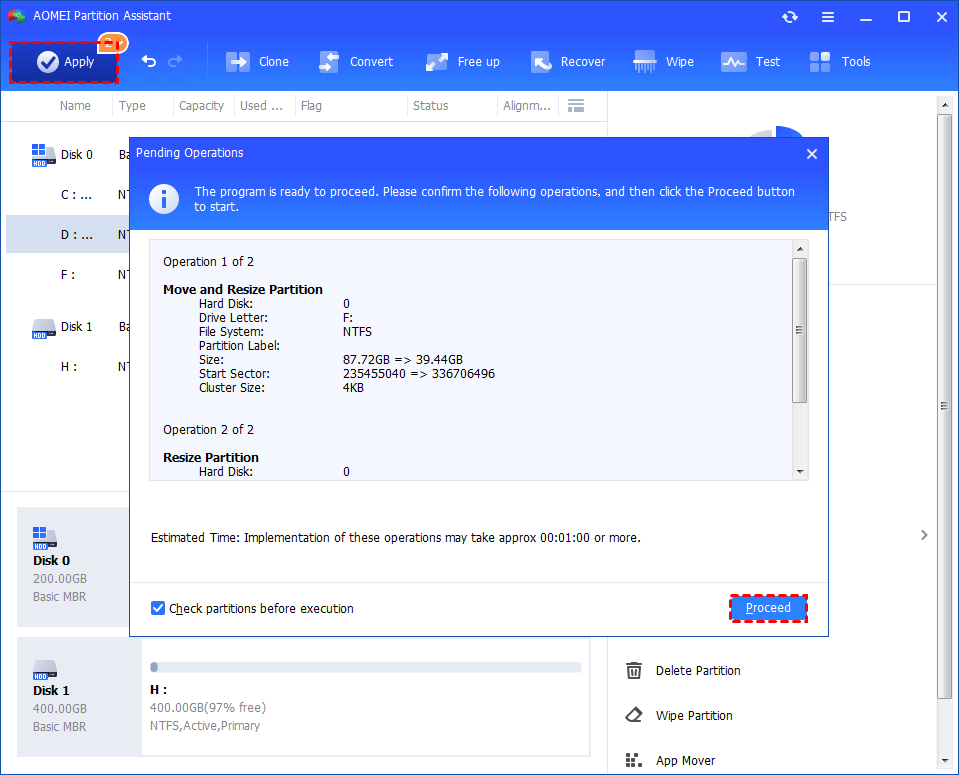
Step 3. You can preview the operation by viewing the "Pending Operations". To commit the "Pending Operations", please click "Apply" and "Proceed".
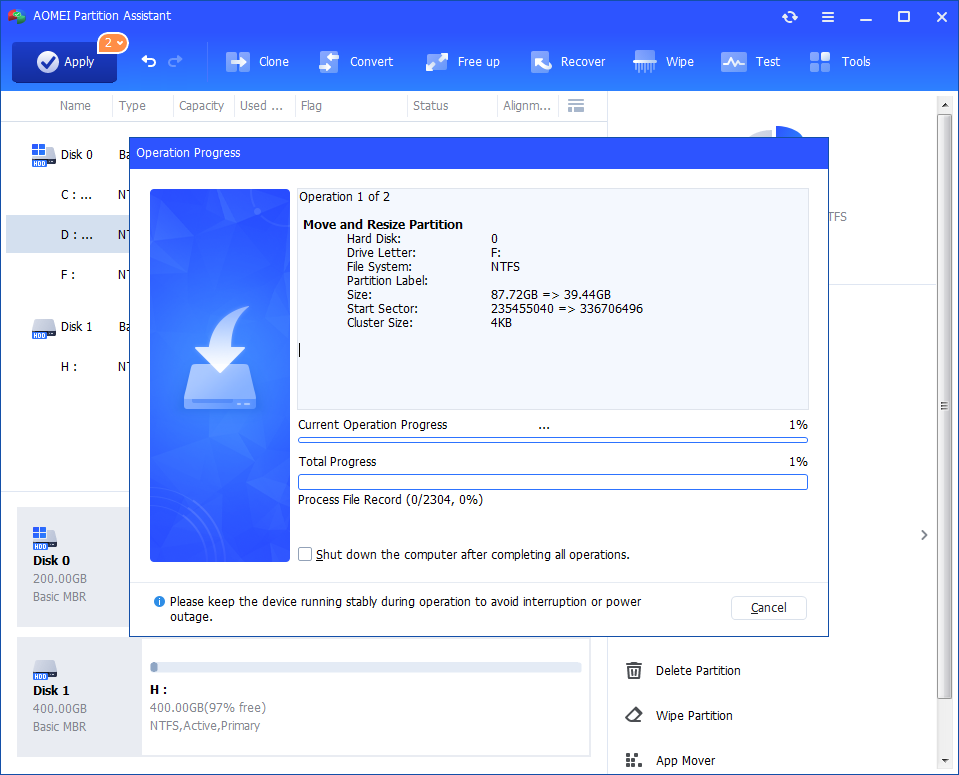
Step 4. The process will start and you can check the progress. It might take time to finish the operation.
Step 5. Wait for the operation to be finished. After it is completed successfully, you will find D: is enlarged and both D: and F: are adjusted.
Further reading: How to clean full recovery partition in Windows
Besides extending the recovery partition, you can also try to clean it.
1. Disable system protection
Step 1. Right-click on "This PC"/"My Computer" and select "Properties." Subsequently, select "System Protection."
Step 2. Locate the "Configure" icon in the System Protection tab.
Step 3. Determine whether the recovery partition is enabled or disabled. Select this drive and click the "Configure" button if it is indicated as "On." Select the Disable system protection option in the pop-up window.

2. Use Disk Cleanup
Step 1. Type "disk cleanup" in the search field located on the taskbar and select "Disk Cleanup" from the list of results.
Step 2. Choose the drive that requires cleanup, and then click "OK."
Step 3. Select the checkbox adjacent to the file type you wish to eliminate.
Step 4. Click "OK" and wait for the process to be finished.
Conclusion
These are all about how to extend recovery partition in Windows. Windows update failed because small recovery partition size, so it's necessary to pay attention to the status of this hidden partition in File Explorer. AOMEI Partition Assistant allows you to allocate free space to recovery partition via easy operations, and if you need more plans to manage your disks or drives, you can try other handy features in this tool.
100% Secure
