
 AOMEI Partition Assistant
How to Fix RAW Drive without Format Using CMD
This post explains how to fix RAW drive without format using CMD. It will also introduce a faster, safer alternative to CMD for fixing RAW drives efficiently.

By Hedy / Updated on August 6, 2025


Is it possible to fix RAW drive without format?
Yes, it is possible to fix a RAW drive without formatting, but it depends on the cause of the issue. A RAW drive occurs when the file system becomes corrupted, missing, or unreadable by the operating system. This can result from sudden power loss, improper ejection, virus attacks, or physical drive damage.
In many cases, the data is still present on the drive but inaccessible due to file system errors. Advanced data recovery software or specialized disk utilities can often help repair the file system or retrieve data without performing a format. Additionally, professional data recovery services can handle severe cases where logical errors or minor hardware faults are involved.
However, it’s important to note that continuing to use or write to a RAW drive can increase the risk of permanent data loss. Before attempting any repair, users should avoid formatting the drive if they want to preserve the original files. Whether recovery is successful largely depends on the severity of corruption and the tools used.
While fixing a RAW drive without formatting is possible, success is not guaranteed, and taking timely action is crucial to prevent further damage or data loss.
How to fix RAW drive without format using CMD
When your hard drive or USB drive suddenly becomes RAW, you might worry about losing all the files stored on it. Fortunately, you can try several methods to repair a RAW drive using Command Prompt (CMD) without formatting it first. Below are three step-by-step fixes that can help you restore access to your data.
Fix 1. Fix file system and bad sectors
One of the most common reasons for a drive turning RAW is file system corruption or the presence of bad sectors. To address this, Windows offers the CHKDSK command, which can scan, detect, and repair certain logical errors on the drive. Using CMD, you can run this process without losing files if the corruption is minor.
Step 1. Press Windows + S, type cmd, and choose Run as administrator to open Command Prompt.
Step 2. Type the following command and press Enter:
chkdsk f: /f /r /x (Replace f: with the letter of your RAW drive.)
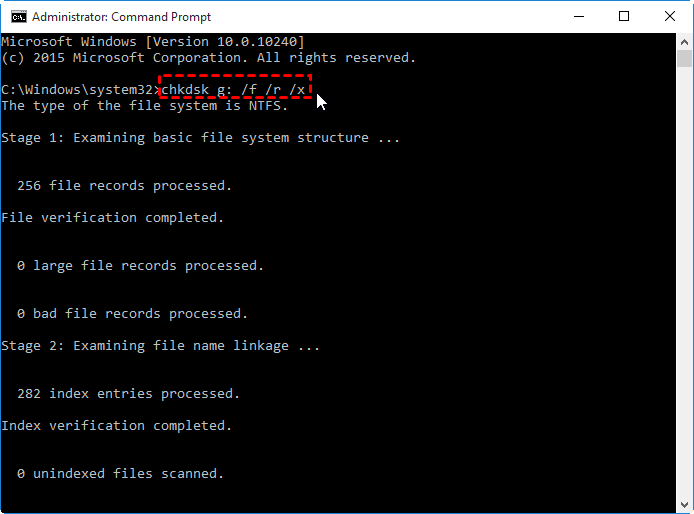
Step 3. Wait for the scan to complete. The /f flag fixes file system errors, and the /r flag detects and repairs bad sectors.
Step 4. Once completed, restart your computer and check if the drive is now accessible.
AOMEI Partition Assistant is a powerful and user-friendly disk management tool that can help fix file system errors and repair bad sectors on your hard drive or external storage devices. When a drive encounters problems like file system corruption or bad sectors, it can lead to issues such as a RAW file system, inaccessible partitions, or frequent disk errors.
One of the most useful features of AOMEI Partition Assistant is its Check Partition tool. This function allows you to:
1. Check and fix file system errors – It scans your partition for logical errors in the file system, similar to the Windows CHKDSK utility, and automatically fixes them to restore your drive’s functionality.
2. Scan and repair bad sectors – AOMEI Partition Assistant can detect bad sectors on your disk and mark them to prevent the operating system from using these damaged areas, reducing the risk of data loss.
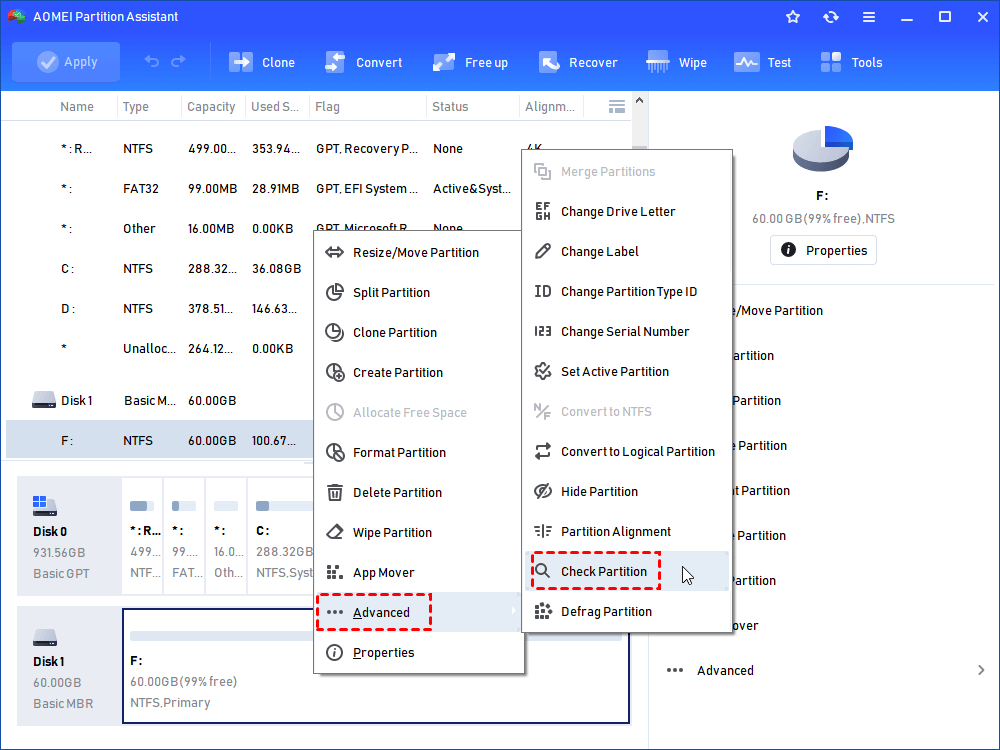
Step 1. Install and open AOMEI Partition Assistant. In the main interface, right-click the target drive and then click "Check Partition".
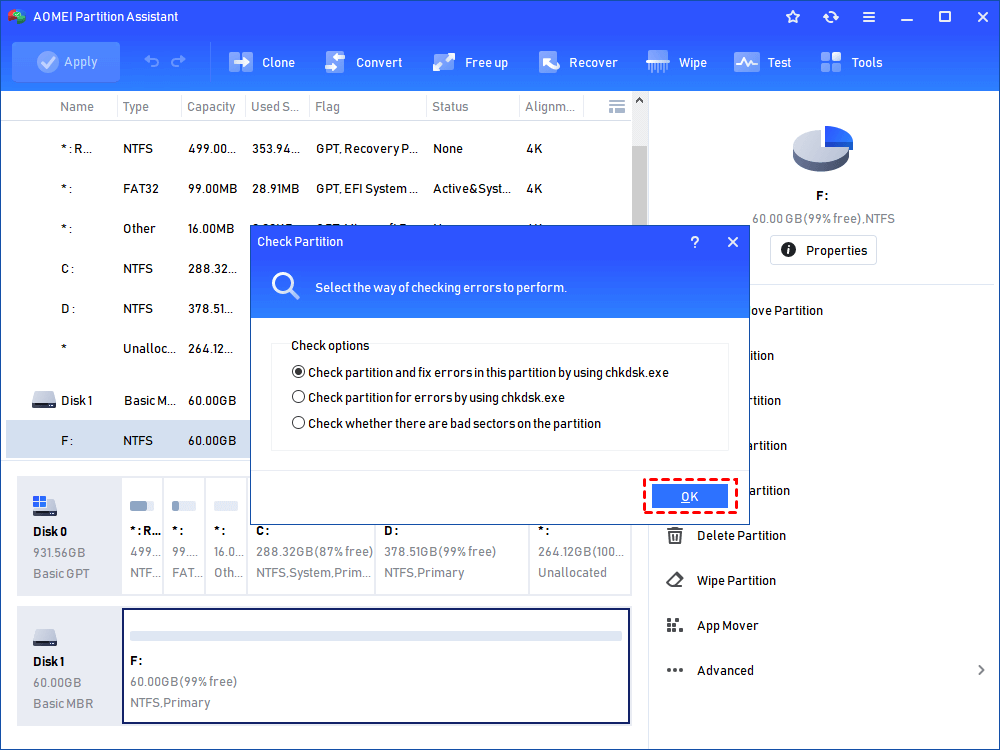
Step 2. Choose the "Check partition and fix errors in this partition by using chkdsk.exe" option, then click "OK".
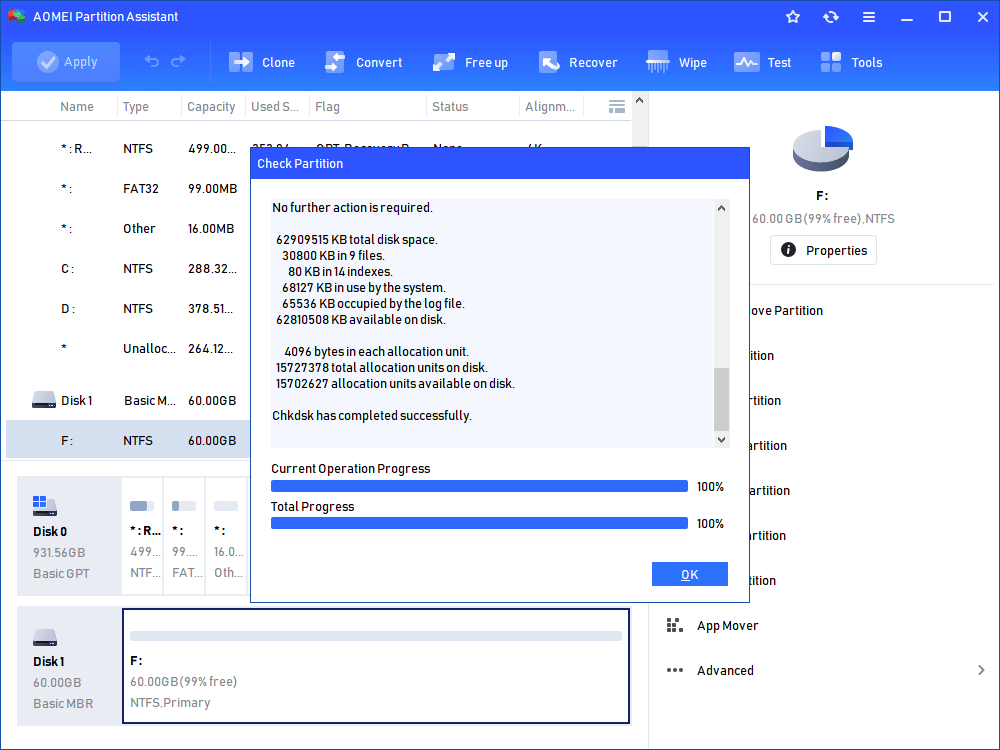
Step 3. Wait for a while and click "OK" when it's finished.
Fix 2. Update drivers for the RAW drive
Sometimes, the issue may not be caused by file system corruption alone. Outdated or corrupted drivers can also prevent Windows from recognizing your storage device properly, leading it to show as RAW. Updating the drivers might resolve the problem and restore normal functionality.
Step 1. Press Windows + X and choose Device Manager.
Step 2. Expand Disk drives and find the problematic drive.
Step 3. Right-click on the drive and select Update driver → Search automatically for drivers.
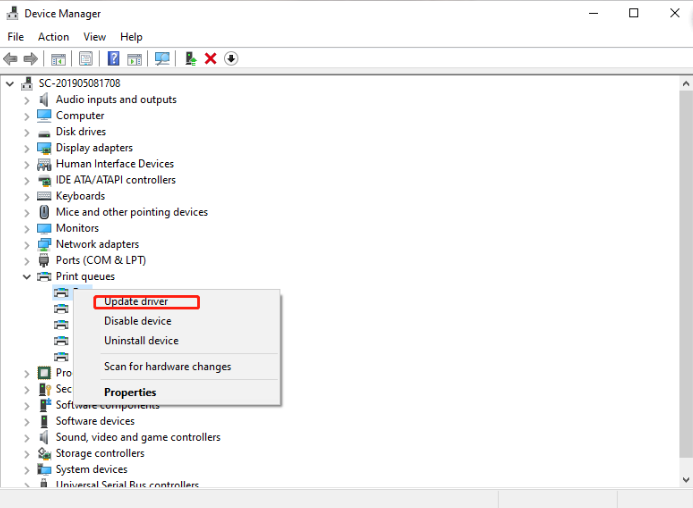
Step 4. This ensures that the new driver is fully loaded and recognized by the system.
Step 5. If the issue was driver-related, the RAW drive should now appear as a normal NTFS or FAT32 drive.
Fix 3. Delete RAW partition
If the above methods do not work and the drive remains inaccessible, the last resort is to delete the RAW partition so you can recreate it. This step does not immediately recover files, but it prepares the drive for a fresh file system. Be aware that this step erases the RAW partition, so create a backup if you can recover data first.
Step 1. Open Command Prompt as administrator.
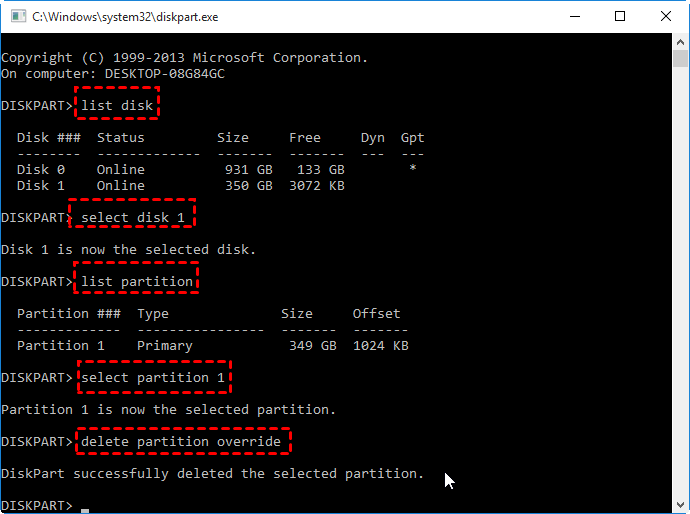
Step 2. Type diskpart and press Enter to launch the DiskPart utility.
Step 3. Enter the following commands one by one, pressing Enter after each:
list disk
select disk 1
list partition
select partition 1 (Replace 1 with the RAW partition number.)
delete partition
Step 4. After deletion, you can create a new partition using:
create partition primary
format fs=ntfs quick
assign letter=Z
exit
Conclusion
This guide provides a comprehensive walkthrough for repairing a RAW drive using CMD without formatting. A drive that turns RAW can put your valuable data at risk, so monitoring its condition is crucial. AOMEI Partition Assistant is an excellent solution for checking disk health and resolving partition issues. It offers reliable tools to repair problematic drives and restore proper functionality to all your disk partitions.
