
 AOMEI Partition Assistant
3 Ways to Format an SSD for a New Computer
It’s necessary to format an SSD for a new computer. In this post, you will know the reasons for it as well as three different methods to format an SSD.

By Hedy / Updated on September 26, 2025


Why formatting for a new PC matters?
Formatting a new PC is an essential step because it ensures the system is set up cleanly, securely, and ready for optimal performance. Here’s why it matters:
★ Removes unnecessary data: Even new drives may contain partitions, trial software, or leftover data from the factory. Formatting clears everything so you start fresh.
★ Optimizes compatibility: Different operating systems require specific file systems (e.g., NTFS for Windows, APFS for macOS). Formatting prepares the drive with the correct structure.
★ Prevents errors: A clean format reduces the risk of corruption, conflicts, or hidden files interfering with installation.
★ Boosts performance: Freshly formatted drives don’t have fragmentation or junk files, which helps your new PC run smoothly.
★ Ensures security: If the drive was previously used (e.g., refurbished or transferred from another device), formatting wipes potential malware or hidden threats.
In short, formatting isn’t just about wiping a drive — it’s about giving your new PC a reliable foundation for speed, stability, and security.
How to format an SSD for a new computer
Formatting an SSD for a new computer is an essential step to prepare it for installing an operating system or storing files. It ensures the drive is properly recognized, partitioned, and optimized for performance. Below are three effective methods you can use.
Method 1. Using Windows Disk Management
Windows Disk Management is a built-in tool that allows you to easily create partitions, assign drive letters, and format storage devices without needing extra software.
Step 1. Right-click on the Start menu and choose Disk Management.
Step 2. Locate your new SSD in the list of drives.
Step 3. Right-click the unallocated space and select New Simple Volume.
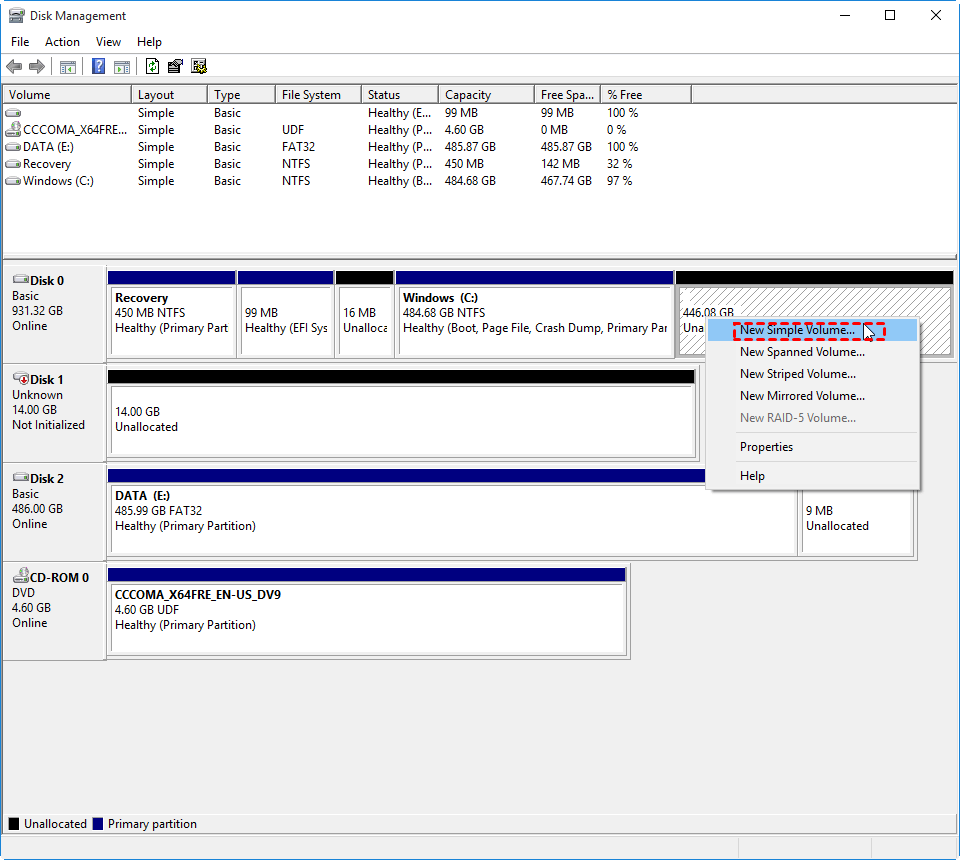
Step 4. Follow the wizard to set the volume size, assign a drive letter, and select a file system (NTFS recommended file system (NTFS recommended).
Step 5. Click Finish to complete the formatting process.
Method 2. Using Command Prompt
Command Prompt provides a more advanced method to format your SSD, giving you full control with commands. It’s particularly useful for troubleshooting or when Disk Management fails.
Step 1. Press Windows + S, type cmd, then right-click and select Run as administrator.
Step 2. Type diskpart and press Enter.
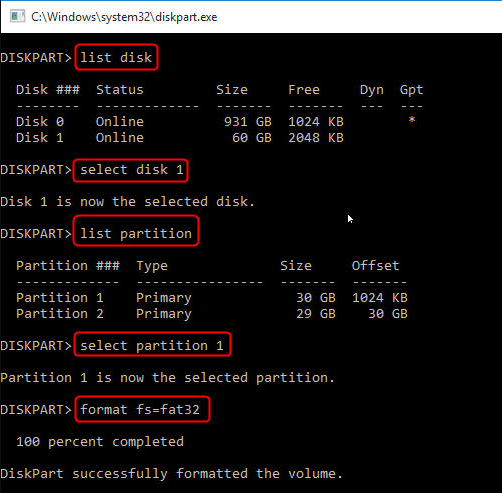
Step 3. Then, type the following commands one by one:
list disk
select disk 1
list partition
select partition 1
format fs=fat32 quick
Method 3. Using a third-party formatter
When setting up a brand-new computer, one of the most important steps is preparing your SSD for smooth performance and storage management. AOMEI Partition Assistant is a powerful and user-friendly disk management tool that makes this process simple, even for beginners. With its intuitive interface, you can quickly format your SSD to the desired file system (such as NTFS, FAT32, or exFAT), ensuring it is fully compatible with your operating system.
Unlike the built-in Windows tools, AOMEI Partition Assistant offers advanced features like secure erase for SSDs, partition alignment to improve performance, and flexible formatting options. This means you not only get a properly formatted SSD but also maximize its speed and lifespan. Whether you’re installing Windows on a fresh drive or setting up extra storage, AOMEI Partition Assistant provides a safe, efficient, and hassle-free way to prepare your SSD for use in your new computer.
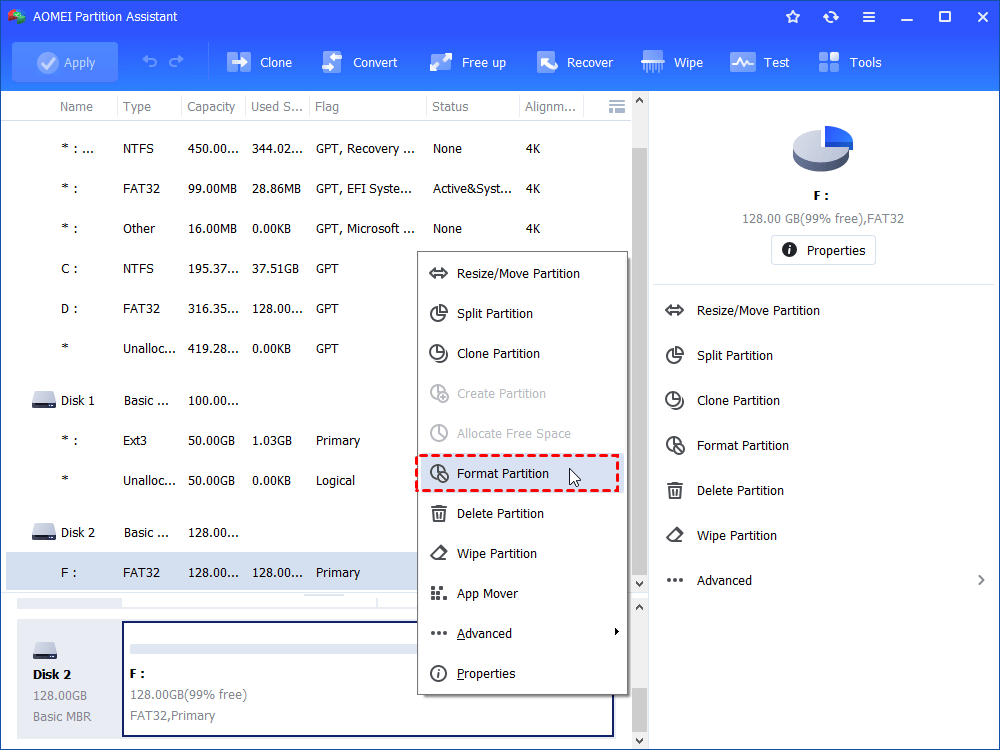
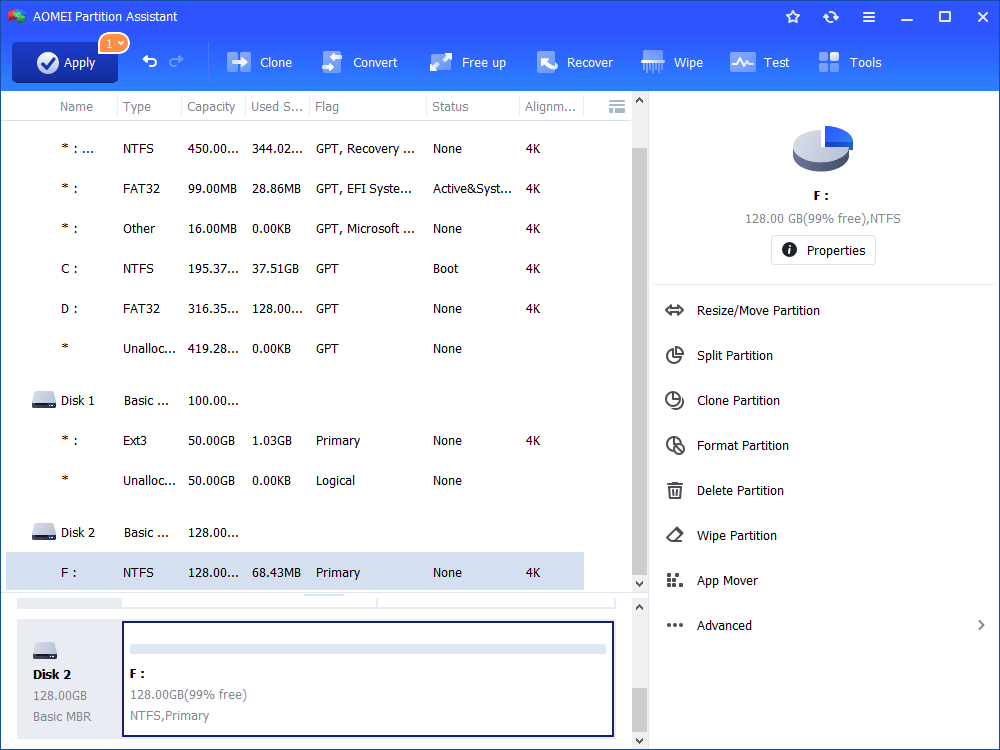
Step 1. Download AOMEI Partition Assistant, install and run it. In the main interface, right-click the target drive and select “Format Partition”.
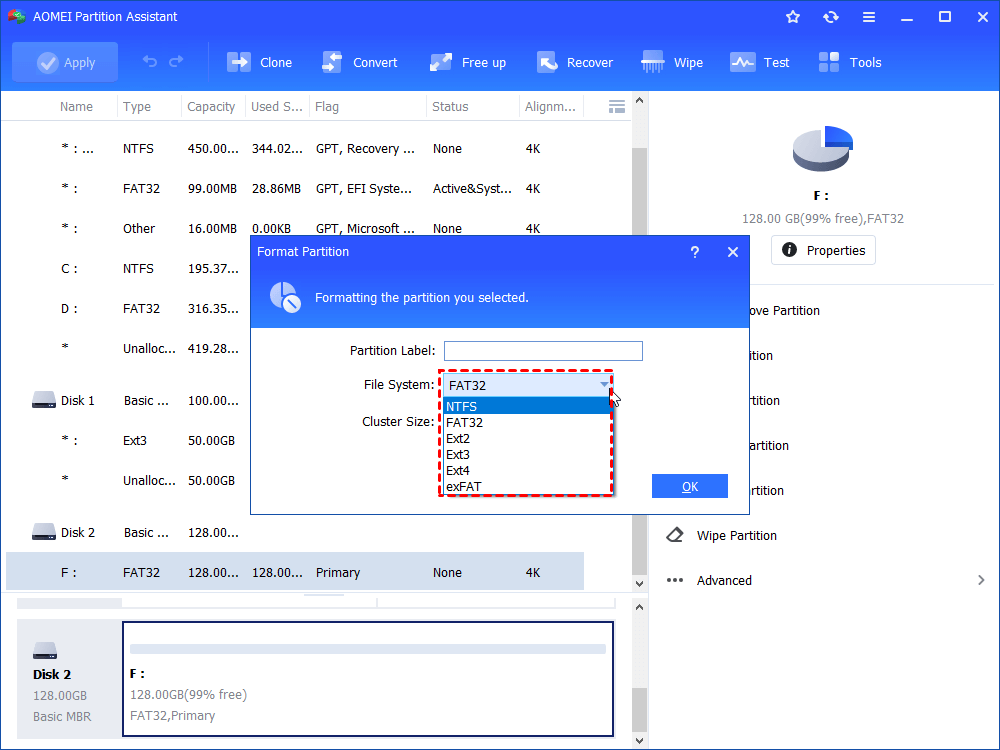
Step 2. In this small window, specify the file system of the drive based on your own demand and click “OK”.
Step 3. Preview the operation. Then, click “Apply” and “Proceed” to perform it.
Conclusion
Formatting a new SSD ensures a clean start, boosts performance, and prepares it for smooth OS installation. Whether using Disk Management, Command Prompt, or AOMEI Partition Assistant, proper formatting guarantees compatibility, stability, and security. By taking this step, you give your new computer a strong foundation for speed, reliability, and long-term efficiency.
