
 PartitionAssistant Recovery


How to Perform Hikvision HDD & USB& SD Format
This post provides step-by-step instructions on how to format Hikvision HDDs, USB drives, and SD cards separately. If you need to format any of these storage devices for use with Hikvision equipment, follow the methods outlined below for each device type.

Par Hedy / Mis à jour le July 15, 2025


How to format Hikvision HDD
Hikvision offers a wide range of products, including NVRs (Network Video Recorders) and DVRs (Digital Video Recorders), that support HDDs. To find a compatible hard drive, you can refer to the HDD Compatibility List provided by Hikvision. This list, available online in PDF format, outlines the supported HDD sizes and recommends specific HDD models that work well with Hikvision devices.
Before using an HDD with a Hikvision NVR or DVR, you'll need to format it. Hikvision uses a proprietary file system for its NVR/DVR hard drives, which is not compatible with common file systems like those on Windows. To format the HDD, you can either use the NVR/DVR device directly or the Hik-Connect app.
On NVR Devices:
1. Ensure your NVR is connected to a monitor.
2. Right-click on the screen and navigate to Menu > HDD.
3. Select the HDD, then click the Init button to initialize or format the hard drive.
On Hik-Connect App:
1. Download and install the Hik-Connect app on your mobile device.
2. Pair the app with your NVR or DVR.
3. Go to the Record > Storage tab to view your hard drives.
4. Select the HDD and click the Init button to format it.
Following these steps ensures that your hard drive is properly set up for use with Hikvision's NVR or DVR systems.
How to format Hikvision USB
Hikvision does not store videos on USB drives; instead, USB drives are primarily used for exporting and importing various types of data such as Att. Data, User Data, User Profile Pictures, ACS Parameters, and Captured Pictures. You can transfer these files from one Hikvision device to another using a USB drive.
To use the USB drive for transferring files, follow the instructions below and pay attention to the following requirements:
• File system: The USB drive must be formatted with FAT32.
• Free space: The USB drive should have more than 512MB of free space.
• Exported data: The exported user data is saved as a BIN file, which cannot be edited.
• Imported picture files: Pictures must be stored in the enroll_pic folder located in the root directory.
• Employee ID: The ID should be between 1 and 99,999,999, should not start with 0, and should be unique.
• Face picture requirements: The photo must be a full-face view, taken directly facing the camera. Avoid wearing hats or head coverings. The file format should be JPEG or JPG, with a resolution between 640 × 480 and 2160 × 3840 pixels. The file size must be between 40 KB and 200 KB.
Formatting the USB Drive on Windows:
To ensure the USB drive is correctly formatted for use with Hikvision devices, follow these steps based on the drive size:
If the USB drive is smaller than 32GB:
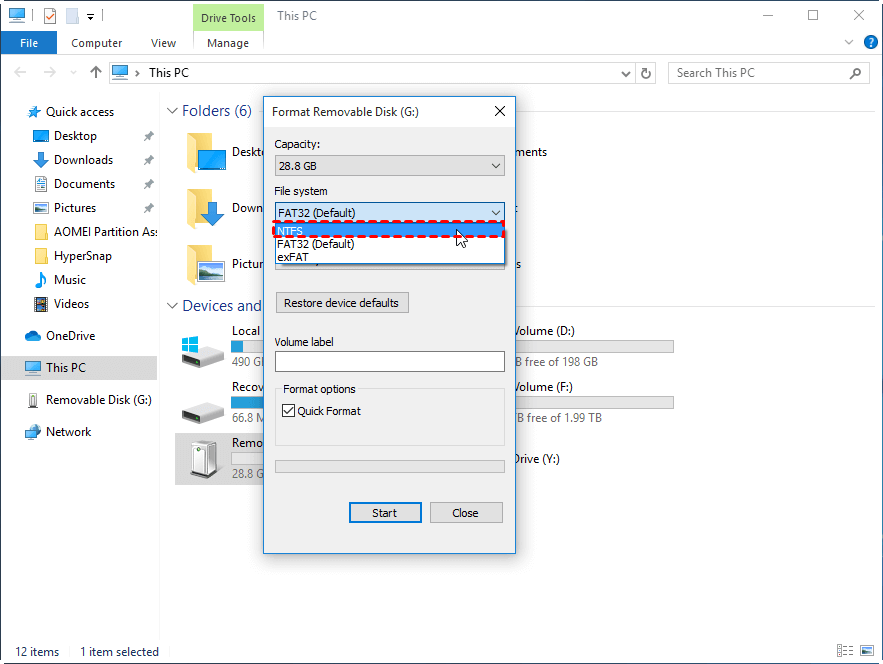
Step 1. Open Windows File Explorer.
Step 2. Right-click the USB drive from the sidebar and select Format.
Step 3. In the pop-up window, choose FAT32 as the file system.
Step 4. Click Start to begin the formatting process.
If the USB drive is larger than 32GB:
Windows does not allow you to format drives larger than 32GB with FAT32. To format a larger USB drive, you’ll need a third-party tool like AOMEI Partition Assistant. Here’s how to do it:
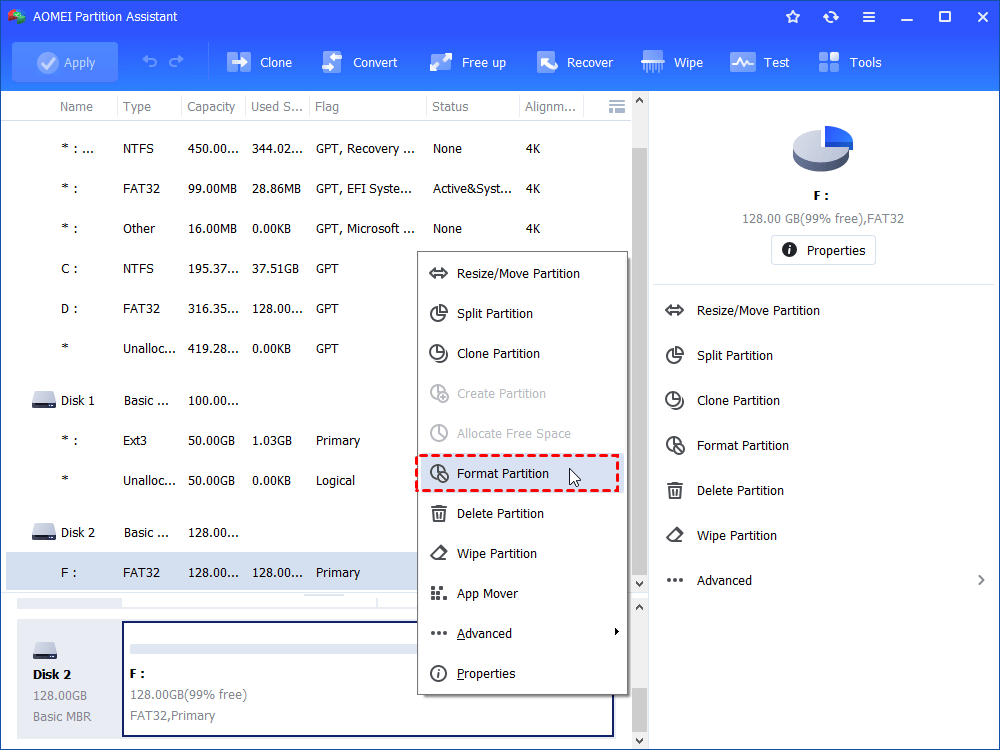
Step 1. Download AOMEI Partition Assistant, install and run it. In the main interface, right-click the target drive and select “Format Partition”.
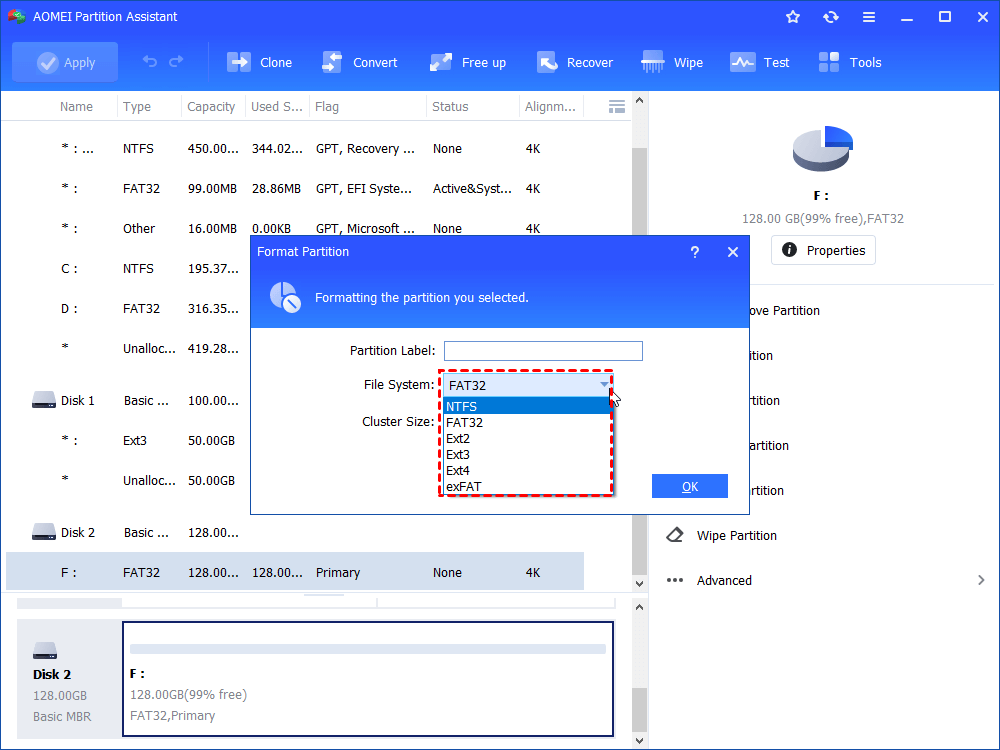
Step 2. In this small window, specify the file system of the drive based on your own demand and click “OK”.
Step 3. Preview the operation. Then, click “Apply” and “Proceed” to perform it.
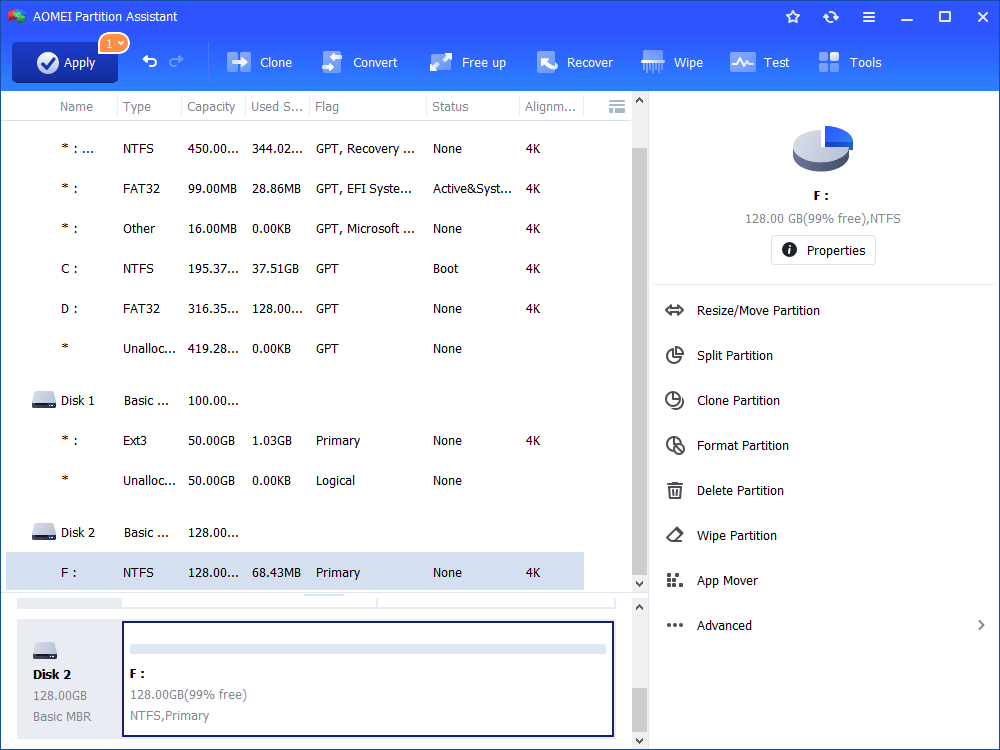
This will format your USB drive to FAT32, making it compatible for file transfer with your Hikvision devices.
How to format Hikvision SD card
Some Hikvision cameras support recording to a microSD card for video storage. If you're not using a microSD card, the playback function in the Hik-Connect app will be unavailable.
To use a microSD card with Hikvision cameras, you need to format the card properly. You can format the microSD card to FAT32 using Windows, but if you're using Hikvision IP cameras, there's also an option to format the card online. Here’s how you can do it:
Formatting the microSD Card for Hikvision Cameras:
✎ On Windows (for FAT32 formatting):
Step 1. Insert the microSD card into your PC.
Step 2. Open File Explorer and locate the microSD card.
Step 3. Right-click on the microSD card and choose Format.
Step 4. Select FAT32 as the file system and click Start to begin the formatting process.
✎ Using SADP Software (for Hikvision IP cameras):
Step 1. Run the SADP software. All IP cameras on the same LAN will appear in the software.
Step 2. Configure the IP address for the camera (e.g., 10.9.97.19).
Step 3. Open your Internet Explorer (IE) browser and enter the camera’s IP address (e.g., 10.9.97.19) to log into the camera’s settings page.
Step 4. Go to Configuration > Advanced Configuration > Storage > Storage Management.
Step 5. Select the microSD card you wish to format.
Step 6. Click the Format button and then Save to apply the changes.
This will format the microSD card for use with the Hikvision camera, enabling video recording and playback features.
Conclusion
Hikvision is a renowned manufacturer of video surveillance equipment, including cameras and recorders. Many of its products support various storage devices such as HDDs, USB drives, and SD cards. To ensure these storage devices work properly with Hikvision devices, they need to be formatted correctly. This post will guide you through the proper formatting process for each type of storage device.
