
 AOMEI Partition Assistant
How to Check for Boot Errors from CMD Windows 10
How to check for boot errors from CMD Windows 10? Learn the reasons and get six easy and effective methods to complete it.

By Hedy / Updated on January 21, 2026


Boot errors have a way of showing up at the worst possible time. You press the power button, expect your desktop to appear, and instead—nothing. Just a black screen, an error message, or Windows stuck in a repair loop. Frustrating, right?
The good news? Windows 10 includes powerful built-in tools that can help you diagnose boot problems without reinstalling the system. One of the most effective tools is the Command Prompt, often called CMD.
Let’s break it down in a clear, practical way.
What causes boot errors in Windows 10?
Boot errors in Windows 10 occur when the system cannot load essential files or access required hardware during startup. These issues can stem from software corruption, hardware failures, or incorrect system settings. Below are the most common causes explained clearly.
🔎 Corrupted boot configuration data (BCD): The Boot Configuration Data tells Windows how to start. If it becomes corrupted due to improper shutdowns, malware, or failed updates, Windows may fail to boot.
🔎 Damaged system files: Critical Windows system files can become corrupted because of sudden power loss, disk errors, or virus infections, preventing the operating system from loading correctly.
🔎 Failed or interrupted Windows updates: If a Windows update is interrupted or installs incorrectly, it can overwrite or damage boot-related files, resulting in startup errors.
🔎 Hard drive or SSD issues: Bad sectors, aging drives, loose cables, or failing SSDs can block Windows from accessing boot files, leading to errors during startup.
🔎 Incorrect BIOS/UEFI settings: Wrong boot order, disabled system drives, or switching between Legacy and UEFI modes can stop Windows from locating the correct boot partition.
🔎 Malware or virus attacks: Some malware targets boot sectors or system files, corrupting essential startup components and causing boot failures.
🔎 Dual-boot or disk partition errors: Installing another operating system or modifying partitions incorrectly can overwrite Windows boot records and cause boot conflicts.
Understanding the root cause of a Windows 10 boot error is the first step toward fixing it. Once identified, most boot problems can be resolved using built-in recovery tools or trusted repair software.
How to check for boot errors from CMD Windows 10
Boot problems in Windows 10 are often caused by corrupted boot files, system file errors, disk issues, or damaged system images. Using Command Prompt, you can diagnose these issues without reinstalling Windows.
You can run these commands from:
Windows Recovery Environment (WinRE) → Troubleshoot → Advanced options → Command Prompt
Or CMD as Administrator if Windows still boots
Method 1. Check Boot Configuration Data (BCD)
The Boot Configuration Data (BCD) store contains essential boot parameters used by Windows during startup. If this data becomes corrupted or misconfigured, Windows may fail to boot properly or show startup errors.
Step 1. Press Windows + X and select Command Prompt (Admin) or Windows Terminal (Admin).
Step 2. In the Command Prompt window, type the following command and press Enter:
bcdedit
Step 3. Review the output for missing entries, incorrect paths, or errors related to the boot loader.
Step 4. If errors appear, note them for further repair using BOOTREC or startup repair tools.
Method 2. Scan system files for boot-related errors
Corrupted or missing system files can prevent Windows from starting normally. The System File Checker (SFC) scans protected Windows files and replaces incorrect versions with healthy cached copies.
Step 1. Open Command Prompt as Administrator.
Step 2. Type the following command and press Enter:
sfc /scannow
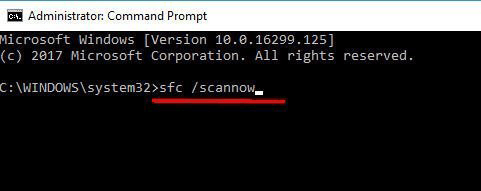
Step 3. Wait for the scan to complete (this may take several minutes).
Step 4. Review the results to see if corrupted system files were found and repaired.
Step 5. Restart your computer and check if the boot issue is resolved.
Method 3. Check disk for boot sector errors
Hard drive errors, bad sectors, or file system corruption can damage the boot sector, leading to startup failures. The CHKDSK utility checks disk integrity and fixes logical errors automatically.
Step 1. Launch Command Prompt (Admin).
Step 2. Enter the following command and press Enter:
chkdsk C: /f /r

Step 3. If prompted to schedule the scan at the next restart, type Y and press Enter.
Step 4. Restart your PC and allow CHKDSK to scan and repair disk issues.
Step 5. After completion, Windows will boot normally if errors are fixed.
AOMEI Partition Assistant is a powerful Windows disk management tool that helps users check disks and resolve common boot sector–related problems with ease. It’s especially useful when a PC fails to start, shows boot errors, or gets stuck in a boot loop.
One of its key features is Check Partition, which scans a selected disk or partition for file system errors and logical issues that may affect the boot sector. This function works similarly to CHKDSK but offers a more user-friendly interface and clearer results. Users can choose to check and fix errors automatically, reducing the risk of boot failure caused by corrupted disk structures.
For more serious startup issues, AOMEI Partition Assistant provides Boot Repair (available in advanced editions). It offers a safe, efficient, and beginner-friendly way to check disks for boot sector errors and fix boot problems in Windows 10 and Windows 11 without risking data loss.
Step 1. Download, install, and launch AOMEI Partition Assistant.
Step 2. Right-click the partition you want to check (e.g., the C: drive) and navigate to "Advanced" > "Check Partition."

Step 3. In the pop-up window, select the way of checking errors to perform. The first option just checks, the second checks and fixes errors, and the third checks for bad sectors. For a thorough check, select "Check partition and fix errors in this partition by using chkdsk.exe" and click "OK."
Step 4. The scan will begin. If the partition is in use, it will ask to schedule it on the next reboot.
Method 4. Use BOOTREC to detect boot issues (advanced)
BOOTREC is an advanced command-line tool designed to diagnose and repair boot-related problems such as corrupted Master Boot Record (MBR), missing boot sectors, or damaged BCD entries.
Step 1. Boot into Windows Recovery Environment (WinRE) using installation media or advanced startup options.
Step 2. Select Troubleshoot > Advanced options > Command Prompt.
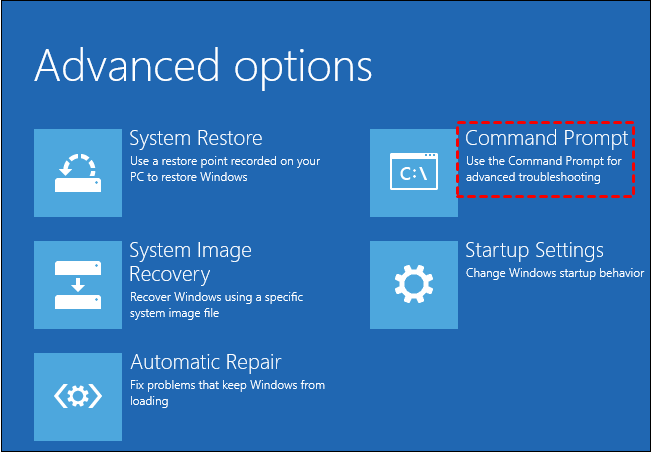
Step 3. Run the following commands one by one, pressing Enter after each:
bootrec /fixmbr
bootrec /fixboot
bootrec /scanos
bootrec /rebuildbcd
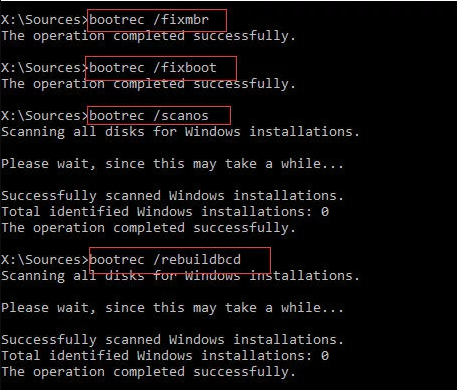
Step 4. Close the Command Prompt and restart your computer. Check whether Windows starts correctly.
Method 5. Check the event viewer for boot errors
Event Viewer records detailed system logs that can reveal critical boot failures, driver issues, or startup errors. Reviewing these logs helps identify the exact cause of Windows boot problems.
Step 1. Press Windows + R, type eventvwr, and press Enter.
Step 2. Navigate to Windows Logs > System.
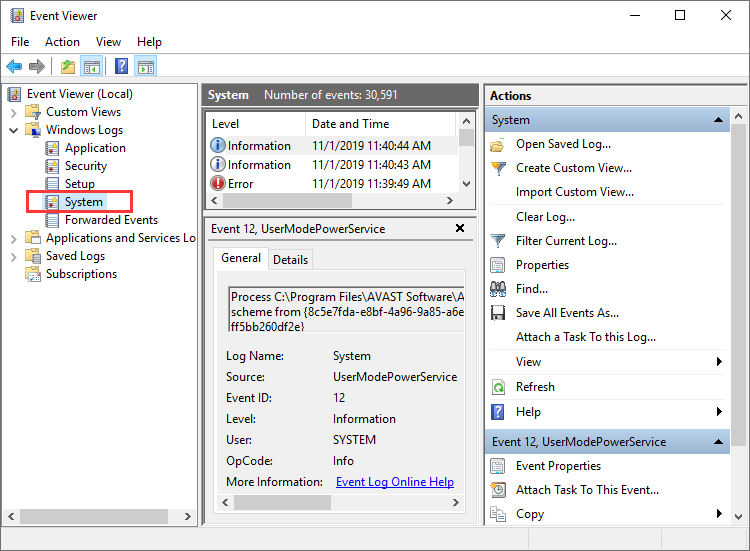
Step 3. Look for Error or Critical events around the last boot time.
Step 4. Double-click an event to view detailed error information.
Step 5. Use the error codes or messages to guide further troubleshooting.
Method 6. Run DISM to check bootimage health
Deployment Image Servicing and Management (DISM) checks and repairs the Windows system image. If the boot image itself is corrupted, DISM can restore it using Windows Update or local repair sources.
Step 1. Open Command Prompt as Administrator.
Step 2. Type the following command and press Enter:
DISM /Online /Cleanup-Image /CheckHealth
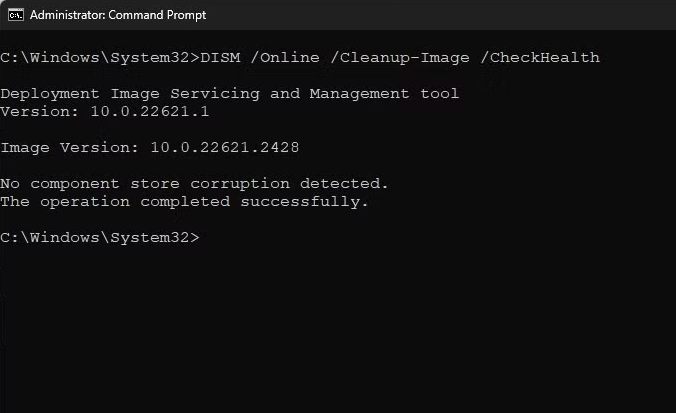
Step 3. If issues are detected, run:
DISM /Online /Cleanup-Image /RestoreHealth
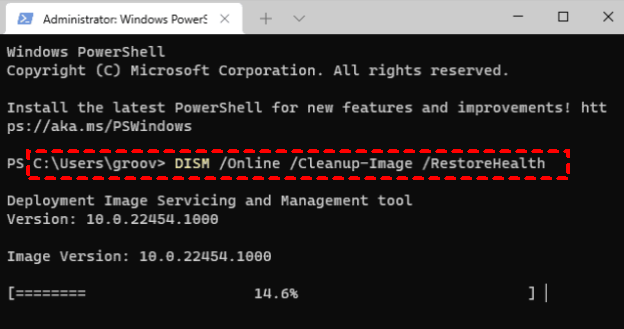
Step 4. Wait for the process to complete successfully. Restart your PC and verify that boot errors are resolved.
FAQs
🔹 Can CMD fix all Windows 10 boot errors?
No. CMD can resolve many logical and configuration-related boot problems, but it cannot fix hardware failures, severe disk damage, or corrupted system files beyond repair.
🔹 Is it safe to run CHKDSK and SFC?
Yes. Both tools are built into Windows and safe to use. CHKDSK checks disk integrity, while SFC verifies and repairs corrupted system files without harming data.
🔹 How long do CMD boot scans take?
It depends on disk size and system health. SFC usually takes 5–20 minutes, while CHKDSK may take several minutes to over an hour on large or damaged drives.
🔹 Do I need an internet connection to use CMD tools?
No. CMD tools like SFC, CHKDSK, BOOTREC, and DISM run locally and do not require an internet connection to function.
🔹 What if CMD commands fail to fix the boot issue?
If CMD fails, try Startup Repair, System Restore, or a bootable repair tool. Persistent issues may indicate hardware failure or require reinstalling Windows.
Conclusion
Windows 10 boot errors often trace back to corrupted boot data, damaged system files, disk issues, or failed updates. By using CMD tools like SFC, CHKDSK, BOOTREC, and DISM—or user-friendly solutions such as AOMEI Partition Assistant—you can accurately diagnose and fix most startup problems. Identifying the cause early helps restore normal booting without reinstalling Windows or losing data.
