
 AOMEI Partition Assistant
How To Repair Bitlocker Encrypted Drive in Windows 10 and 11?
How to repair BitLocker encrypted drive? In this article, you will learn how to use AOMEI Partition Assistant to format a encrypted drive with ease to fix errors.

By Irene / Updated on August 4, 2025


Can you repair a BitLocker encrypted drive in Windows PCs?
If Windows prompts you to repair a drive, it usually means the file system is unreadable. Common reasons include:
🔷 Bad sectors or hardware failure
🔷 Damaged partition table
🔷 Virus or malware infection
🔷 Unsupported file system (e.g., EXT2/EXT3/EXT4)
Recognizing these causes helps protect your drives and data moving forward. But before attempting repairs, back up your data, especially if Windows won’t boot. Repairing a regular drive is usually straightforward. You can often fix issues by simply formatting it. But what if the drive is encrypted with BitLocker? Can it still be repaired on a Windows PC?
It depends on the type of drive. If it’s a USB, SD card, or data drive encrypted with BitLocker, you can format it easily with or without a password. But if the encrypted drive is your system or Windows boot drive, formatting it is more complicated. You will need to unlock BitLocker drive first.
To format a BitLocker system drive, you must enter the recovery key when the computer starts. If you’ve lost both the password and recovery key, you won’t be able to decrypt or access the data.
In that case, if you want to reuse the drive, the only option is to format the encrypted drive completely. This will erase everything, but it allows you to use the drive again.
How to repair BitLocker encrypted drive?
Fix 1. Format BitLocker encrypted drive without password
Formatting a BitLocker-encrypted drive can help fix issues like file system corruption, malware, or encryption errors. If you can’t access the drive because of a failed decryption or a lost BitLocker password, formatting will remove the encrypted data and create a new file system, allowing you to use the drive again. AOMEI Partition Assistant makes this process simple. Its Format feature can handle BitLocker-encrypted hard drives, USB flash drives, and SD cards, and supports file systems like FAT32, NTFS, and FAT. It’s easy to use and works well for all levels of Windows users, whether you're a beginner or experienced.
 AOMEI Partition Assistant
The Best Windows Disk Partition Manager and PC Optimizer
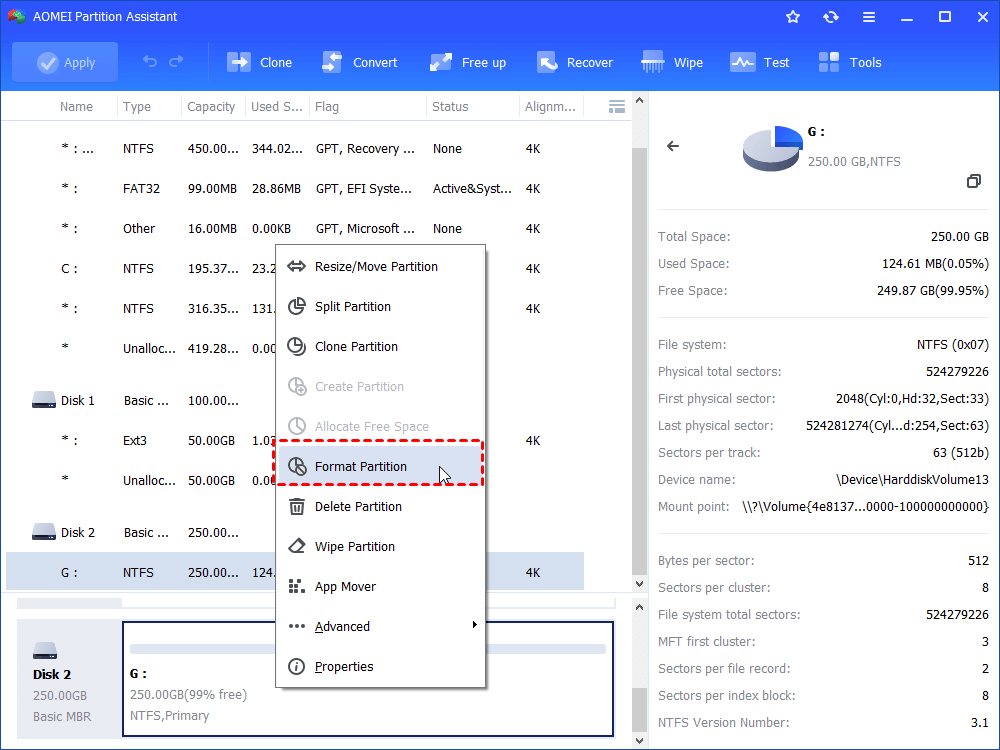
Step 1. Install and launch the program. Right-click the BitLocker encrypted drive and choose Format Partition.
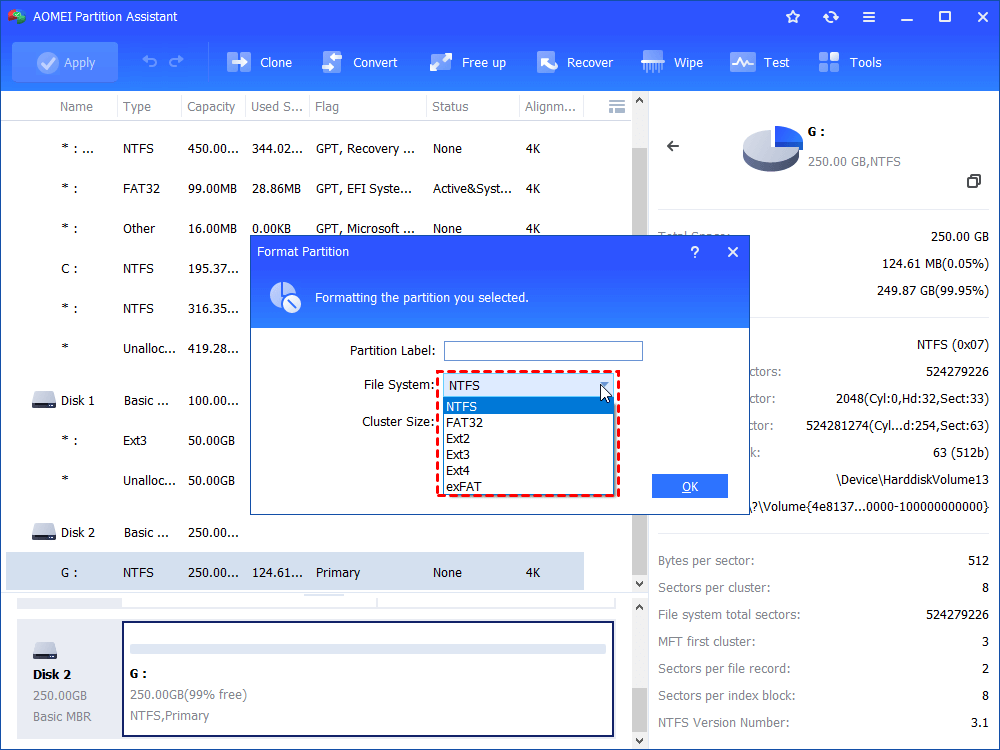
Step 2. Select the file system for the encrypted drive.
Step 3. Click Apply to format a BitLocker encrypted drive without a key.
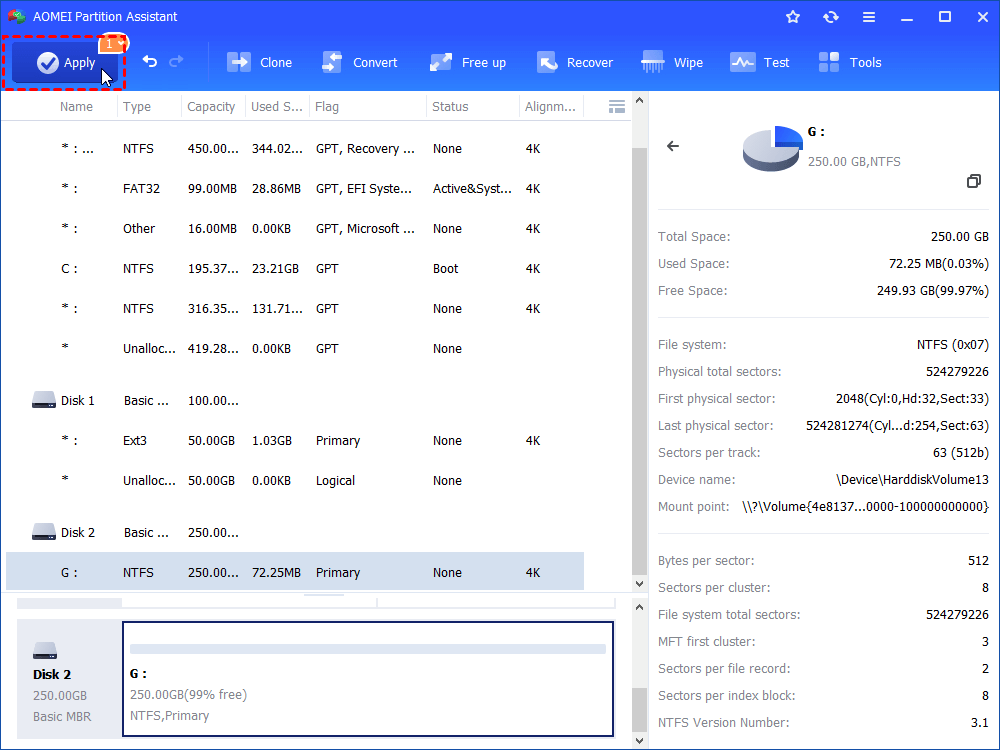
Then restart your computer, and you will find the BitLocker has been removed.
Fix 2. Repair BitLocker drive with Quick Removal option
Using the Quick Removal option can help repair a drive by preventing data corruption caused by unsafe disconnection. When this option is enabled, Windows manages the device in a way that allows you to unplug it without using the "Safely Remove Hardware" feature. This reduces the risk of file system errors or damage if the drive is removed suddenly. Over time, this setting can help maintain the stability and health of the drive, especially for external USB drives that are often plugged in and out.
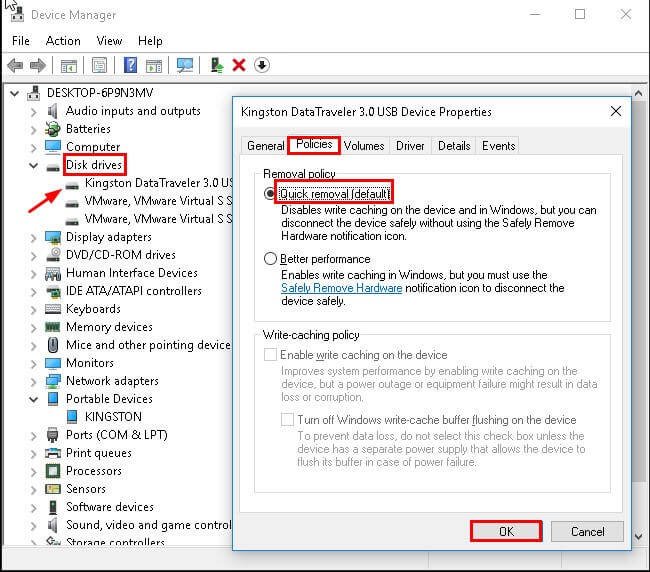
Step 1. Type device manager in the search box and select it.
Step 2. Click Disk drives on the Device Manager window
Step 3. Right-click the listed USB drive or SD card and select Properties.
Step 4. Click the Policies tab and then Quick removal on the Properties window. And then, click OK to apply the setting.
Fix 3. Run CMD to perform encrypted drive repair for BitLocker
If your hard disk is corrupted, you can use the Windows built-in tool –Diskpart to repair corrupted hard disk. Formatting is the most popular solution for users to repair the corrupted hard disk. And Diskpart can help you format your corrupted hard disk easily. The specific steps are as follows:
Step 1. Press “Windows” + “R” to open the Run box, typing “diskpart” and press “Enter”.
Step 2. And then, type the following command and press “Enter” after each.
- list disk
- select disk n(here “n” is the disk number of the disk you want to format.)
- clean
- create partition primary
- active
- select partition 1
- format fs=ntfs (If you want to format the disk into other file system like FAT32, replace the command with “format fs=fat32”.)
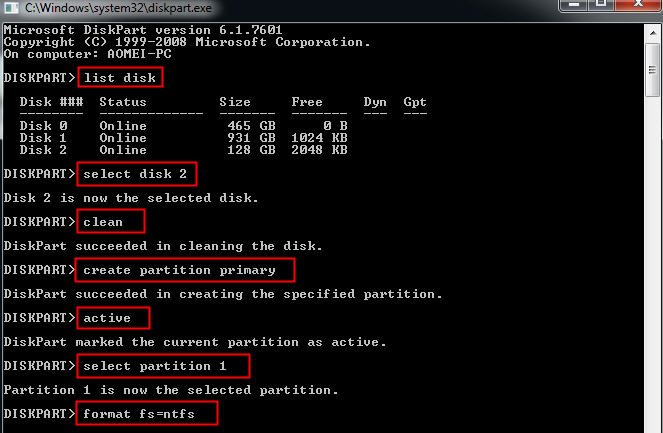
After that, the corrupted hard disk can be forcefully formatted in a few minutes.
If it doesn’t work after you do the operation above, you can also use the built-in CHKDSK to check the disk error: CHKDSK repair command: chkdsk D: /f
Fix 4. Clone the corrputed BitLocker drive
When the original drive shows signs of physical failure or errors, it may not be possible to repair it directly. In such cases, cloning the drive to a healthy one can create a complete copy, including all encrypted data. This helps protect against further data loss and lets you access a stable version of the drive. Although cloning doesn’t fix file system or encryption issues, it’s a valuable step to recover and secure your data before trying other repair methods.
If you need to clone a BitLocker-encrypted drive in Windows 10 or 11, AOMEI Partition Assistant is a great tool to consider. Known for its reliability and strong performance, it helps users handle various cloning challenges, including disks with bad sectors. With its Sector-by-Sector Clone feature, you can copy a BitLocker-encrypted drive without unlocking it. This method duplicates every sector on the drive, even the unused ones, so the target drive must be at least as large as the source.
This software works well with Windows 11, 10, 8.1, 8, and 7. For users running Windows Server editions such as 2025, 2022, or earlier, AOMEI Partition Assistant Server is the appropriate version.
AOMEI Partition AssistantThe Best Windows Disk Partition Manager and PC Optimizer
Step 1. Install and launch AOMEI Partition Assistant, click "Clone" in the main interface and select "Clone Disk".

Step 2. Choose the hard disk that you need to clone as the source disk and click "Next".
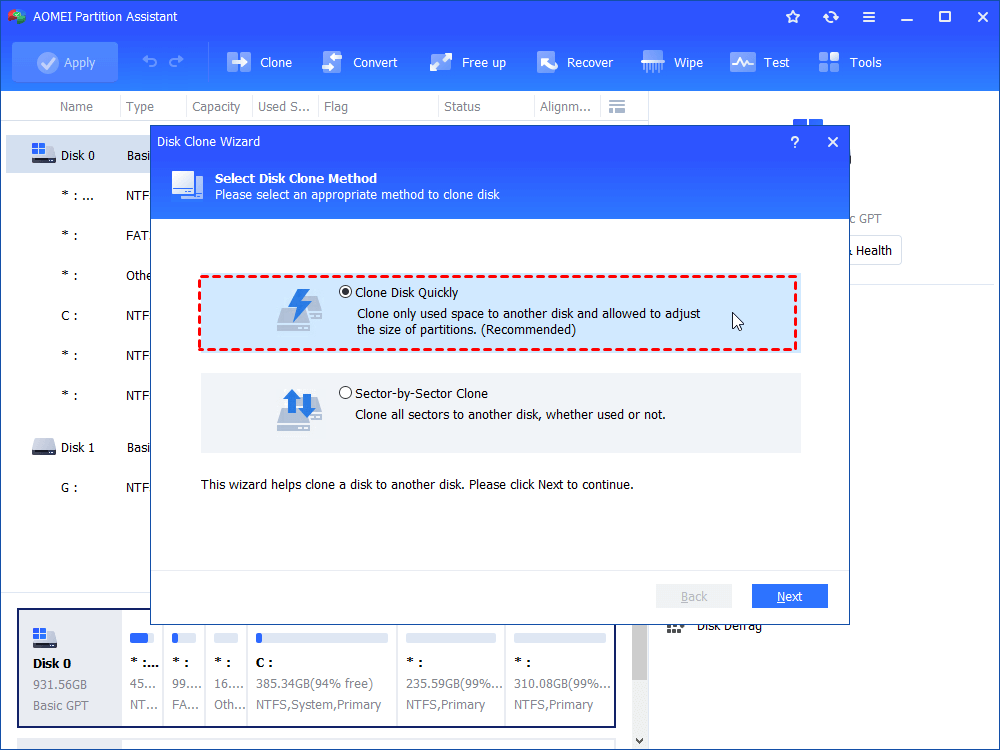
Step 3. Select the destination disk to store the data on the source disk, and then click "Next".
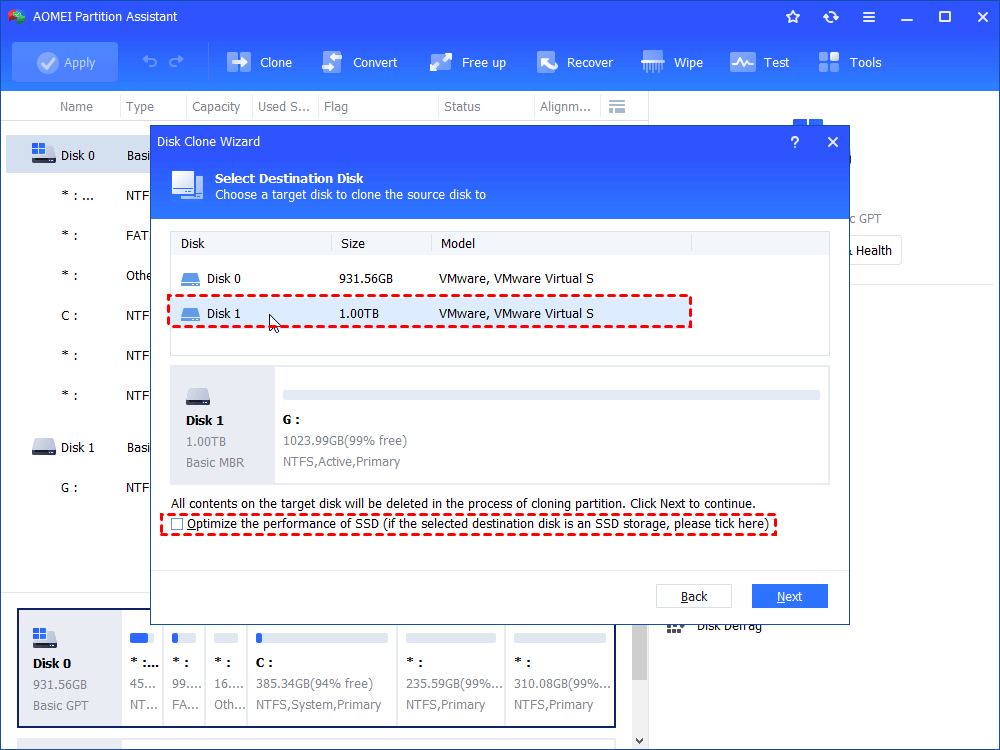
Step 4. Then, you can check the source and destination disk in the next window or change to “Sector to Sector clone”, and click the "Confirm" button to continue if there is no problem.
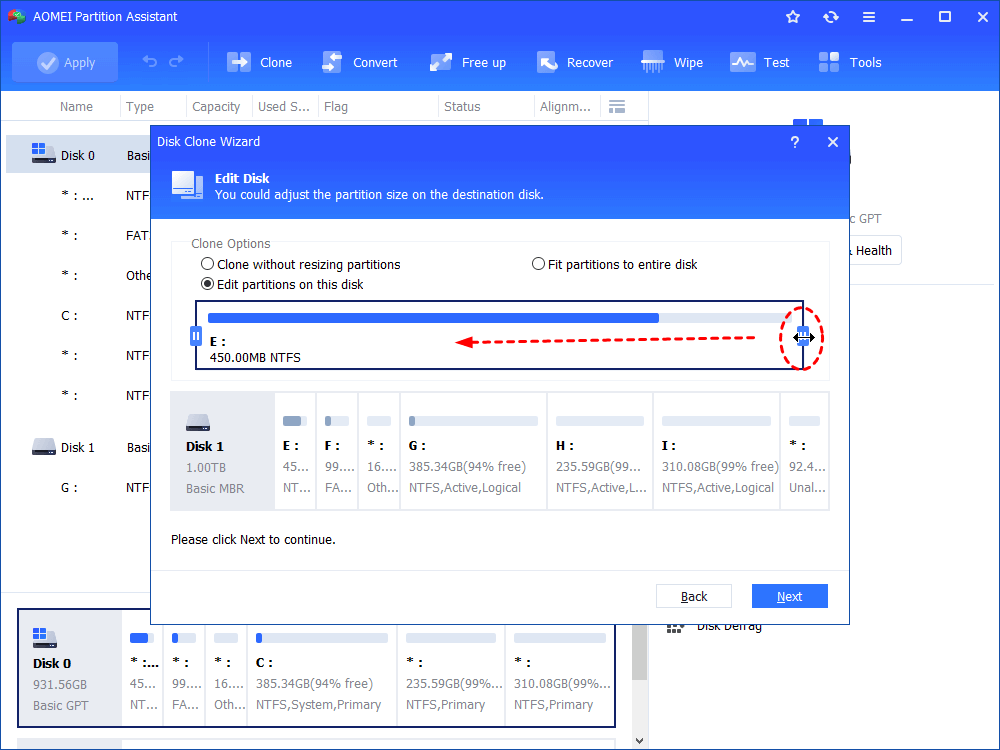
Here, you can also click the "Settings" button to adjust the partition size on the destination disk or tick "4K alignment" to improve the reading and writing speed of SSD if the target disk is an SSD drive.

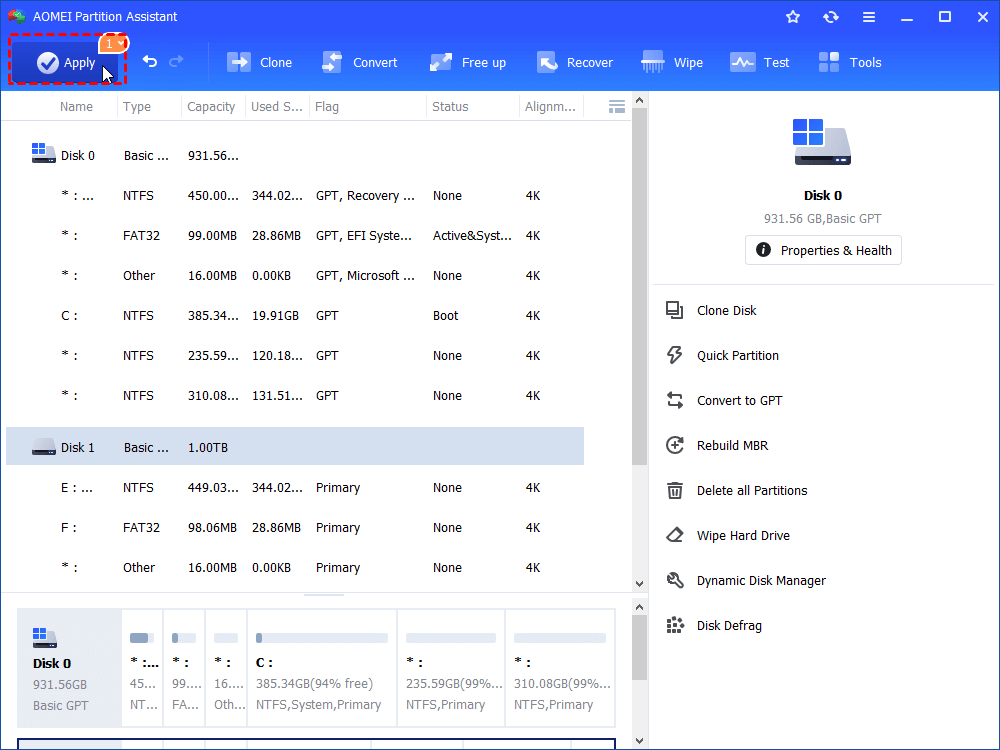
Step 5. At last, click "Apply" and "Proceed" in the main interface to start cloning the hard drive.
◤ AOMEI Partition Assistant Professional supports you to clone various hard drives belonging to different brands, including Samsung, SanDisk, Seagate, etc.
◤ To clone a hard drive without encryption to a smaller SSD/HDD, choose Clone Disk Quickly method, which will only copy used sectors on the source hard drive.
Conclusion
Fixing a BitLocker-encrypted drive in Windows depends on the specific problem and the type of drive. If the drive is not used to boot your system, formatting it with a tool like AOMEI Partition Assistant can often solve issues such as file system errors or inaccessibility. If the drive is physically failing or showing serious errors, cloning it to a healthy drive can help preserve your data. You can also try enabling the Quick Removal option or using built-in tools like Diskpart and CHKDSK to address certain problems. While these methods may not directly fix BitLocker encryption itself, they offer useful ways to recover, reuse, or protect your drive and data.
AOMEI Partition AssistantThe Best Windows Disk Partition Manager and PC Optimizer
