How to install Windows on BitLocker encrypted drive? If you don’t mind losing data, you can wipe the drive or format the partition. Or you can follow to learn how to turn off BitLocker in Windows 11.
When you install or reinstall Windows on a drive, you may see a message saying "Installation is not supported for the file system on the current partition. BitLocker Drive Encryption is enabled on the selected partition. " Can you install Windows on BitLocker encrypted drive? Yes, you can. Generally, you will have several options. If you don’t have the BitLocker recovery key or password and don’t need the data on the drive, the easiest way to install Windows is by wiping the drive completely. This will remove the encryption along with all files and partitions. After that, you can install a fresh copy of Windows without any problems.
To do this, you can use the Windows installer to delete the encrypted partition during setup. Once the partition is deleted, the drive will be unencrypted and ready for a clean installation. Just make sure you’ve backed up anything important before you start, because all data will be erased permanently. But if you don't want to wipe the drive, you can also learn to turn off BitLocker in Windows 11. This guide will share detailed information for you.
To turn off BitLocker in Windows 11 during installation, you need to turn off BitLocker first. A simple way to do this is by using AOMEI Partition Assistant. This tool has a clean, easy-to-use interface that lets you disable BitLocker in just a few clicks.
With this software, you can also manage other BitLocker settings—like backing up the recovery key, changing the password, or locking and unlocking the drive without typing the password each time. If you’re using Windows 11 or 10 Home (which doesn’t include BitLocker by default), the tool can even help you enable it. If your PC won’t boot, you can create a bootable USB using this software first to turn off BitLocker from outside of Windows.
The Best Windows Disk Partition Manager and PC Optimizer
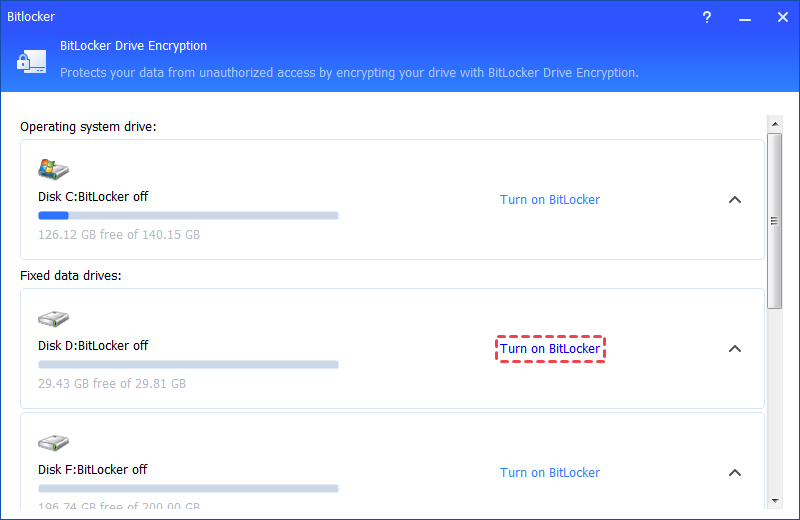
Step 1. Locate the encrypted drive you wish to decrypt and choose the option "Turn off BitLocker".
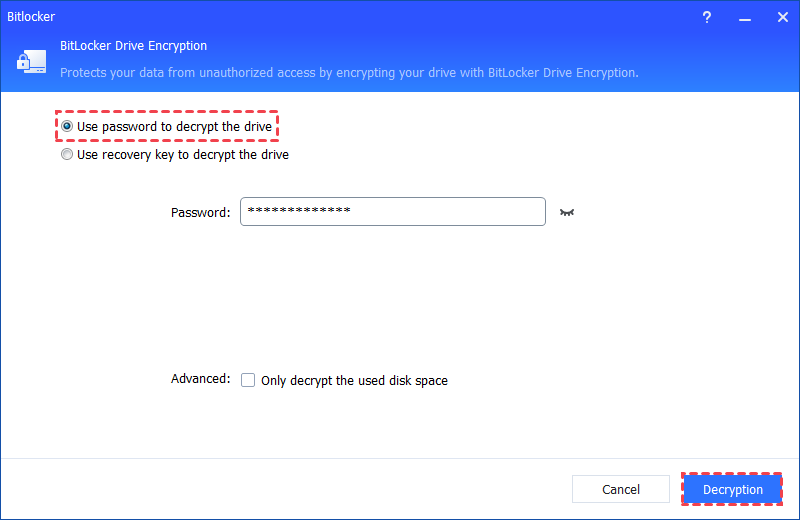
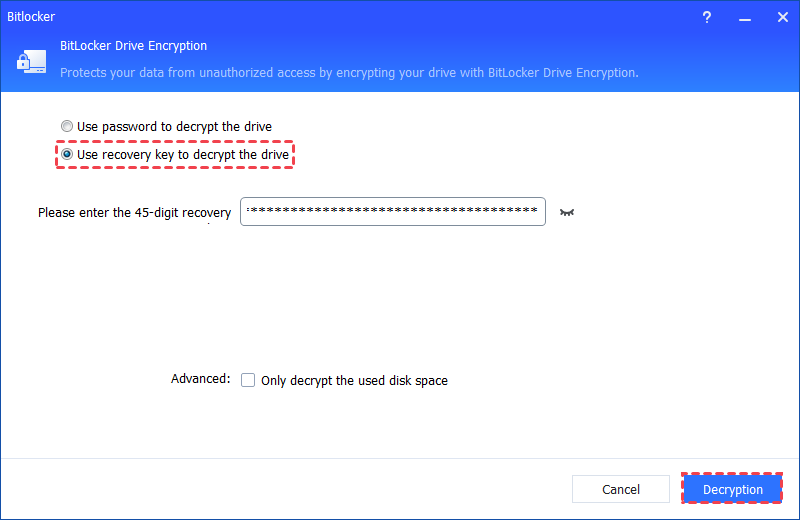
Step 2. There are 2 available methods for decrypting the drive: Use a password for decryption or Use a recovery key for decryption. Please select the appropriate method based on your requirements.
If you opt for "Use a password to decrypt the drive," enter the correct password and then click the "Decrypt" button.
If you choose "Use a recovery key to decrypt the drive," input the recovery key saved in the TXT file or printed when you initially encrypted the drive, and then click the "Decrypt" button.
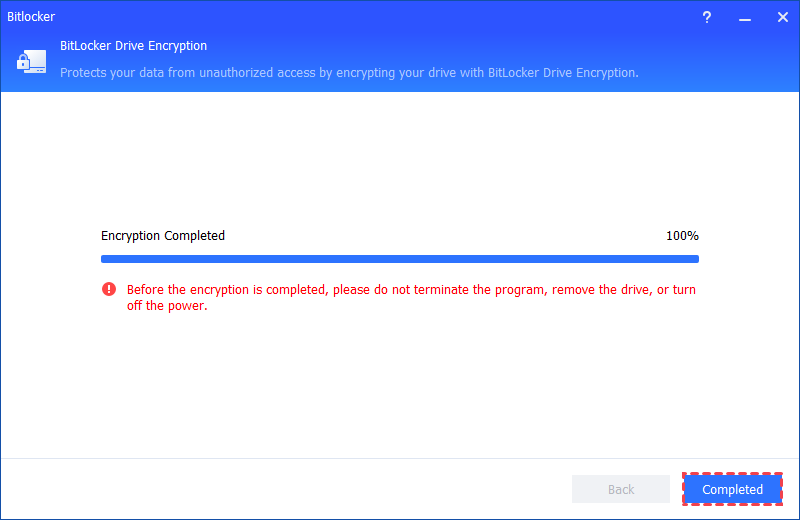
Step 3. Subsequently, the decryption process will commence, and it may take some time to complete. During this period, it is essential not to close the program, eject the drive, or power off the system.
Once the decryption process concludes, click "Completed". At this point, the BitLocker on the drive is successfully decrypted.
To disable BitLocker during Windows installation, you can format the encrypted partition or wipe the drive. Or if you can remember the BitLocker password, you can access to your PC and turn off BitLocker as well.
Formatting a partition deletes everything on it, including BitLocker. When you format the drive, the file system and encryption are both removed. It also erases the keys saved on the drive, so the drive is no longer encrypted. If you have already installed AOMEI Partition Assistant, you can directly run its Format Partition wizard. Or you can follow this guide to manually format encrypted partition.
The Best Windows Disk Partition Manager and PC Optimizer
Step 1. Type cmd in the Search box, right-click Command Prompt, and select "Run as administrator".
Step 2. Type diskpart and hit Enter.
Step 1. Press the "Windows + I" keys to open the Settings Window. Next, click "Update & Security", and choose "Recovery" in the left panel.
Step 2. Click the "Restart now" button under the "Advanced startup" section, and your Windows 10 computer will begin to restart.
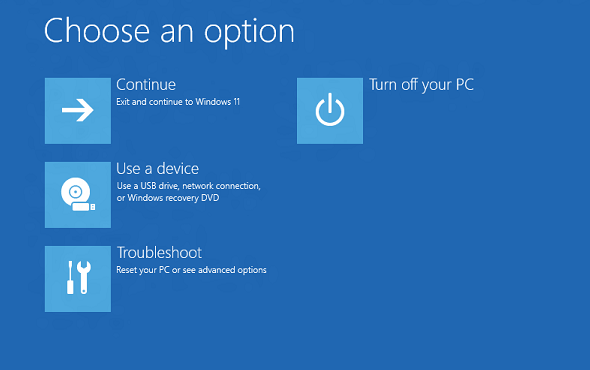
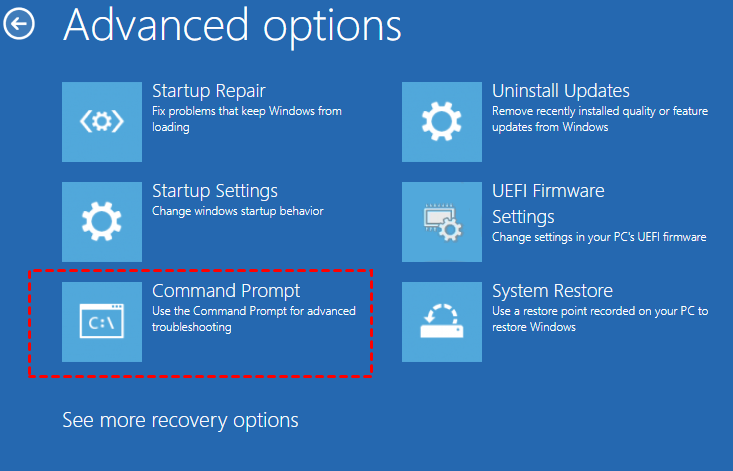
Step 3. When you see the "Choose an option" screen, click "Troubleshoot" > "Advanced options".
Step 4. Then, click the "Command Prompt" option to enter into the Command Prompt for Windows 10 repair.
Type the following commands and hit Enter each time to format the BitLocker drive:
list diskselect disk *
list volumeselect volume *
format fs=ntfs quick
When DiskPart tells the format has been completed, type exit and hit enter to close DiskPart.
If you don’t mind losing data, you can choose to wipe the locked hard drive and install Windows on the BitLocker-encrypted partition. Otherwise, you may remain stuck on the recovery screen asking for the BitLocker recovery key.
Step 1. Use the Windows Media Creation Tool to create a Windows 11 installation USB. You can find the tool on Microsoft’s official website and follow the instructions to set up the bootable media. Insert the USB into your computer and restart. Enter your BIOS or boot menu and select the USB drive as the primary boot device.
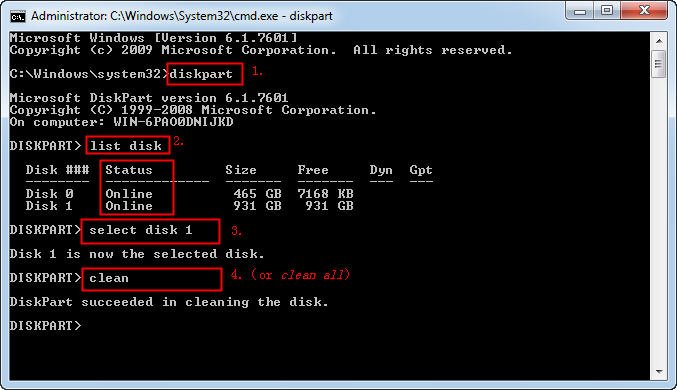
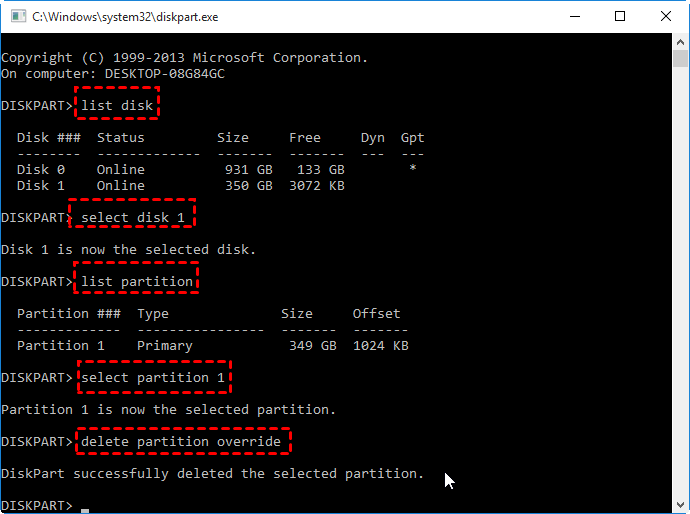
Step 2. When the setup screen appears, press Shift + F10 to open Command Prompt. Then enter the following commands based on your goal:
To clean the entire encrypted drive:
To delete only the encrypted system partition while keeping other partitions:
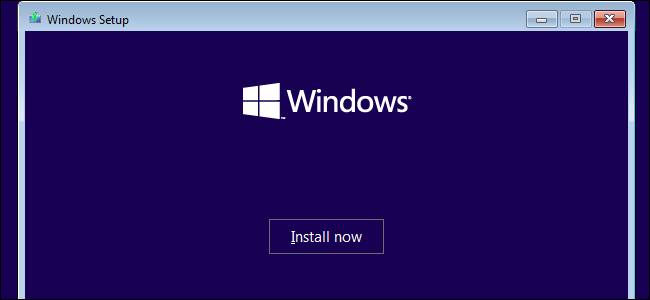
Step 3. After cleaning the drive or partition, type exit to close the Command Prompt and restart your computer. Boot again from the Windows installation USB. Once the Windows Setup screen appears, click Next> Install now> Select I don’t have a product key> Accept the License Terms.
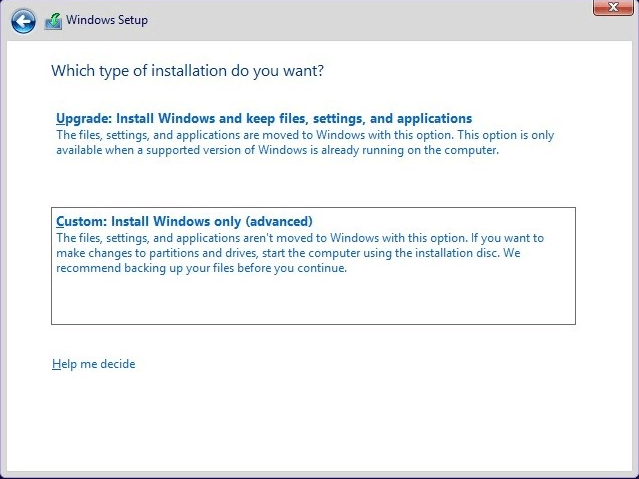
Step 4. Choose Custom: Install Windows only (advanced). Select the partition or unallocated space where you want to install Windows 11 and click Next. Follow the prompts to complete the installation.
You can install Windows on a BitLocker-encrypted drive, but you need to remove the encryption first if you don't know the BitLocker password. If you don't need the data, the easiest way is to format or wipe the drive during installation, which also removes BitLocker. If you want to keep your data, you can turn off BitLocker using tools like AOMEI Partition Assistant before installing Windows. Once the drive is decrypted or cleaned, you can proceed with a smooth Windows installation.
The Best Windows Disk Partition Manager and PC Optimizer