
 AOMEI Partition Assistant
Is It Safe to Clear TPM When Resetting Laptop?
Is it safe to clear TPM when resetting laptop? This question confuses many users. This guide explains TPM and helps you decide if clearing TPM is safe or necessary.

By Irene / Updated on August 21, 2025


What is TPM?
TPM stands for Trusted Platform Module. It is a small security chip built into the motherboard of many computers. This chip provides hardware-based protection and acts as a safe place to store sensitive information.
TPM is mainly used to keep cryptographic keys, passwords, and digital certificates secure. It also supports important security features such as BitLocker drive encryption in Windows. With TPM, your computer can verify its integrity and protect data against tampering or unauthorized access.
If you want to check the TPM status on Windows 10 or 11, you can do it easily:
-
Press Win + R keys to open the Run box.
-
Type tpm.msc and press Enter.
In the new window, go to the Status section. If it shows “The TPM is ready for use” it means TPM is available. You can also check the Specification Version here. If it says 2.0, your computer meets the requirement to run Windows 11.
Is it safe to clear TPM when resetting a laptop?
When you reset or reinstall Windows, you may be asked to clear the Trusted Platform Module (TPM). Clearing TPM will remove all security information stored in it, including BitLocker recovery keys, PINs, certificates, and other encryption data. This means that anything protected by TPM will no longer be accessible unless you have a backup.
So, is it safe to clear TPM? The answer depends on your situation. It is generally safe, but you must take the right steps first:
-
Back up important data that is protected by TPM.
-
Save your BitLocker recovery keys on a USB drive or write them down.
-
Do not clear TPM on a work or school computer unless your IT administrator tells you to.
-
Use the Windows TPM management console to clear it, not directly through BIOS/UEFI.
Clearing TPM can be a good idea if you are resetting or selling a computer. It ensures the new user can set up their own security features and helps protect your privacy. However, if you don’t back up your keys and data beforehand, you could lose access permanently.
Simply put, clearing TPM is safe if you prepare carefully. It’s recommended when selling or giving away a laptop, but always make sure you back up your data first.
How to clear TPM?
Before clearing the TPM in Windows 10 or Windows 11, the process will erase all security keys and data stored in it, including BitLocker recovery keys, PINs, and certificates. To avoid data loss, it is recommended to back up your important files first. Then, you can follow the steps to clear TPM.
Preparation: Back up your important data before clearing TPM
As mentioned earlier, clearing TPM will erase all security keys and data it protects, including files on a BitLocker-encrypted drive. To avoid data loss, it is essential to create a backup first.
One reliable option is AOMEI Partition Assistant, a powerful and easy-to-use disk management tool. It allows you to back up or clone your entire disk, including BitLocker-protected partitions, to an external drive. This way, even if TPM data is cleared, your files remain safe.
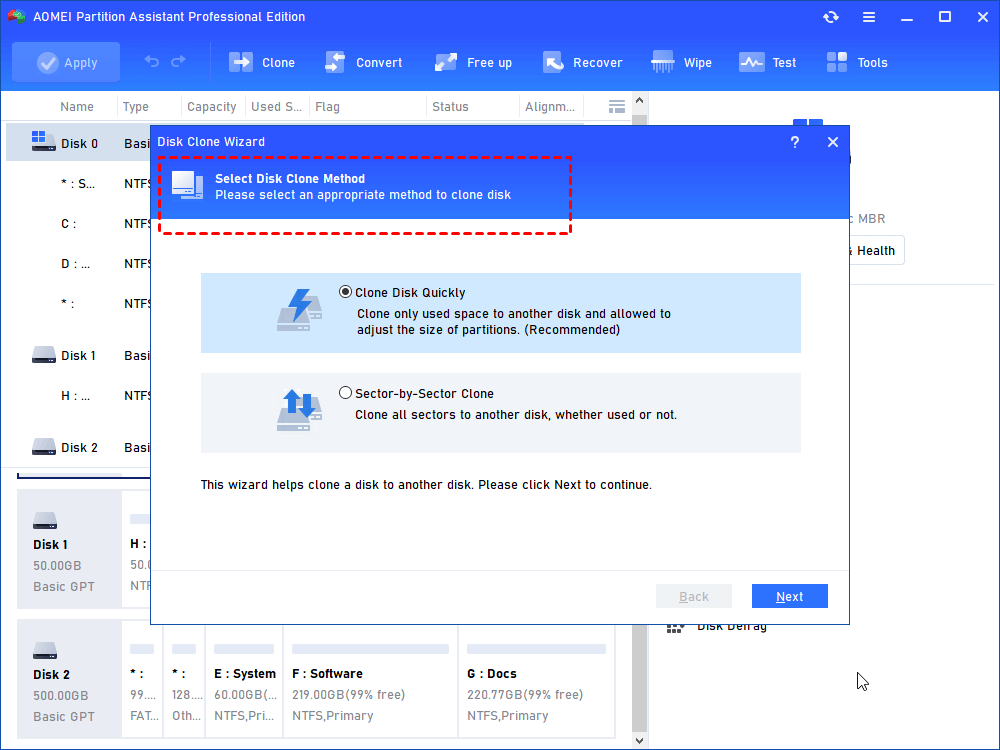
The software supports Windows 11/10/8/7 and offers two cloning methods:
🔶 Sector-by-Sector Clone: copies all sectors from the original disk for an exact duplicate.
If you only want to back up the operating system, you can choose to clone just the Windows OS partition to another disk, leaving data partitions untouched. This makes the process flexible and ensures your system stays secure.
 AOMEI Partition Assistant
The Best Windows Disk Partition Manager and PC Optimizer
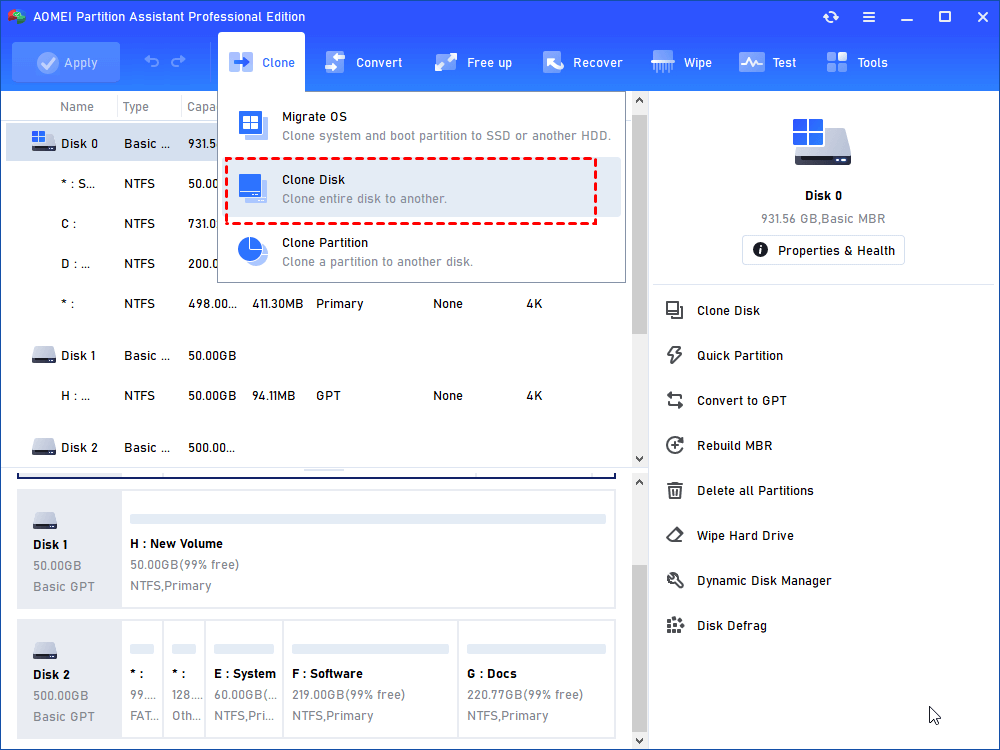
Step 1. Free download this computer operating system clone software, then install and open it. In “Clone”, select “Clone Disk”.
Step 2. Here, choose a suitable method based on the differences mentioned above (choose the first method as an example).
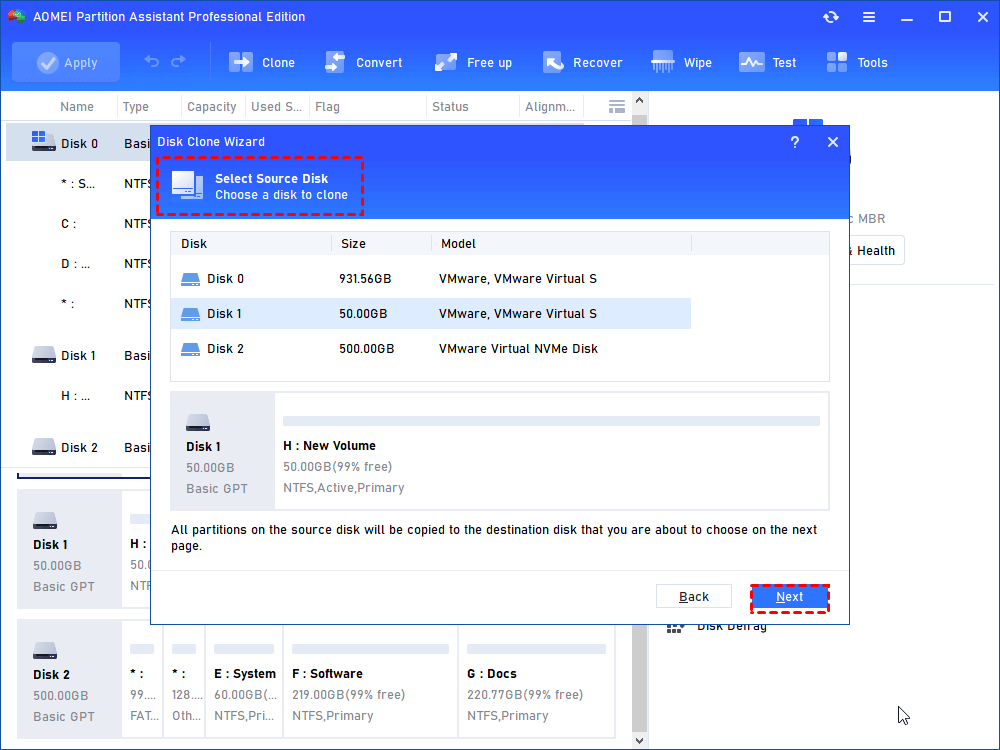
Step 3. Select the disk where the cloned file is located (take Disk 1 as an example).
Step 4. Here, select the target disk you plan to clone to.(take Disk 2 as an example). If your target disk is an SSD, you can check “Optimize the performance of SSD”. The purpose of this is to improve the SSD read and write speed.

Step 5. In this step, you can adjust the size of the target disk partition. If it is cloned to a smaller hard drive, then the first item is not selectable.
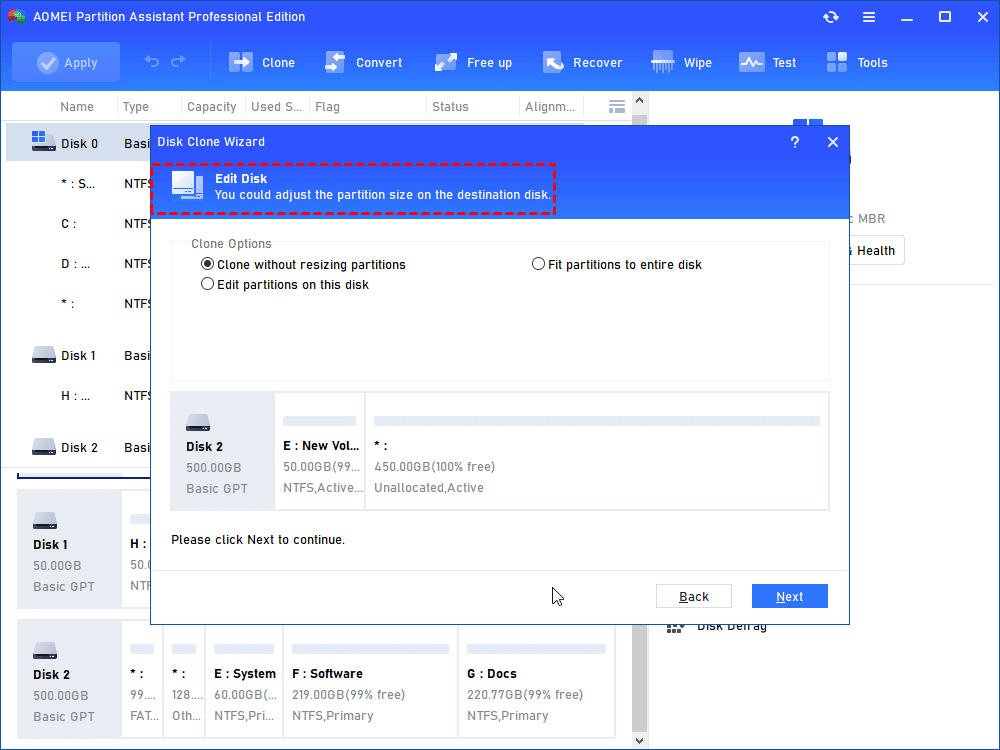
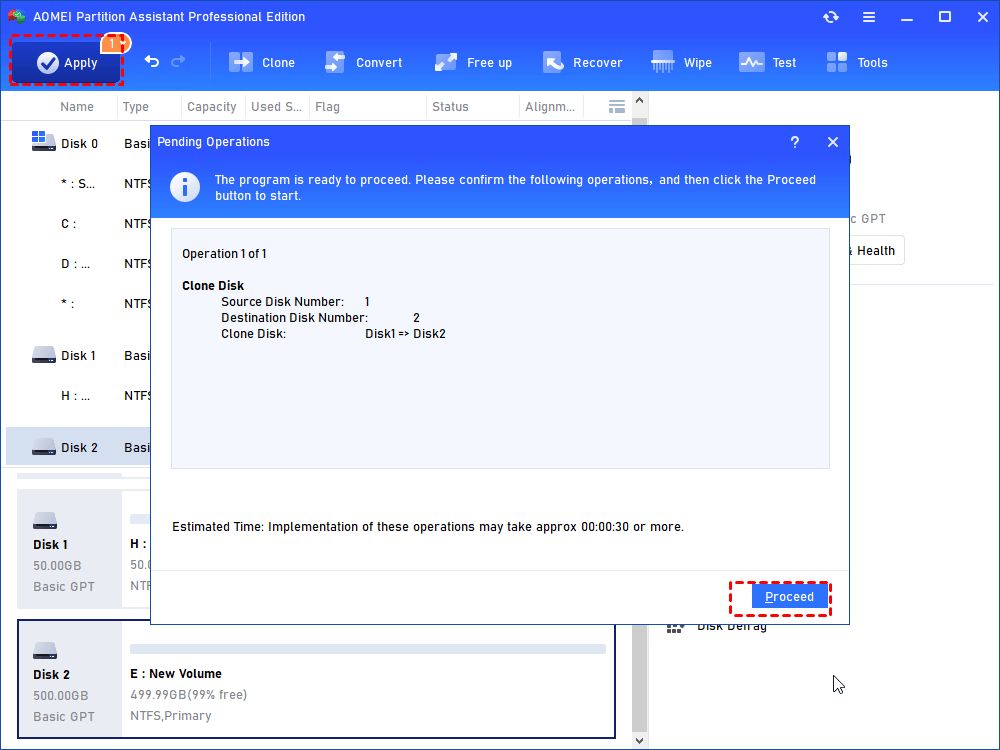
Step 6. You can preview all operations this time in this window. Click “Apply” to submit for execution.
Now, you know it is safe to clear the TPM in Windows in general cases. There are 2 ways you can to do this.
Way 1. Use Windows Security
Step 1. Type "Windows Security" in the search bar and click the top result to open it. In the left menu, choose Device Security, then on the right side, click Security processor details.

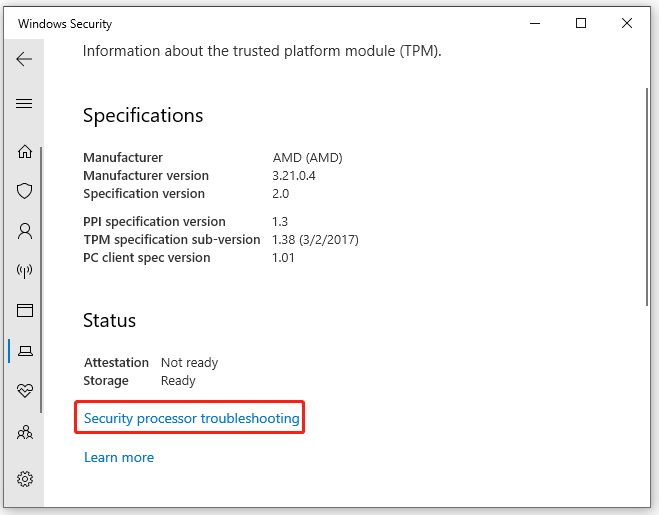
Step 2. Click Security processor troubleshooting.
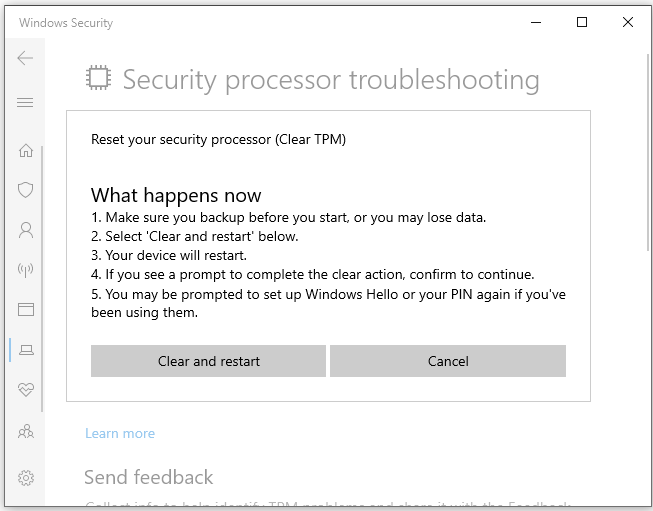
Step 3. Click Clear TPM. When prompted, select Clear and restart, then follow the on-screen instructions to complete the process.
After the computer restarts, Windows will automatically reinitialize the TPM and take ownership again.
Way 2. Use TPM Management Console
Step 1. Press Win + R to open the Run dialog, then type tpm.msc and press Enter to launch the Trusted Platform Module Management window.
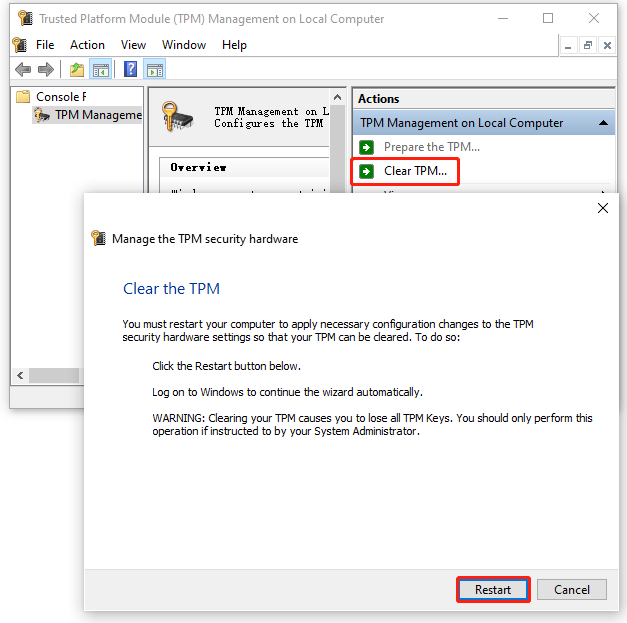
Step 2. In the Actions section, click Clear TPM, choose Restart, and then follow the instructions shown on the screen to finish the process.
Conclusion
TPM is an important security feature that protects your data through encryption keys, PINs, and certificates. Clearing it during a reset or before selling your laptop is generally safe, as long as you back up important data and recovery keys with AOMEI Partition Assistant in advance. With proper preparation and the right tools, you can clear TPM without losing access to your files, ensuring both security and privacy.
AOMEI Partition AssistantThe Best Windows Disk Partition Manager and PC Optimizer
