
 AOMEI Partition Assistant
How to Use Net Create A New User And Add to Admin Group via CMD
Need to edit local users and groups? Discover the CMD commands to create, delete, and manage admin accounts, or use a simpler GUI tool.

By Lucas / Updated on October 23, 2025


Managing user accounts is a core task for anyone looking to maintain a secure and organized Windows environment. While many users are familiar with the graphical interface, the Command Prompt (CMD) offers a faster, more powerful, and scriptable way to handle these tasks. For system administrators and power users, knowing the correct command for local users and groups is an essential skill.
This guide will provide a detailed walkthrough of how to use the net user command to create new accounts and grant them administrative privileges. We will cover the exact steps to create a new user and add to the admin group, explore other useful commands for management, and introduce a user-friendly alternative for those who prefer to avoid the command line altogether.
Why Use CMD to Manage Users and Groups?
This section outlines the key advantages of using the Command Prompt for user account management over traditional graphical methods.
While clicking through menus in the Control Panel or Settings app works, the Command Prompt provides several distinct benefits, especially for more advanced scenarios:
Speed and Efficiency: Once you know the commands, you can create and configure a user account in seconds, much faster than navigating multiple GUI windows.
Automation: Commands can be placed into batch scripts (.bat files) to automate the creation of multiple users or to set up a new PC with standard accounts consistently and without manual intervention.
Remote Management: CMD commands can be executed on remote machines using tools like PsExec or Windows Remote Shell, making them invaluable for network administrators.
Precision Control: The command line gives you direct access to user account properties without any intermediary graphical layers.
How to use CMD net create a new user and add to admin group?
Here, we will dive into the practical, step-by-step process of creating a new user and elevating their privileges using specific CMD commands.
The primary tools for this job are the net user and net localgroup commands. net user is used to add, remove, and modify user accounts, while net localgroup manages group memberships.
1. Open an Elevated Command Prompt
First and foremost, you need administrative privileges to create or modify user accounts.
Step 1. Click the Start button and type cmd.
Step 2. Right-click on Command Prompt in the search results and select Run as administrator.
Step 3. Click Yes on the User Account Control (UAC) prompt.
2. Create the New User Account
Step 4. Now, use the net user command to create the new local account. The syntax is as follows: net user /add
Step 5. For example, to create a user named "Support" with the password "P@ssw0rd123!", you would type: net user Support P@ssw0rd123! /add

Step 6. Press Enter. If successful, you will see the message "The command completed successfully."
3. Add the New User to the Administrators Group
Step 7. The new account is currently a standard user. To grant it administrative rights, you must add it to the "Administrators" group using the net localgroup command. The syntax is: net localgroup administrators /add
Step 8. Continuing our example, you would type: net localgroup administrators Support /add
Step 9. Press Enter. You should again see the confirmation message. The user "Support" now has full administrative privileges on the local Step machine.
More Commands to Edit Local User and Groups CMD
Your control doesn't end with creation. Here are a few other essential commands to edit local user and groups cmd:
To change a user's password: net user * (This will prompt you to type a new password securely).
To delete a user: net user /delete
To view a user's information: net user
To remove a user from a group: net localgroup administrators /delete
Easily manage local users and groups without commands
This section introduces a powerful software solution that provides an intuitive graphical interface for user management, serving as an excellent alternative to the command line.
The command line is powerful, but it's not for everyone. The syntax can be unforgiving, typos can lead to errors, and there's no visual overview of your users and groups. For a more intuitive and error-proof method, a dedicated management tool is the perfect solution.
AOMEI Partition Assistant Professional is a leading disk and partition management software suite that has recently expanded its feature set to include a robust user management tool. This new function, called "Windows Local User & Group Management," is designed specifically to simplify account administration for all Windows users, eliminating the need to memorize any command for local users and groups.
 100% Secure
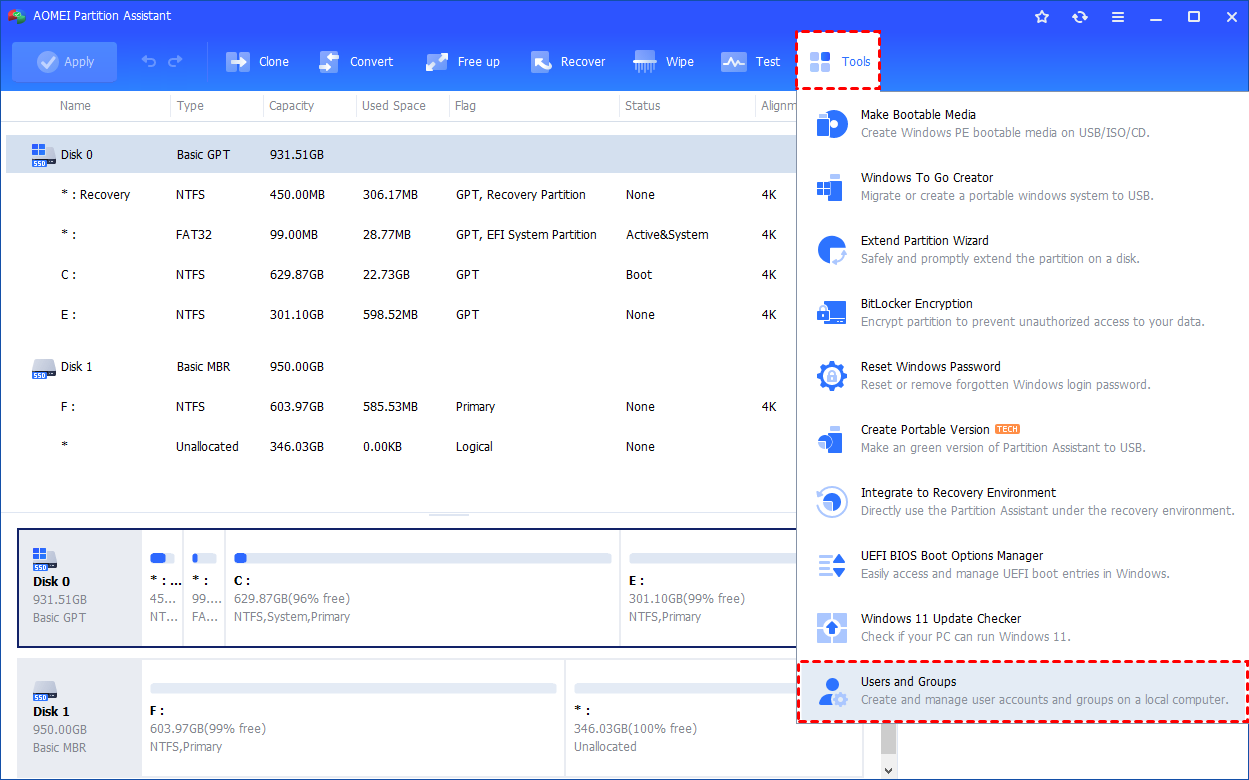
Step 1. Install and launch AOMEI Partition Assistant. Click the "Tools" main tab and select "Users and Groups".
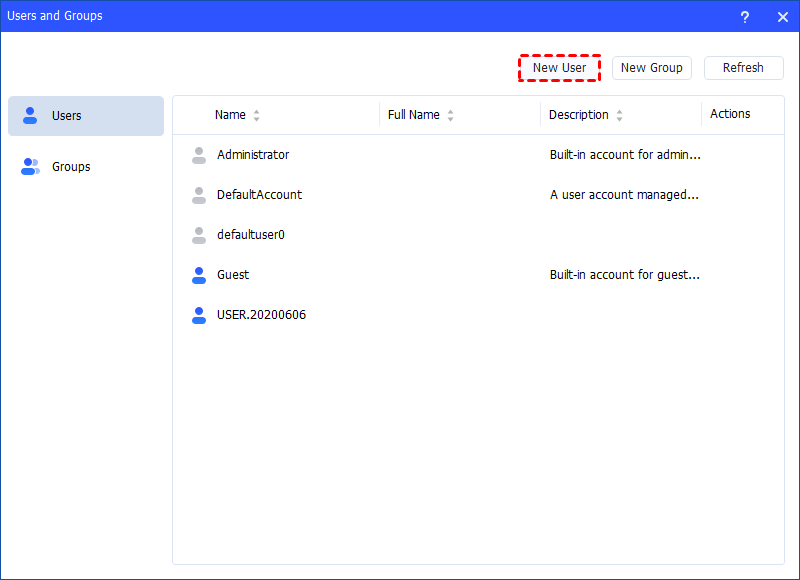
Step 2. Click the "Users" tab and then click the "New User" button to create a new user account. You can also click the "Refresh" button to refresh the user list.
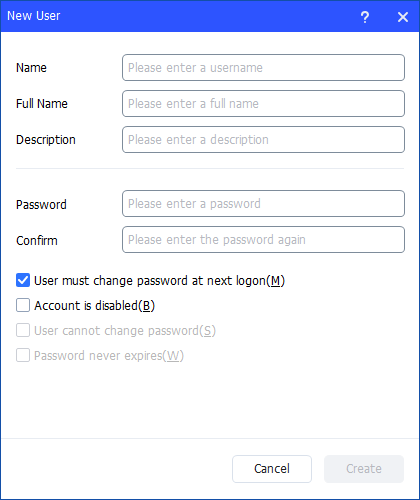
Step 3. Then, type the appropriate information in the dialog box. You can enter the name and description and set a password for the new user.
And, you can select or clear the check boxes for: User must change password at next logon, Account is disabled, User cannot change password, Password never expires.
- To perform this procedure, you must provide credentials for the Administrator account on the local computer (if you are prompted) or you must be a member of the Administrators group on the local computer.
- A user name cannot be identical to any other user name or group name on the computer that is being administered. The user name can contain up to 20 uppercase characters or lowercase characters, except for the following:
" / \ [ ] : ; | = , + * ? < > @ - A user name cannot consist solely of periods (.) or spaces.
- In Full Name and Description, you can type up to 256 characters.
- In Password, you can type a password containing up to 14 characters.
Step 4. After all is set, click "Create" to create the new user.
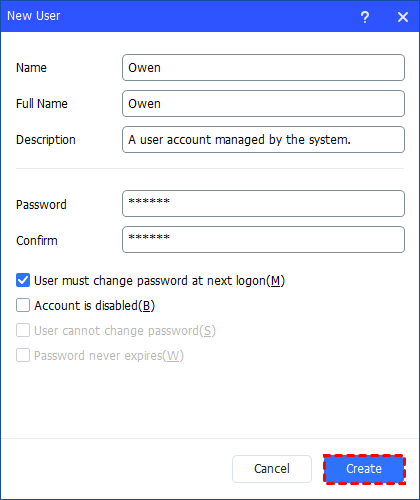
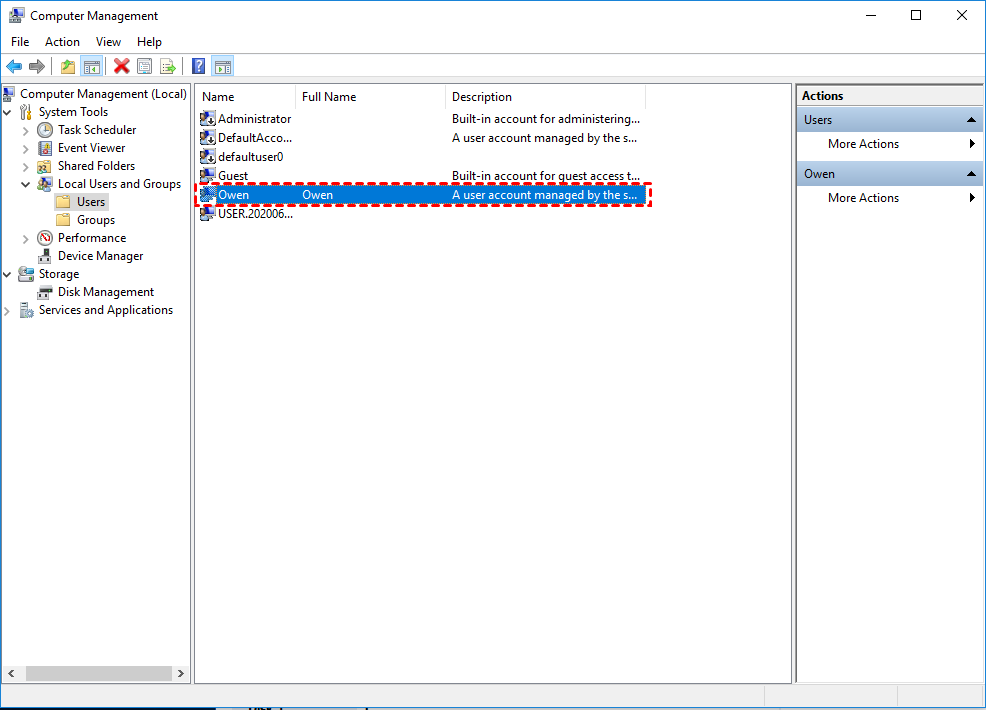
Finally, you can see the user is created successfully in Windows Local Users and Groups. And, you can also easily manage the new user account.
Beyond its excellent user management capabilities, AOMEI Partition Assistant Professional is a powerhouse of other features, including:
Migrate OS to SSD: Move your Windows installation to a new drive without reinstalling.
App Mover: Relocate installed programs from one drive to another to save space.
Disk Clone: Create a full backup or upgrade your hard drive with ease.
Partition Recovery: Recover lost or accidentally deleted partitions.
To sum up
Whether you're a command-line enthusiast or prefer a graphical interface, Windows offers flexible ways to manage user accounts. We've detailed how to net create a new user and add to admin group using the powerful and efficient net user and net localgroup commands—a perfect method for scripting and quick administrative tasks.
However, for those who value simplicity, visual clarity, and an all-in-one toolkit, AOMEI Partition Assistant Professional offers a superior alternative. It transforms user management into a simple point-and-click process while providing a full suite of other essential disk management utilities, making it an indispensable tool for any serious PC user.
