
 AOMEI Partition Assistant
Silicon Power vs Crucial SSD: Which One is Better?
Silicon Power and Crucial stand out as two of the leading choices for budget-friendly SSDs. This comparison breaks down their features and value, helping you decide which one gives you more for your investment.

By Hedy / Updated on July 28, 2025


Silicon Power vs Crucial SSD: Full comparison
Silicon Power is a Taiwanese brand known for producing budget storage devices, including SSDs, USB drives, and memory cards. Silicon Power targets cost-conscious consumers with value-for-money products.
Crucial (by Micron) is a brand under Micron, one of the world’s largest memory and NAND flash manufacturers. Crucial SSDs are well-regarded for their quality, performance, and longevity.
Here’s a detailed comparison of Silicon Power vs Crucial SSDs to help you decide which brand suits your needs better:
✍ Performance comparison
Silicon Power offers solid performance in budget models like the A55 or P34A60, suitable for daily tasks and light gaming. Speeds are good for SATA and entry-level NVMe SSDs but may lag behind in sustained workloads.
Crucial offers excellent performance, especially in models like the Crucial MX500 (SATA) and P3, P5 Plus (NVMe). More consistent performance in sequential and random reads/writes, especially in long-term use.
✍ Build quality & reliability
Silicon Power’s quality can vary by model. Some budget options may use DRAM-less design, which affects sustained speed and reliability. However, they are generally good enough for average users.
Crucialis is built with Micron’s in-house NAND and often includes DRAM cache, ensuring better endurance and performance. The MX500 is particularly known for its long-term durability.
✍ Software and features
Silicon Power has minimal software tools. It offers basic firmware update utilities, but lacks advanced monitoring or cloning software.
Crucial comes with the Crucial Storage Executive software, offering health monitoring, firmware updates, performance boosts, and cloning features.
✍ Pricing
Silicon Power is one of the cheapest SSD brands, especially in the 2.5" SATA and DRAM-less NVMe segment. Great for upgrading old PCs on a budget.
Crucialis is slightly more expensive than Silicon Power, but still affordable. Offers better value long-term due to higher performance and durability.
☛ Choose Silicon Power if you're on a tight budget and just need faster boot times and smoother performance than an HDD.
☛ Choose Crucial if you want balanced price-to-performance, better reliability, and long-term value, especially for demanding workloads or gaming.
How to upgrade to Silicon Power/Crucial SSD without losing data
Upgrading to an SSD is one of the most effective ways to boost your computer’s speed and shorten boot times. Whether you choose a Silicon Power or Crucial SSD, the key is to transfer your data safely and efficiently. The best method? Cloning your current drive to the new SSD.
With AOMEI Partition Assistant, the process is fast, secure, and hassle-free. This powerful cloning tool allows you to copy only the used space from your old drive, enabling your system to boot from the new SSD in seconds—without reinstalling Windows.
AOMEI Partition Assistant offers a clean, user-friendly interface that minimizes complexity. It also functions as a full-featured SSD cloning and backup solution, capable of creating bootable disks and protecting your files during the transition.
Download AOMEI Partition Assistant today and upgrade your Silicon Power or Crucial SSD with zero data loss.
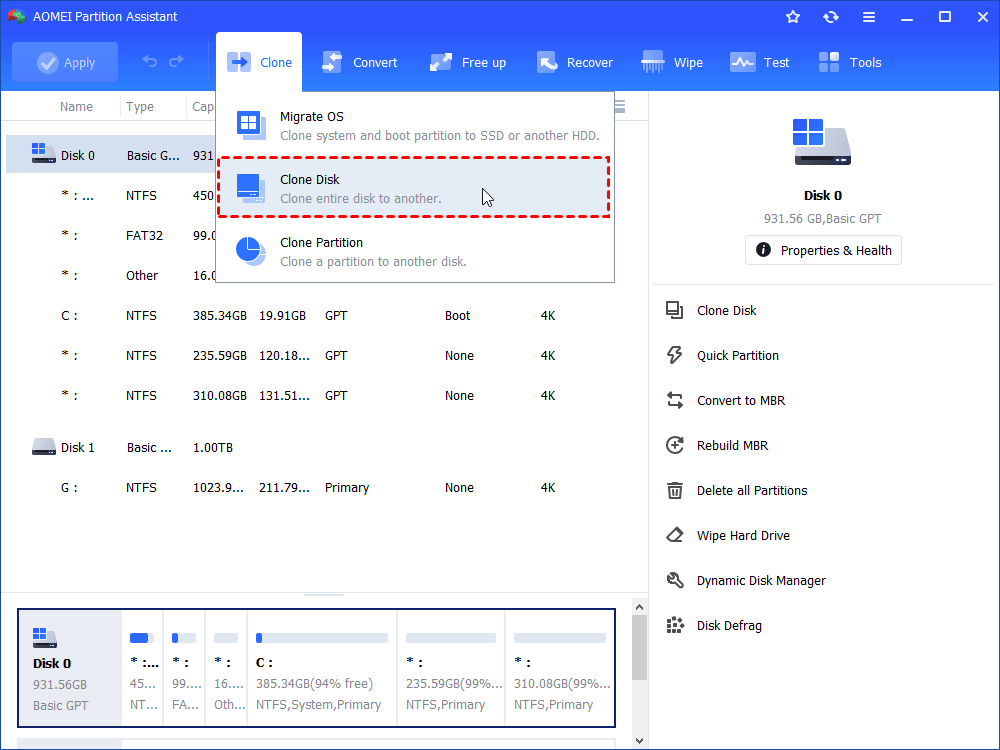
Step 1. Install and launch AOMEI Partition Assistant, click "Clone" in the main interface and select "Clone Disk".
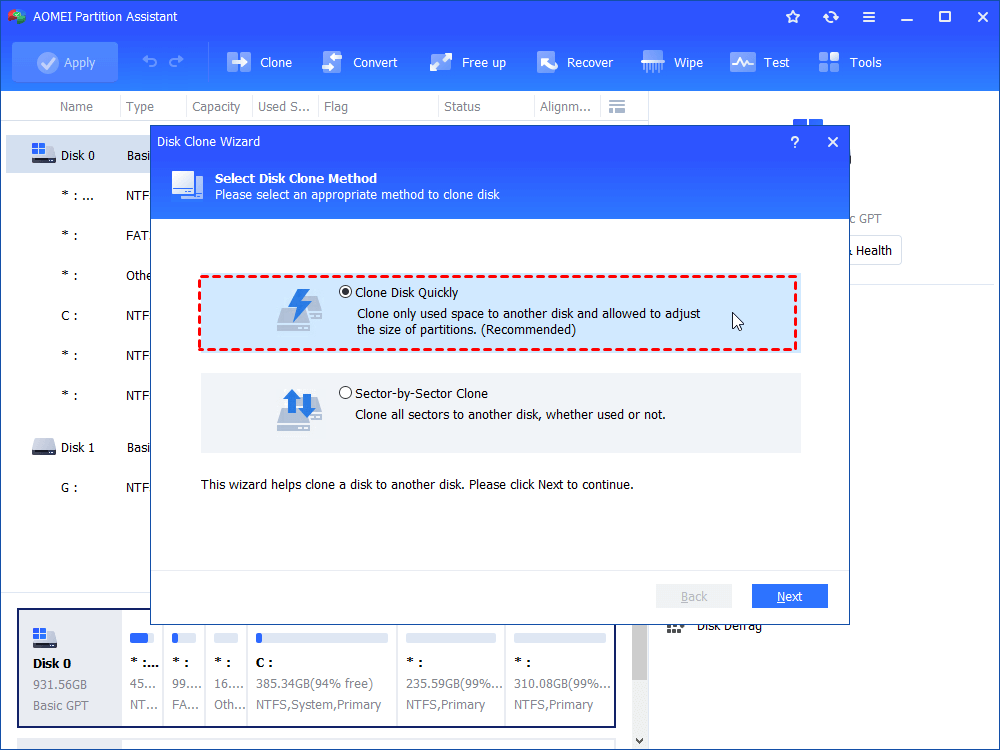
Step 2. Choose the hard disk that you need to clone as the source disk and click "Next".
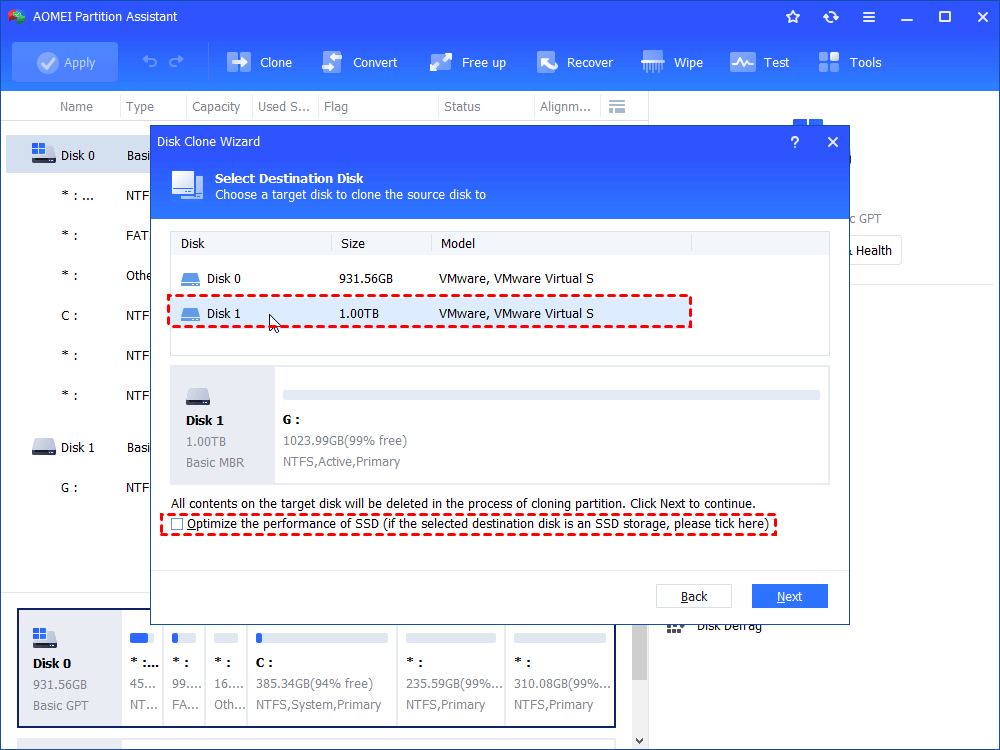
Step 3. Select the destination disk to store the data on the source disk, and then click "Next".
Step 4. Then, you can check the source and destination disk in the next window or change to “Sector to Sector clone”, and click the "Confirm" button to continue if there is no problem.
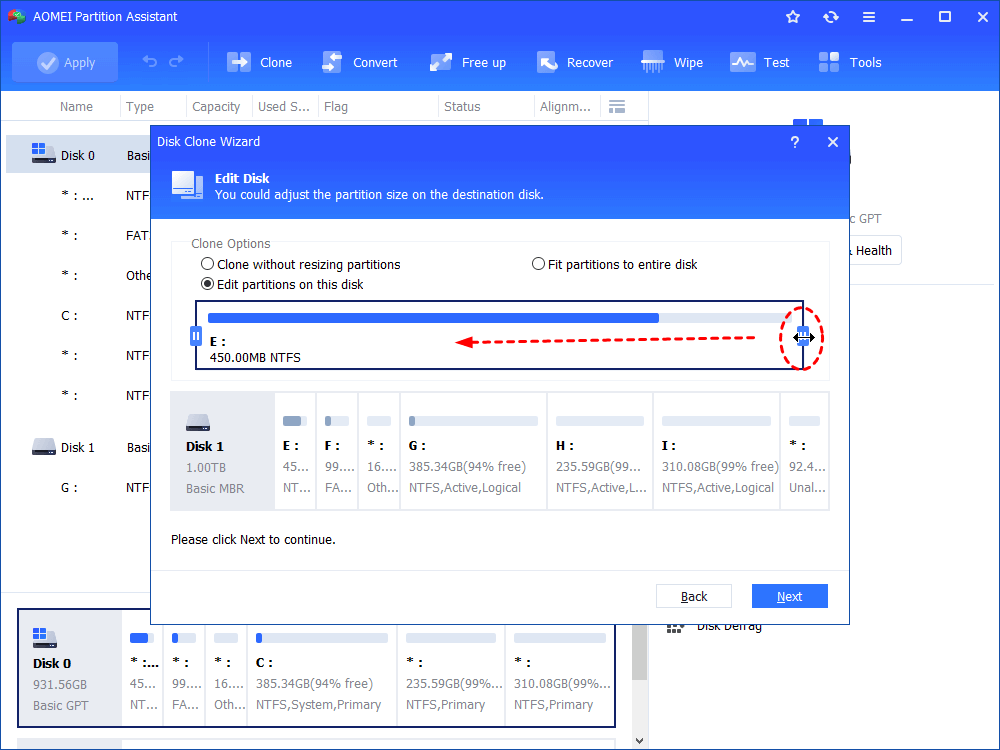
Here, you can also click the "Settings" button to adjust the partition size on the destination disk or tick "4k alignment" to improve the reading and writing speed of SSD if the target disk is an SSD drive.

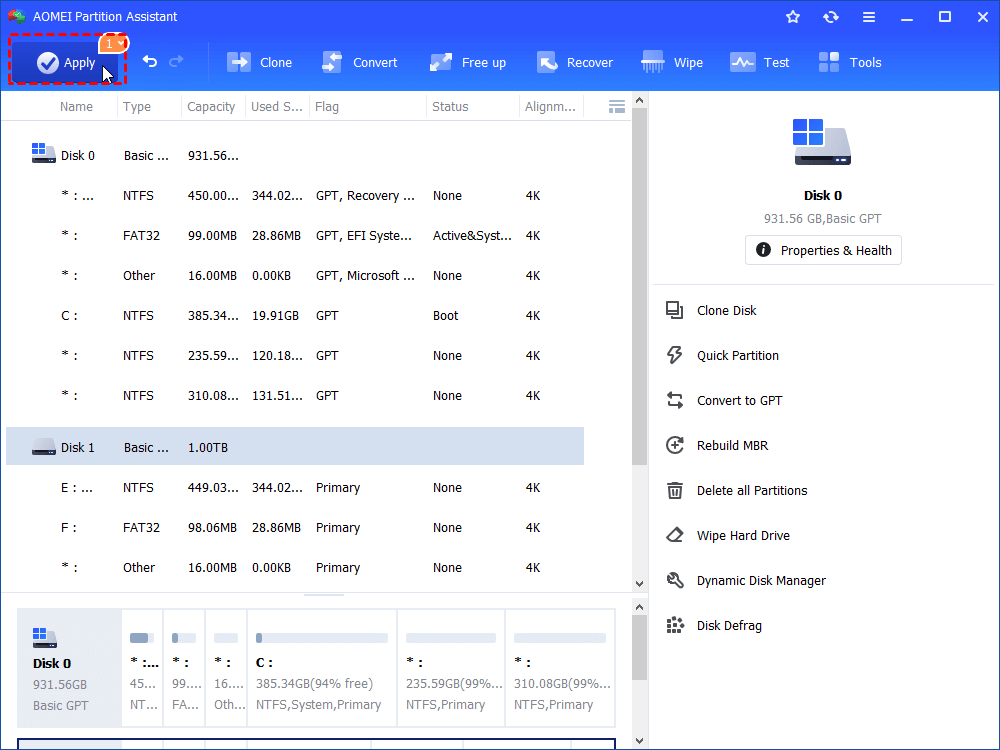
Step 5. At last, click "Apply" and "Proceed" in the main interface to start cloning the hard drive.
Conclusion
Deciding between two budget-friendly SSDs with nearly identical specs can be challenging. That’s where a side-by-side comparison—like Silicon Power vs. Crucial SSD—can guide you toward the smarter pick for your needs.
But once you've made your choice, the next important step is transferring your operating system to the new drive. That’s where AOMEI Partition Assistant comes in. This powerful cloning software simplifies OS migration, allowing you to transfer your entire system—files, programs, and settings—without reinstalling Windows.
