
 AOMEI Partition Assistant
[Answered] Will Resetting My Windows 10 PC Make It Run Faster
Read to know the answer of “Will resetting my Windows 10 PC make it run faster?” If you want to speed up your PC, there are more convenient methods to help improve PC performance without a factory reset.

By Irene / Updated on July 24, 2025


Will resetting my Windows 10 PC make it run faster?
If your computer is running slowly, you may wonder: Will resetting my laptop help? The answer depends on what is causing the problem.
A reset can make your PC faster if the slowdown is caused by software issues, like too many background programs, system errors, or leftover files. Resetting your PC will remove unnecessary apps and clean up your system, which can improve speed and performance.
However, a reset won’t help if the problem is related to hardware, like an old hard drive or not enough memory. In that case, you may need to upgrade your hardware instead.
Does a factory reset make my PC run faster? Yes, it does. In addition to this, resetting your Windows 10 PC also has several benefits:
-
Removes viruses and malware: A reset clears out threats that are hard to remove manually.
-
Fixes system errors: If your PC keeps freezing or crashing, a reset can fix corrupted files.
-
Prepares the PC for new users: If you're giving your laptop to someone else, a reset erases your personal data.
Before you reset your PC, try to find out what’s really slowing it down. That way, you’ll know if resetting is the right solution. If necessary, please back up your important files, because a reset will remove almost all your data.
How to fix computer running slow in Windows 10
There are several methods can be helpful to make your PC run faster. If you prefer to factory reset your Windows 10, you can directly move to the next part.
Fix 1. Extend C drive space
If your C drive is almost full, your computer may run slowly, freeze, or even crash. This is because the system needs enough free space to work properly. One easy way to fix this problem is by using a tool like AOMEI Partition Assistant. It helps free up space and make your computer run faster.
 AOMEI Partition Assistant
The Best Windows Disk Partition Manager and PC Optimizer
Here are some helpful features it offers:
🔶App Mover: Move apps from the full C drive to another drive with more room.
🔶Delete Large Files: Find and remove big files that are taking up a lot of space.
You can also use the Allocate Free Space feature. It lets you take free space from a drive that has extra and give it to the C drive. This can help your system run more smoothly and prevent slowdowns. By making sure your C drive has enough space, you can greatly improve your computer’s performance.
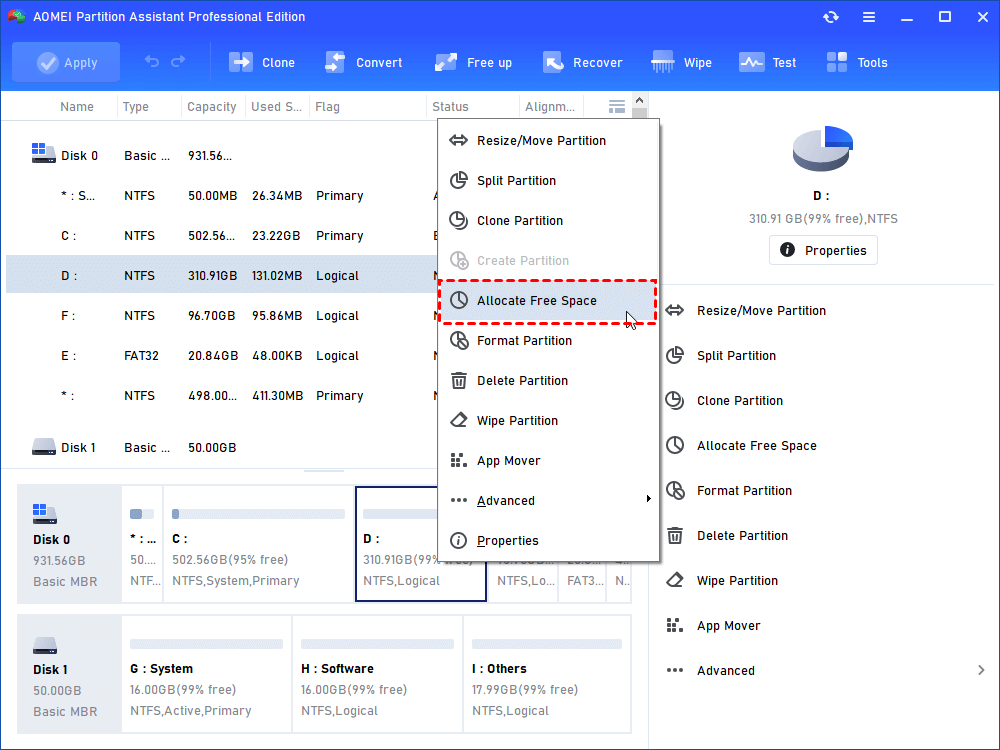
Step 1. Launch AOMEI Partition Assistant, right-click on a partition that has enough space and select “Allocate Free Space” in the dropdown menu.
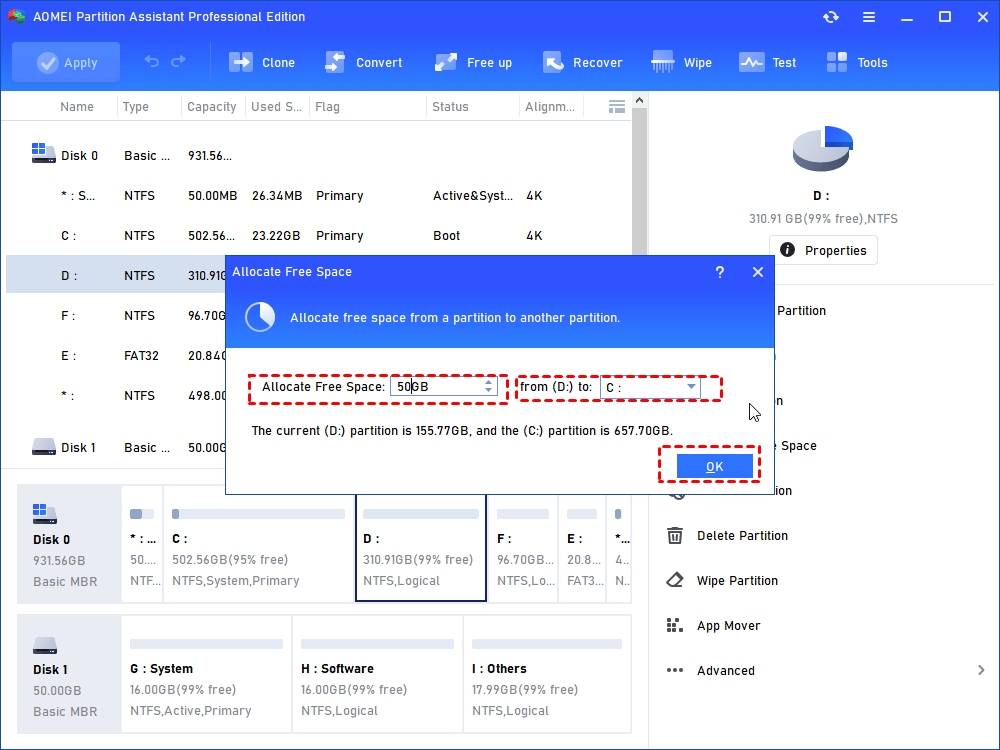
Step 2. In the next window, preset the size of the free space you want to allocate and the target partition you want to allocate the free space to. When done, click on “OK”
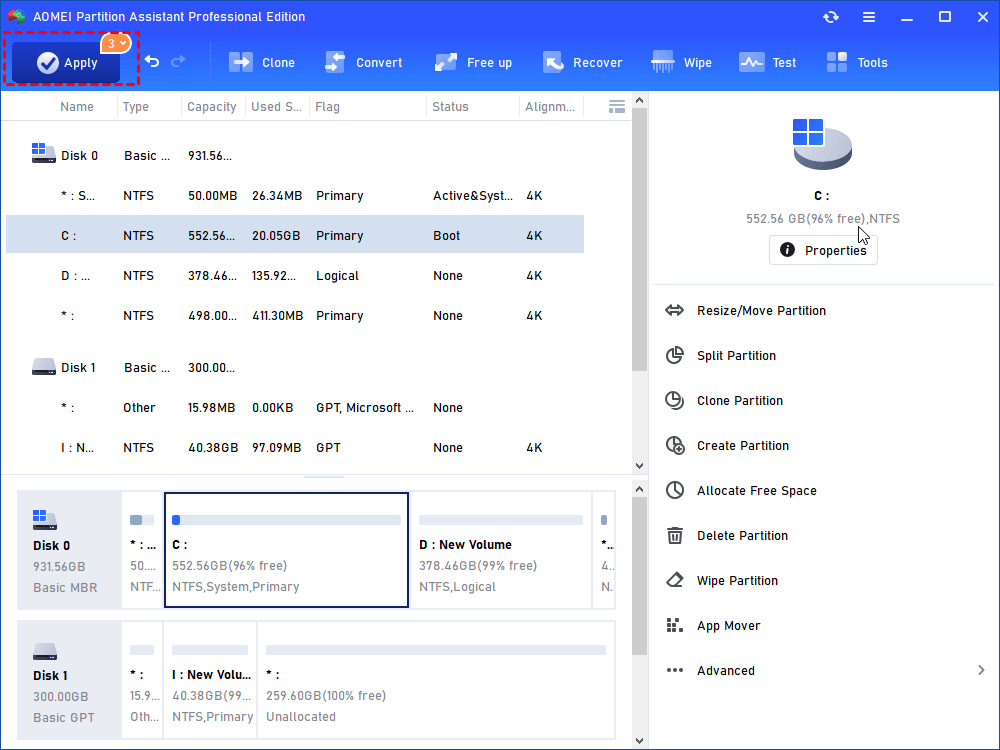
Step 3. After returning to the home interface, hit “Apply” on the upper left and then, hit “Proceed” to start the space allocation.
Fix 2. Add more RAM
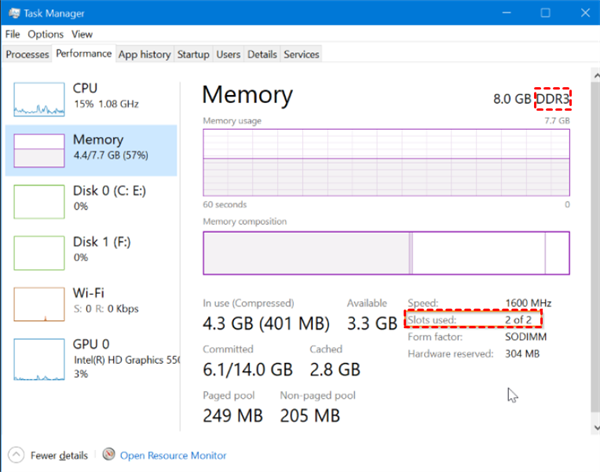
If your Windows 10 computer runs slowly, that is probably because the computer does not have enough RAM (random access memory). In this case, you can increase the amount of random access memory. The easiest way for that task is to install new RAM chips, before that you need to check which type of memory your computer is using now: open Task Manager, click "Performance". The system will show you the memory type and how many slots are used. Then buy a compatible RAM and install it on your computer.
Fix 3. Disable the unnecessary startup programs
Why is my PC running slow? There is something you may ignore. Some programs are designed to start automatically every time when your computer boots up. These running processes in the background will waste valuable memory and slow down your computer. Thus, disabling them can help boost Windows 10 computer performance.
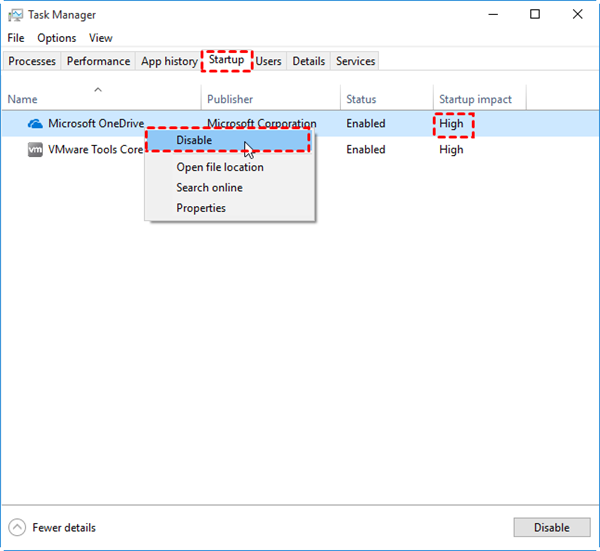
Press "Ctrl+Alt+Del" to open "Task Manager", click the "Startup" tab to check the startup programs. You can also check the "Startup Impact" value for each startup program; the "High" means the programs will slow down your system significantly. Then you can just right-click on it and choose "Disable" to prevent it from launching on Windows startup.
Further reading: How to factory reset Windows 10?
If you still want to factory reset Windows 10 to refresh your PC, you can follow the steps below. If you're ready to erase everything, AOMEI Partition Assistant’s "SSD Secure Erase" for SSDs or "Wipe Hard Drive" for HDDs can also meet your needs.
AOMEI Partition AssistantThe Best Windows Disk Partition Manager and PC Optimizer
Step 1. Simultaneously press both "Win+I" keys together and enter "Settings". Then, in sequence, go to "System", "Recovery", and "Reset PC".
Step 2. Next, access the Windows Recovery Environment. Forcefully shut down your PC twice, then restart it. Once in the Recovery Environment, click on "Troubleshoot", and then select "Reset this PC" to initiate the reset.
Step 3. When seeing the interface, choose either the "Keep my files" option or "Remove everything" based on your preferences as previously discussed.
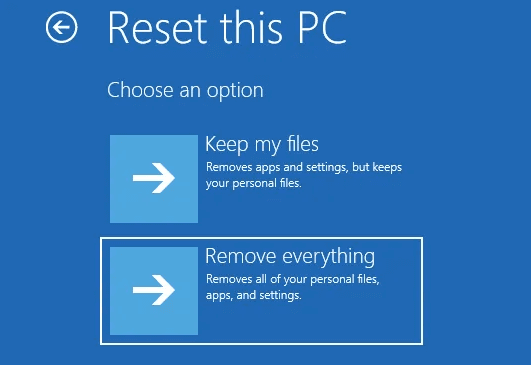
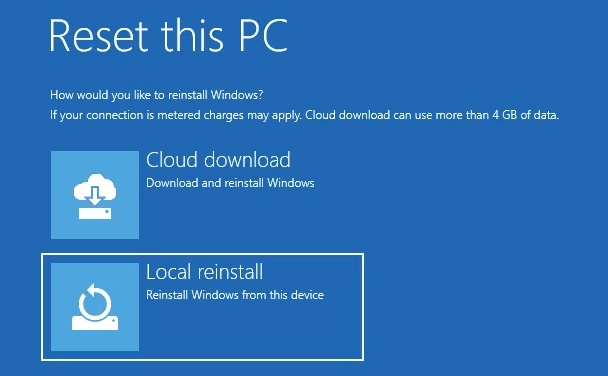
Step 4. Now, decide on the method for reinstalling the system after performing the Windows 10 factory reset.
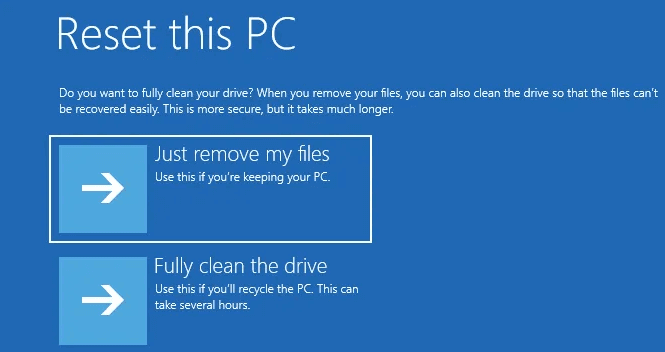
Step 5. Make your selection between "Just remove your files" or "Fully clean the drive".
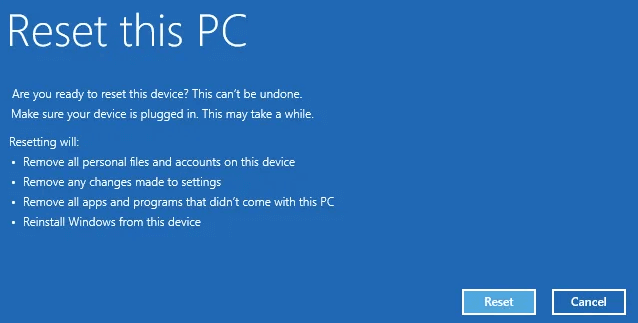
Step 6. As you reach the reset screen, a list of the potential impacts of resetting your device will be displayed. If you have no further questions regarding these effects, proceed by clicking "Reset" to start the Windows 10 PC factory reset process.
Conclusion
Resetting your Windows 10 PC can help make it run faster, especially if the slowdown is caused by software issues like clutter, system errors, or background apps. It gives your system a fresh start and often improves overall performance.
At the same time, using a tool like AOMEI Partition Assistant can make the process even easier and more effective. It helps free up space, move apps, delete large files, and manage partitions, all of which can boost speed without needing a full reset. If you're looking to speed up your PC, try cleaning up your system with AOMEI Partition Assistant first. And if needed, a full reset can be a good next step for a smoother, faster experience.
