
 AOMEI Partition Assistant
How to Perform Windows 11 Extend Partition with Unallocated Space
Windows 11 extend partition with unallocated space? In this post, you will know two methods to extend partition with adjacent unallocated space as well as a way to increase the partition size with non-continuous unallocated space.

By Hedy / Updated on July 16, 2025


Why you may need to extend a partition?
Extending a partition is often necessary when your current drive is running out of space. Here are some common reasons why you might need to extend a partition:
1. Low disk space warning: When your system drive (usually C:) or any other partition runs out of space, you’ll likely receive low disk space alerts. Extending the partition allows you to allocate additional unused space, helping the system run smoothly and preventing performance issues.
2. Improve system performance: A nearly full system drive can slow down your computer. Extending the partition ensures the operating system has enough working space, improving overall speed and responsiveness.
3. Install large programs or updates: Some software or Windows updates require a significant amount of free space to install. Extending the partition ensures you have sufficient space to handle these installations without errors.
4. Data management: You may want to consolidate scattered free space or merge smaller partitions into a larger one for better data organization and management.
5. Avoid data loss: Running out of space on data partitions (like D: or E:) can increase the risk of file corruption or loss. Extending these partitions provides a safeguard against such risks.
6. Optimize disk usage: If you have unallocated space on your disk, extending existing partitions utilizes that space effectively instead of leaving it unused.
How to extend a partition with adjacent unallocated space
If your disk has unallocated space next to the partition you want to expand, extending that partition is relatively simple. Here’s a step-by-step guide to help you through the process:
Method 1. Using Disk Management
Windows comes with a built-in tool called Disk Management that allows you to extend partitions easily when unallocated space is directly adjacent.
Step 1. Press Windows + R at the same time to open Run dialogue.
Step 2. Input diskmgmt.msc and hit Enter to open Disk Management.
Step 3. Right-click the C drive and choose "Extend Volume".
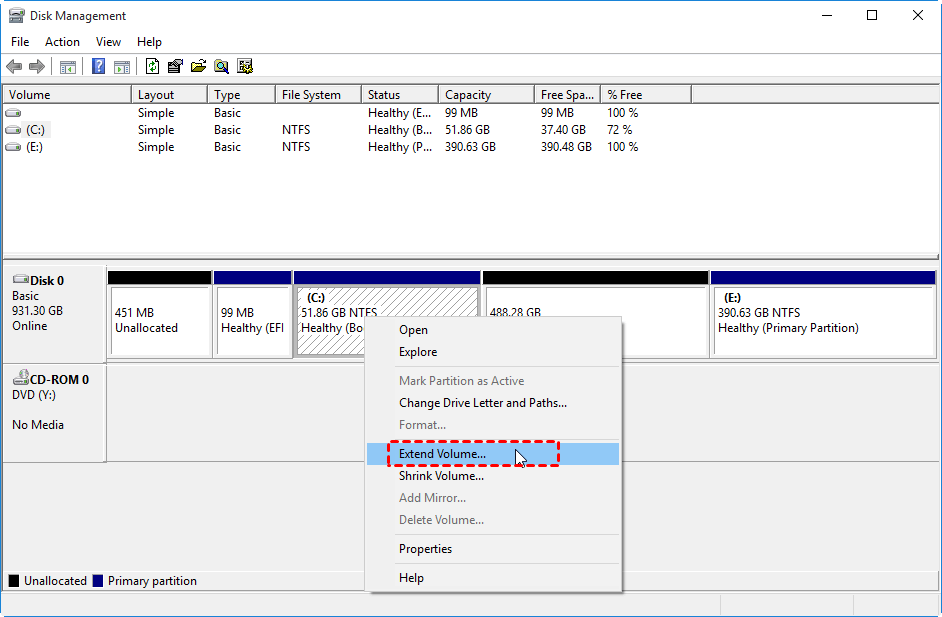
Step 4. Follow the prompts that will appear to complete this operation.
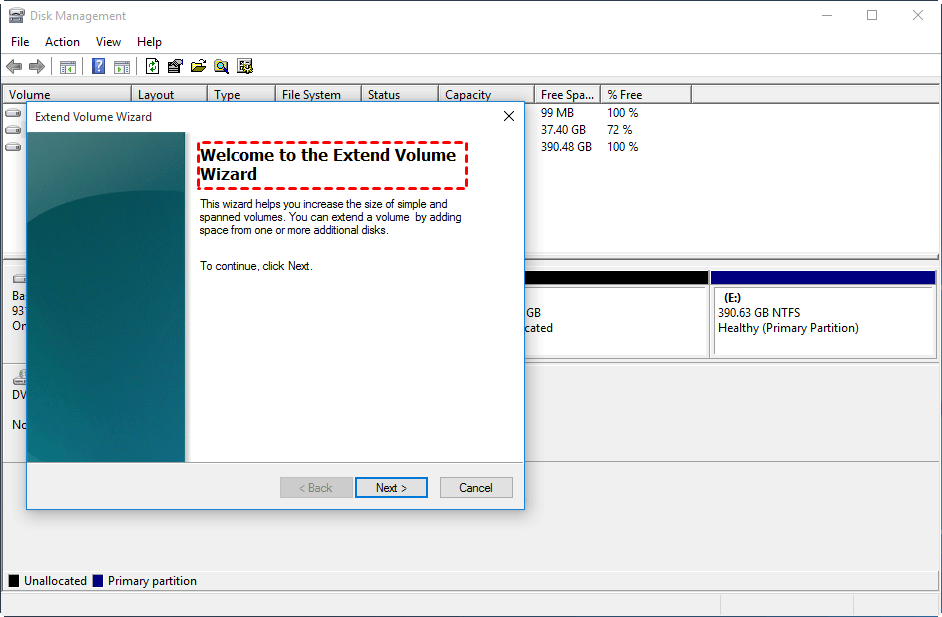
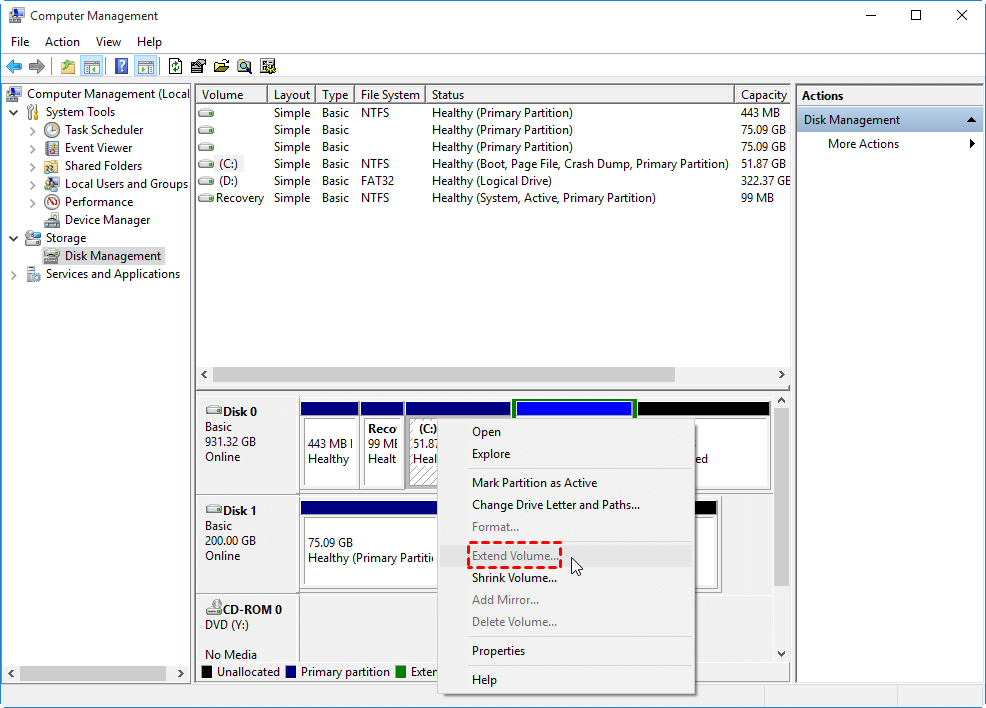
Note: If the unallocated space isn’t directly next to the C drive on its right side, the “Extend Volume” option will be greyed out and unavailable.
Method 2. Using Diskaprt
If there’s continuous unallocated space directly next to your system partition, you can use the Diskpart utility to extend it easily.
Step 1. Open Run dialogue, input diskpart and click OK.
Step 2. Run commands as follows:
list disk
select disk 0 (0 is the disk where the partition located)
list partition
select partition 4 (4 is the target partition)
extend size=100 (100 is the size in MB of the partition you want to extend)
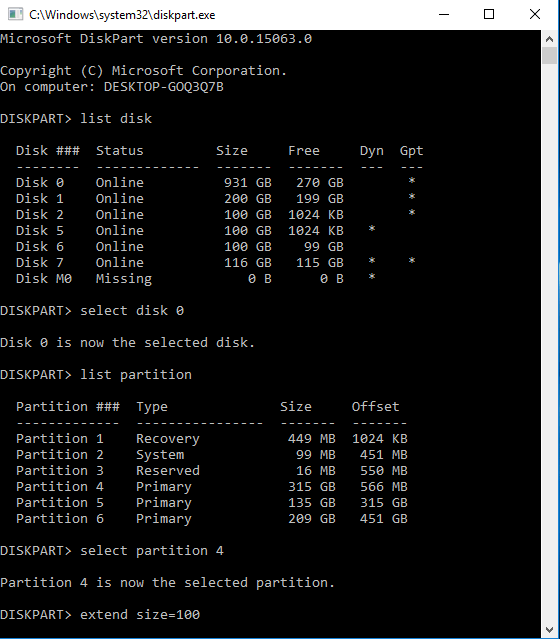
Note: Similarly to Disk Management, DiskPart can only extend the C drive when unallocated space is immediately adjacent to it on the right side.
How to extend partition if the unallocated space is not adjacent
If the unallocated space is not adjacent to the partition you wish to extend, traditional Windows tools like Disk Management or DiskPart won't help, as they can only extend partitions using contiguous unallocated space directly behind the target partition. This is where AOMEI Partition Assistant becomes a valuable solution.
AOMEI Partition Assistant is a professional disk management tool that offers the Merge Partitions and Allocate Free Space features to help you effectively utilize unallocated space even when it’s not adjacent. Here's how it can help:
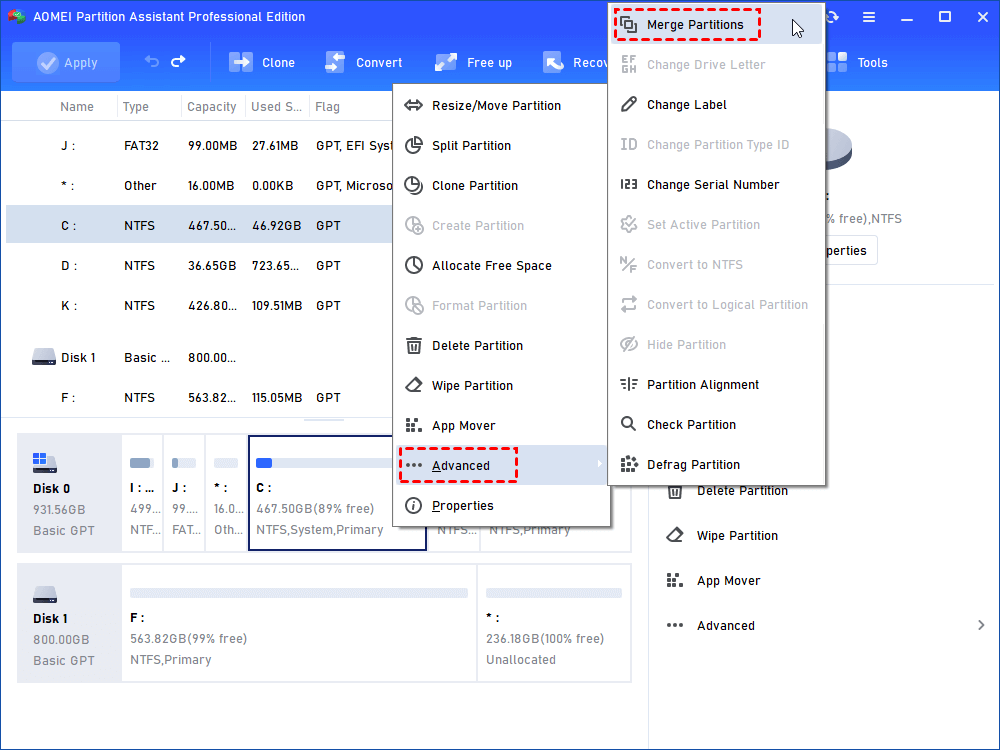
Step1. Install and launch AOMEI Partition Assistant, you will see the main environment of your hard drive. Right-click the target drive at the main interface, then select "Advanced" > "Merge Partitions" at the pop-out menu.
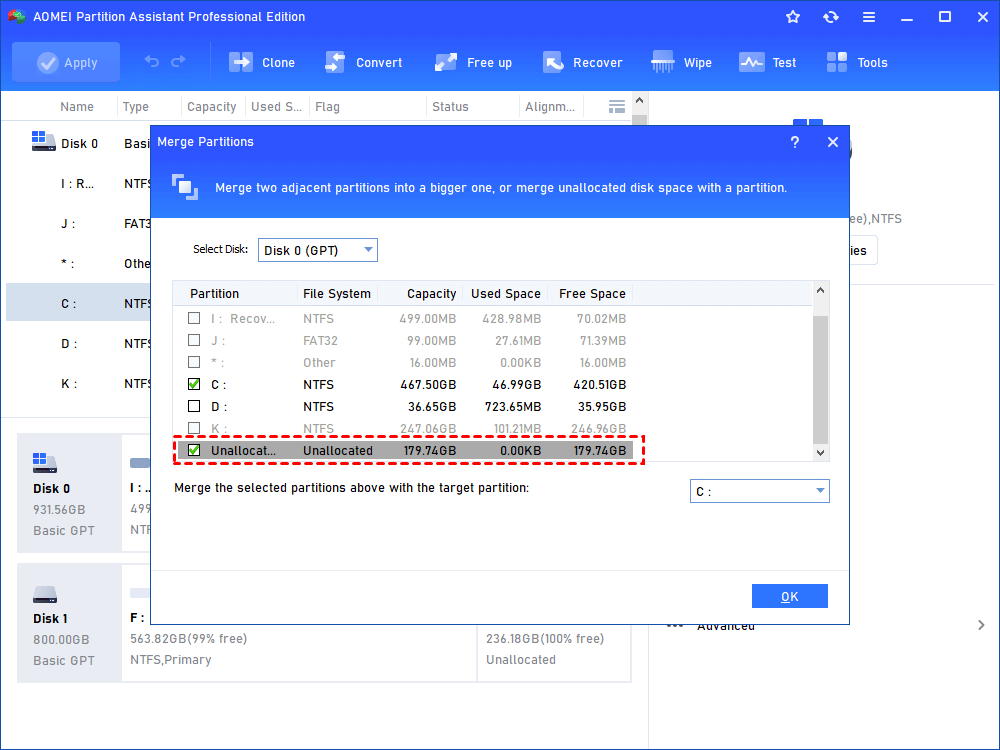
Step2. Then, it will move to the window where you can assign unallocated space to the target drive by selecting the partitions in the box. Click "OK".
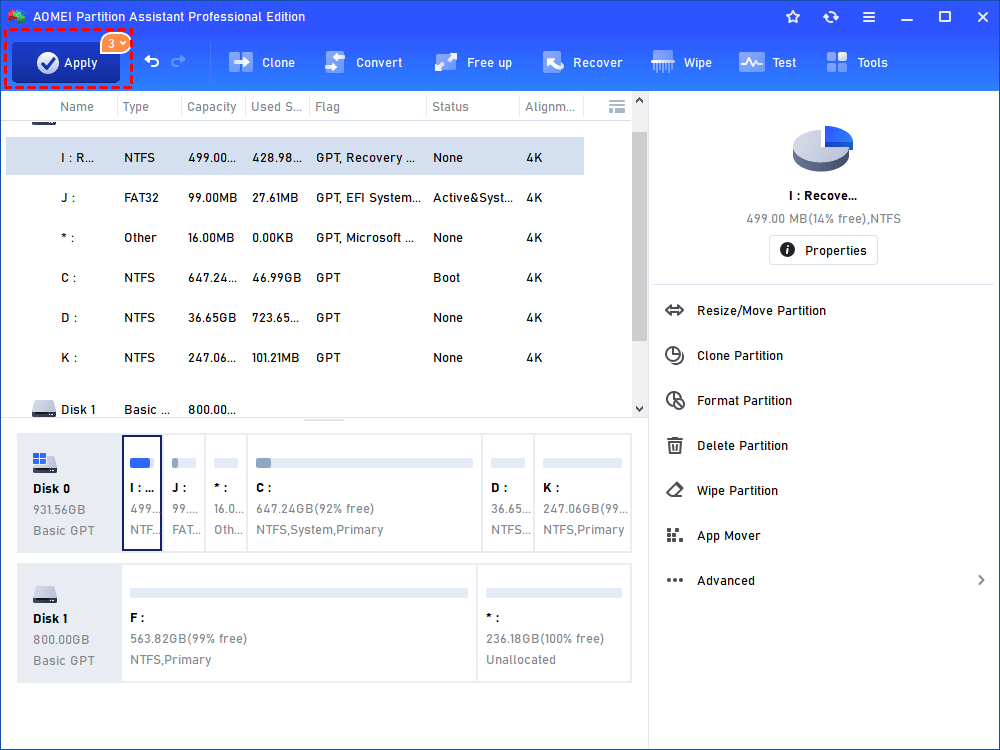
Step3. Here you can see that you have already extended the C partition by adding the unallocated space to the C drive. Don’t forget to click "Apply" to submit the whole operation.
Conclusion
Extending a partition is essential when your drive runs low on space, affecting system performance and risking data loss. You may also need more space for large updates or efficient data management. If unallocated space is adjacent, use Disk Management or DiskPart to expand the partition easily. If it’s non-adjacent, AOMEI Partition Assistant allows you to move or merge partitions to extend effectively, optimizing disk usage and ensuring your system runs smoothly without performance issues.
