
 AOMEI Partition Assistant
[Fixed] Windows Update Crashing Computer: A Complete Guide
Fix your computer crash after a Windows 10 or Windows 11 update. This step-by-step tutorial covers everything from the Windows Update Troubleshooter to advanced solutions for when your PC won't boot.

By Lucas / Updated on September 19, 2025


There's a universal feeling of dread when you restart your computer after a Windows update, only to be met with a blue screen, endless reboot loops, or a completely unresponsive system. A Windows update crashing your computer is more than just an inconvenience; it can halt your productivity and put your important data at risk.
Updates are designed to enhance security and performance, but sometimes they can introduce new conflicts. This comprehensive guide will walk you through the reasons behind these crashes and provide a series of proven, step-by-step solutions to get your PC back up and running smoothly.
Why Is a Windows Update Crashing My Computer?
To effectively solve the problem, it's crucial to understand what's causing it. This section breaks down the most common culprits behind post-update system instability.
When an update fails, it's rarely due to a single cause. The issue typically stems from a conflict between the new update files and your system's existing configuration. Here are the primary reasons why you might be facing this problem:
Incompatible Hardware Drivers: An update can change how the operating system interacts with your hardware (like your graphics card or Wi-Fi adapter). If your current drivers aren't compatible with the new update, it can lead to system-wide instability and crashes.
Corrupted Update Files: The update files themselves can become corrupted during the download or installation process, often due to an unstable internet connection or a sudden power outage.
Software Conflicts: Third-party software, especially antivirus or security suites, can sometimes mistakenly interfere with the update process, preventing system files from being written correctly.
Pre-existing System File Corruption: If your Windows installation already contains corrupted files before the update, the update process can exacerbate the problem, potentially leading to a crash.
Insufficient Disk Space: Windows updates require a significant amount of free space to download and unpack files. If your system drive is nearly full, the installation may fail midway, leaving your system in an unstable state.
A Suddenly Stopped Update: If your Windows won't boot after a stopped update, it's likely because the installation was interrupted at a critical phase, leaving essential system files in a half-written, unusable state.
How to Fix a Computer Crash After a Windows 10/11 Update
Now, let's move on to the solutions. This section provides five detailed methods, starting with the simplest fixes and progressing to more advanced techniques for when your computer won't even start.
Solution 1. Rollback the Problematic Windows Update
If the crashes began immediately after a specific update, the most direct solution is to uninstall it. This returns your system to its previous, stable state.
You can do this from within Windows if it boots, or from the Windows Recovery Environment (WinRE) if it doesn't.
Step 1. Press the Windows key + I to open the Settings app.
Step 2. Navigate to Update & Security (on Windows 10) or Windows Update (on Windows 11).
Step 3. Click on "View update history" or "Update history." Select "Uninstall updates."

A Control Panel window will open. Find the most recent update (they are sorted by date), select it, and click "Uninstall."
Step 4. Restart your PC once the process is complete.
Steps if Windows Won't Boot:
After two or three failed boot attempts, your PC should automatically enter the Windows Recovery Environment (WinRE).
From the blue "Choose an option" screen, select Troubleshoot > Advanced options > Uninstall Updates.
You'll have two choices: "Uninstall latest quality update" or "Uninstall latest feature update." Quality updates are the monthly ones, while feature updates are the major bi-annual ones. Choose the one you recently installed.
Solution 2. Run the Windows Update Troubleshooter
Windows has a built-in tool designed specifically to diagnose and fix update-related issues. It can often automatically resolve problems with corrupted update files or services.
Step 1. Press Windows key + I to open Settings.
Step 2. Go to Update & Security > Troubleshoot. On Windows 11, it's under System > Troubleshoot.
Step 3. Click on "Additional troubleshooters" or "Other troubleshooters."
Step 4.Find "Windows Update" and click "Run the troubleshooter" or "Run."
Let the tool scan your system and apply any recommended fixes.
Solution 3. Repair System Files with SFC and DISM
As mentioned, pre-existing file corruption is a common cause. The System File Checker (SFC) and Deployment Imaging Service and Management Tool (DISM) are powerful command-line utilities that can find and repair these corrupted files.
Step 1. Click the Start button, type "cmd", right-click on Command Prompt, and select "Run as administrator."
Step 2. Run the SFC scan by typing the following command and pressing Enter:
sfc /scannow
After the SFC scan is complete, run the DISM tool to repair the system image that SFC uses for repairs. Execute these three commands one by one:
DISM /Online /Cleanup-Image /CheckHealth
DISM /Online /Cleanup-Image /ScanHealth
DISM /Online /Cleanup-Image /RestoreHealth
Once all scans are finished, restart your computer.
Solution 4. Disable Fast Startup
The Fast Startup feature in Windows is designed to speed up boot times, but it can sometimes interfere with driver initialization after an update. Disabling it can resolve stability issues.
Step 1. Open the Control Panel (you can search for it in the Start Menu).
Step 2. Go to Hardware and Sound > Power Options.
Step 3. On the left-hand side, click "Choose what the power buttons do."
Step 4. Click the link that says "Change settings that are currently unavailable."
Step 5. Uncheck the box next to "Turn on fast startup (recommended)."
Step 6. Click "Save changes" and reboot your PC.
Solution 5. Fix When Windows Won't Boot After a Stopped Update
This is often the most critical scenario. If a Windows update is crashing your computer to the point where it's unbootable, the Master Boot Record (MBR)—the crucial piece of code that helps your PC start—may have been corrupted.
We highly recommend AOMEI Partition Assistant Professional, a comprehensive and user-friendly disk management suite. It simplifies complex repair tasks into a few clicks, making it accessible even for non-technical users. Beyond boot repair, it can also clone disks, migrate your OS to an SSD, recover lost partitions, and much more.
To fix the boot issue, we'll use its "Repair Boot" feature, which requires creating a bootable USB on another working computer.
 100% Secure
Step 1. Install AOMEI Partition Assistant on a working PC and connect a USB drive with enough storage to this PC.
Step 2. Open this software and select the Boot Repair tool below the Recover section.

Step 3. Click the create a bootable disk option to create a WinPE Boot Repair USB drive.
Step 4. Plug the created drive into the non-booting computer, then enter the BIOS settings to change the boot order so that the computer boots from it. It will automatically load the Boot Repair tool and perform a scan of boot entries.

Step 5. Once the process completes, you will see all scan results, including system paths, system versions, and boot status. Select the repairable boot entries you want to repair and click the Repair button.
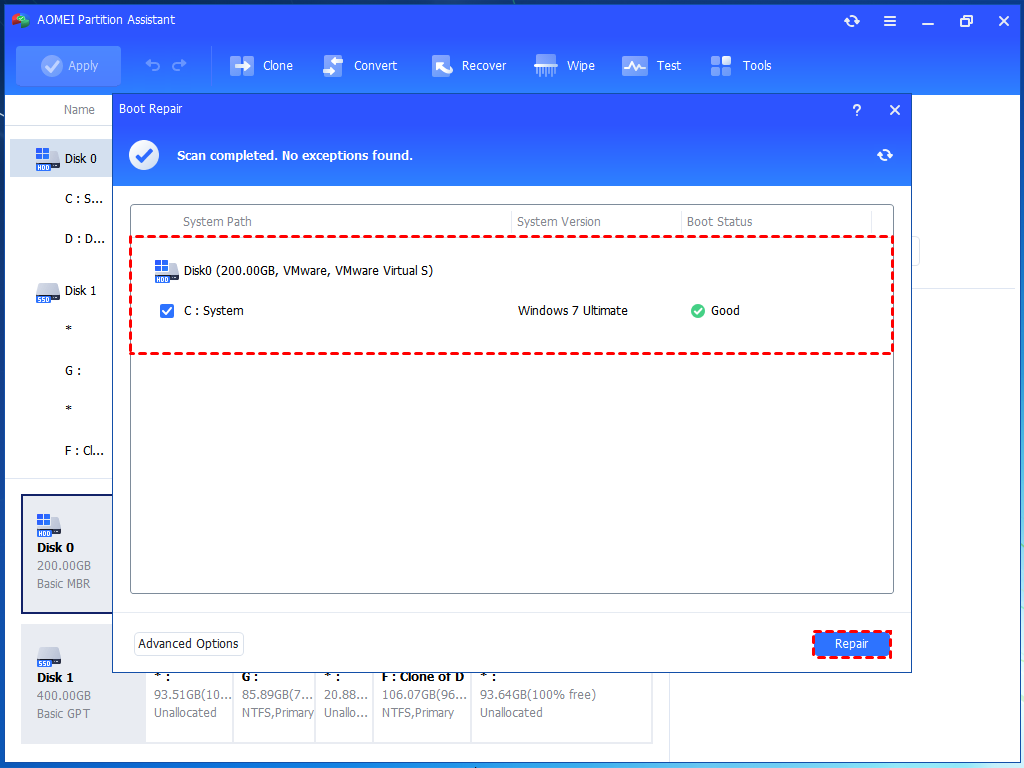
Step 6. Wait for the repair process to finish, then remove the bootable USB drive and boot the PC from the original system drive.

To Sum Up
A Windows update crashing your computer is a disruptive and stressful problem, whether you're dealing with a computer crash after a Windows 10 update or stability issues on the latest OS. However, with a systematic approach, the issue is highly solvable.
We've covered everything from simple fixes like rolling back the update and running the troubleshooter to more advanced solutions like repairing system files with SFC/DISM. For the most severe cases, where Windows won't boot after a failed update, we demonstrated how a reliable tool like AOMEI Partition Assistant Professional can easily repair the boot record and even help you recover lost data.
