5 Best Partition Deletion Tools
for Windows 11 and 10

Looking for reliable delete partition software for Windows? Compare Windows Disk Management, DiskPart, AOMEI Partition Assistant, Partition Master, and Partition Wizard. Learn how to delete a partition, reuse unallocated space, and choose the right tool for your disk.

Download Freeware

Quick Picks - Choose a Partition Deletion Tool for Your Task

Your task Start with Why
Delete one ordinary data volume without installing software Windows Disk Management A built-in graphical option for a simple deletion.
Review a planned layout and continue managing partitions AOMEI Partition Assistant A disk map and pending operations let you inspect the proposed change before applying it.
Use commands or a managed script Windows DiskPart A built-in command-line option for users who can verify disk and partition selection.
Compare other graphical partition managers Partition Master or Partition Wizard Both provide graphical deletion workflows with a separate step to apply pending changes.

Compare the Five Partition Deletion Tools

All five options can remove an ordinary data partition or volume in the scope described below. The main differences are installation, the point when a change is committed, and the work you need to do afterward.

Option Ordinary deletion Before changes are committed After deletion Main boundary Best fit
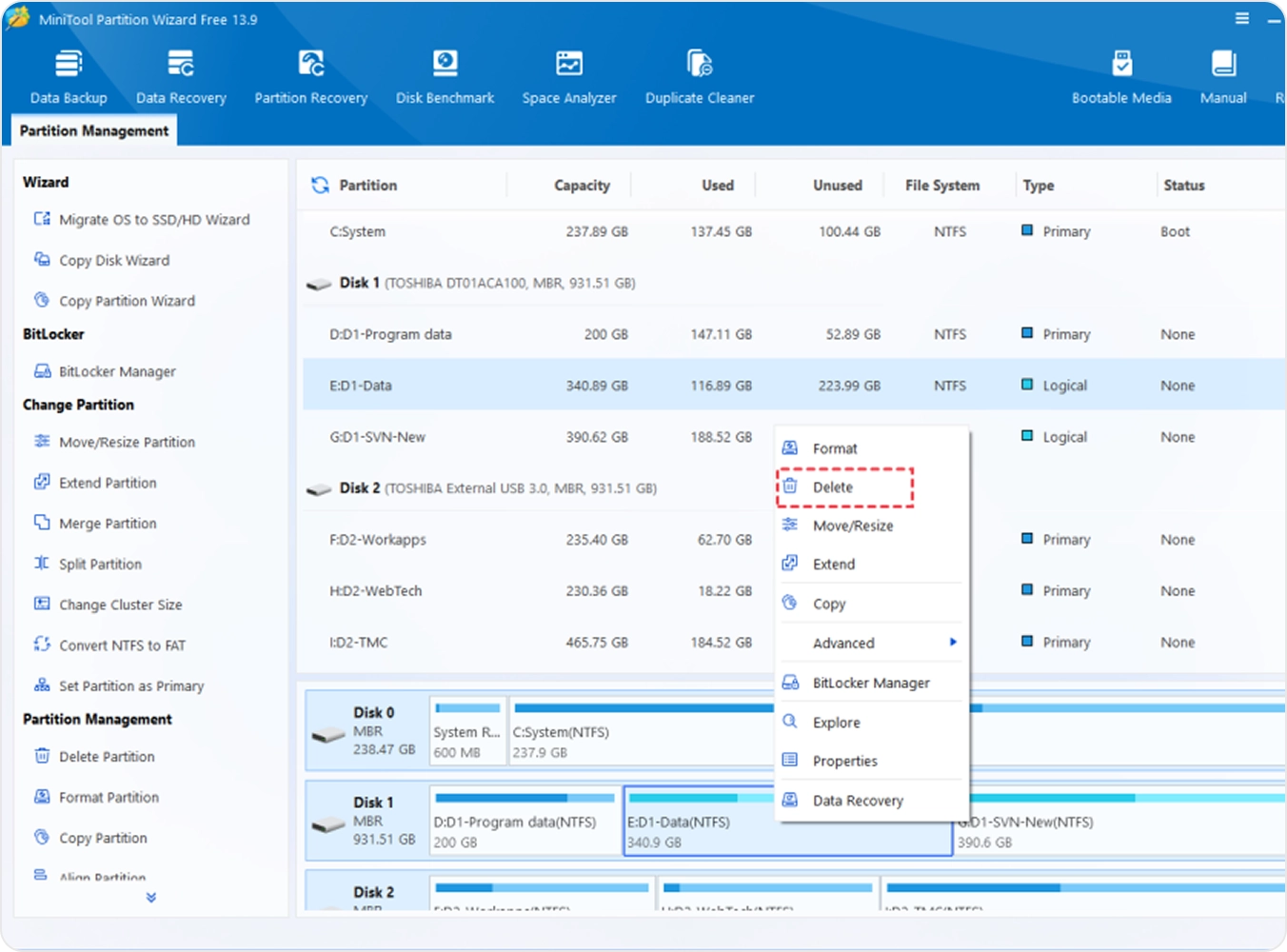
Windows Disk ManagementBuilt into Windows 11 and 10 FreeGraphical Review the selected volume and confirm the warning. No separate Apply queue. Create a volume, or extend a suitable volume into adjacent space. Cannot move an intervening partition; protected or in-use volumes may be restricted. Basic, occasional tasks.
Windows DiskPartBuilt into Windows 11 and 10 FreeCommand line Verify disk and partition focus before issuing delete partition. No graphical pending-operation review. Continue with commands for an eligible layout. Requires careful object selection. This guide excludes dynamic disks and protected partitions. Administrators and scripted workflows.
AOMEI Partition Assistant(v 10.12.2) FreeGraphical Check the disk map and pending operation, then Apply and Proceed. Create partitions or inspect supported resize, move and merge options. Additional tasks have their own layout, file-system and edition requirements. Partition recovery is paid. Users who want visual control and a clear review step.
Partition Master(v 20.8) FreeGraphical Review the queued task, then Execute Task and Apply. Continue with supported partition layout tools. A visible feature does not establish free entitlement. Recovery and bootable-media tasks need separate edition checks. Users comparing established third-party tools.
Partition Wizard(v 13.9) FreeGraphical Check the layout preview, then Apply and confirm. Continue with supported create, move, resize or extend operations. Partition recovery is unavailable in Free; bootable system-partition tasks require a suitable paid edition. Users seeking broad feature coverage.

How This Comparison Was Prepared

We compared whether ordinary deletion is free, how users identify the target, when a change is committed, and what options remain for using the space. We also checked whether related recovery or bootable-media features belong to a different edition.

The walkthroughs cover ordinary data partitions on basic disks. They do not cover deleting a Windows installation, EFI or recovery partitions, dynamic volumes, or sanitizing a drive for disposal. Interface labels can vary between releases.

Detailed Reviews: Top Partition Deletion Tools

AOMEI Partition Assistant

Choose it when you want to inspect a graphical disk layout before deleting a partition and continue with partition management afterward.

Strengths:

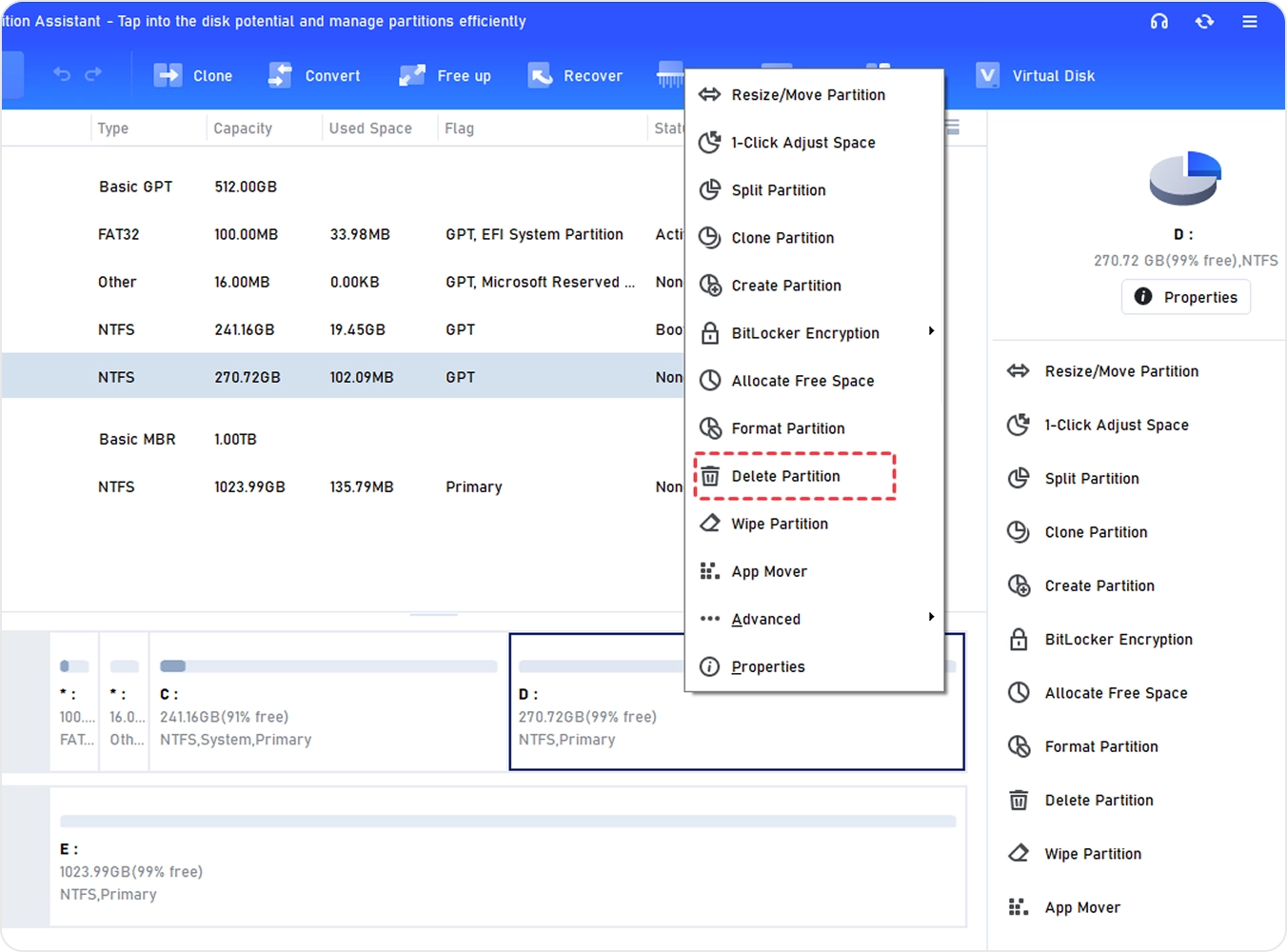
The disk map and pending-operation workflow make the intended target and resulting layout available for review before you commit. This is useful when several partitions are present.

Limitations:

The preview does not validate that your backup is complete or that you chose the right partition. Follow-up operations depend on the disk layout and file system. Partition recovery requires Professional, Server or a higher paid edition.
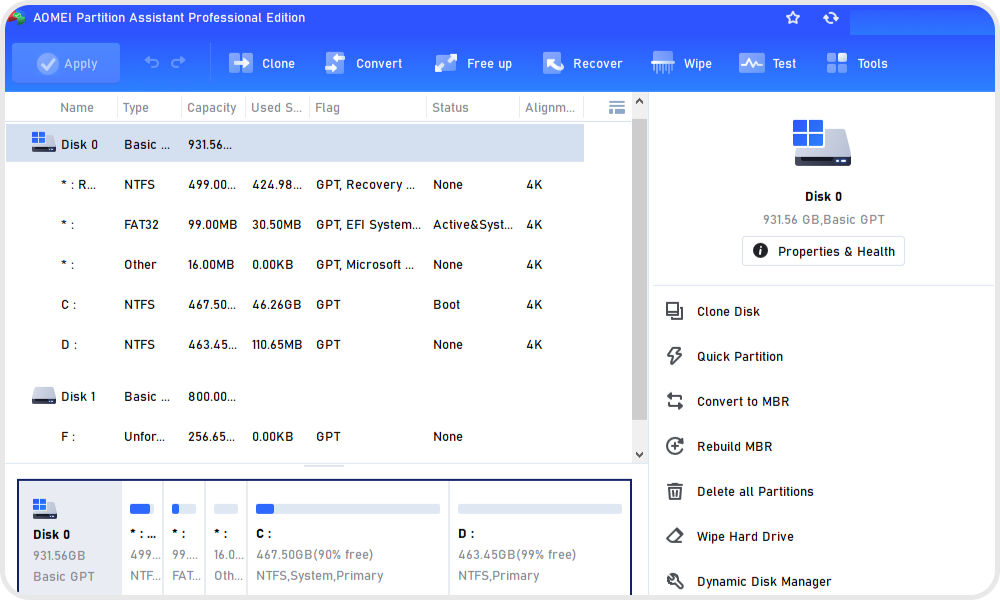
AOMEI Partition Assistant interface

Windows Disk Management

Choose it for an occasional deletion of an ordinary data volume when you prefer a built-in graphical tool. It opens directly from Windows without another download.

Strengths:

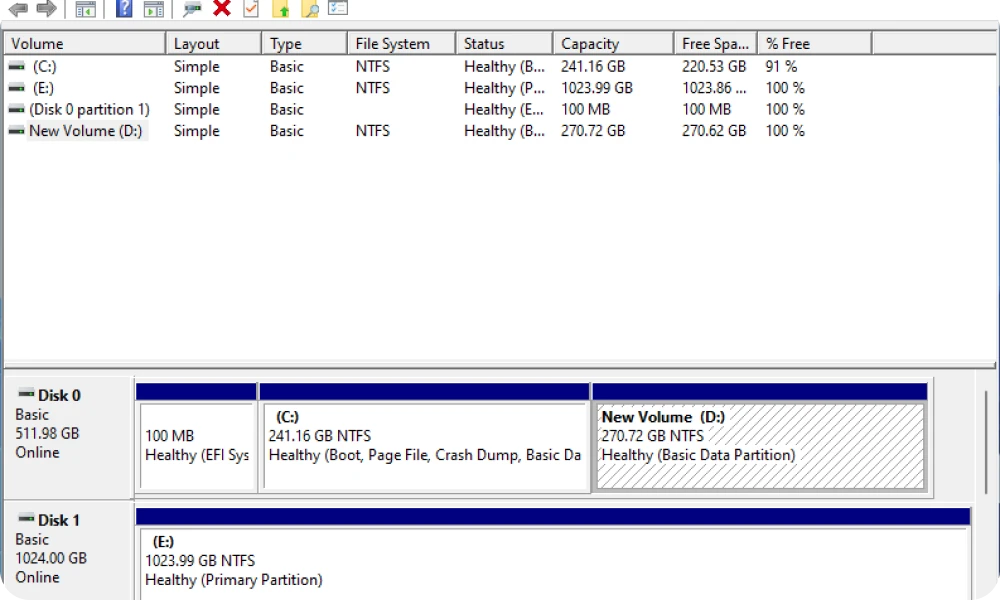
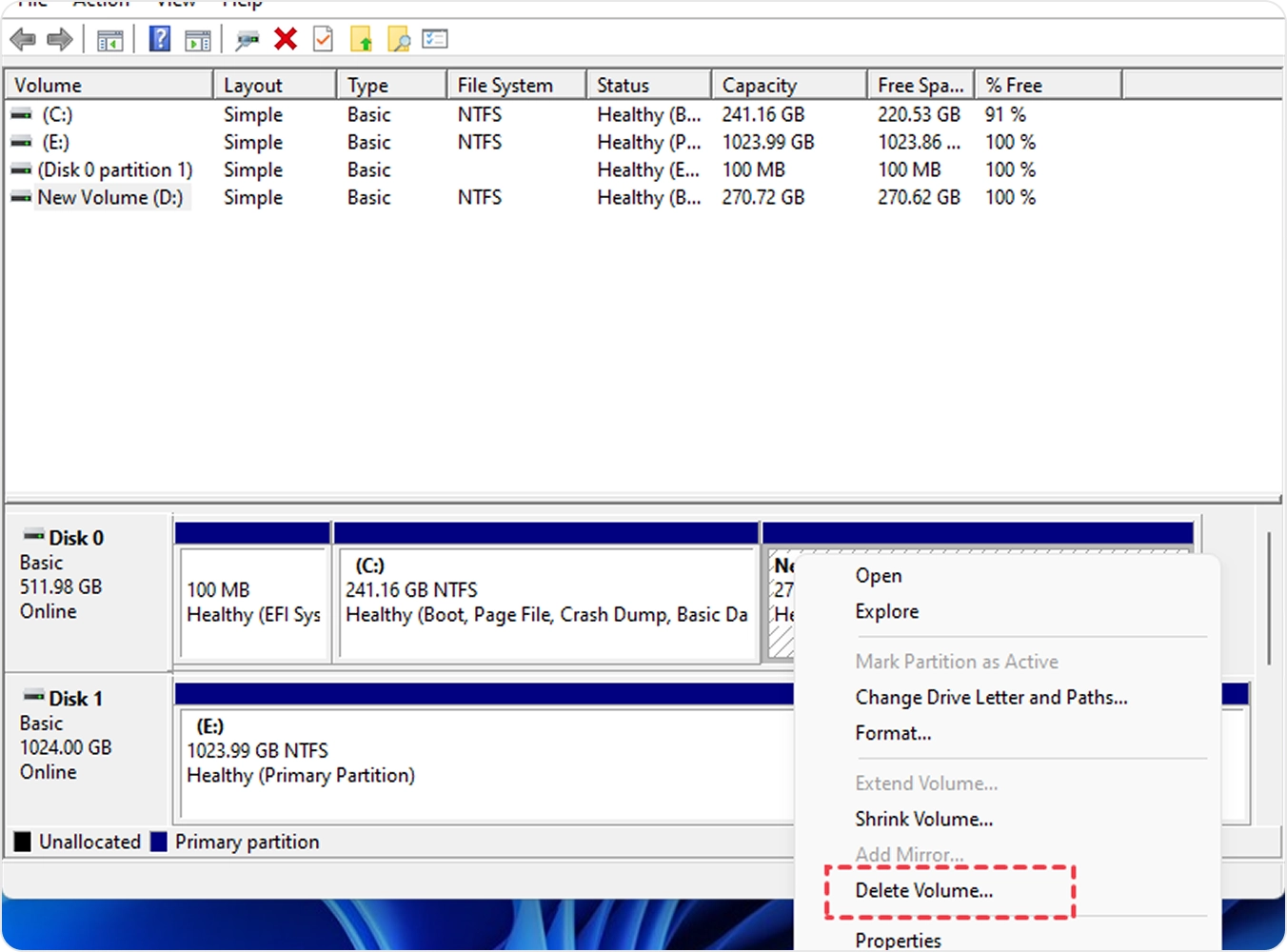
Its volume list and disk map help you locate the volume, and the Delete Volume workflow is short. It can also create a new simple volume afterward.

Limitations:

Deletion follows the confirmation warning rather than a separate Apply queue. For the basic-disk extension scenario covered here, usable space must be on the same disk immediately to the right of the target volume. It cannot move an intervening partition.

Windows Disk Management interface

Windows DiskPart

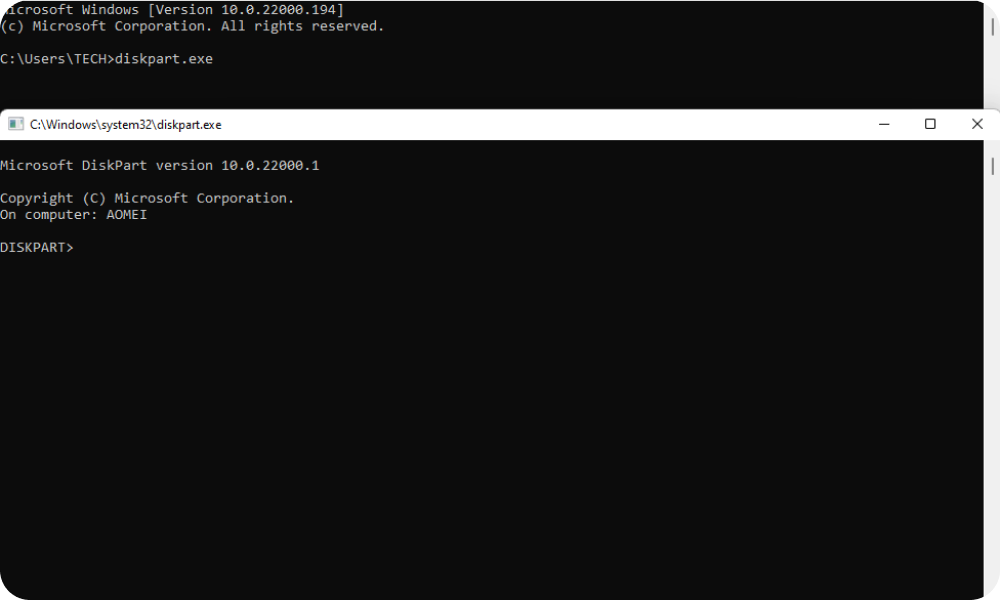
Choose it when command-line control is part of your work. Selection commands establish the disk and partition that later commands will act on.

Strengths:

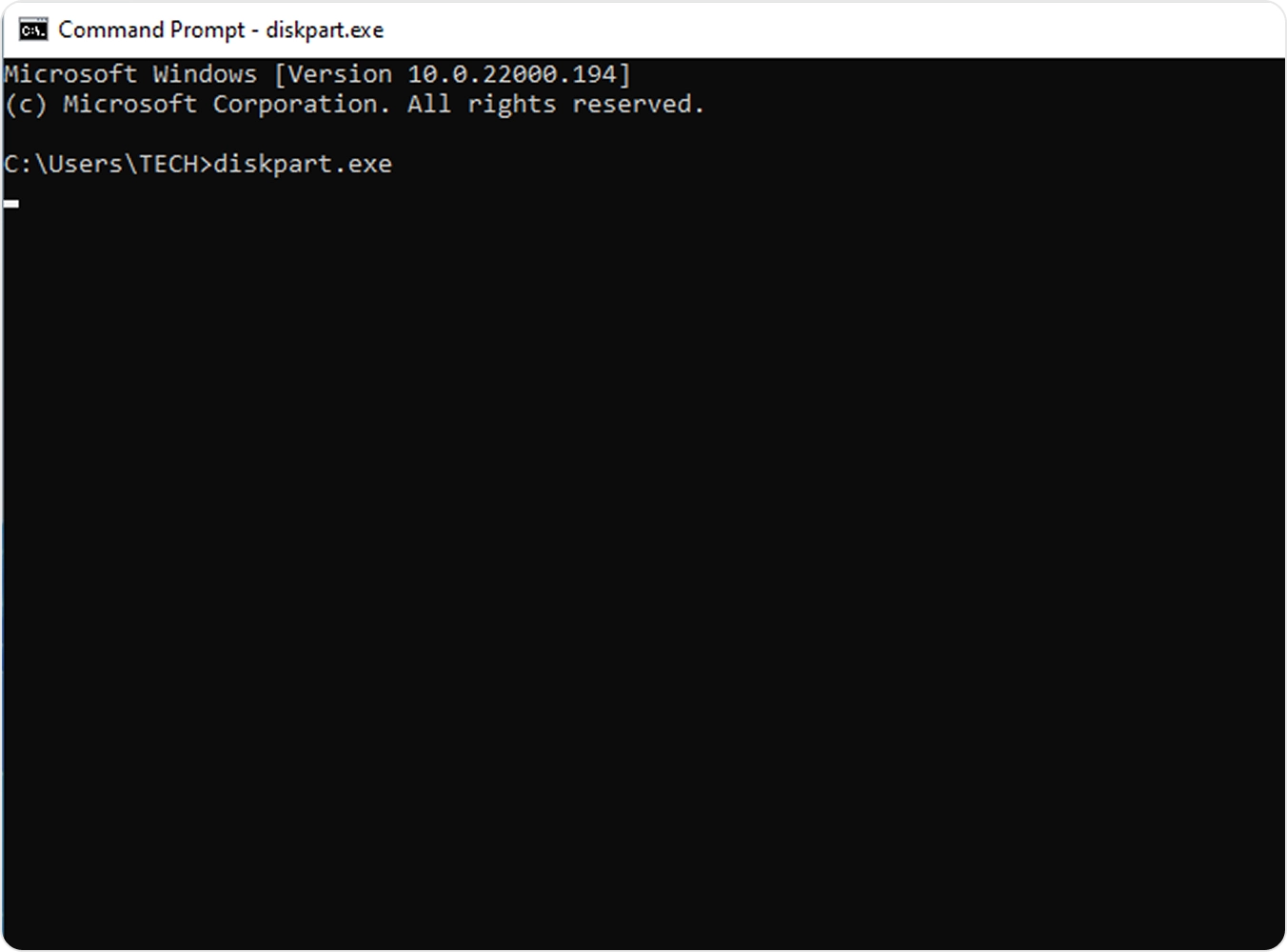
It is built into Windows and can be used in managed command workflows. Users can inspect the selected partition before issuing the deletion command.

Limitations:

There is no graphical pending-operation review. The delete command acts on the selected object. Microsoft warns that using delete partition on a dynamic disk can destroy dynamic volumes, so that case is excluded here.

Windows DiskPart command prompt interface

Partition Master

Choose it when you want another graphical partition manager with queued operations.

Strengths:

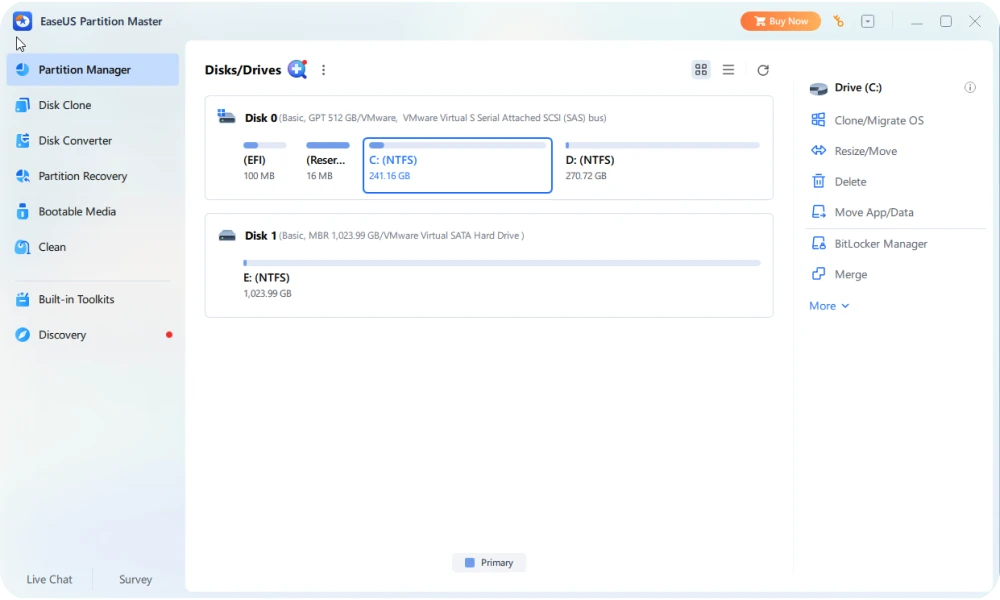
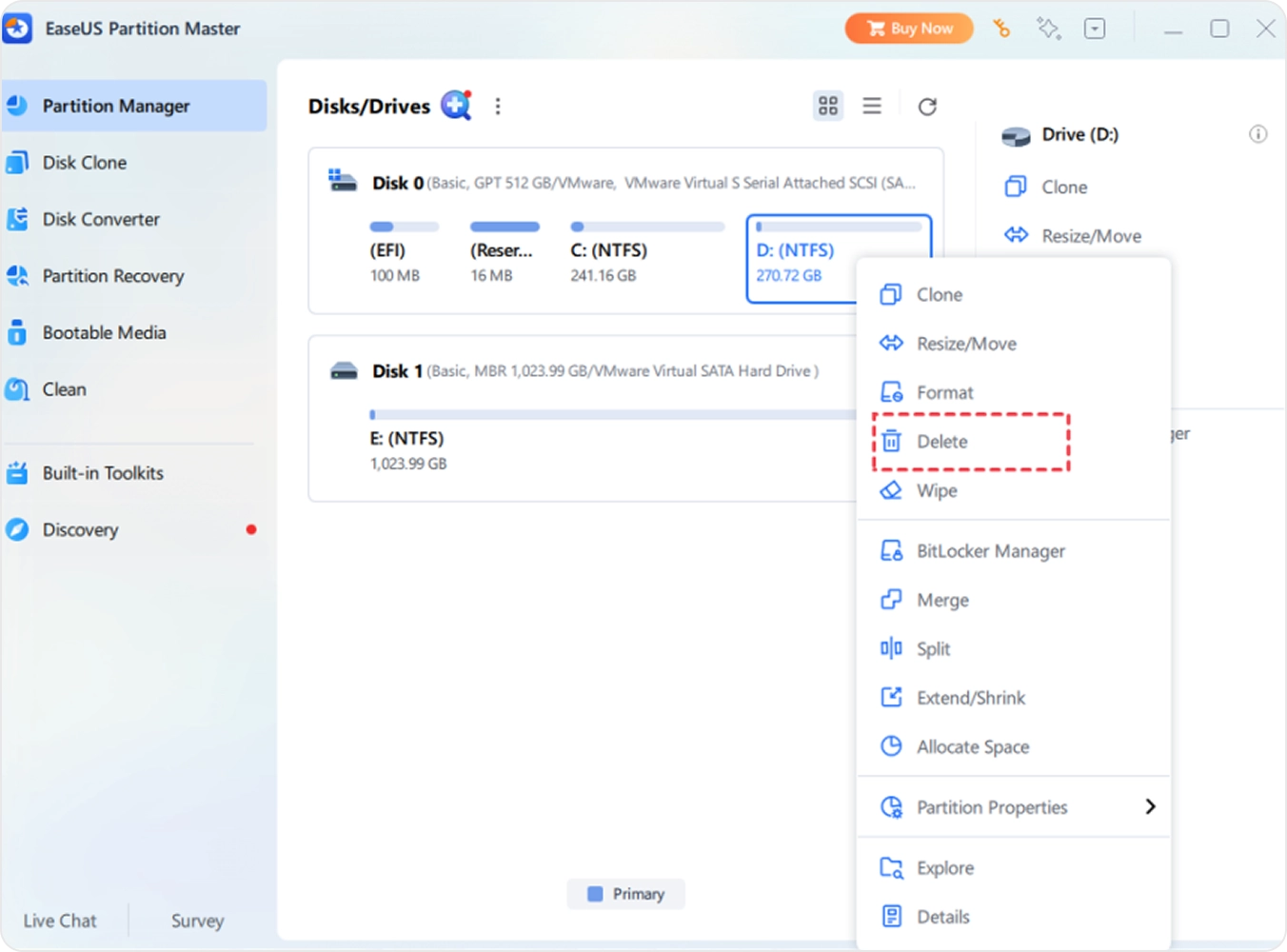
You can select a partition, add deletion to the task list, and inspect the pending operation before Execute Task and Apply. The workflow offers a review point before the operation is committed.

Limitations:

Back up important files before deletion because the partition and its files will no longer be normally accessible. Ordinary deletion is not a secure-erasure operation.

Partition Master interface

Partition Wizard

Choose it when you want a graphical partition manager with a layout preview and a separate Apply step.

Strengths:

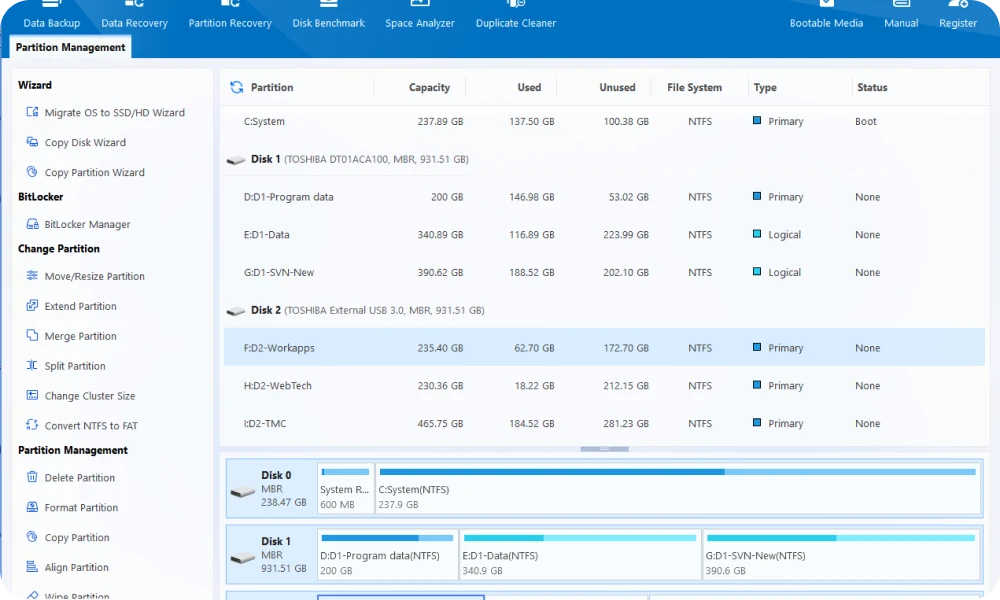
Choosing Delete adds the change to the planned layout. Apply and the confirmation dialog mark the transition from a preview to execution.

Limitations:

Delete, Wipe, and Recovery are separate operations. Deleting a partition does not securely erase its data.

Partition Wizard interface

Check the Target Before You Delete

These tutorials are for an unwanted data partition on a basic disk. If the partition is already missing and you need its files, skip deletion and follow the accidental-deletion guidance instead.

Deletion Formatting and Erasure

Ordinary deletion is not secure erasure. Deleted data may remain, but recovery is not guaranteed. HDD wiping and SSD secure erasure also require different guidance; do not choose a method only because it lists more overwrite passes.

Operation What changes When it fits
Delete Removes the partition or volume from normal use; its files become inaccessible. Remove an unwanted data partition before reorganizing space.
Format Builds a file system within a partition; it does not remove the partition boundary. Prepare an existing partition for reuse.
Wipe or device erasure Uses a separate data-erasure process with device-specific requirements. Handle disposal or sensitive-data removal.
Partition recovery Attempts to restore lost partition information. Investigate an accidental deletion before reusing the space.

How to Delete an Ordinary Data Partition

Choose a tool below after completing the target checks. Screenshots are illustrative: use the identifiers from your own computer, not the disk numbers or drive letters shown in an image.

Step 1. Identify the partition

Open AOMEI Partition Assistant with administrator permission. In the disk map, verify the disk, partition size, label and drive letter. Right-click the intended data partition and choose Delete Partition.

Step 2. Choose ordinary deletion

Select Delete partition quickly, then click OK. This path deletes the partition without selecting the separate wipe option.

Step3. Commit and verify

Click Apply, check the listed partition, and click Proceed. After completion, verify that only the intended partition has been removed.

AOMEI Partition Assistant: Identify the partition

Use the Space After Deletion

First decide whether you want a new volume or more space on an existing one. The location of the space matters. The following examples describe basic disks; they do not require deleting another partition.

Create a New Data Volume

If you want a separate drive letter, right-click eligible Unallocated space in Disk Management and choose New Simple Volume. Follow the wizard to set its size, drive letter and file system. Only do this after an intentional deletion; creating or formatting a volume can harm recovery after a mistake.

Extend into Space Immediately on the Right

In this layout, Disk Management can extend an eligible volume into space immediately to its right on the same disk. The volume must use a supported file system such as NTFS or ReFS. Select the target volume, choose Extend Volume, and follow the wizard if the option is available.

Space Separated by Another Partition

Disk Management cannot extend C directly into this space while D remains between them. Keep D if you need its contents. A graphical partition manager like AOMEI Partition Assistant can offer move, resize or merge workflows for supported layouts, but check the specific operation and back up first.

Space on Another Physical Disk

Space freed on Disk 1 does not become space on Disk 0. For the basic-disk workflow in this guide, move files to the other disk or consider replacing the disk that needs more capacity. Do not convert a disk to dynamic just to follow these examples.

Note: On an MBR disk, deleting a logical drive can leave Free space inside an extended partition rather than ordinary Unallocated space. Do not remove the extended partition while it contains logical drives you need.

What to Do After Accidental Partition Deletion

In the event of accidental partition deletion, the system's immediate state is critical for potential recovery. Please observe the following protocol.

Person working on a laptop after an accidental partition deletion

Immediate Actions Required

  • Stop writing to the disk immediately. (Any new data, even a simple file download, can overwrite your lost files.)
  • Do not create or format partitions, or extend another volume into the affected space.
  • Do not install recovery software on the affected disk. If recovering individual files, save them to a different physical disk.

Recovery Steps & Limitations

  • Utilize a professional partition recovery tool to attempt restoration.
  • Please note that successful recovery cannot be guaranteed; outcomes depend on disk condition and whether the data has been overwritten.

Frequently Asked Questions

Yes. Windows Disk Management and DiskPart are built in. AOMEI Partition Assistant Standard, Partition Master Free and Partition Wizard Free also document ordinary data-partition deletion. That does not mean every recovery, erasure or bootable-media feature is free.

diskpart.com

Partition Software & Storage Research

This guide brings together official documentation and illustrated workflows for choosing a Windows partition deletion tool. The recommendations focus on task fit, confirmation steps and edition boundaries. diskpart.com publishes AOMEI Partition Assistant.

Documentation checked November 2, 2026. Interface labels and edition features can change; consult the linked product information for the operation you need.

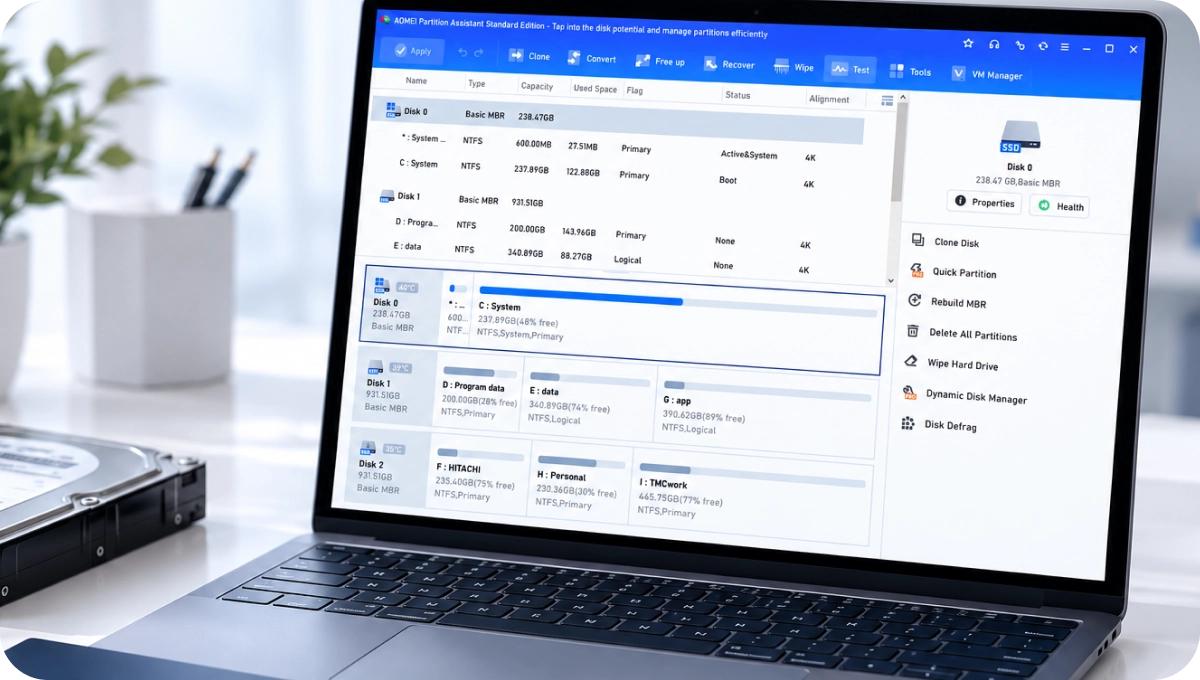
AOMEI Partition Assistant shown on a laptop in a bright office

Ready to Delete an Unwanted Partition?

Use AOMEI Partition Assistant to delete an unwanted data partition on Windows 11 or Windows 10. Then create a new partition or extend a supported volume when the disk layout allows.

Download Freeware