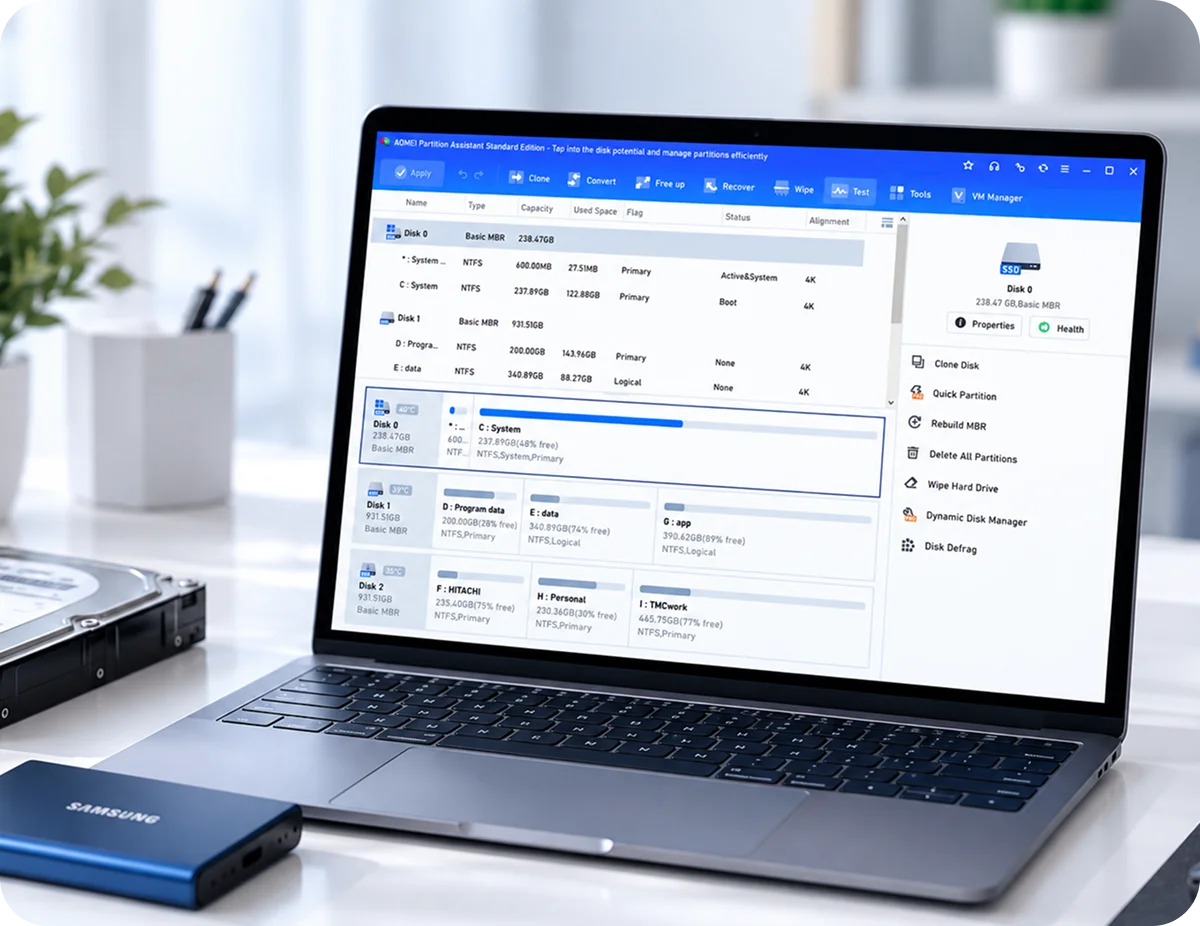



Cloning a laptop disk in a home office

Best Disk Cloning Software 2026

We tested 9 disk cloning tools, from open-source favorites like Clonezilla to premium suites like Macrium, to find out which ones actually work for HDD-to-SSD migration on Windows 10 and Windows 11, with testing performed on Windows 11 Pro 23H2.Not every "free" tool lets you clone.

Our Verdict

AFTER TESTING 9 TOOLS

Generally speaking, the "best disk cloning software" depends entirely on what you're cloning and how much you're willing to pay. Here we have summarized three points after running real HDD to SSD clone tests on all 9 tools:

  • 6 of 9 tools provide at least some form of cloning in their free editions. This includes data-disk or partition cloning; it does not mean that all six tools can clone a Windows system disk for free.

  • Three of the nine tools provided free SSD-alignment support in the tested editions: AOMEI Partition Assistant, AOMEI Backupper, and Samsung Magician. Their supported cloning scenarios differed.

  • Among the free workflows documented in this review, AOMEI Partition Assistant recorded the shortest time—20 minutes and 8 seconds—for the tested data-disk cloning task.

Man cloning a hard drive to an SSD at a desk

Best Disk Cloning Software for Different Users

There is no single disk cloning tool that is best for everyone. The right choice depends on your technical experience, budget, operating system, and cloning requirements.

After testing nine popular disk cloning tools, we organized them according to different usage scenarios.

Best Choices for Different Users

If you are a beginner and prioritize ease of use over price, we recommend:

  1. 1.

    AOMEI Partition Assistant. Best for beginners who need a Windows-based interface.

  2. 2.

    Macrium Reflect. Best for professionals who require advanced disk cloning capabilities.

  3. 3.

    Rescuezilla. Best for beginners who need free cloning.

  4. 4.

    Samsung Magician. Best for Samsung SSD upgrades.

  5. 5.

    Clonezilla. Best for advanced users.

Best Free Disk Cloning Software

If you are looking for free disk cloning software, consider the following options:

  1. 1.

    Rescuezilla.

  2. 2.

    Clonezilla.

  3. 3.

    AOMEI Backupper (for data disk cloning).

  4. 4.

    Samsung Magician (for Samsung SSD only) .

9 Cloning Tools Compared - What Each Tool Actually Offers

Before diving into individual reviews, here's the full landscape. The quick comparison table gives an overview, but cloning software has many nuanced features. Here's the detailed breakdown across four categories that matter most for HDD-to-SSD migration.

Software brand Clonezilla Rescuezilla Samsung Magician AOMEI Partition Assistant AOMEI Backupper Partition Master Partition Wizard Macrium Reflect Acronis True Image
Type Open SourceOpen SourceFree*FreemiumFreemiumFreemiumFreemiumPaidPaid
Interface CLI / text menuGUIGUIGUIGUIGUIGUIGUIGUI
Best For Mass deployment, mixed OSFree GUI cloningSamsung SSD upgradesCloning + partition mgmtCloning + BackupCloning + partition mgmtPartition mgmt (clone paid)Enterprise imagingAll-in-one security
Disk clone (free) YesYesSamsung onlyData diskData diskData diskData diskNo freeNo free
Partition clone (free) YesYesYesYesYesYesYesNo freeNo free
System/OS clone (free) YesYesYesPaid onlyPaid onlyPaid onlyPaid onlyNo freeNo free
Sector-by-sector (free) dd fallbackdd fallbackProprietaryYesYesPaid onlyPaid onlyNo freeNo free
Clone to smaller disk NoNoYesYesYesYes (paid)Yes (paid)Yes (paid)Yes (paid)
Active cloning (while running) NoNoYesNoNoNoNoVSS-basedYes (paid)
4K SSD alignment (free) NoNoImplicitYes (data disk)Yes (data disk)No - all paidNo - all paidNo - all paidNo - all paid
Bootable media (free) Live USBLive USBNoNoNoYesPaidPaidPaid
Recovery environment (free) NoNoNoYesYesNo (all paid)No (all paid)No (all paid)No (all paid)
Boot repair after clone ManualManualAutomaticAutomaticAutomaticAll handle boot configAll handle boot configAll handle boot configAll handle boot config
Starting Price FreeFreeFree$49.95/yr$39.95/yr$49.95/yr$59/yrSubscription$49.99/yr

How We Tested

To keep this review objective, We used the same source data and target SSD where possible. When a product did not support the same cloning workflow, we used its closest supported method and labeled the result separately. Here's exactly what we did.

9cloning tools

tested with identical hardware and methodology.

238GB data

on source HDD - mix of OS, applications, and user files.

6evaluation criteria

speed, bootability, SSD alignment, ease of use, features, price.

Hardware & Test Setup

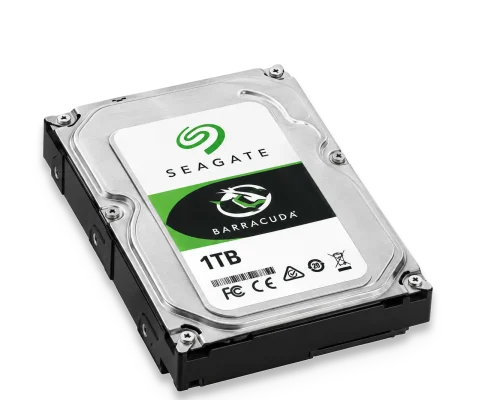
Seagate Barracuda 1 TB HDD
Source disk

1 TB Seagate Barracuda HDD (ST1000DM003-1ER162), 238 GB used

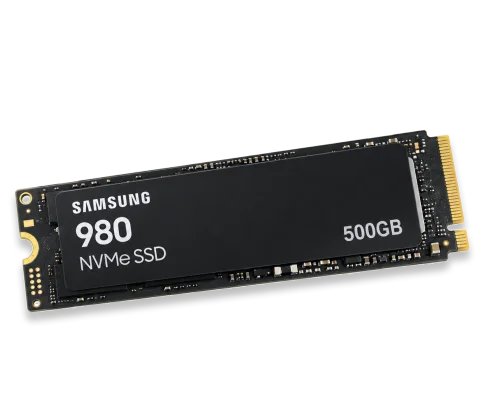
Samsung 980 NVMe SSD
Target disk

500 GB Samsung 980 NVMe SSD (MZ-V8V500BW)

Test System

Windows 11 Pro 23H2, Intel Core i7-12700K, 32 GB DDR4, ASUS Z690

Clone Method

We used the same source data and target SSD for all tools. When full-disk cloning was unavailable in a product’s tested edition, we used the closest supported partition-cloning workflow and labeled that result separately.

Verification

Boot test chkdsk file count comparison SHA-256 spot-check

Test Date

August 2026, repeated 3 times per tool for consistency

The 9 Cloning Tools We Tested

We reviewed each tool in order of free-tier cloning capability - from fully free open-source tools through freemium options to paid-only products. Each review includes what we liked, what we didn't, and the specific clone test result from our lab.

AOMEI Partition Assistant (v 10.12.1)FREEMIUM

Best for: Beginners who want to clone disks or partitions and manage storage on hard drive

8.5

Score

AOMEI Partition Assistant is a full-featured partition management tool with built-in disk and partition cloning, offering data/system disk cloning and 4K SSD alignment. With 80 million users worldwide since 2009, it's one of the most widely-used disk utilities on the market. Download it here.
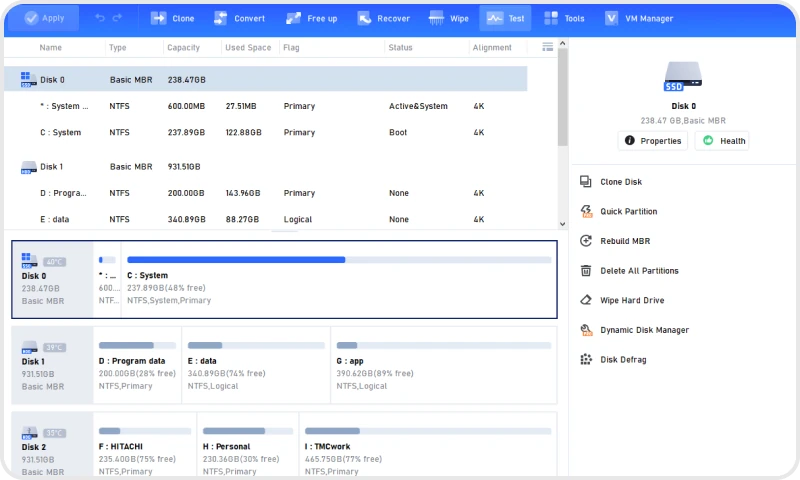
AOMEI Partition Assistant interface

Strengths

  • Free data disk and partition cloning - AOMEI Partition Assistant includes cloning at no cost.
  • 4K SSD alignment included free - AOMEI Partition Assistant includes it at no cost during clone.
  • 50+ partition tools in one app - resize, move, merge, create, format, wipe, convert data disk between MBR and GPT, Windows To Go Creator, and more.
  • Windows ARM64 support - one of the few disk tools with a dedicated ARM64 build.

Limitations

  • Cannot clone system disk in free version - OS migration and system disk cloning require the Professional edition ($49.95/yearly).
  • Not a backup tool - no incremental/differential backup, no scheduled backup, no image retention policies. It's a partition manager with cloning, not a backup suite.
  • Some advanced features need to pay - dynamic disk management, command-line partitioning, and some conversion features require paid editions.
  • The free version displays upgrade prompts.
Clone method:Block-level / partition-level

SSD alignment:Yes (4K, free)

Our clone time:20 min 08 sec (238 GB data disk, with 4K alignment)

Interface:GUI (drag-and-drop + wizard)

Bootable media:Yes (free, WinPE)

Boot test:Booted on first attempt

AOMEI Backupper (v8.4.0)FREEMIUM

Best for: Users seeking an all-in-one data protection solution, combining robust disk cloning with comprehensive backup capabilities.

8.0

Score

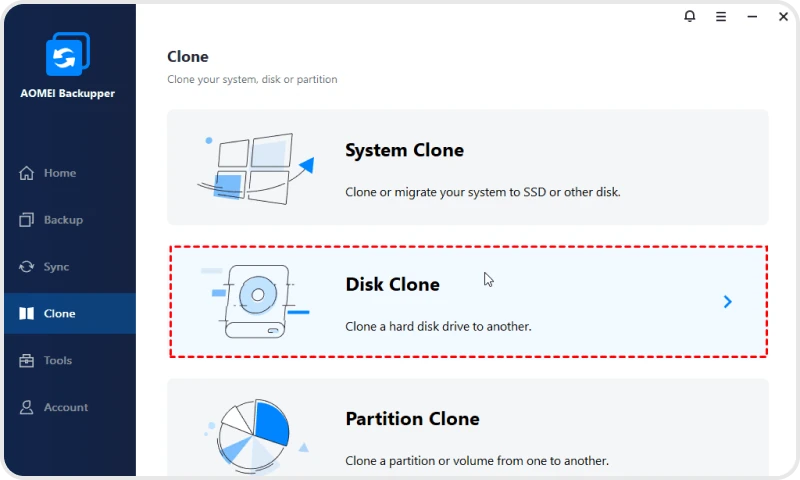
Trusted by over 80 million users globally since 2009, AOMEI Backupper has established itself as an industry benchmark for data safety and system reliability.

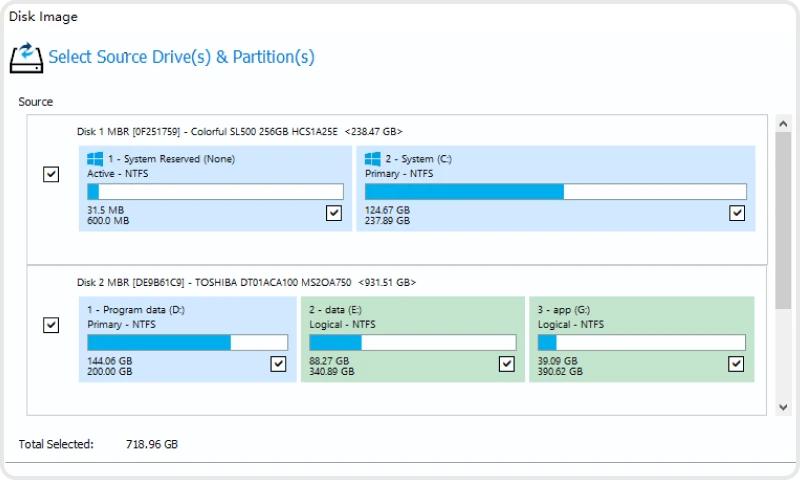
AOMEI Backupper interface

Strengths

  • Free data-disk and partition cloning.
  • 4K SSD alignment is available during cloning - 4K SSD alignment is available during cloning, helping ensure correct partition alignment and optimal SSD performance.
  • Adjust partition size is allowed during clone.
  • Add unallocated space to all partitions while cloning from smaller disk to larger disk.
  • Beyond cloning, it also supports system backup and restore, file synchronization, and other data-protection features.

Limitations

  • Cannot clone system disk in free version - system cloning and system disk cloning require Professional ( $39.95/yearly).
  • Some advanced features need to pay - adjust partition size, add unallocated space, and some other advanced features require paid editions.
  • The free version displays upgrade prompts.
Clone method:Block-level / partition-level

SSD alignment:Yes (4K, free)

Our clone time:21 min 38 sec (238 GB data disk, with 4K alignment)

Interface:GUI

Bootable media:Yes (free, WinPE)

Boot test:Booted on first attempt

Partition Master (v20.8)FREEMIUM

Best for: Users who want disk cloning AND comprehensive partition management in one tool

8.0

Score

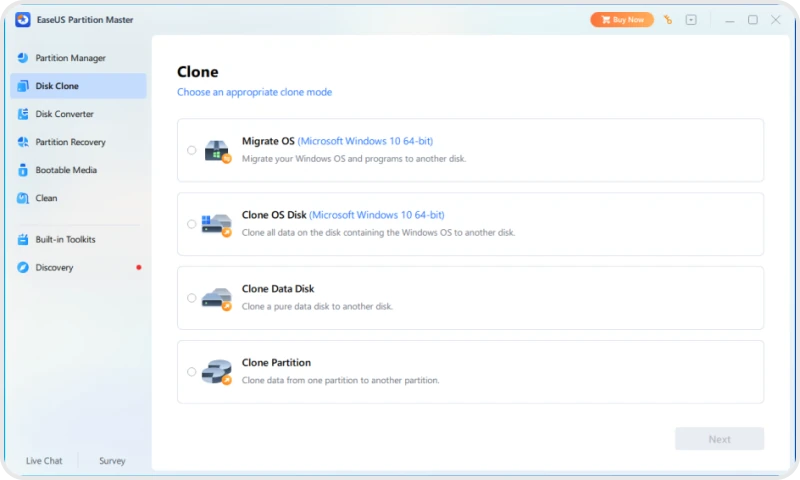
Partition Master is an all-in-one partition manager designed for individual users. Data disk and partition cloning are included in the free version; however, OS migration and system drive cloning require purchasing the premium edition.

Partition Master interface

Strengths

  • Free data disk and partition cloning - Partition Master includes cloning at no cost.
  • Smart Diagnostics scans for 13 common disk and system issues.
  • Clean, modern interface - one of the most polished UIs in the category.

Limitations

  • Cannot clone system disk in free version - OS migration and system disk cloning require Professional ( $49.95/yearly).
  • No SSD 4K alignment - Partition Master Free does not include SSD-specific optimization.
  • Sector-by-sector clone is a paid feature - not available in free.

Clone method:N/A in free (paid: block-level)

SSD alignment:N/A in free

Our clone time:19 min 22 sec, tested with the paid version

Interface:GUI (drag-and-drop + wizard)

Bootable media:Yes (free, WinPE)

Boot test:The paid version booted on the first attempt.

Acronis True Image (v10.0.19045 )FREEMIUM

Best for: Users who want an all-in-one backup, cloning, and security solution and don't mind paying

8.0

Score

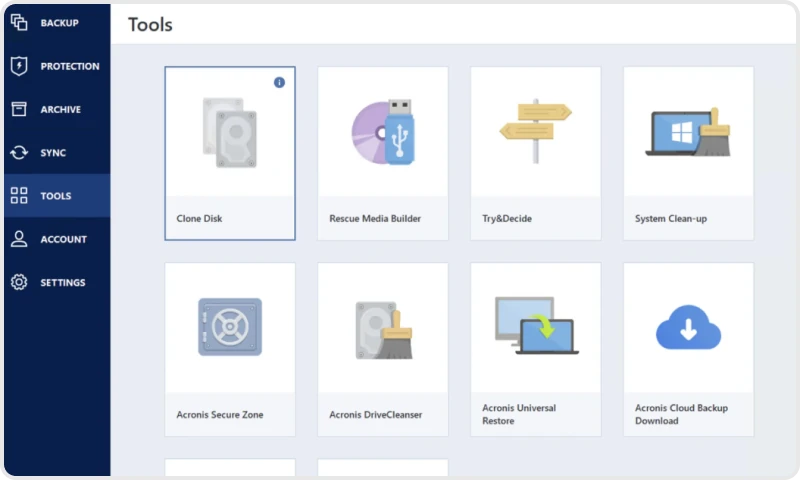
Acronis True Image (renamed back from "Acronis Cyber Protect Home Office" in July 2024) is a premium all-in-one backup, cloning, and cybersecurity tool. It features active disk cloning (clone while Windows is running), AI-based ransomware protection, and integrated cloud backup. With 5.5 million users and 500 million+ backups and clones performed, it's the market leader in paid cloning software.

Acronis True Image interface

Strengths

  • Active disk cloning - clone the running system disk without rebooting or booting from external media.
  • AI-based ransomware protection - real-time protection against ransomware attacks on backup files.
  • Local + cloud backup - integrated cloud storage for off-site backups.
  • Comprehensive feature set - cloning, imaging, backup, security, and cloud in one application.
  • 22+ years on market - established product with 5.5M+ users

Limitations

  • No free version - fully paid subscription only. No free tier, no perpetual license.
  • Subscription pricing - $49.99/year for Essentials (first year $44.99). Cloud features require ongoing payment.
  • Heavy resource usage - the security suite and cloud sync consume CPU and RAM even when not actively backing up.
  • Aggressive upselling - users report frequent prompts to upgrade to Advanced ($72.99/yr) or Premium ($124.99/yr).
  • Cloud dependency - some features require cloud subscription; if cancelled, those features stop working.

Clone method:Block-level (active disk cloning)

SSD alignment:Yes

Our clone time:17 min 33 sec (238 GB, active clone - fastest overall)

Interface:GUI

Bootable media:Yes

Boot test:Booted on first attempt

Partition Wizard (v13.9)FREEMIUM

Best for: Users who need partition management (not cloning) and are willing to pay annually

7.5

Score

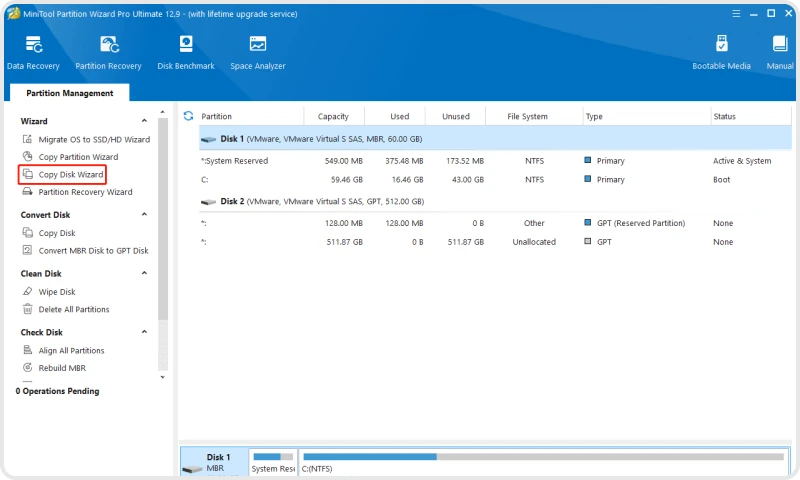
Partition Wizard is a partition management tool whose free edition offers resize, move, merge, format, MBR/GPT conversion, and disk benchmark - but no cloning at all. Disk cloning, OS migration, and SSD 4K alignment are all locked behind the Pro edition ($59/year).

Partition Wizard interface

Strengths

  • Good partition management in free version - resize, move, merge, split, format, wipe, convert MBR/GPT.
  • Disk benchmark and surface test in free version - useful for diagnosing disk health.
  • 40 million+ users - established product with a large user base.
  • Clean interface - visual disk map with drag-and-drop operations.

Limitations

  • No cloning in free version - disk clone, partition clone, and OS migration ALL require Pro ($59/year). The free edition cannot clone anything.
  • No SSD 4K alignment in free version - SSD optimization requires Pro ($59/year).
  • Bootable media is Pro-only - cannot create rescue media in the free version.
  • Higher price for fewer PCs - $59/year for 1 PC.

Clone method:Pro: block-level

SSD alignment:Pro only

Our clone time:Tested with trial: 21 min 37 sec

Interface:GUI

Bootable media:Pro only

Boot test:Paid: Booted on first attempt

Rescuezilla (v2.6.2)Open SourceFree

Best for: Users who want free, open-source cloning with a graphical interface

7.5

Score

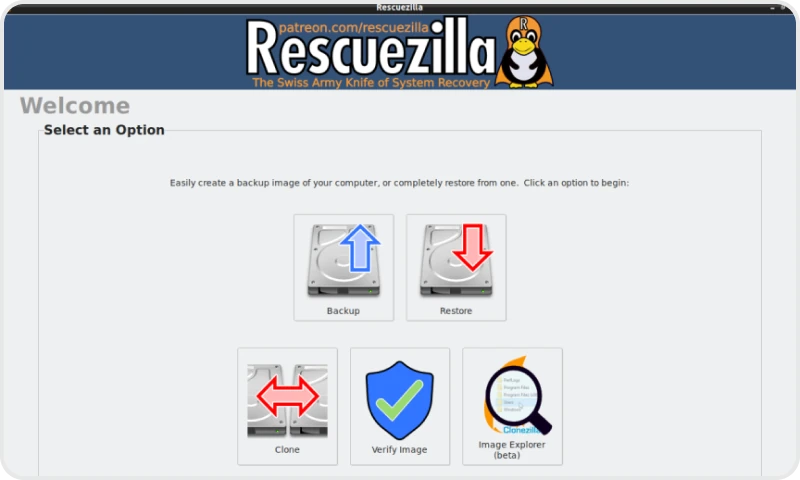
Rescuezilla is a GUI front-end for Clonezilla's imaging engine, designed to make open-source cloning accessible to non-technical users. It boots from a USB stick into a minimal graphical environment with point-and-click backup, restore, and clone operations. Version 2.6.2 (released May 2026) added beta image-mounting and file-recovery capabilities. Download it here.

Rescuezilla interface

Strengths

  • Fully free, open source - no feature limitations, no upsells.
  • GUI makes it approachable -Clonezilla’s main limitation for beginners is its lack of a graphical interface. Point-and-click cloning.
  • Fully interoperable with Clonezilla - can create and restore Clonezilla images. No lock-in.
  • Beta image mounting - can mount images and extract individual files, addressing Clonezilla's biggest limitation.
  • Deleted file recovery - includes a file-recovery tool that can undelete files.
  • No installation needed - boots from USB, runs in RAM.

Limitations

  • Clonezilla backend limitations apply - the destination disk must be at least as large as the source disk, no online cloning, no incremental backups.
  • No SSD 4K alignment - shares Clonezilla's lack of SSD-specific optimization.
  • Slower than commercial tools - in our test, it was the slowest of the 9 tools (43 min 02 sec).
  • Image mounting is still beta - may not work with all image formats.
  • Limited file-system-aware cloning - falls back to dd (sector-by-sector) for unsupported file systems, which is much slower.
  • The installation package is too large - about 1.6GB.

Clone method:Block-level (Clonezilla/Partclone backend)

SSD alignment:No

Our clone time:43 min 02 sec (238 GB, no SSD optimization)

Interface:GUI (graphical)

Bootable media:Live USB/CD

Boot test:Booted on first attempt

Clonezilla (v3.3.3-15)Open SourceFree

Best for: IT admins, mass deployment, mixed-OS environments

7.0

Score

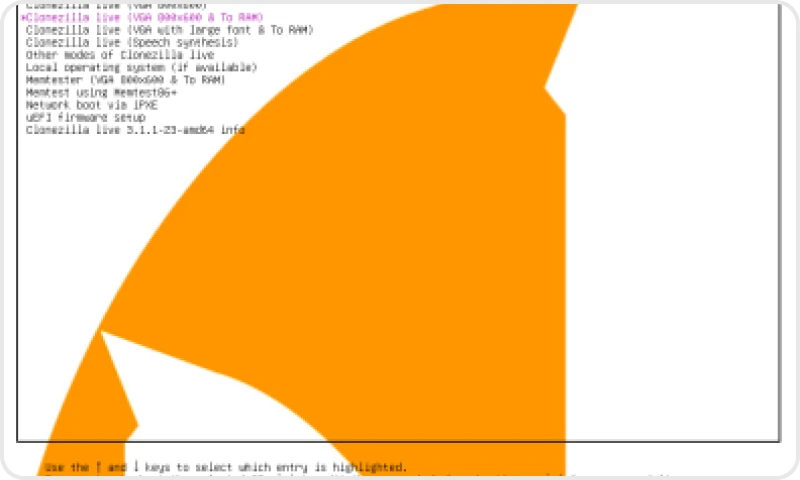
Clonezilla is the most widely-used open-source disk cloning and imaging tool, built on Partclone and dd. It runs from a Live USB/CD, meaning you boot into a minimal Linux environment to perform clones - Windows doesn't need to be running. It handles virtually every file system: NTFS, FAT12/16/32, exFAT, ext2/3/4, HFS+, APFS, and more. Download it here.

Clonezilla interface

Strengths

  • Fully free, no feature gates - every cloning capability is available at no cost, forever.
  • Handles all major file systems - NTFS, FAT, ext2/3/4, HFS+, APFS. Mixed-OS environments are no problem.
  • Mass deployment - clone to 40+ machines simultaneously via multicast/broadcast. Unmatched for IT departments.
  • PXE/network boot - supports network-based deployment without physical media.
  • Block-level cloning - Partclone copies only used blocks, making clones faster than raw dd.

Limitations

  • No GUI - text-based menu only. The interface is intimidating for non-technical users, with cryptic options and no visual disk layout.
  • The destination disk must be at least as large as the source disk. Cannot clone to a smaller target disk - a major limitation for HDD-to-SSD migrations where the SSD is smaller.
  • No SSD 4K alignment. Partitions cloned from an HDD may not be aligned for SSD, degrading performance and lifespan.
  • Cannot mount or explore images. You can't browse a Clonezilla image to extract individual files.
  • Requires unmounted partitions. Online cloning isn't possible - you must boot from the Clonezilla media.
  • No incremental/differential backups. Each clone is a full copy.

Clone method:Block-level (Partclone) / dd fallback

SSD alignment:No

Our clone time:42 min 18 sec (238 GB, no SSD optimization)

Interface:CLI / text menu

Bootable media:Live USB/CD, PXE

Boot test:Booted on first attempt

Macrium Reflect (v10.0.8843)Paid

Best for: Professional users and businesses who need enterprise-grade imaging and backup

7.0

Score

Macrium Reflect (now "Reflect X") is a professional disk imaging and cloning tool that discontinued its free edition. The current product is subscription-only, with a 30-day free trial that requires no credit card. Backups created during the trial remain accessible and restorable after expiry.

Macrium Reflect interface

Strengths

  • Professional-grade imaging - VSS-based image creation, incremental/differential imaging, bare-metal restore.
  • Image Guardian - ransomware protection for backup images.
  • Strong bare-metal restore - recover to entirely different hardware.
  • WinPE-based rescue media - comprehensive recovery environment.
  • 22+ years on market - well-established with a strong professional reputation.

Limitations

  • No free version - the free edition was discontinued. Only a 30-day trial is available, then subscription.
  • Subscription-only pricing - no perpetual license option. Ongoing cost.
  • Image-based cloning - cloning works via image creation and restore, not direct disk-to-disk. Adds a step.
  • Learning curve - professional feature set means more complexity for casual users.
  • No SSD alignment documented - SSD-specific 4K alignment is not prominently featured in documentation.

Clone method:Image-based (VSS)

SSD alignment:Not explicitly documented

Our clone time:25 min 48 sec (238 GB, image-based, trial)

Interface:GUI

Bootable media:Yes (WinPE)

Boot test:Booted on first attempt (via WinPE restore)

Samsung Magician (v9.0.1)Free*

Best for: Users upgrading to a Samsung SSD who want a purpose-built tool

6.0

Score

Samsung Magician is a proprietary cloning tool designed exclusively for cloning to Samsung SSDs. As of Samsung Magician v9.0.1, it's integrated into the Samsung Magician software suite rather than being a standalone download. It handles disk-to-disk cloning with firmware-level integration specific to Samsung drives.

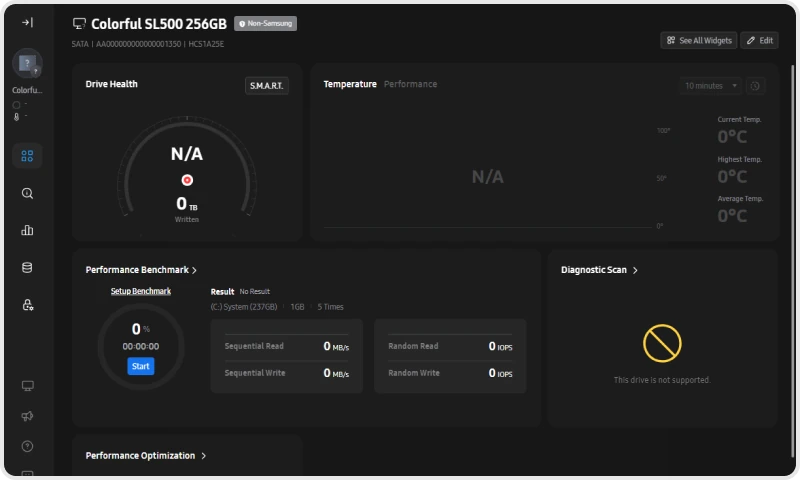
Samsung Magician interface

Strengths

  • Free - no cost, no subscription.
  • Optimized for Samsung SSDs - firmware-level integration ensures proper alignment and optimization for Samsung drives.
  • Fast clone times - in our test, the third-fastest overall at 18 min 45 sec.
  • Also provides SSD health monitoring - Samsung Magician includes drive health, performance benchmark, and firmware updates.
  • Cross-platform - available for Windows and macOS.

Limitations

  • Samsung SSDs only - will not work with Crucial, WD, Kingston, or any non-Samsung destination drive. This is a hard limitation.
  • No bootable media - runs within Windows only. Cannot clone the currently-running system drive from outside the OS.
  • OEM drive limitations - some Samsung OEM drives (from pre-built PCs) may have reduced feature support.
  • No partition management - it's a single-purpose clone tool, not a disk management utility.
  • Brand lock-in - if you later switch to a non-Samsung SSD, you need a different tool entirely.

Clone method:Proprietary (Samsung-optimized)

SSD alignment:Implicit (Samsung-specific)

Our clone time:18 min 45 sec (238 GB from a Seagate HDD to a Samsung SSD)

Interface:GUI

Bootable media:No (Windows only)

Boot test:Booted on first attempt

How to Clone a Disk with These Cloning Tools

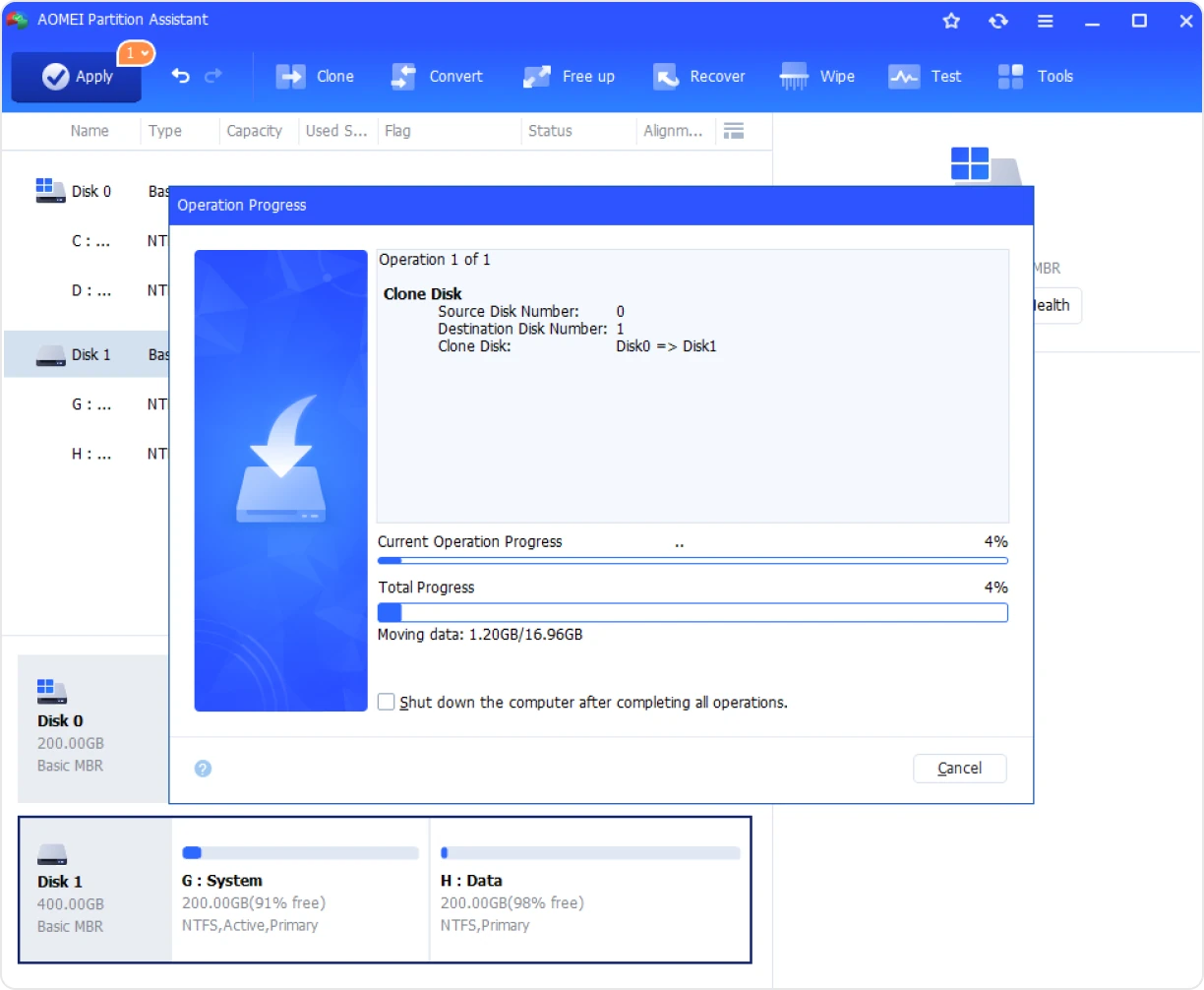
This section explains how we used each disk cloning tool. Here are some screenshot during our testing.

AOMEI Partition Assistant clone disk operation progress

HDD-to-SSD Clone Performance: Our Test Results

We used the same source data and target SSD for all tools. When full-disk cloning was unavailable in a product’s tested edition, we used the closest supported partition-cloning workflow and labeled the result separately. Tools with no free cloning were tested using trial/paid versions and are clearly marked.

Figure 1: Clone completion time for each tool (238 GB, 3-run average)

Green bars = free cloning; orange bars = paid/trial only. Lower is better.

Free cloning Paid / trial only
Acronis True Image17m 33s
Samsung Magician18m 45s
Partition Master19m 22s
AOMEI Partition Assistant20m 08s
Partition Wizard21m 37s
AOMEI Backupper21 m 38 s
Macrium Reflect25m 48s
Clonezilla42m 18s
Rescuezilla43m 02s
01020304050

Minutes (lower is better)

The chart reveals an important pattern

In this test set, some free tools recorded completion times comparable to paid or trial versions. However, the workflows were not identical across all products. AOMEI Partition Assistant (free, 20 min 08 sec) was faster than both Partition Master (paid, 19 min 22 sec) and Partition Wizard (paid, 21 min 37 sec). Acronis True Image recorded the shortest completion time in this test set, using its active-cloning workflow (17 min 33 sec) but costs $49.99/year. Clonezilla and Rescuezilla were the slowest in this test set. Their boot-based workflows, block-level imaging approach, and lack of SSD-specific optimization may have contributed to the longer completion times.

Free vs. Paid: The Hidden Catch

Many users searching for "free disk cloning software" land on review pages. However, third-party software often requires payment for certain features.

Tool What's Free What Requires Payment Verdict
Clonezilla Everything - full cloning, imaging, deployment Nothing - always free, open source Truly free
Rescuezilla Everything - full cloning, imaging, recovery Nothing - always free, open source Truly free
Samsung Magician Full cloning - to Samsung SSDs only N/A - but limited to Samsung drives Free, but limited to Samsung SSDs
AOMEI Partition Assistant Data disk clone, partition clone, 4K SSD alignment, 30+ partition tools System disk clone, OS migration, dynamic disk management, command-line tools Genuinely useful free tier
AOMEI Backupper Data disk clone, partition clone, 4K SSD alignment, bootable media, plus backup System disk clone, OS clone, adjust partition size Clone + backup
Partition Master Data disk clone, partition clone, 30+ partition tools System disk clone, OS migration Free version cannot do system clone and sector-by-sector
Partition Wizard Partition management only - NO cloning in free Disk clone, OS migration, SSD alignment Free version cannot clone
Macrium Reflect Nothing - free edition discontinued Everything ($subscription) No free version
Acronis True Image Nothing - subscription only Everything No free version

The "Free" Misconception

If you found this page by searching for "free disk cloning software Windows 10" or "free hdd to ssd cloning software," be cautious of review pages about disk cloning software. The tools that actually offer completely free cloning are Clonezilla, Rescuezilla. Samsung Magician is free for compatible Samsung SSD upgrades but is limited by the target-drive brand. Some tools advertise free cloning but support only data-disk cloning. In general, system-disk cloning and OS migration require payment, such as AOMEI Partition Assistant, AOMEI Backupper, Partition Master.

Final Recommendation

For most beginners, AOMEI Partition Assistant is a practical starting point.

For free and open-source cloning, Rescuezilla is the easiest option for most users, while Clonezilla is better suited to technical users who need advanced control.

For Samsung SSD upgrades, Samsung Magician may be convenient.

For more advanced backup, migration, and recovery features, consider Macrium Reflect.

Laptop with AOMEI Partition Assistant next to an SSD

The best disk cloning software is ultimately the one that matches your experience level, budget, and specific cloning task.

Diskpart.com

Disk Cloning & Storage Research

This review was produced by diskpart.com team, which spent 3 days testing 9 disk cloning tools on identical hardware. Testing was conducted on a Windows 11 Pro system with Seagate HDD and Samsung SSD hardware in a controlled lab environment. All clone times, boot tests, and SSD alignment verification results cited on this page were captured during hands-on testing and verified against each product's official documentation.

Decision Guide: Which Cloning Tool Should You Use?

We've put together this quick guide to help you choose the best cloning tool for any scenario.

Your Scenario Best Tool Why
Clone a data disk (non-boot) to SSD for freeAOMEI Partition Assistant (Free)Free cloning + 4K SSD alignment + partition tools
Fix SSD alignment after cloning (no data loss)AOMEI Partition Assistant (Free)Free tool with 4K partition alignment + partition management
Clone Windows system disk for freeClonezilla or RescuezillaOnly free tools that clone system disks (no SSD alignment)
Clone to a Samsung SSDSamsung MagicianFree, optimized for Samsung, fast
Clone system disk + SSD alignment (best value)AOMEI Partition Assistant ProCheapest tool combining system clone + 4K alignment
Clone system disk + active cloning + securityAcronis True ImageActive cloning, ransomware protection, cloud backup
Clone to 40+ machines simultaneouslyClonezillaOnly tool with multicast mass deployment
Clone from a mixed-OS disk (Linux + Windows)ClonezillaSupports NTFS, ext2/3/4, HFS+, APFS in one operation
Free cloning with a GUI (no CLI)RescuezillaOnly free GUI cloning tool based on Clonezilla

Frequently Asked Questions

The best disk cloning software is ultimately the one that matches your experience level, budget, and specific cloning task. Based on our testing, we reached the following conclusions about the best SSD cloning software for different users:

For beginners who need free cloning, Rescuezilla is the simplest option. For users who prefer a Windows-based interface, AOMEI Partition Assistant or AOMEI Backupper may be more suitable. Partition Wizard is primarily a partition-management tool unless the user has a paid edition.

Need to Clone Your Disk to SSD?

AOMEI Partition Assistant includes free data disk cloning with 4K SSD alignment, bootable media, and 50+ partition management tools.

Download Free Edition