


Best Partition Software for Windows in 2026

We compared nine partition managers against the same set of criteria - from Windows' own Disk Management to open-source GParted and commercial suites like AOMEI Partition Assistant and Partition Wizard - checking what each tool can actually do, how safely it works, what it costs, and how much of that comes free.

Top Picks: The Best Partition Software for Different Users

Short answer:

AOMEI Partition Assistant

Best for a single-PC user who wants the broadest feature set before paying.

Partition Wizard

Best for a BitLocker user on a modern laptop.

DiskGenius

Best for Windows migration plus a look at your lost files, in one tool.

NIUBI Partition Editor

Best for moving Windows to a new drive without an upgrade.

Partition Master

Best for a first-time user who wants an easy way to free up space on C:.

Paragon Partition Manager CE

Best for a dual-boot user running Windows and Linux.

Macrorit Partition Expert

Best for a laptop user who works in an unstable-power location.

GParted

Best for someone who wants open source with no paid edition.

Windows Disk Management

Best for an occasional user who rarely touches partitions.

What Partition Software Can Do for You

Windows ships two built-in options - Disk Management and DiskPart. Everything else on this page is a third-party alternative that fills the gaps those two leave.

  • Resize, move or merge partitions without reinstalling Windows

  • Migrate an existing Windows installation to a new SSD without reinstalling Windows

  • Clone a whole disk, or build bootable rescue media

  • Convert data disks between MBR and GPT, or convert supported system disks without reinstalling Windows.

  • Recover a deleted or lost partition, and wipe one safely before resale

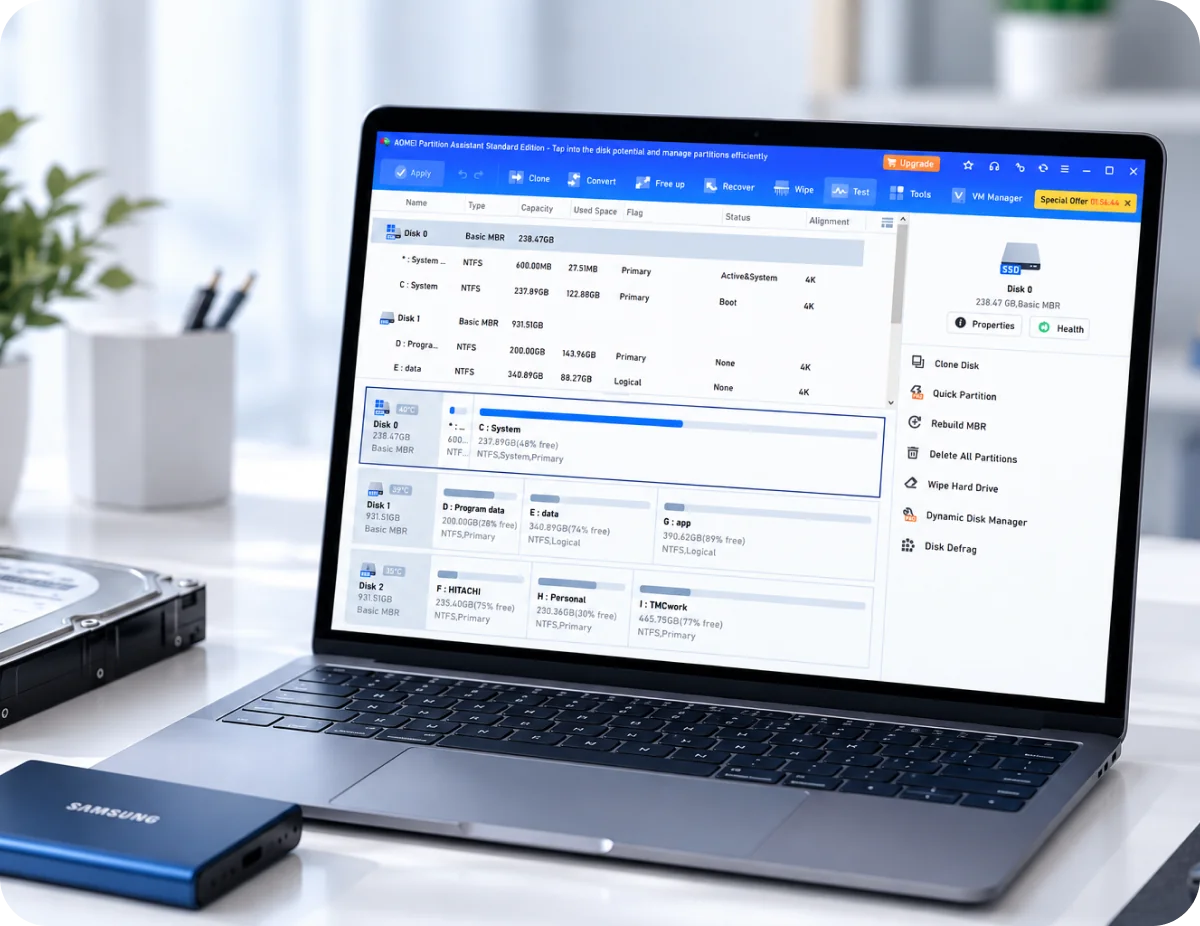
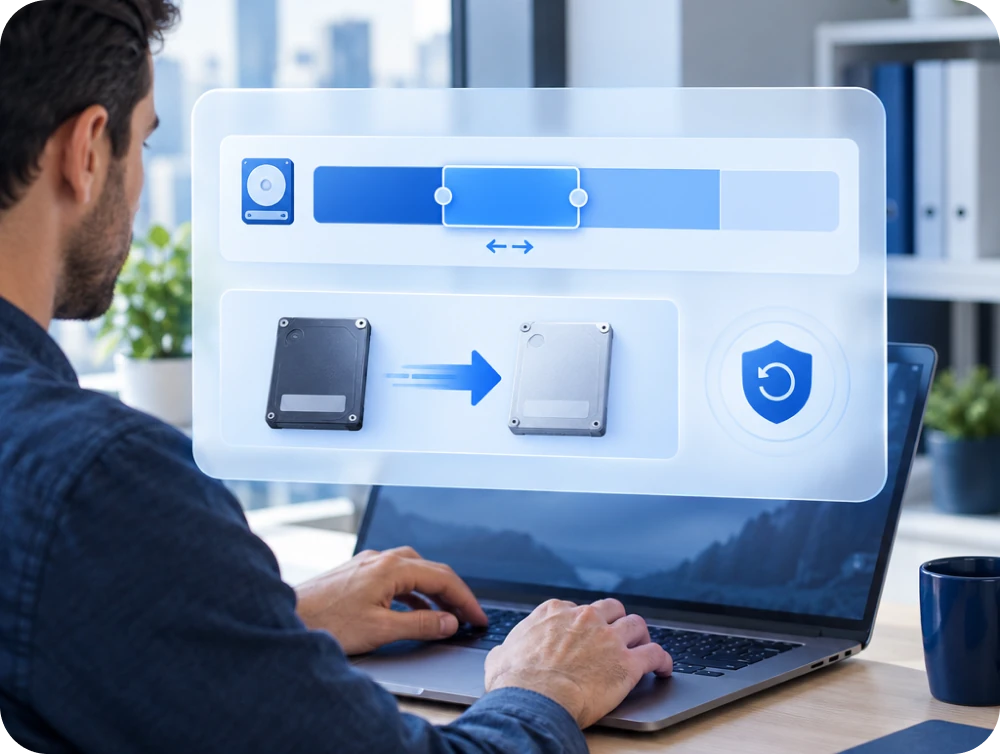
Partitioning a laptop drive with a partition manager

Which Partition Software Fits Your Case?

Start from the job you need done, and pick the best partition software for you.

Your Case Pick, and why
Free up space on C:AOMEI Partition Assistant or Partition Master - both tools support resizing, moving and merging without an upgrade.
Move Windows to a new SSDNIUBI Partition Editor or DiskGenius - the only two of the nine that can migrate a Windows installation without an upgrade.
Recover a deleted partitionParagon Partition Manager Community Edition - the only tool in this comparison that includes partition undelete in its free edition.
Convert the system disk between MBR and GPTMacrorit or DiskGenius - NIUBI and Paragon CE include it at no cost too.
Manage BitLocker-encrypted volumesPartition Wizard - the only tool in this comparison with a dedicated BitLocker Manager feature.
Survive a power cut mid-operationMacrorit Partition Expert - Power-off Protection is documented in its free edition.
Work with Linux or macOS file systemsGParted (bootable) or Paragon CE (runs inside Windows).
Roll back a change after a crashNIUBI Partition Editor (Professional) - 1-Second Rollback is a paid feature. Macrorit's power-off protection is the closest no-cost alternative.
Run from a USB stickMacrorit Partition Expert (portable build) or GParted (bootable).
Create bootable rescue mediaDiskGenius (WinPE) or Paragon CE (WinPE) - five of the nine charge extra for one.
Clone a data disk or partitionAOMEI Partition Assistant, Partition Master, Partition Wizard, NIUBI Partition Editor, DiskGenius or GParted (partition copy) - included in six of the nine.
Do a one-off create, format or deleteWindows Disk Management - already installed, no download.

All Nine Tools at a Glance

The whole field on one screen. Three columns, one row per tool: the tool name, its starting price, and the user or task it suits best.

Tool Paid from Best for
AOMEI Partition Assistant (Freemium)
$49.95/year; $69.95 lifetime list price, with promotional pricing sometimes available.Most features out of the box
Partition Master (Freemium)
$19.95/month, $49.95/year, or $69.95 lifetimeEasiest to learn
Partition Wizard (Freemium)
$59/year (1 PC)BitLocker users on modern laptops
NIUBI Partition Editor (Freemium)
$39 for two PCs; upgrades sold separatelyMoving Windows to a new drive
DiskGenius (Freemium)
$69.90 ProfessionalCreate bootable rescue media
Macrorit Partition Expert (Freemium)
$39.99 ProPower-loss safety
Paragon Partition Manager CE (Free, personal use)
N/A (free for personal use)Dual-boot and multi-OS
GParted (Open source)
N/A (always free)Open source, multi-OS
Windows Disk Management (Built-in)
N/A (built-in)Basic tasks only

* Prices and edition limits were checked on October 16, 2026 and may vary by region, promotion or software version.

Feature Comparison: What Each Tool Can Do

Feature Partition Assistant Partition Master Partition Wizard NIUBI Partition Editor DiskGenius Macrorit Paragon GParted Disk Mgmt
Resize / moveYesYesYesYesYesYesYesYesShrink / extend only
MergeYesYesYesYesFree space onlyYesPaidNoNo
SplitPaidPaidYesNo split toolYesNo split toolPaidNoNo
Create / formatYesYesYesYesYesYesYesYesYes
Wipe dataYesYesYesYesYes (one disk)YesPaidNoNo
MBR/GPT convert - data diskYesYesYesYesYesYesYesNoData loss
MBR/GPT convert - system diskPaidPaidPaidYesYesYesYesNoData loss
OS migration / system-disk clonePaidPaidPaidYesYesPaidPaidNoNo
Partition recoveryPaidPaidPaidNot supportedPreview onlyNoUndeleteRescue onlyNo
Partition alignmentPaidYesYesNot supportedCheck onlyNot in freeNoYes - supports MiB alignmentNo
Bootable mediaPaidPaidPaidPaidWinPEPaidWinPELive USBNo
Dynamic disk managementPaidPaidPaidNot supportedLimitedNot in freeYesN/ALimited
BitLocker managementNoPartialYesNoUnlock onlyNoNoNoNo
Clone disk / partitionData onlyData onlyData onlyYes (incl. system)Yes (incl. system)NoNoPartition copy onlyNo

* Yes = no upgrade needed; Paid = a paid edition unlocks it; No = not supported at all.

* Data only means the free edition supports data-disk or data-partition cloning, but not system-disk cloning.

The Nine Tools Reviewed

Same structure for every tool: what it does best, what a paid edition adds, and what that costs.

AOMEI Partition Assistant (v 10.12.1)

FREEMIUM

Freemium - free edition; paid plans start at $49.95 per year.

Best for: a single-PC user who wants the broadest feature set before paying. As the developers of AOMEI Partition Assistant, we can speak to it from the inside. The interface is built around simplifying complex operations, and the free edition offers one of the broadest feature sets in this comparison.
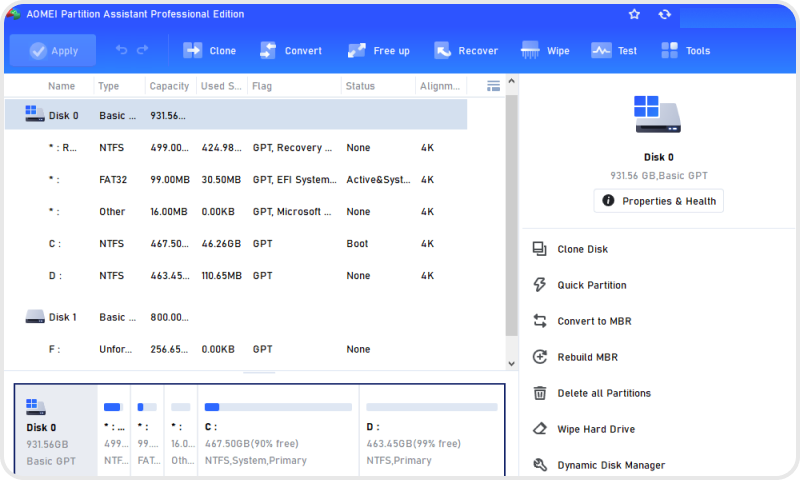
AOMEI Partition Assistant interface screenshot

Pros

  • Clean, standard UI for disk and partition management.
  • Flexible partition management options.
  • Transparent pricing with straightforward plans.

Cons

  • The free toolkit is broad, so the first-run interface needs a short learning curve.
  • Bootable media, OS migration, system-disk conversion, partition alignment and partition recovery all require a paid edition.

Partition Wizard

FREEMIUM

Freemium - free edition, paid from $59/year for one PC

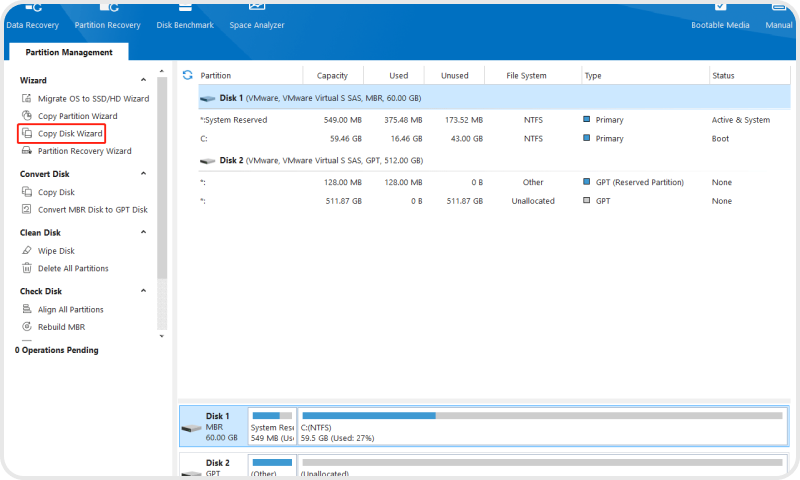
Best for: a BitLocker user on a modern laptop. Partition Wizard is one of the oldest partition managers. Its dedicated BitLocker Manager is unique among the nine tools compared here.

Partition Wizard interface screenshot

Pros

  • Easy to set up and use for partition management.
  • Packed with advanced cloning and migration options.
  • Includes space analysis and benchmarking tools.

Cons

  • Licensing options could be clearer and more straightforward.
  • The bootable-media builder requires a paid edition.

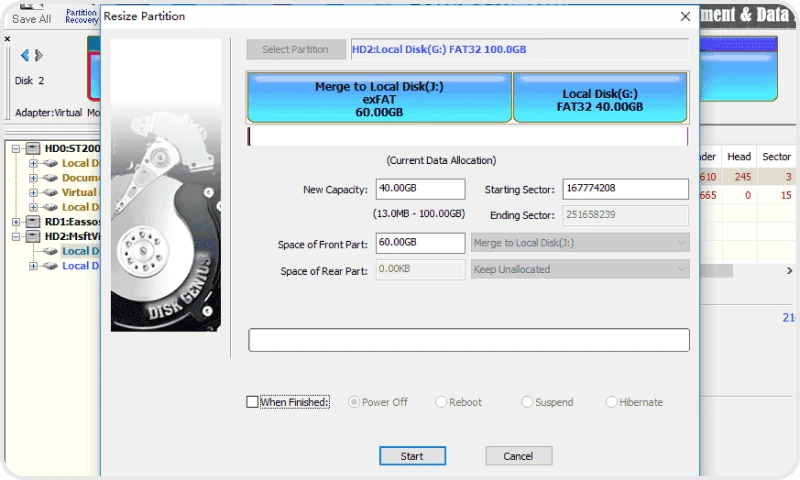
DiskGenius

FREEMIUM

Freemium - free edition, paid from $69.90 (Professional)

Best for: Windows migration and a preview of your lost files, without an upgrade. DiskGenius is the most underrated free tier here, and one of only two tools of the nine that migrate Windows at no cost. It also gives away WinPE media and MBR/GPT conversion.

DiskGenius interface screenshot

Pros

  • Windows migration to a single HDD, SSD or USB - no upgrade required.
  • WinPE bootable USB builder and MBR/GPT conversion, both included.
  • Lossless resize, extend, split and add-unallocated-space; partition-table backup; bad-sector check and SMART.
  • Scans and previews lost files before you pay.

Cons

  • Partition recovery stops at preview: the free edition cannot restore the partition table. File recovery is available only for files below the free edition's size limit.
  • Sector-by-sector and multi-disk cloning, dynamic-to-basic conversion, incremental backup and hex editing are paid.

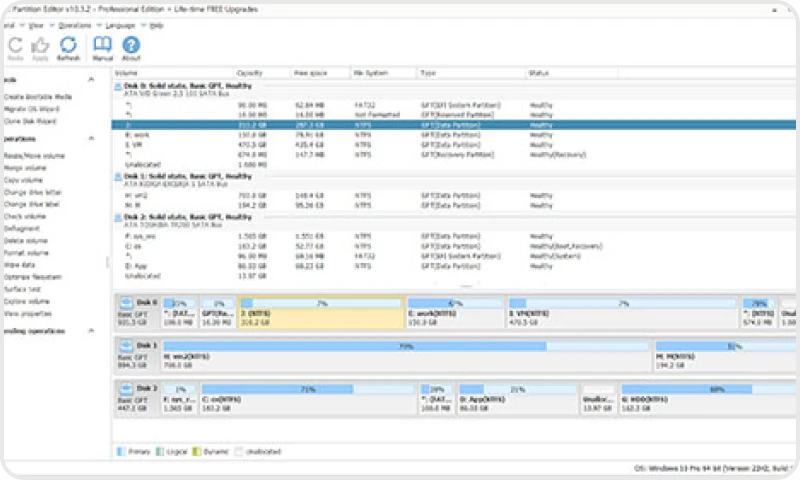
NIUBI Partition Editor

FREEMIUM

Freemium - free edition, $39 for two PCs; upgrades sold separately

Best for: moving Windows to a new drive without an upgrade. NIUBI Partition Editor's headline feature is its "1-Second Rollback" technology - if anything goes wrong during a resize or move operation, it instantly reverts the disk to its previous state. Note the edition: 1-Second Rollback is available only in the paid Professional edition.

NIUBI Partition Editor interface screenshot

Pros

  • Every core function is kept in the free edition, including system-disk cloning.
  • Cancel-at-Will is available in all editions; 1-Second Rollback in the paid edition.
  • System-disk cloning works out of the box.

Cons

  • Free edition is limited to 1 PC, non-commercial use, and 16 TB disks.
  • Only available for Windows.
  • 1-Second Rollback and bootable media require the paid edition.

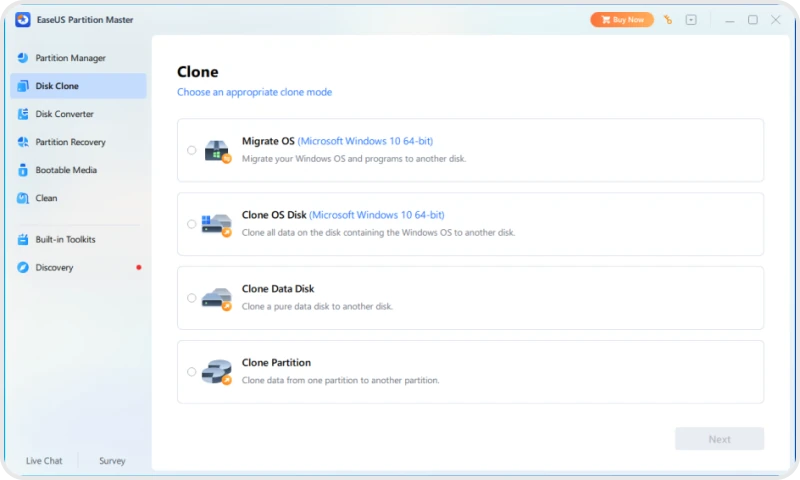
Partition Master

FREEMIUM

Freemium - free edition, paid from $19.95/mo, $49.95/yr, or $69.95 lifetime (2 PCs)

Best for: first-time users who want an easy way to free up space on C:. Partition Master also gets some additional options compared with the built-in Windows Disk Management utility. The first thing that stood out to us was the impressive UI, which makes disk and partition management remarkably straightforward. It covers all the essential features, including disk partitioning and partition cloning.

Partition Master interface screenshot

Pros

  • Offers a solid free version with essential features.
  • Provides in-depth disk management capabilities.
  • Provides disk and partition cloning.
  • Optimized for system and OS file migration.

Cons

  • The free edition caps disks at 8 TB, and OS migration, system-disk cloning, partition recovery and WinPE media all need the paid edition.

Paragon Partition Manager Community Edition

FREE

Free for personal, non-commercial use

Best for: a dual-boot user running Windows and Linux. Paragon Partition Manager Community Edition is a strong choice for users who work with multiple file systems. It supports NTFS, FAT32, ext2/3/4, ReiserFS, HFS+, Btrfs and XFS - making it ideal for dual-boot or multi-OS environments. The Community Edition is free for personal, non-commercial use and includes a partition-undelete feature that no other tool among the nine offers in its free edition.

Paragon Partition Manager Community Edition interface screenshot

Pros

  • Supports a wide range of basic partition features.
  • Step-by-step wizard guides you through complex tasks.
  • Preview changes before applying them.
  • Supports common file systems.

Cons

  • According to Paragon's comparison, the Community Edition does not include merge, split, OS migration, disk backup and data wipe; resize and move, undelete, MBR/GPT conversion, dynamic-disk management and WinPE media are all in.
  • Some features are unavailable in Community Edition and require a separate commercial product.

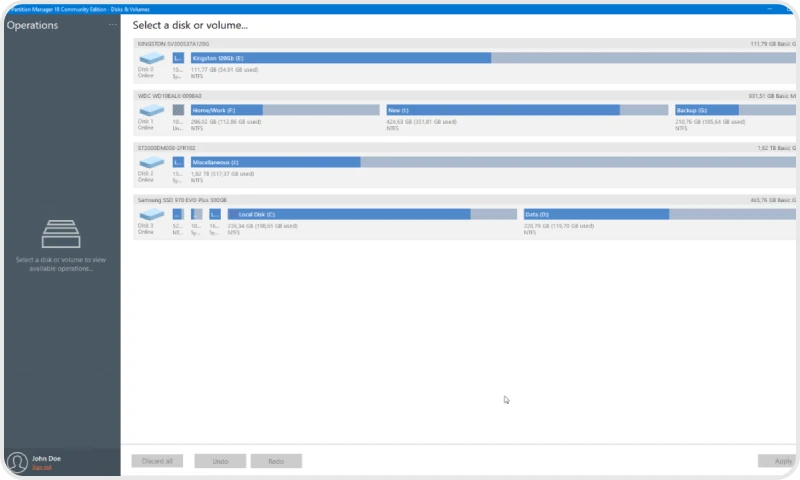
Macrorit Partition Expert

FREEMIUM

Freemium - free edition, paid from $39.99

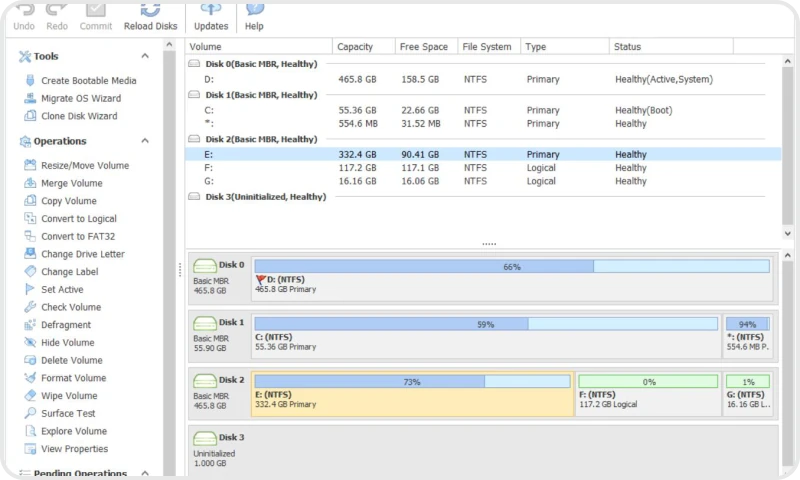
Best for: users who value built-in protection against interruptions during partition operations. Macrorit Partition Expert highlights Power-off Protection and Cancel-at-Will as safety features included in its free edition. Partition Expert also incorporates unique data protection technology and an advanced data-moving algorithm, designed to keep data intact while moving partitions quickly. Its interface groups pending operations with undo, redo and commit controls.

Macrorit Partition Expert interface screenshot

Pros

  • Clean, intuitive interface that makes disk management easy to understand.
  • Supports both basic and advanced partition operations.
  • Queues changes for batch execution - apply everything at once with one click.
  • All features are visible upfront; no hidden menus or buried options.
  • Portable version available for USB use.

Cons

  • Free for personal use only.
  • Does not include OS migration, partition copying or bootable media - those are Pro features.

GParted

OPEN SOURCE

Open source - free, no paid tier

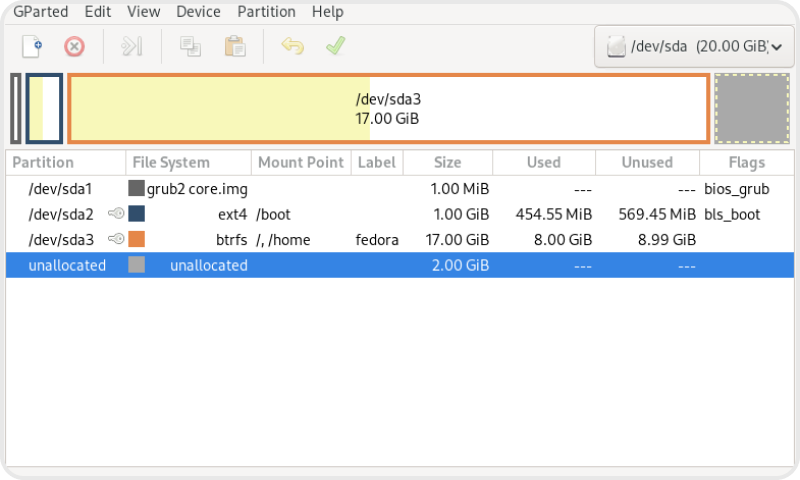
Best for: open-source users, and anyone managing Linux or macOS partitions alongside Windows. GParted is a widely used open-source partition editor with a bootable Linux-based environment. It boots from a USB/CD into a minimal Linux environment, meaning you can manage partition layouts on disks used by Windows, Linux and macOS, although macOS APFS support is limited. It supports the broadest range of file systems among the tools tested: NTFS, FAT12/16/32, exFAT, ext2/3/4, HFS, HFS+, Btrfs, XFS, ReiserFS and more. One caveat: macOS APFS volumes can be detected and copied as partitions, but GParted cannot read, create, resize, move oror resize the APFS file system.

GParted interface screenshot

Pros

  • Open source and transparent - the codebase is public and auditable.
  • Supports a wide range of file systems. - NTFS, FAT12/16/32, exFAT, ext2/3/4, HFS, HFS+, Btrfs, XFS, ReiserFS and more. APFS is supported only for detection and partition copying.
  • Cross-platform - manage Windows, Linux, and macOS partitions from the same bootable environment.

Cons

  • Requires bootable media creation - you must create a GParted Live USB first, which requires downloading and flashing an ISO.
  • Its interface is less modern than many commercial alternatives, with fewer guided workflows and relatively infrequent major feature additions.
  • It does not provide secure wiping or non-destructive MBR/GPT conversion - GParted can only create a new partition table, which erases the disk.

Windows Disk Management

BUILT-IN

Built-in - no cost, no install

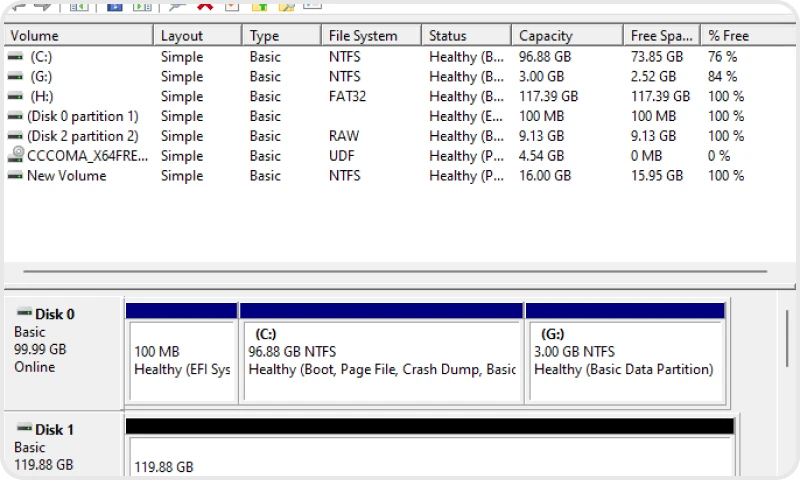
Best for: one-off partition creation, formatting and deletion tasks. Windows Disk Management (diskmgmt.msc) is the built-in partition utility included with every Windows 10 and 11 installation. It requires no download and handles basic tasks like creating, formatting, deleting, shrinking and extending volumes. However, it has severe limitations that make it unsuitable as your primary partition manager - it can't move partitions or extend a basic volume into non-adjacent space, and can't convert MBR/GPT without data loss.

Windows Disk Management interface screenshot

Pros

  • No installation required - built into every Windows 10/11 installation.
  • Zero cost - always available at no charge.
  • Simple and safe for basic operations - create, format, delete, shrink, extend and assign drive letters.

Cons

  • Cannot move partitions.
  • Cannot extend into non-adjacent space.
  • Converting MBR/GPT requires deleting all partitions on the disk.
  • Cannot migrate Windows to another disk.
  • Only works from within Windows.
  • Windows does include a separate, lossless system-disk converter (MBR2GPT.exe), but it is not part of Disk Management.

Frequently Asked Questions

There is no single winner, because each tool is strongest at something different. AOMEI Partition Assistant offers one of the broadest free feature sets in this comparison. Partition Wizard keeps a native BitLocker Manager. NIUBI Partition Editor and DiskGenius are the only two of the nine that can migrate a Windows installation in their free editions.

Diskpart.com

Partition Software & Storage Research

This review was produced by the diskpart.com editorial team, which has been covering disk management software since 2009. We compared all nine tools feature by feature - 14 capabilities, plus pricing and edition limits - and re-verified every boundary on 16 October 2026.

Laptop showing a partition manager with disk partitions listed

Need to Partition Your Hard Drive?

Download AOMEI Partition Assistant free to manage your hard drive partitions on Windows 11, 10, 8 and 7 - resize, move, merge, clone data disks, wipe and shred, with one of the broadest free feature sets among the nine tools compared here.

Download Partition Assistant Free