
 PartitionAssistant Recovery


Fixed: No Restore Points Have Been Created in Windows 10
If you’re struggling “no restore points have been created in Windows 10” issue and need to recover previous system files, this guide will show you how to resolve the issue.

By Hedy / Updated on September 29, 2025


What can System Restore Points do for you?
System Restore is a built-in Windows function that allows your computer to roll back to a previous state by reversing recent changes. It can restore system files, settings, applications, and even the Windows Registry, functioning far beyond the simple "Undo" shortcut you use for files. Unlike standard file-level reverts, this feature works even after the system has been shut down and restarted. However, it does not affect personal folders such as documents, music, or videos—only Windows-related files are restored.
Why is System Restore Points missing in Windows 10?
The “system restore points missing” error in Windows 10 often appears when attempting to roll back your PC to an earlier date. Several factors can trigger this issue:
◈ Limited storage on the C: drive may prevent new restore points from being created, and once the maximum space is used, older points are automatically removed.
◈ System Restore might be disabled manually or left off by default, leaving no points available.
◈ Recent Windows updates can reset certain settings, leading to the disappearance of existing restore points.
◈ Utilities such as Disk Cleanup may accidentally delete restore points.
◈ A heavily fragmented page file can also be responsible, especially if points vanish after each system restart.
How to fix missing System Restore Points in Windows 10
Here are eight potential fixes you can try if no system restore points are available in Windows 10. Work through them one by one until you discover the solution that resolves the issue:
Fix 1. Enable System Restore
One common reason for missing restore points is that the feature has been disabled. To turn it back on, follow these steps:
Step 1. Open the Control Panel and select System. From the left-hand panel, click System Protection.
Step 2. In the System Properties window, go to the System Protection tab and select the drive you want to configure. Click Configure.
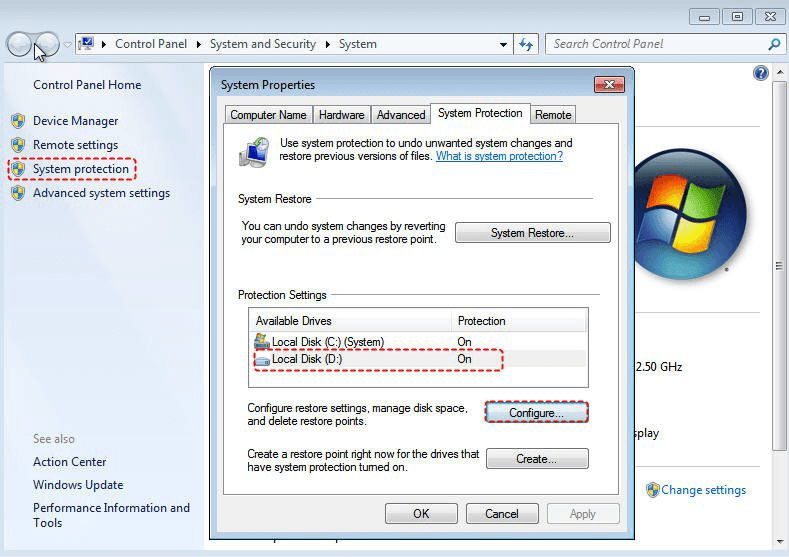
Step 3. Choose Turn on system protection, then click OK to confirm.
Once enabled, you can proceed to create a new restore point.
Fix 2. Check HDD disk space
This method addresses the issue of limited disk space, which can cause older restore points to be deleted to free up room for new ones. To adjust the space allocation:
Step 1. Go to the System Protection tab. Under Disk Space Usage, move the slider next to Max Usage to the right to allocate more space for restore points.
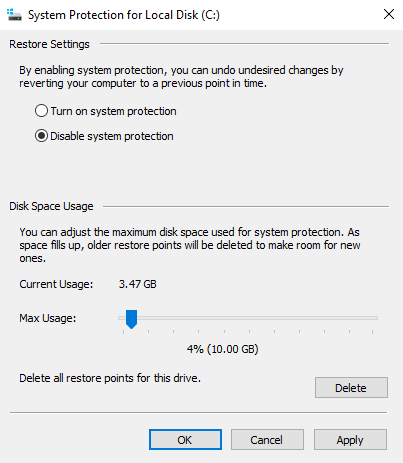
Step 2. Click OK to save the changes.
If low disk space was the cause, this should resolve the problem. If not, proceed to the next solution.
Fix 3. Run CHKDSK and SFC commands
Windows 10 includes built-in tools like CHKDSK and SFC to repair disk errors and corrupted system files. Both can help resolve the issue of missing restore points.
✍ To run CHKDSK from Command Prompt:
Step 1. Press the Windows key to open the Start menu.
Step 2. Type cmd in the search bar, then right-click Command Prompt and select Run as administrator.
Step 3. In the Command Prompt window, enter:
chkdsk C: /f /r /x

Step 4. If the C: drive is in use, type Y to schedule the scan for the next system restart.
✍ To run SFC (System File Checker):
Step 1. Open Command Prompt as an administrator as shown above.
Step 2. Type sfc /scannow and press Enter, and wait for the scan to detect and repair issues.
Step 3. After completing either scan, restart your PC and check if restore points are available. You may need to repeat the process more than once for the best results.
Fix 4. Check Volume Shadow Copy
The Volume Shadow Copy service allows Windows to create backups of files and application data while they’re still in use. If this service is disabled or not functioning, restore points may disappear. To ensure it’s running:
Step 1. Press Win + R to open the Run dialog box.
Step 2. Type services.msc and click OK.

Step 3. In the list of services, locate Volume Shadow Copy.
Step 4. If it isn’t running, right-click it and select Start.
Once enabled, you should be able to create restore points without issue.
Fix 5. Manually perform System Restore via Safe Mode
If restore points are missing in Windows 10, you can still perform a manual system restore through Safe Mode. This approach lets you recover previous Windows settings or files in a secure environment. Follow these steps:
Step 1. Restart your PC.
Step 2. Before the Windows logo appears, press F8 repeatedly.
Step 3. In the Advanced Boot Options window, select Safe Mode with Command Prompt and press Enter.
Step 4. In the Command Prompt, type rstrui.exe and press Enter.
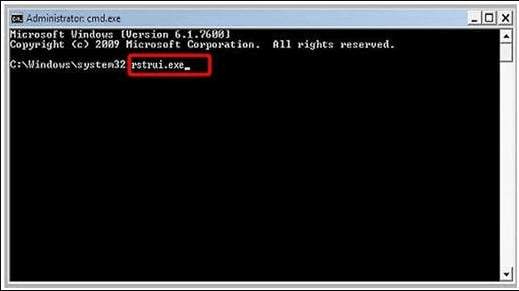
Step 5. The System Restore wizard will open. Select an available restore point and click Next.
Step 6. Review your choices, then confirm by clicking Finish to begin the restoration.
How to recover lost data after System Restore on Windows 10
PartitionAssistant Recovery is a powerful and reliable tool designed to help Windows 10 users recover lost or deleted data, even after a System Restore. While System Restore is a useful feature to revert your system to a previous state, it can sometimes overwrite or remove files unintentionally. In such cases, AOMEI Partition Assistant for Recovery comes to the rescue.
With its intuitive interface, it allows you to quickly scan your hard drive or SSD for lost files, including documents, photos, videos, and more. It supports deep scanning for thorough recovery, and you can preview files before restoring them to ensure accuracy.
Step 1. Install and launch PartitionAssistant Recovery. Choose the exact partition or disk where your data is lost and click Scan.

Step 2. Then, the recovery tool starts to scan and search. It will execute the “Quickly Scan" first for finding your deleted data fast, and then execute the “Deep Scan" for searching other lost data.

Step 3. Once the scan is completed, all deleted files, recycle bins, and other missing files will be displayed. Please select the file you would like to recover and then click "Recover".

Step 4. Then, select a folder path to save your recovered files.

Step 5. Wait patiently for this process of recovery to end.
Conclusion
In summary, System Restore Points are vital for reverting Windows 10 to a previous state, protecting system files and settings without affecting personal data. Missing restore points often result from disabled protection, limited disk space, or corrupted system files. By enabling System Restore, checking disk space, running repair tools, and using Safe Mode, you can restore functionality. For lost data after restoration, AOMEI Partition Assistant for Recovery ensures reliable recovery of important files.
