
 PartitionAssistant Recovery


Where to Find Deleted Files on Windows 10 or 11
Where to find deleted files on Windows 10 or Windows 11? This article will tell you where to find deleted items in Windows 10 or 11, and provide you with 4 effective ways to recover deleted files on Windows 10 or 11.

By Hedy / Updated on December 9, 2025


How to delete files on Windows 10 or 11?
If you accidentally deleted files on Windows 10/11, you may ask the question, “How do I find deleted files on Windows 10/11?” Don't panic. There are ways to find and recover deleted files. Before that, you need to know how to delete a file on Windows 10/11.
There are several ways to delete a file on Windows 10/11. Here are the most common methods:
1. Using the Delete Key
- Select the file by clicking on it once.
- Press the Delete key on your keyboard.
- The file will be moved to the Recycle Bin.
2. Right-Click Method
- Right-click on the file.
- Select "Delete" from the context menu.
- Confirm if prompted.
3. Drag to Recycle Bin
- Click and hold the file.
- Drag it to the Recycle Bin on your desktop.
- Release the mouse button.
4. Permanently Delete
- Select the file.
- Press Shift + Delete keys simultaneously.
- Confirm the permanent deletion when prompted.
Warning: This bypasses the Recycle Bin and cannot be undone easily!
5. Using File Explorer Ribbon
- Select the file in File Explorer.
- Go to the Home tab in the ribbon.
- Click the Delete button (trash can icon).
Where to find deleted files on Windows 10 or 11?
On Windows 10 or 11, deleted files typically go to the Recycle Bin, but there are other locations and recovery methods depending on how the file was deleted. Here’s where to look and what to do:
1. Recycle Bin (Most Common)
This is the first place to check for recently deleted files and folders.
Location: Desktop icon labeled Recycle Bin.
How to check:
- Double-click the Recycle Bin icon.
- Browse or search for your file.
- Right-click the file → select Restore to return it to its original location.
If you don’t see the Recycle Bin on your desktop:
Type “Recycle Bin” in the Start menu search bar.
Or, in File Explorer, enter shell:RecycleBinFolder in the address bar.
2. Check Other Locations
If you can’t find deleted items from Recycle Bin, you can check other locations:
Temporary folders: Sometimes files are saved temporarily. Check:
C:\Users\[YourUsername]\AppData\Local\Temp
Type %temp% in the Run dialog (Win + R).
Backup/cloud services: If you use OneDrive, Dropbox, Google Drive, etc., check their recycle bins/version history online.
Shadow Copies(if System Protection was on):
Open Command Prompt as admin → type:
text
vssadmin list shadows
*This lists restore points that may contain older versions.
3. If You Emptied the Recycle Bin or the Data Deleted Bypass Recycle Bin
Unfortunately, if you emptied Recycle Bin, or the data deleted bypass Recycle Bin (such as deleting data from SD cards/USB sticks, deleting large files), you cannot find them easily. For those situations, you need to find other ways to recover deleted files on Windows 10/11.
How to recover deleted files on Windows 10 or 11
Actually, you cannot always find deleted files on Windows 10/11. Such as:
- You accidentally deleted files from an SD Cards, or USB drives(Often bypass Recycle Bin).
- You deleted large files that will bypass Recycle Bin.
- You deleted files using Shift+Delete.
- The Recycle Bin was emptied.
Don’t panic. Deleted files are not immediately erased from your drive—they’re marked as free space until overwritten.
For those situations, the best way is trying to recover deleted files as soon as possible to avoid overwriting.
Restore Previous Versions (if enabled):
Windows can sometimes restore older versions of files via File History or Restore Previous Versions.
Get Windows missing files back from the previous version
If you've accidentally replaced a file, restoring from previous versions is a straightforward and cost-effective method. If your system has restore points or File History enabled, you can revert to an earlier version of the file. Restore points automatically save snapshots of your system's state, potentially preserving an earlier version of the file you're looking to recover.
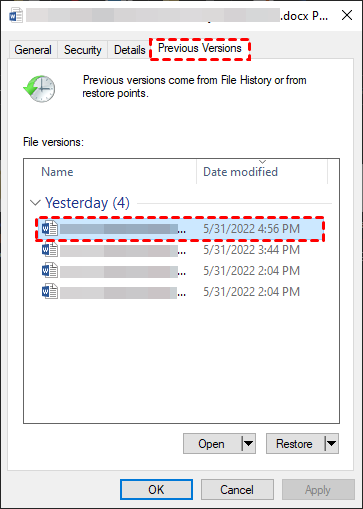
Step 1. Go to File Explorer, locate and right-click the file/folder you need to restore an older version and select Restore Previous Versions.
Step 2. Choose Previous Versions and choose the right version from the list of File versions.
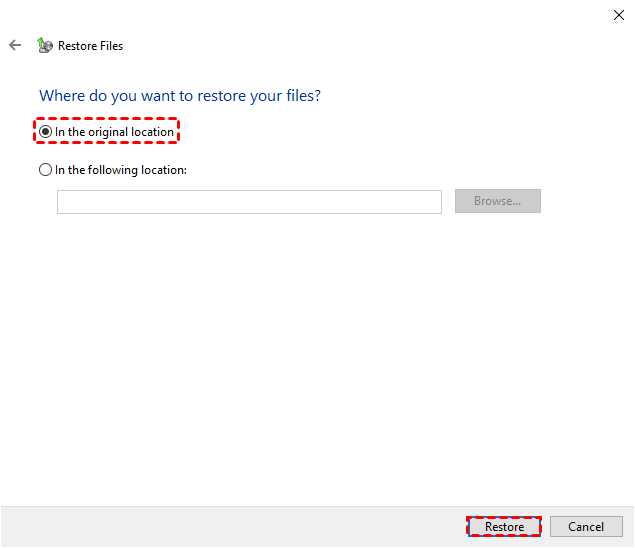
Step 3. Click Restore to recover it to its original location.
Using File History Backup
Windows File History Backup is a built-in feature designed to help you recover lost files, including documents, videos, music, pictures, and desktop folders. However, this option is only viable if you’ve previously set up backups. To recover files, simply restore them from your backup by following the steps outlined in your system settings.
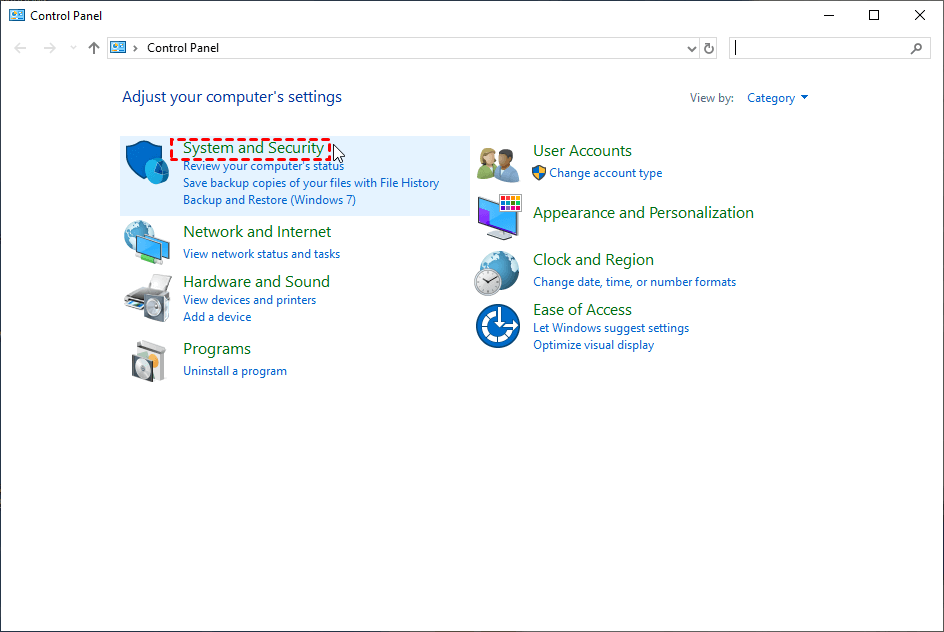
Step 1. Open "Control Panel" by typing it in the search bar and then click "System and Security".
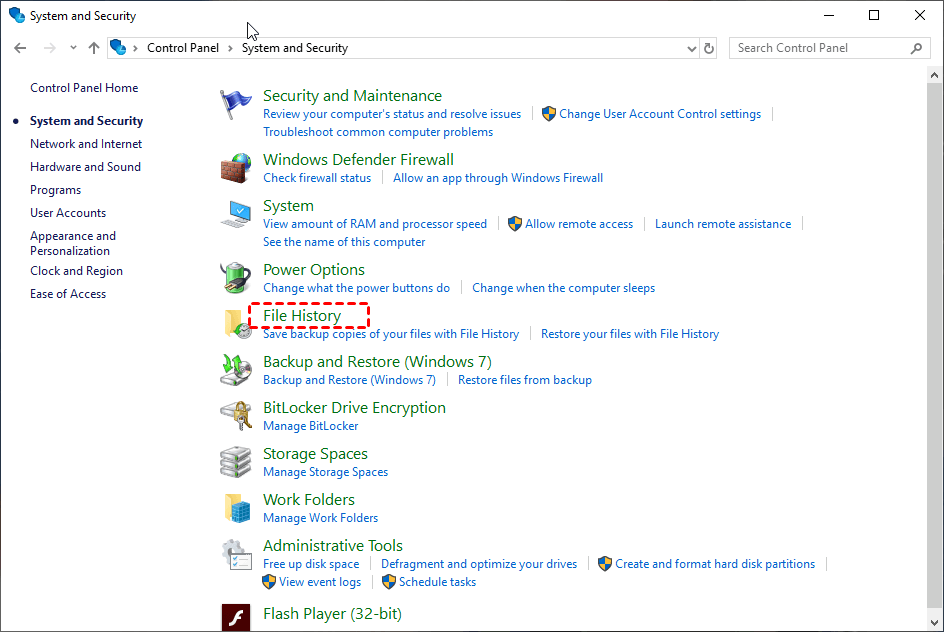
Step 2. Select "Restore your files with File History" under the "File History" tab.
Step 3. Click the "Restore personal files" button.
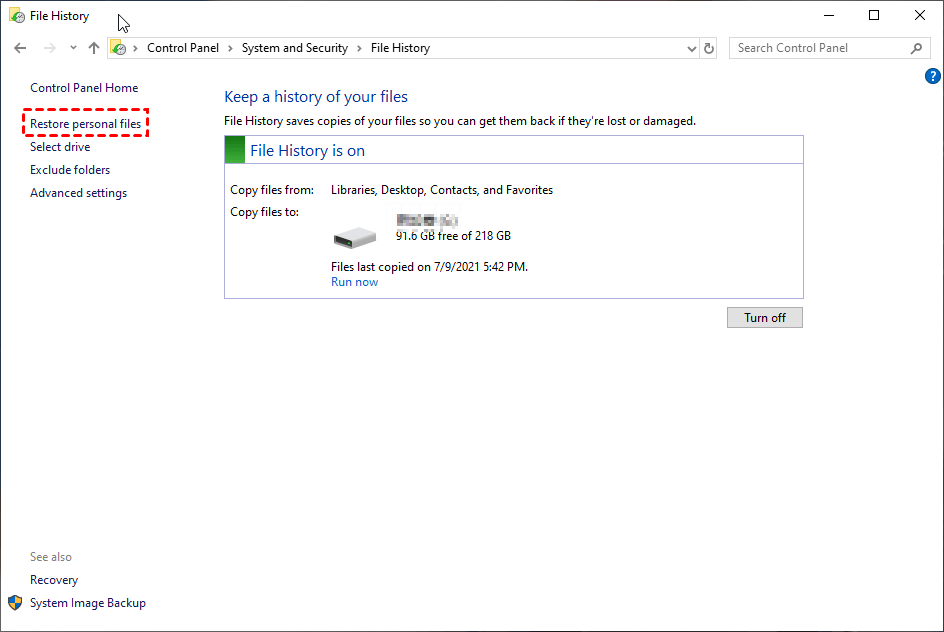
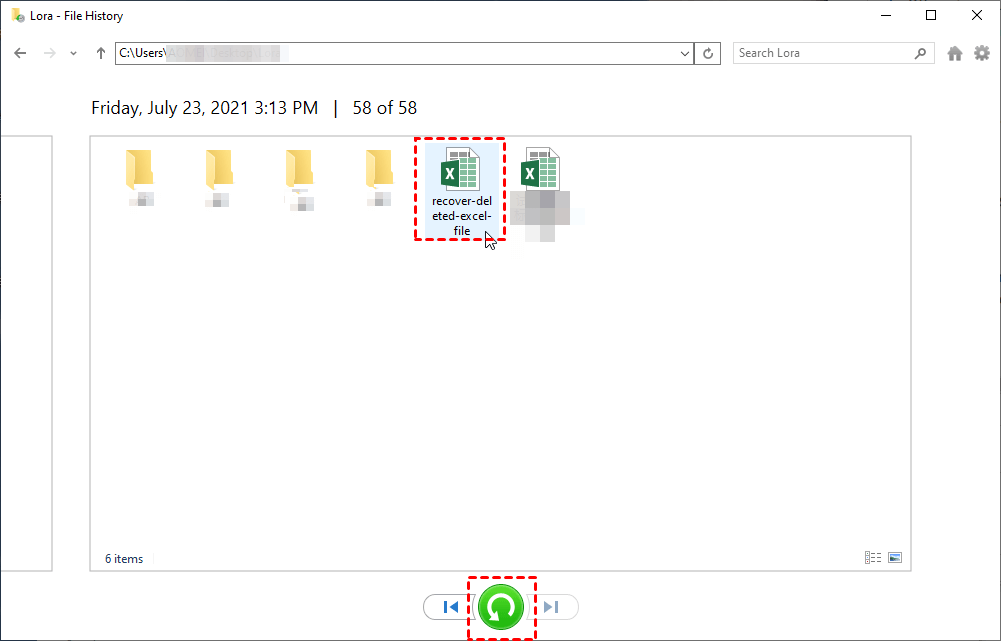
Step 4. If you directly click "Restore", the deleted Excel files will be sent to their original location. If you right-click "Restore",you can save them in your specific location.
Or you can use data recovery tools
Using Windows File Recovery(Microsoft Official)
Microsoft offers a command-line recovery tool for Windows 10- Windows File Recovery.
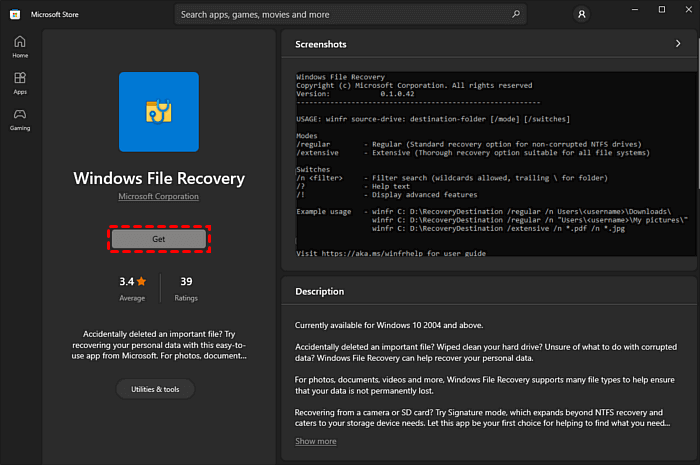
1. Download Windows File Recovery from Microsoft Store, and run it as Administrator.
2. Use commands like:
winfr source-drive:destination-drive:[/mode][/switches].
For example, winfr E: D:/regular /n*.docx restores a docx file from E Drive to D Drive.
(Scans E: drive and attempts to recover DOCXs from Documents to D: drive)
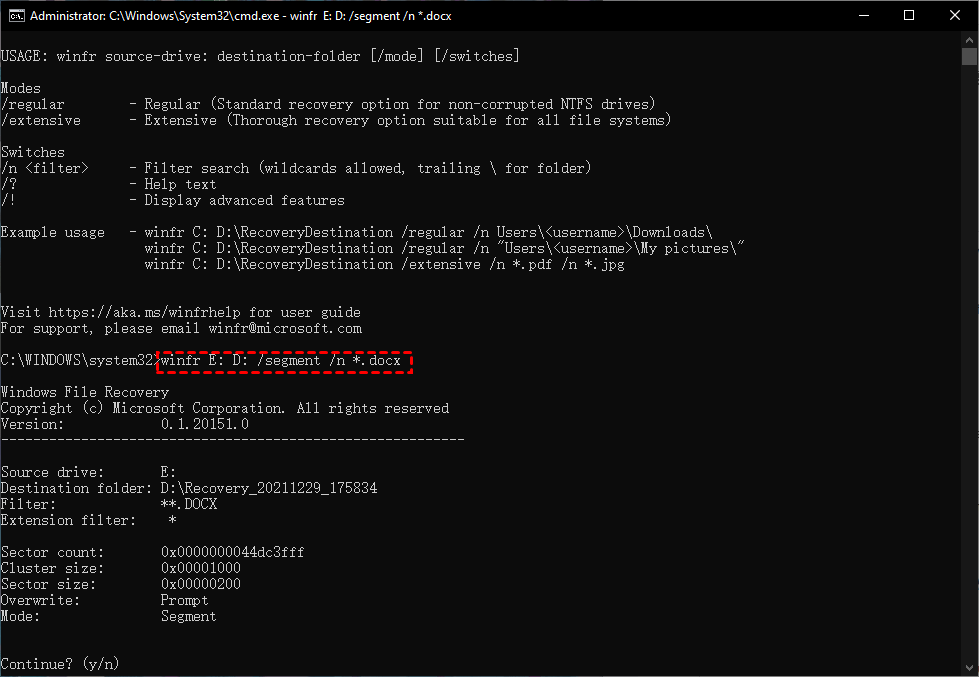
Step 3. In the end, type y to continue the recovery process. After a few minutes, the file will be restored at the restoring location on your PC.
Using professional data recovery tool- PartitionAssistant Recovery
Here we highly recommend PartitionAssistant Recovery, a reliable professional data recovery software that can help you recover accidentally deleted files in various scenarios fast and easily.
Compared with Windows File Recovery, it has many advantages:
-
It supports over 1000+ file types, including Word documents, Excel files, PowerPoint presentations, PDFs, ZIP files, and various image formats like JPG, PNG, and more.
-
With a high recovery success rate, PartitionAssistant Recovery employs both Quick Scan and Deep Scan methods to ensure thorough data retrieval.
-
It’s also equipped to handle data recovery from formatted disks and rescue files after system crashes or virus attacks.
-
Additionally, PartitionAssistant Recovery is particularly useful for recovering data from a crashed PC, especially when your computer becomes unbootable.
Step 1. Install and launch PartitionAssistant Recovery. Choose the exact partition or disk where your data lost and click Scan.

Step 2. Then, the recovery tool starts to scan and search. lt will execute the “Quickly Scan" first for finding your deleted data fast, and then execute the “Deep Scan" for searching other lost data.

Step 3. Once the scan is completed, all deleted files, recycle bins and other missing files will be displayed. Please select the file you would like to recover and then click "Recover".

Step 4. Then, select a folder path to save your recovered files.

Step 5. Wait patiently for this process of recovering ends. Thus, the answer to where to find recently deleted files on Windows 10 depends on the path you choose to store while recovering.
Conclusion
Where to find deleted files on Windows 10 or 11? The Recycle Bin would be the first destination. If the gone files are completely deleted or erased from the Recycle Bin automatically, you can try to use a professional hard drive data recovery like PartitionAssistant Recovery to restore the data simply.
Actually, it’s better to protect files from being mistakenly deleted, lost, or damaged than to recover them after loss. One of the best ways is to back up your data at a regular time. Besides, cloning a hard drive and turning on BitLocker on a drive are also good ways to keep your data safe.
Quick Tips to Avoid Permanent Loss:
- Enable File History: Go to Settings → Update & Security → Backup → Add a drive.
- Regular backups: Use OneDrive or an external drive.
- Think before emptying Recycle Bin.
- Be careful with Shift+Delete.
Hope you enjoy your data life.
