
 PartitionAssistant Recovery


Windows 11 Keeps Making A Folder Read Only! How to Fix It?
There are several solutions can fix the issue of Windows 11 keeps making a folder read only. It can also help to recover any lost data caused by this problem.

By Irene / Updated on August 8, 2025


Why Windows 11 keeps making a folder read-only
When a folder becomes read-only, it means you can open and view the files inside, but you can’t change, delete, or save new files to it. In Windows 11, this usually happens to important system folders or files that are protected to prevent accidental damage. If these files are changed or deleted, it could cause your computer to stop working properly.
Some files are read-only by default, such as bootmgr, hiberfil.sys, pagefile.sys, and others found in system folders like C:\Windows. Older Windows versions also had protected files like boot.ini and io.sys. These files are often marked as hidden as well, so users don't accidentally change them.
Sometimes, folders may keep switching back to read-only mode after a Windows upgrade, especially when updating to Windows 10 or 11. Many users have reported that after upgrading, folders like Documents become read-only, and they get error messages like “Documents folder and Settings access denied” This can stop you from opening, editing, or saving files in these folders.
There are a few possible reasons:
🔷 Wrong folder permissions
🔷 Antivirus software blocking changes
🔷 Disk encryption or file system issues
Before fixing folder locked read-only and keeps popping up issue
Before attempting to solve the issue of a folder being stuck in read-only mode or showing access denied, it is a good idea to recover and save any important files first. Folders like Documents often contain personal files, work documents, and photos that you would not want to lose.
If you have not saved a backup yet, a recovery tool such as PartitionAssistant Recovery can help. It allows you to restore many types of files, including those removed from your computer, USB drives, Desktop, or even the Recycle Bin. Recovering your data first helps protect your files while you work on fixing the folder problem.
Step 1. Install and launch PartitionAssistant Recovery. Choose the exact partition or disk where your data lost and click Scan.

Step 2. Then, the recovery tool start to scan and search. lt will execute the “Quickly Scan" first for finding your deleted data fast, and then execute the “Deep Scan" for searching other lost data.
Step 3. Once the scan is completed, all deleted files, recycle bins and other missing files will be displayed. Please select the file you would like to recover and then click "Recover".
Step 4. Then, select a folder path to save your recovered files.
Step 5. Wait patiently for this process of recovering ends.
How to fix folders keeps reverting to read-only status in Windows 11?
Fix 1. Format the partition
Formatting a partition can fix the issue of folders becoming read-only in Windows 11 because it removes file system errors, resets incorrect permissions, and clears any hidden malware or software conflicts that may be causing the problem. It also ensures full compatibility with Windows 11 by rebuilding the file system from scratch. However, since formatting erases all data on the drive, it is important to back up or recover your files before doing so to avoid losing important information while resolving the read-only folder issue. Luckily, PartitionAssistant Recovery also supports data recovery from formatting.
Step 1. Right-click “My computer”/ “This PC”>”Manage”, and select “Disk Management” under “Storage”.
Step 2. Right-click the target volume and select “Format”.
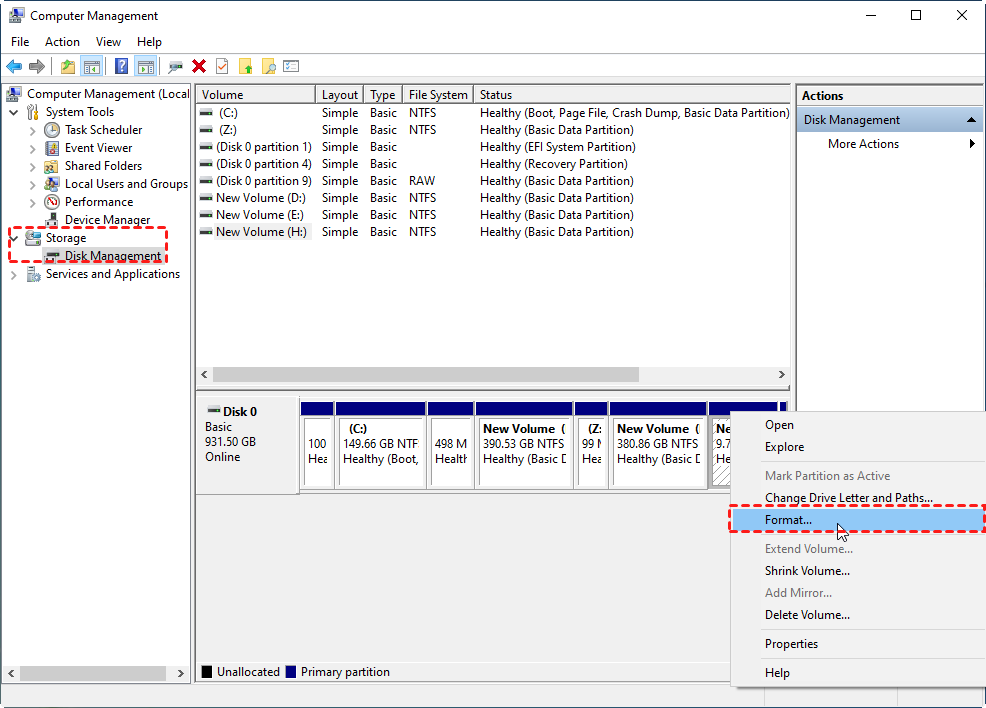
Step 3. In the next window, choose the desirable file system and click “OK”.
Fix 2. Change system permissions
Windows 11 may keep making a folder read-only or reverting it to that state due to insufficient system permissions. In both Windows 10 and 11, some folders are actually junction points that redirect to other locations. These are often blocked by default to protect the system. If you don’t have full permissions for the destination folder, you may be completely locked out. To fix this, you can change the folder’s permissions or take ownership. Doing so will give you the access you need to open, edit, or manage the files inside the folder.
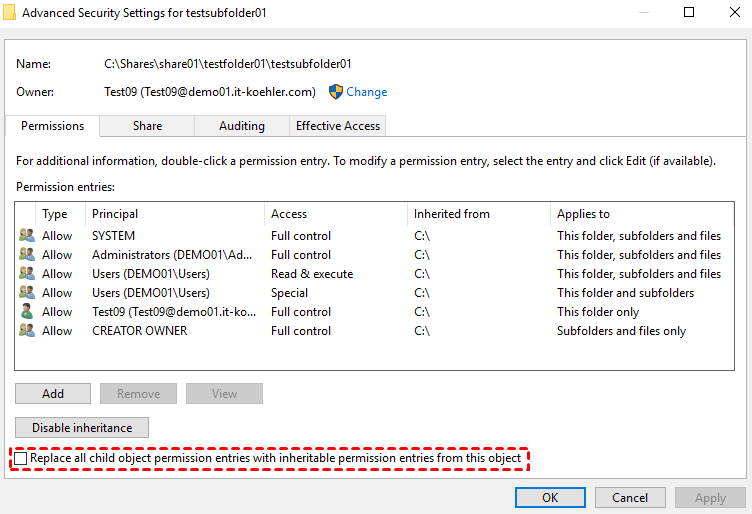
Step 1. Right-click on your Documents folder in File Explorer> select Properties > click Security > tap Advanced.
Step 2. Click the “Change” button beside the Owner.
Step 3. In the Select Users or Groups window, type your username to replace Everyone. Then click Check Names > OK.

Step 4. Go back to the Advanced Security Settings window, and click the “Replace all child object permission entries with inheritable permission entries from this project” and “OK” buttons.
Conclusion
If Windows 11 keeps making a folder read only or keeps reverting to this status, it is often due to system protections, permission settings, or issues caused by upgrades. While this can be frustrating, the problem can usually be fixed by adjusting folder permissions or formatting the partition. Before making any changes, it is important to recover and back up your files to avoid data loss. With the right steps and tools, such as PartitionAssistant Recovery, you can regain full access to your folders and keep your important data safe.
