
 PartitionAssistant Cleanup


Fixed: Can’t Find Large Files on Windows 10/11 Computer
Some users say they can’t find large files on Windows 10 or 11 PC, if this problem also troubles you, you can try some ideas in this post.

By Lucas / Updated on March 5, 2026


When a computer is used for several months, the hard drive space gradually fills up, and Windows becomes increasingly sluggish. The simplest approach to clear up space is to locate huge files in Windows 10 and then permanently delete or relocate them to another storage place.
However, you must be cautious when deleting any huge file unless you know what it is and what it accomplishes. Otherwise, you may wind up removing crucial Windows files, which may have an impact on the functionality of your computer.
If you want to quickly and securely filter large files from all your data files and delete unnecessary files, let’s move to the next part.
3 ways to fix [Can’t find large files on Windows 10/11]
In this part, we’ll show you 3 ways to find large files and how to delete them on your Windows computer.
Method 1. Use File Explorer to find large files
Read-only, archive, hidden, and system are 3 common file properties. Files set as hidden or system files will not be visible in File Explorer. As a result, you should enable the hidden files option so that Explorer may hunt for huge hidden files in addition to conventional files.
Step 1. Open File Explorer by clicking its icon on the taskbar.
Step 2. Click File in the left upper corner and choose Change folders and search options. Then a Folder Options window will pop up.
Step 3. Skip to the View tab and check Show hidden files, folders, and drives. Then, click Apply and then OK After that, you can see those hidden files in File Explorer.
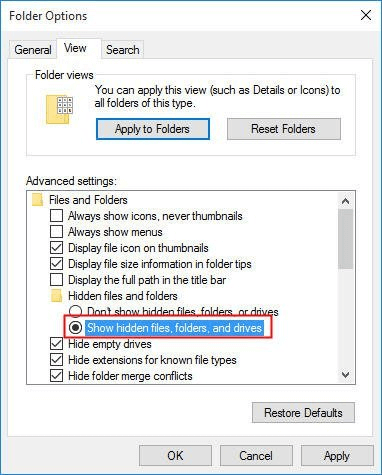
Then, we can use File Explorer to search for large files.
Step 1. Click This PC and then double-click a partition to open it.
Step 2. Click the search box in the upper right corner. Then, the hidden search tab will appear.
Step 3. Click Size and choose one size option from the drop-down menu. Then, File Explorer will search for and display files. The size options include:
Empty (0 KB), Tiny (0 – 10 KB)
Small (10 – 100 KB)
Medium (100 KB – 1 MB)
Large (1 – 16 MB)
Huge (16 – 128 MB)
Gigantic (> 128 MB).
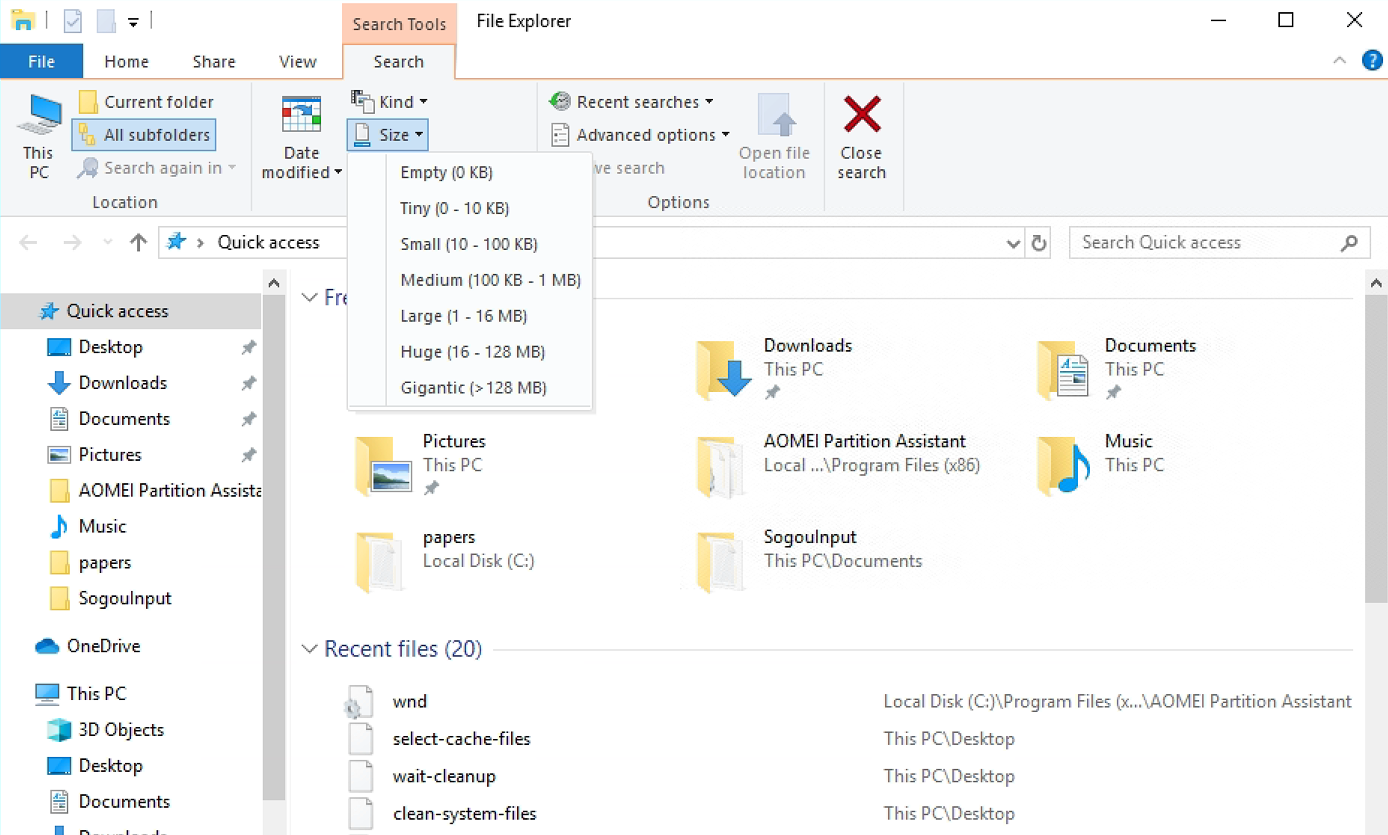
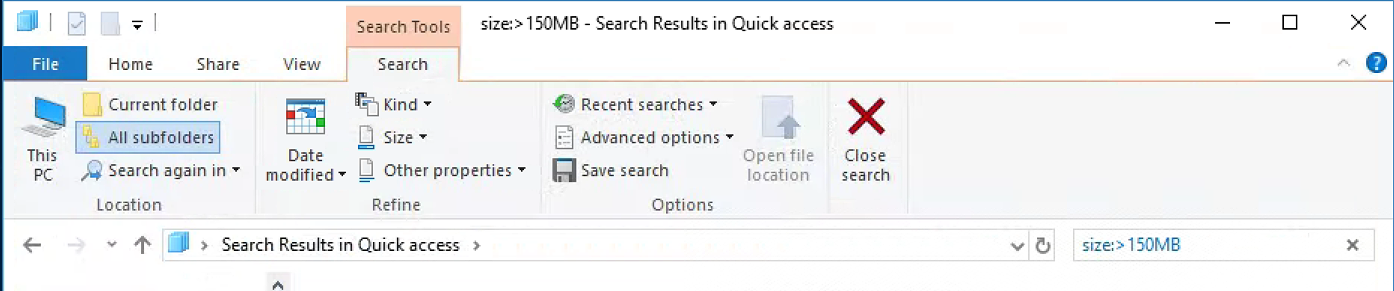
If there are too many files, you can right-click on the files and navigate to size:>xxMB/GB. Click Size and then files will be displayed from large size to small size.
Method 2. Use CMD to find large files
Command Prompt can also help you find large files. But the commands might be a little complex.
Step 1. Press the "Windows + R" keys to open the Run box. Then, type "cmd" into the Run box and hit Enter key to open Command Prompt window.
Step 2. Type: FORFILES /S /M * /C "cmd /c if @fsize GTR 1048576 echo @path
if you want to search for the largest files in a specific drive, for example, C drive, type: cd C:\ press Enter, and type the above command: C:\>forfiles /S /M * /C "cmd /c if @fsize GEQ 1048576 echo @path
You can change the size in the command.
1 KB = 1024 B
1 MB = 1,048,576 B
1 GB = 1,073,741,824 B
CMD can not only filter large files, it can use different command lines to clean junk files in different locations.
Method 3. Use a third-party cleaner to easily find and delete large files
Both the built-in tools can do basic searching for large files on your computer. However, Files Explorer will run quite slowly if you’ve tried to search a file before. All large files will spend a long time. While the CMD, the above command line is only for searching, it can’t execute any deleting operation, you’ll need other orders to deal with large files.
To avoid cumbersome work, here, we recommend you PartitionAssistant Cleanup to help you easily find the large files that spread on your disk and securely delete unnecessary files. This tool is a disk and partition manager for Windows 11/10/8/8.1/7 users to efficiently manage their devices. It has 2 ways to help you clean your PC:
• Clean Junk Files: This feature can scan your computer for garbage files such as temp files, cache files, and so on, and then remove them all with a single click.
• Delete Large Files: After scanning the specified area with this function, the program will show any large files that were not classified as garbage; if you believe some of them are no longer needed, you may tick them and delete them directly.
 PartitionAssistant Cleanup
Free Up Disk Space To Keep Your PC Running Smoothly and Efficiently
We'll demonstrate the "Delete Large Files" feature here; you can learn more about the other two features by visiting the links.
Step 1. Initiate Delete Large Files. Install and launch PartitionAssistant Cleanup. Click the "Delete Large Files" tab.
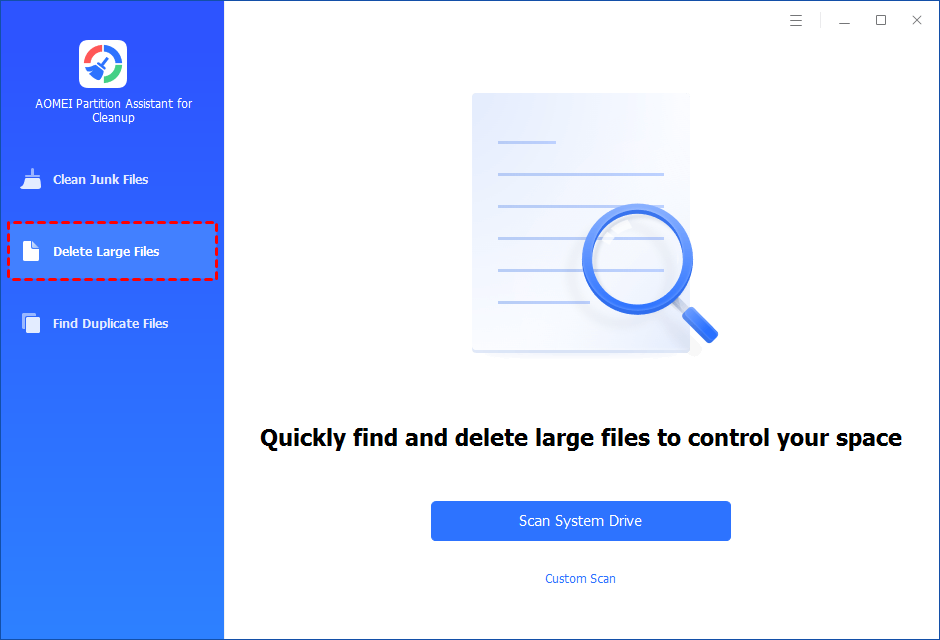
Step 2. Select a path to scan large files. You can either click "Scan System Drive" to start the scan of your system C: drive. Or, click "Custom Scan" to manually select paths to be scanned. (Here, we take the "Custom Scan" as an example.)
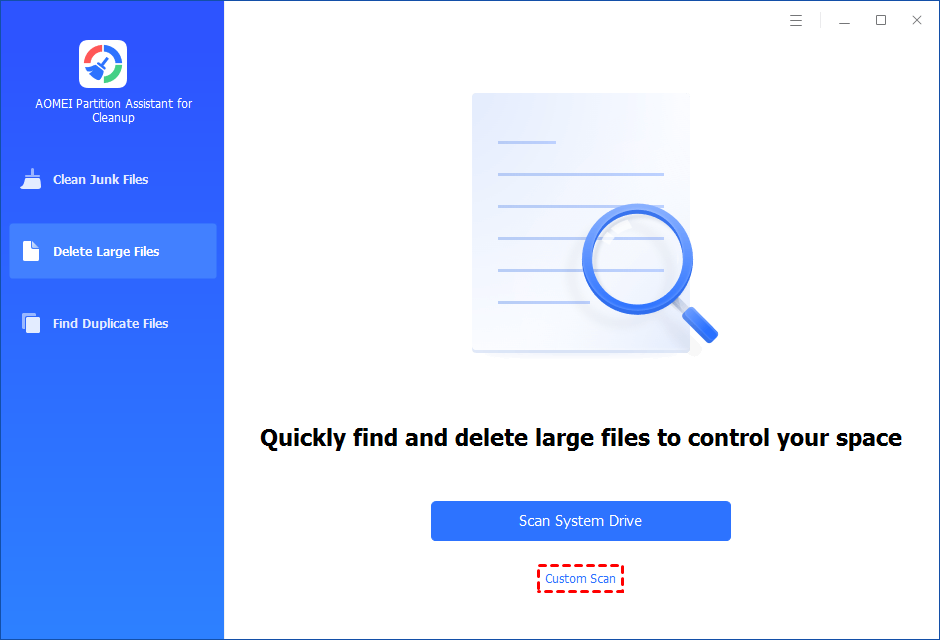
Step 3. After clicking "Custom Scan", all local and external drives on your PC and the common Desktop, Documents, and Downloads paths will be displayed. You can manually select paths to be scanned. Once necessary paths are added, you can click the "Scan Now" button to start the scan process.

Step 4. The scan process might take time. After the scan is complete, all large files found will be listed.
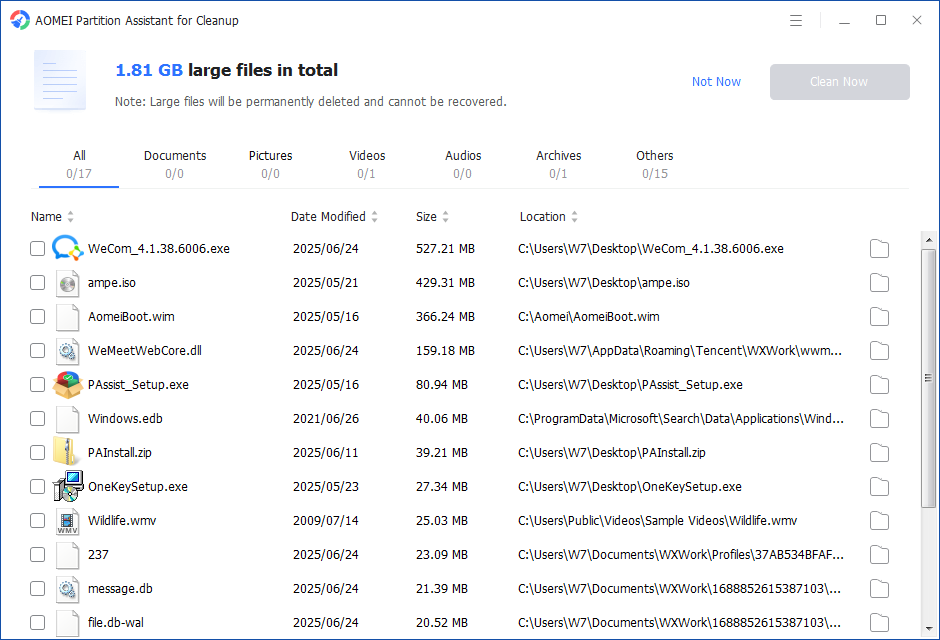
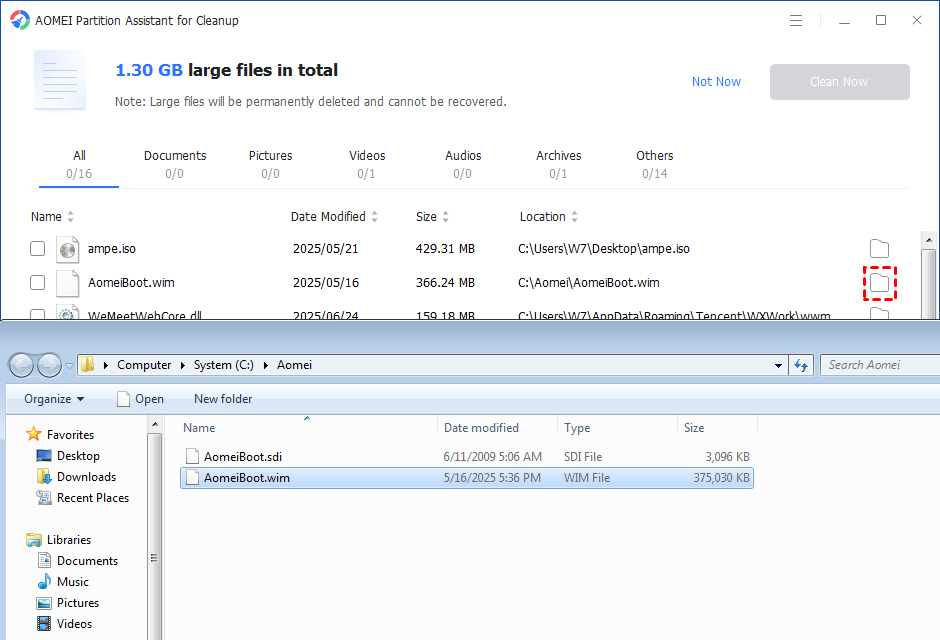
Step 5. You can also check the large files and click the button behind to locate them.
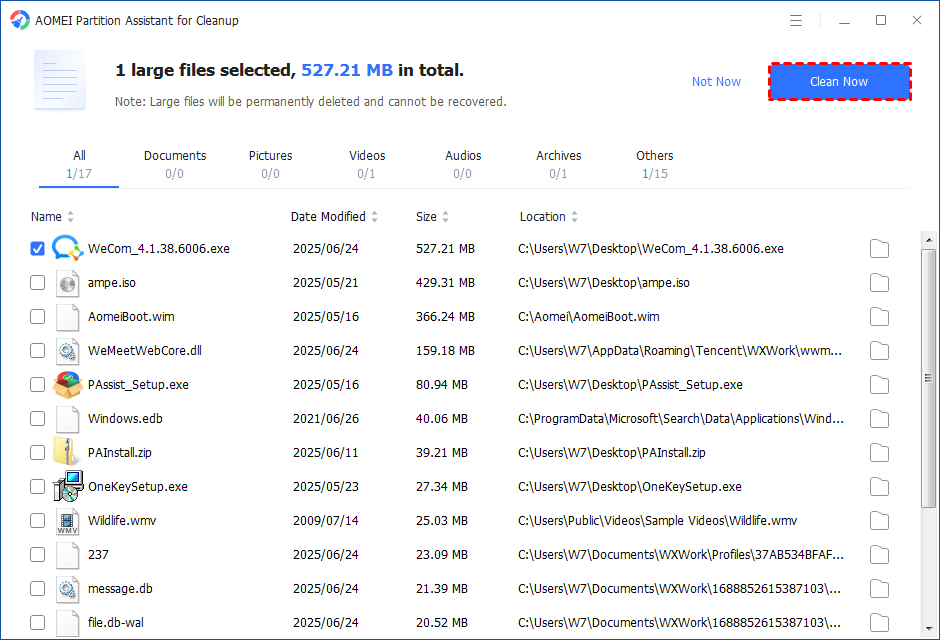
Step 6. Select large files to start deletion. Tick the files you want to delete, and then click the "Clean Now" button to start the deletion.
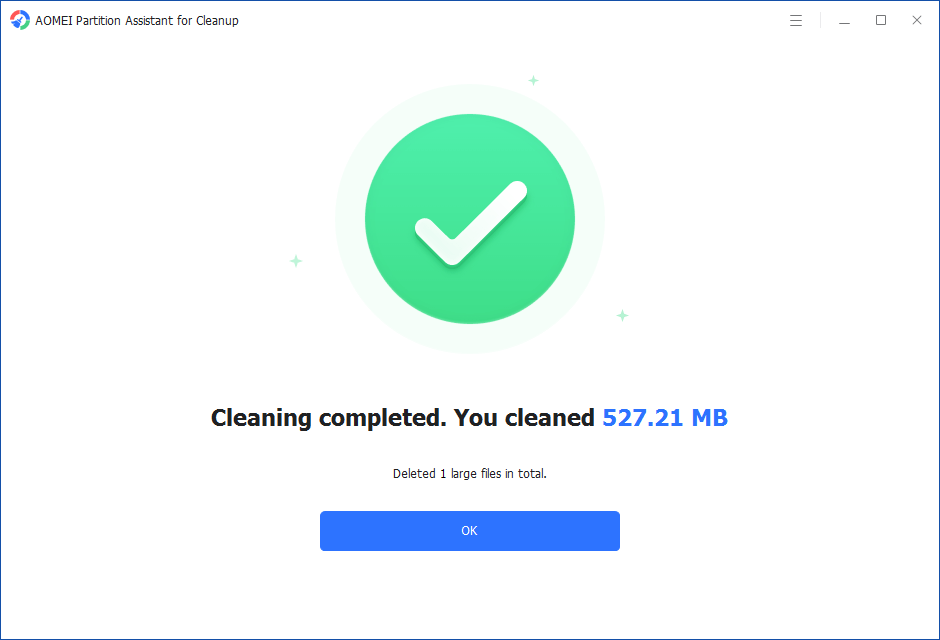
Step 7. Delete successfully. The deletion might take time. After the process is finished, the selected files will be deleted, and you will get a cleaning completed window displaying how much data you deleted in total.
Final words
Now you won’t say you can’t find large files on Windows 10/11. If you find that two Windows tools are not suited for you, you can try PartitionAssistant Cleanup, since it has simple operations and you don’t need to waste much time searching. In addition, this software also supports Windows Server 2025/2022/2019/2016/2012(R2) users.
