


Best Cleaning Software for PC [Free for Windows OS]
Want to get rid of junk items but haven’t decided which software is best for PC cleaning? You come to the right place! This article introduces you the best cleaning software for PC to clean up and speed up your computer.

By Hedy / Updated on March 5, 2026


User case: Which cleaning software is the best?
"I want a cleaning software for PC that can delete EVERY junk item from my PC. Though uninstalled, some files and registry entries of the uninstalled software still remain. I have CCleaner and advanced system optimizer but found that they're incapable of deleting them. So, I want an effective software that can do it all. Please recommend me the best computer cleaner for PC, I don't want to have an software that rather increases my problem."
If you are a long-time Windows user, you might be not strange with the slow performance issues. A bunch of files, whether useful or useless, are piling up on your hard drive day by day, especially when you work overtime on Windows or run several applications at the same time. Then, you will find your PC start to perform abnormally, and sometimes you may end up encountering glitches. This leads you to find the best cleaning software for PC to clear out all the junk files.
Quickly know the necessity of cleaning software for PC
A qualified cleaning program provides deep cleaning services and ensures all privacy-related issues simultaneously. With it, you don’t need to spend time deleting junk files manually or be worried about the wrong deletion of some important files. Most importantly, it gets rid of every junk item in one second. And regular cleaning can make your entire system run more smoothly and keep it running longer.
If you are lucky, you will find a PC cleaner that can also help you in many other aspects. The cleaning software for PC to be explained in the next part is such a versatile disk cleaning tool. Scroll down to know more about it.
What is the best software for cleaning my PC?
PartitionAssistant Cleanup, a professional disk manager for Windows systems, also enjoys a good reputation in cleaning all types of junk files easily and efficiently. Let's have a glimpse at the fantastic features that make this tool outstanding:
-
It's easy to use. With a clean GUI interface, AOMEI software is very friendly to every user. Even if you are not familiar with computers, you can complete the cleaning within several steps.
-
It's 100% free and safe. The "PC cleaner" function won't cost you a penny to remove these useless files, including deleting log files, temp files, cache files, registry files, etc.
-
It's intelligent and brilliant. It scans all your hard drives at one time and lists all the removable junk files, waiting for you to make the last decision to delete the files ultimately.
-
It's versatile and multi-functional. AOMEI Partition Assistant is not just a simple PC cleaner. If you want to make your PC faster, you can also delete large files or remove duplicate files.
Let's see how to use this free PC cleaning software for Windows 10/11/8/7. In the first place, download this software on your computer.
 PartitionAssistant Cleanup
Free Up Disk Space To Keep Your PC Running Smoothly and Efficiently
Tutorial: Clean up junk files with simple steps
Step 1. Install and launch PartitionAssistant Cleanup. Click the "Clean Junk Files" tab.

Step 2. Click the "Scan Now" button to start the process of scanning junk files.

Step 3. After the scan process is finished. All system junk files (including recycle bin files, temporary files, log files, invalid shortcuts, and so on) and registry junk files (including DLL registry, system registry, and program registry) will be displayed.

You can also click the button behind to view the junk files details.

Step 4. And, you can click the button behind to locate the file.

By default, the program will select some junk files to clean up, for example, temporary files, log files, and so on. You can also manually check to select more or uncheck to deselect fewer listed junk files. Or, click "Select All" to select all junk files to clean up if you need to clean up all.
Step 5. After selecting junk files that are not needed anymore, you can click the "Clean Now"button to start the cleanup.

The process of the cleanup might take time, and the selected files will be cleaned up. After the process is finished, you will get a cleanup completed window displaying how many files you have cleaned and not yet cleaned.

Advanced feature: Delete large files to clear PC deeply
Large files and folders are eating up your hard drive space unknowingly. If you hardly use them or no longer need them, it's necessary to delete them in time for more available storage. Here, you can still try PartitionAssistant Cleanup, which allows you to eliminate unneeded files safely and quickly.
Step 1. Install and launch PartitionAssistant Cleanup. Click the "Delete Large Files" tab.
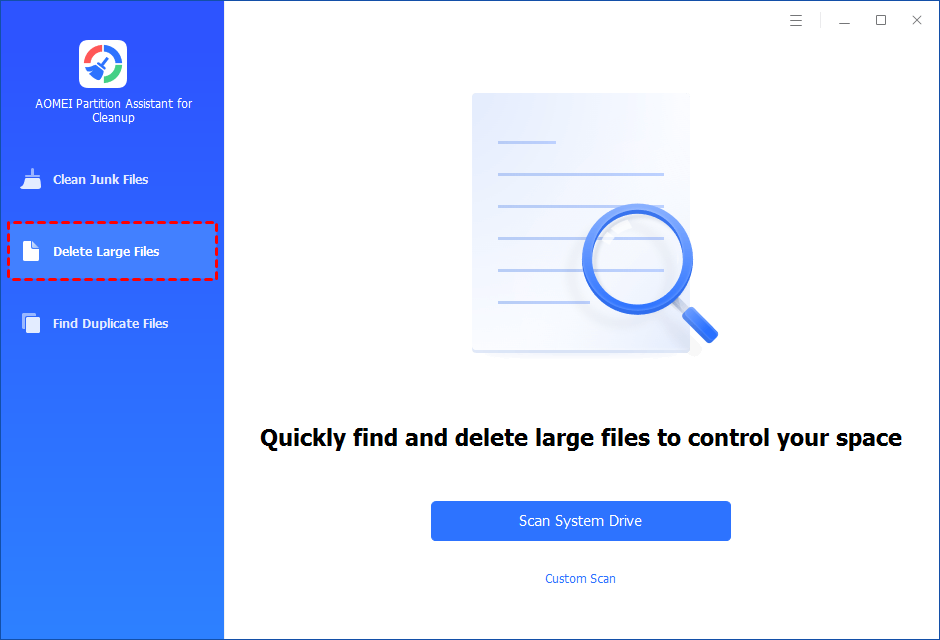
Step 2. You can either click "Scan System Drive" to start the scan of your system C: drive. Or, click "Custom Scan" to manually select paths to be scanned. (Here, we take the "Custom Scan" as an example.)
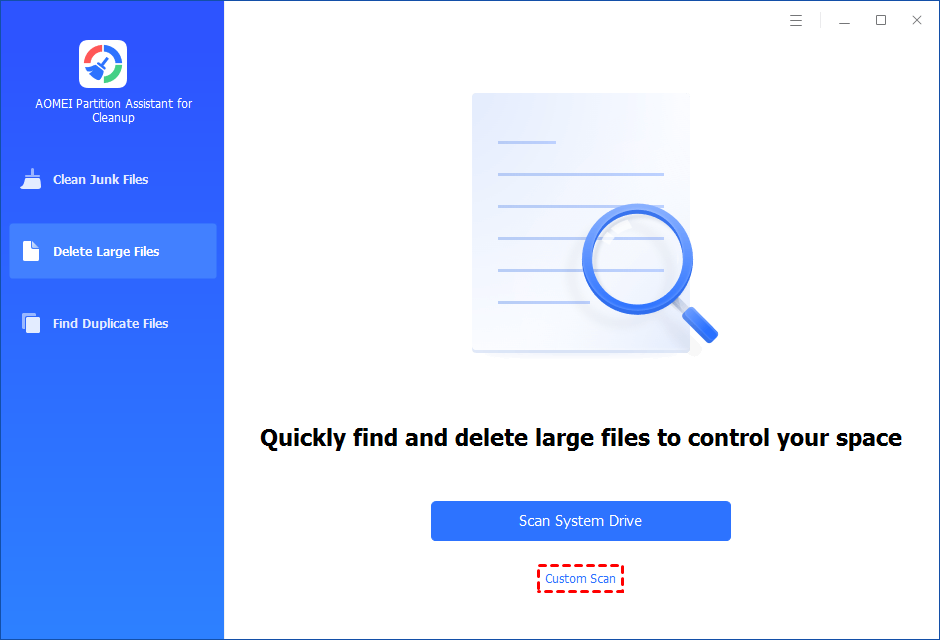
Step 3. After clicking "Custom Scan", all local and external drives on your PC and the common Desktop, Documents, and Downloads paths will be displayed. You can manually select paths to be scanned. Once necessary paths are added, you can click the "Scan Now" button to start the scan process.

The scan process might take time. After the scan is complete, all large files found will be listed.
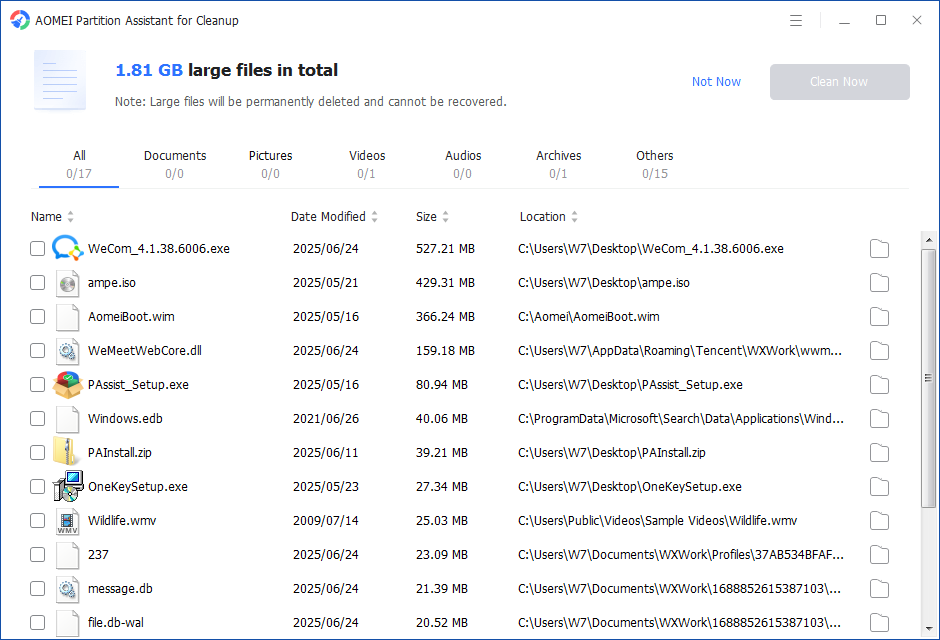
You can also check the large files and click the button behind to locate them.
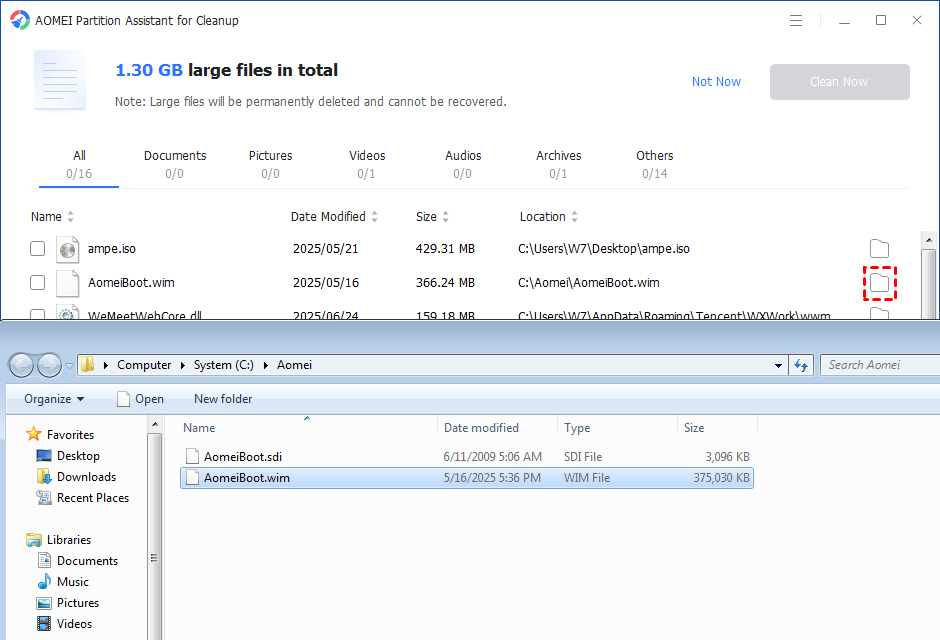
Step 4. Tick the files you want to delete, and then click the "Clean Now" button to start the deletion.
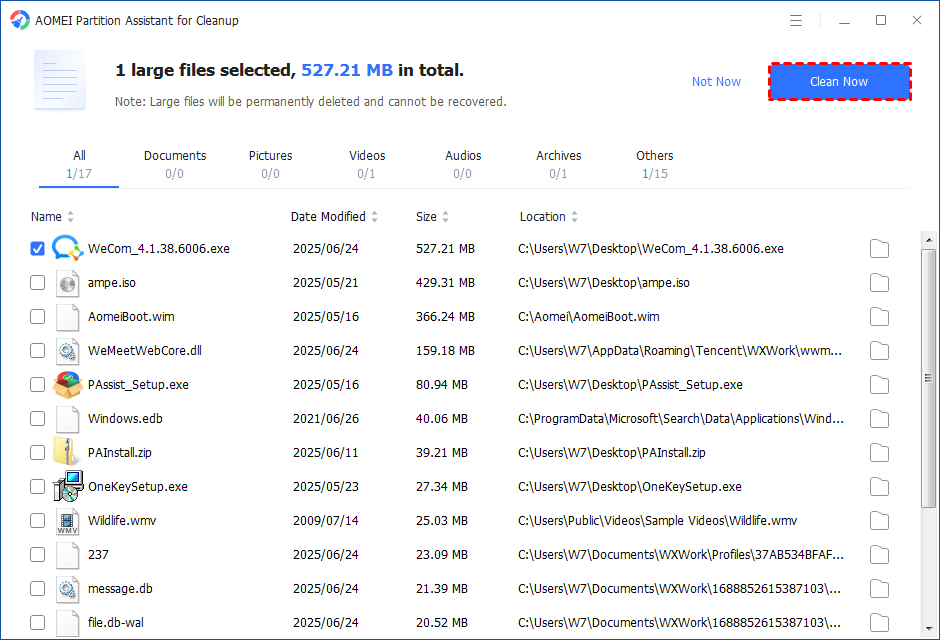
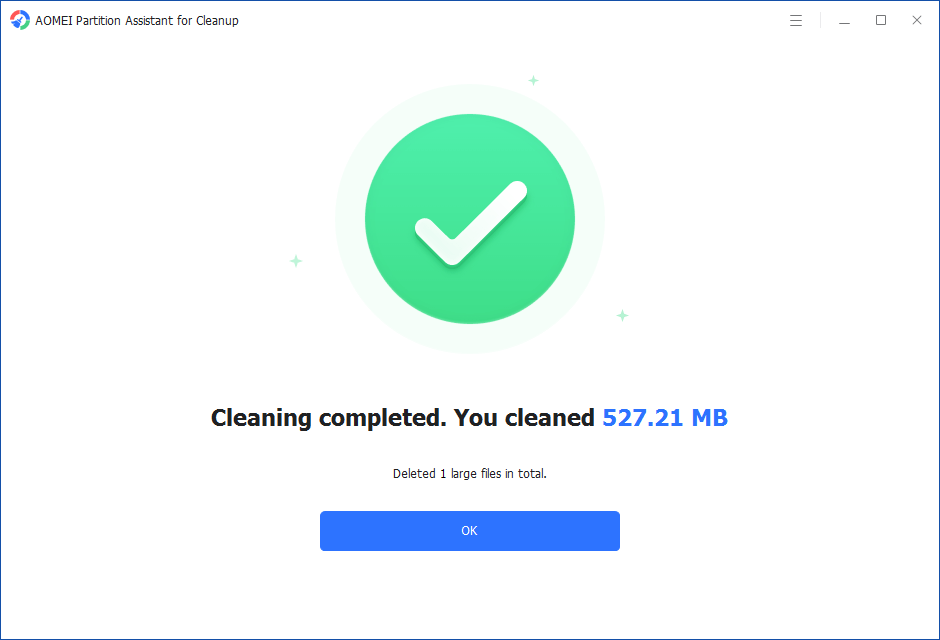
Step 5. The deletion might take time. After the process is finished, the selected files will be deleted, and you will get a cleaning completed window displaying how much data you deleted in total.
Conclusion
Which is the best cleaning software for PC? PartitionAssistant Cleanup must be on the top list. With this free yet powerful PC cleaner, you can always keep your computer away from the interruption of C drive full or system stuck issues.
