


[Full Guide] How Does Windows Manage Computer Resources?
If you want to know how does Windows manage computer resources, this passage will explain it. It will also share how to effectively perform Windows storage management.

By Irene / Updated on July 30, 2025


How does Windows manage computer resources?
Windows manages computer resources by controlling how the system’s hardware like the CPU, memory, and input/output devices is shared among all the programs running on the computer. Since these resources are limited, the operating system makes sure they are used efficiently and fairly.
Many programs may run at the same time and need the same resources. Windows decides which program gets which resource and when. This helps the system run smoothly and avoids problems like freezing or crashing.
Some resource management includes:
-
Resource Allocation: This means giving available resources, such as CPU time, memory, or disk space, to the programs that need them.
-
Process: A process is a program that is actively running and needs resources to complete its tasks.
-
Scheduling: Windows schedules which process gets access to a resource at each moment.
-
Deadlock: A deadlock happens when programs are stuck waiting for each other's resources. Windows works to avoid this situation.
-
Semaphore and Mutual Exclusion: These tools help control access when multiple programs try to use the same resource at once.
-
Memory Management: Windows manages RAM and moves data between memory and disk so programs can run properly. To increase RAM, here is a guide.
-
Storage Management: Windows organizes files and disk space, making sure there is enough room for programs and data. It tracks free and used space and helps avoid system slowdowns due to low storage.
To help manage storage more effectively, some esstential tools can be used. It allows users to resize, move, merge, or split disk partitions to optimize space. It also helps create or format partitions, align them for better performance, and convert disk types. This improves how Windows uses storage and ensures important resources have enough space to function properly.
Use the best Windows disc manager for resource management
PartitionAssistant Cleanup helps manage storage on a Windows computer by giving users control over how disk space is divided and used. It focuses on clearing out unnecessary files that take up valuable space in Windows.
 PartitionAssistant Cleanup
The Best Windows Disk Partition Manager and PC Optimizer
It offers three helpful cleanup functions:
Option 2. Find Duplicate Files: Over time, your computer may collect many copies of the same files. This tool finds and lists duplicate files so you can remove them and save storage without deleting anything important.
Option 3. Delete Large Files: This feature scans your drive for very large files that you might not need anymore. It helps you review and delete them to make room for new programs or updates.
These cleanup tools are simple to use and don’t require advanced technical knowledge. By regularly cleaning your computer with AOMEI Partition Assistant, you can avoid low disk space issues, speed up your system, and ensure Windows has enough free storage to run smoothly.
Option 1. Clean junk files
Many junk files are hidden deep within the system, and built-in Windows tools often miss them. Items like broken registry entries, leftover shortcuts, and old update files can be difficult to find and delete manually. That’s why using a reliable cleanup tool like PartitionAssistant Cleanup is a smart choice.
It can thoroughly scan your hard drive, detect various types of junk files, and safely remove them in just a few clicks. It supports all versions of Windows 11, 10, 8, 7, as well as Windows Server systems, and works well on major brands like Dell, HP, and Lenovo. You can easily download AOMEI Partition Assistant and follow the steps to clear out junk files from your PC.
PartitionAssistant CleanupThe Best Windows Disk Partition Manager and PC Optimizer
Step 1. Install and launch PartitionAssistant Cleanup. Click the "Clean Junk Files" tab.

Step 2. Click the "Scan Now" button to start the process of scanning junk files.

Step 3. After the scan process is finished. All system junk files (including recycle bin files, temporary files, log files, invalid shortcuts, and so on) and registry junk files (including DLL registry, system registry, and program registry) will be displayed.

Step 4. You can also click the button behind to view the junk files details.

Step 5. And, you can click the button behind to locate the file.

Step 6. By default, the program will select some junk files to clean up, for example, temporary files, log files, and so on. You can also manually check to select more or uncheck to deselect fewer listed junk files. Or, click "Select All" to select all junk files to clean up if you need to clean up all.
After selecting junk files that are not needed anymore, you can click the "Clean Now"button to start the cleanup.

Step 7. The process of the cleanup might take time, and the selected files will be cleaned up. After the process is finished, you will get a cleanup completed window displaying how many files you have cleaned and not yet cleaned.

Option 2. Find duplicate files
As time goes on, your computer may build up duplicate files from repeated downloads, copies, or saving the same file in multiple locations. These unnecessary files take up valuable space. PartitionAssistant Cleanup makes it easy to find and remove them, helping you free up storage.
PartitionAssistant CleanupThe Best Windows Disk Partition Manager and PC Optimizer
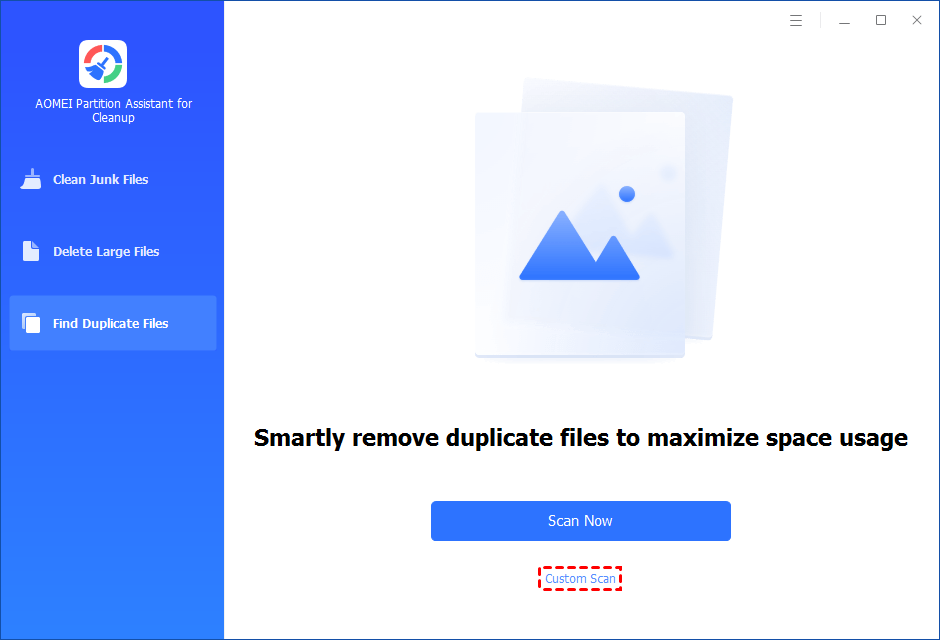
Step 1. Install and launch PartitionAssistant Cleanup. Click the "Find Duplicate Files" tab. You can either click "Scan Now" to start the scan of your system C: drive. Or, click "Custom Scan" to manually select paths to be scanned. (Here, we take the "Custom Scan" as an example.)
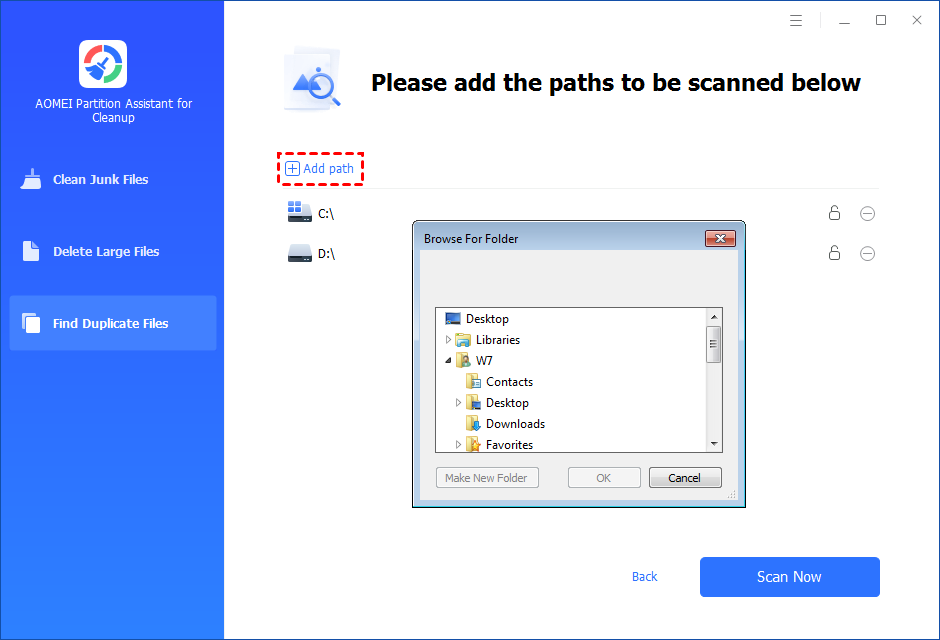
Step 2. After clicking "Custom Scan", all local and external drives on your PC will be displayed. You can also click the "Add Path" button, and then a browse folder window will pop up. So you can add more paths on this PC, like Desktop, Downloads, and other folder paths.
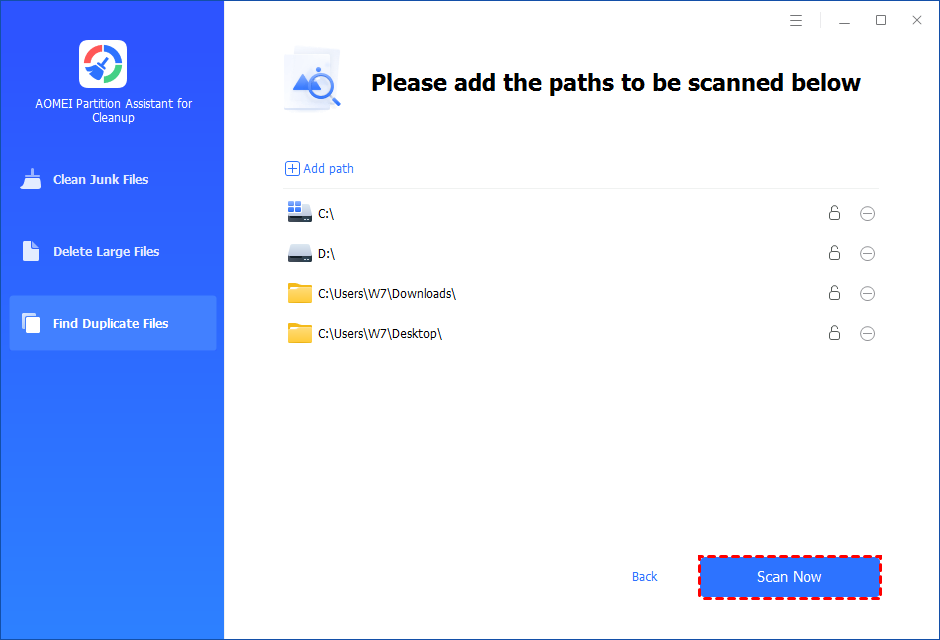
Step 3. Once necessary paths are added, you can click the "Scan Now" button to start the scan process.
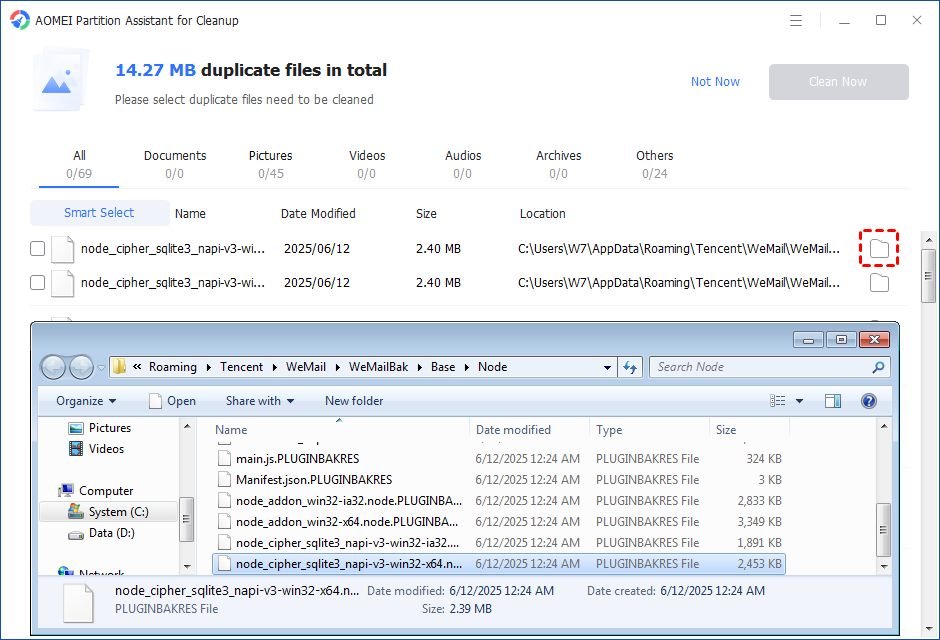
Step 4. The scan process might take time. After the scan is complete, all duplicate files will be listed. You can click the button behind to locate them.
Step 5. You can either manually select duplicate files, or click the "Smart Select" button to automatically select unnecessary duplicate files to delete.
Tips: If the "Smart Select" is ticked, only the oldest duplicate file will be unticked. It means that all duplicate files except the oldest one will be ticked to delete. (The oldest file means the file that was created first. This file will not be deleted. All other duplicate files are conside red copies of the oldest file. )
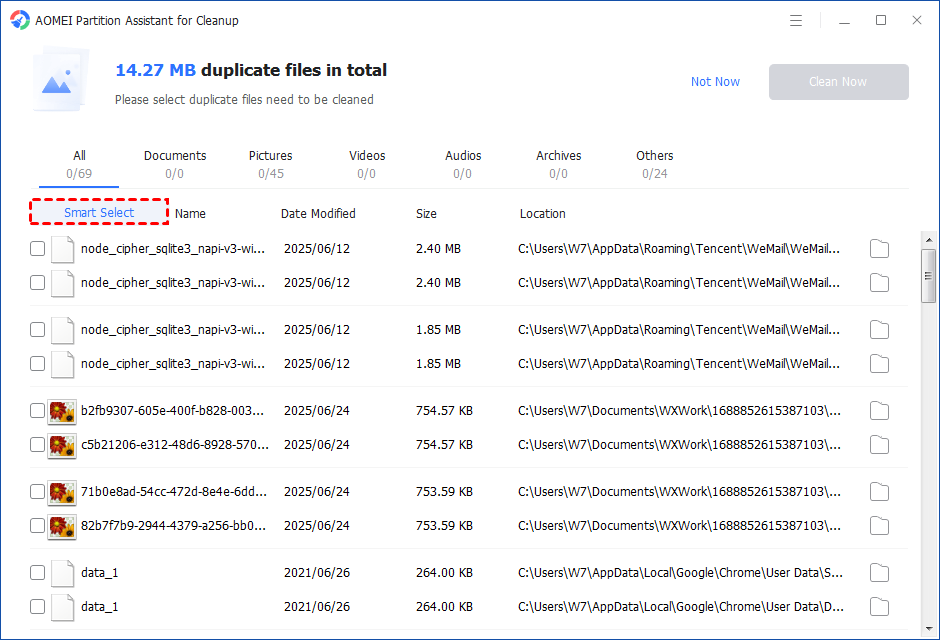
If you manually select all copies of duplicate files, you will get a pop-up warning window to keep at least one copy of the duplicate files. If you indeed want to delete all copies of duplicate files, you can click "OK" so all copies of duplicate files will be selected to delete.

After unnecessary duplicate files are selected, please click the "Clean Now" button to start the deletion.

Step 6. The deletion might take time. After the process is finished, the selected files will be deleted, and you will get a cleaning completed window displaying how much data you deleted in total.

Option 3. Delete large files
PartitionAssistant Cleanup includes a dedicated feature to detect and delete large files easily. It scans your system, lists the biggest files taking up space, and lets you review and remove the ones you no longer need, just with a few clicks.
By clearing out unnecessary large files, AOMEI helps free up valuable storage, making more resources available for Windows to run smoothly and efficiently.
PartitionAssistant CleanupThe Best Windows Disk Partition Manager and PC Optimizer
Step 1. Install and launch PartitionAssistant Cleanup. Click the "Delete Large Files" tab.
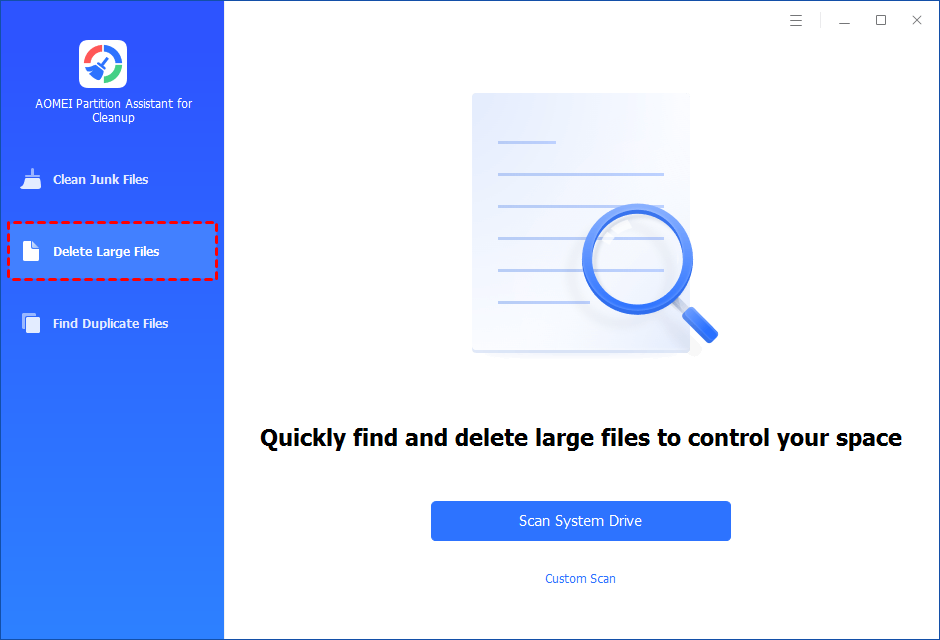
Step 2. You can either click "Scan System Drive" to start the scan of your system C: drive. Or, click "Custom Scan" to manually select paths to be scanned. (Here, we take the "Custom Scan" as an example.)
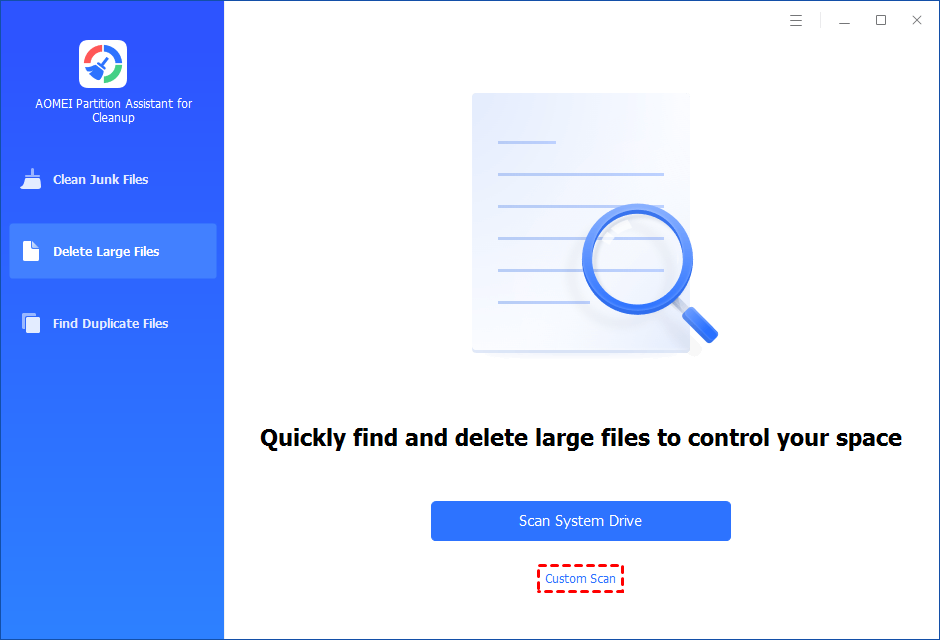
Step 3. After clicking "Custom Scan", all local and external drives on your PC and the common Desktop, Documents, and Downloads paths will be displayed. You can manually select paths to be scanned. Once necessary paths are added, you can click the "Scan Now" button to start the scan process.

Step 4. The scan process might take time. After the scan is complete, all large files found will be listed.
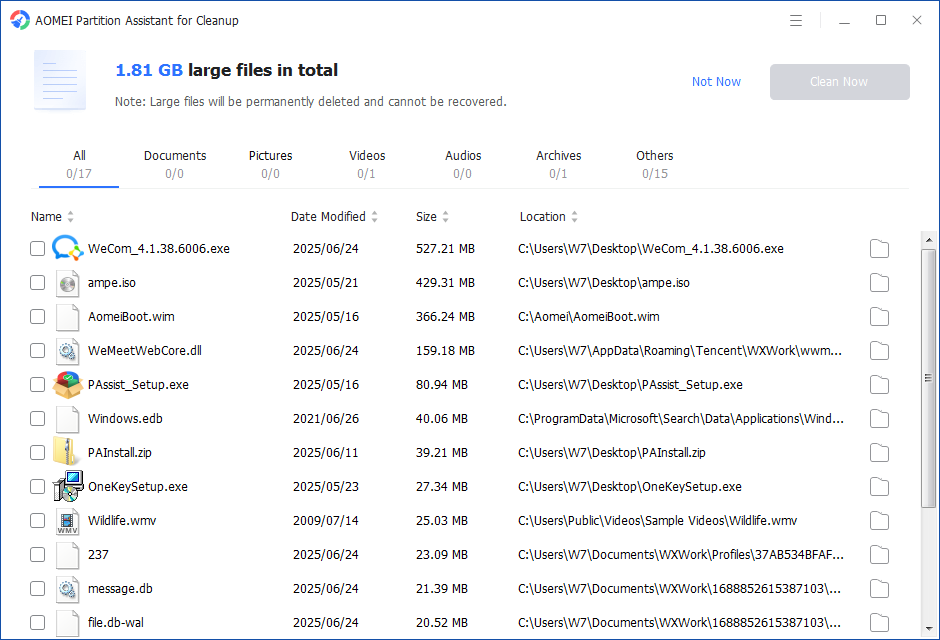
Step 5. You can also check the large files and click the button behind to locate them.
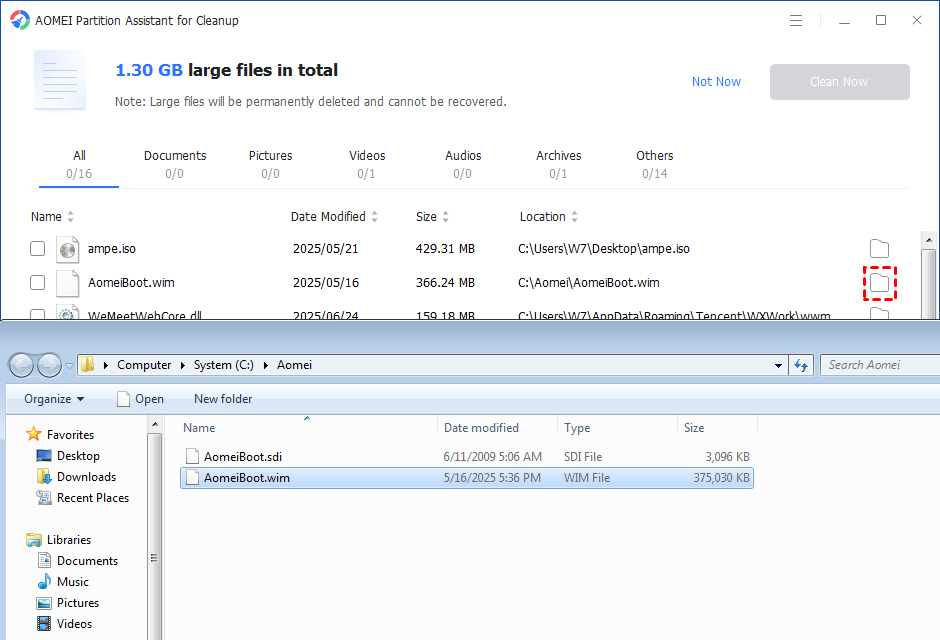
Step 6. Tick the files you want to delete, and then click the "Clean Now" button to start the deletion.
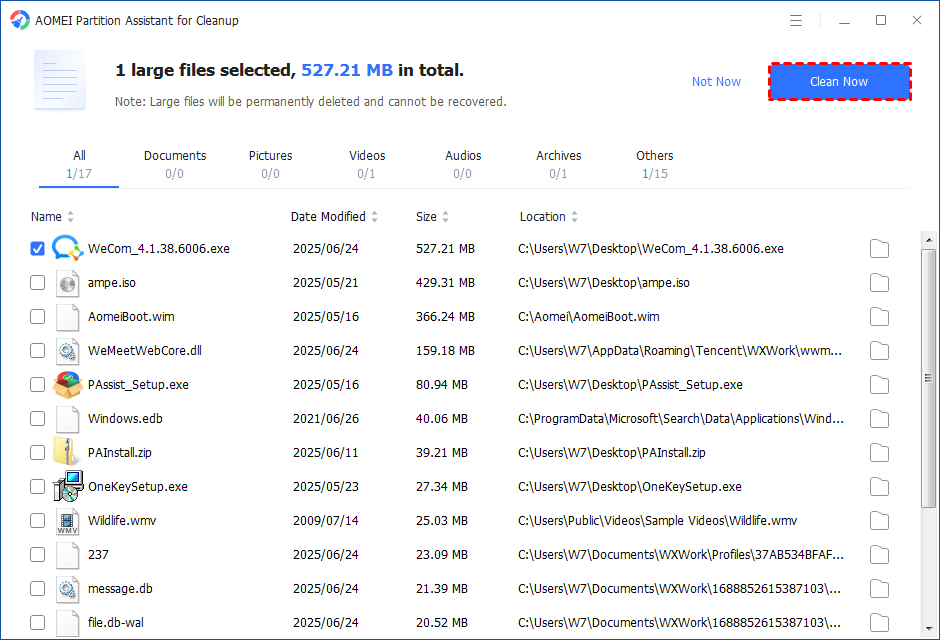
Step 7. The deletion might take time. After the process is finished, the selected files will be deleted, and you will get a cleaning completed window displaying how much data you deleted in total.
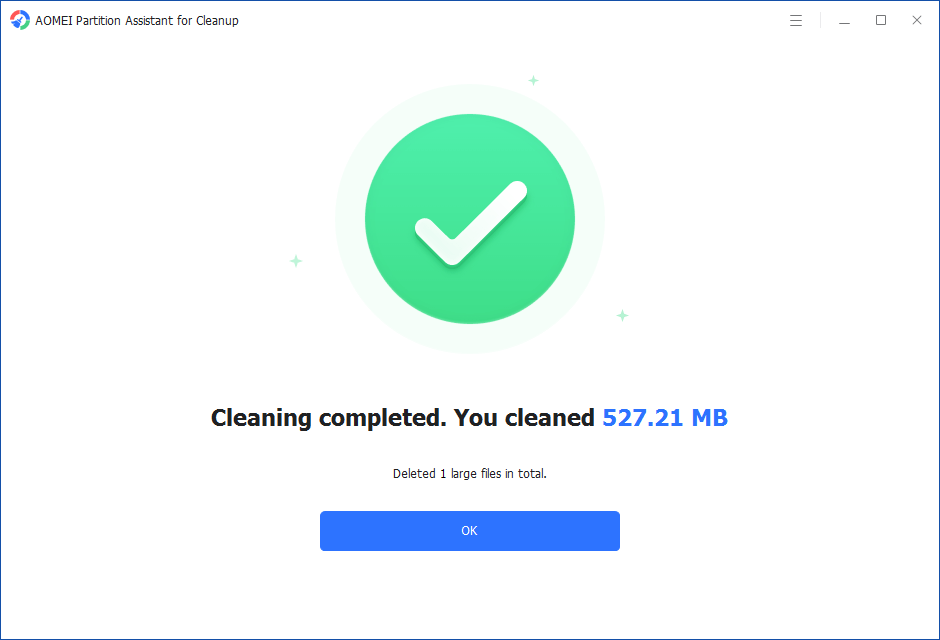
Step 5. Just for a while, the large files will be deleted successfully, and then you will see a warm notification suggesting you clean up your PC regularly.
Conclusion
Managing computer resources is essential to keeping Windows running smoothly. While Windows does a good job handling CPU, memory, and storage, extra help is often needed, especially for cleaning up unnecessary files that waste space. PartitionAssistant Cleanup is a user-friendly tool that helps you free up storage by finding and deleting junk files, duplicate files, and large files. With just a few clicks, you can clear out what you don’t need, improve system performance, and make sure your computer has enough resources to work efficiently. If you want to better use Windows resources, you also choose to improve your RAM or SSD.
