


Windows 11 Hibernation File Huge! How to Clear It to Free Up Space?
This guide explains why the Windows 11 hibernation file is huge and how to free up space. Learn if you can delete, clear, or remove the hibernation file safely in Windows 11.

By Irene / Updated on September 18, 2025


User case: Windows 11 hibernation file is huge!
The hibernation file is huge and it taking 818GB of my 1TB disk. I have tried to disable it or reduce the size from command prompt and from regedit, but it doesn't seem to do anything. When I try to change the size I get the message: "A device attached to the system is not functioning.". Any suggestions are appreciated.
- Question from Reddit
The hibernation file is a system file that Windows creates when your computer enters hibernation mode. Unlike sleep mode which only saves data in RAM, hibernation saves your entire session including programs, files, and folders onto the hard drive. This allows you to turn off your computer and return later to the exact same state.
The problem is that the hibernation file can become very large and take up a lot of space on the C drive. Since it stores everything in your RAM, the more RAM you have, the bigger the file will be. Many users try to delete it when they face a full C drive or low disk space, but if you remove it directly Windows will recreate it again.
The safe way to remove it is by disabling hibernation. You can do this by opening Command Prompt as an administrator, typing powercfg /hibernate off, and pressing Enter. This will free up valuable disk space and will not affect other system functions. If you want to enable hibernation later, you can enter powercfg /hibernate on.
For users who are not familiar with system commands or prefer a simpler method, it is better to use a professional cleaning tool such as PartitionAssistant Cleanup. This tool can help you disable hibernation and remove large system files safely. It also provides advanced cleanup and disk management features that make it easier to free up space and keep your computer running smoothly.
How to clear massive hibernation file in Windows 11?
If the hibernation file in Windows 11 takes up too much space, a professional tool can make the cleanup process much easier. We recommend using PartitionAssistant Cleanup, a reliable disk and partition manager for Windows 11, 10, 8, and 7. It provides several features that help you free up disk space quickly and safely.
With its Clean Junk Files function, the tool scans your drives for unnecessary junk and lets you choose what to delete. The Delete Large Files feature helps you locate big files across your computer so you can remove them without searching folder by folder. The Find Duplicate Files option makes it simple to get rid of repeated files and maximize space usage.
In addition to these, PartitionAssistant Cleanup also offers powerful features designed for deeper cleanup. The PC Cleaner removes hidden junk files, the Delete Large File function filters out files larger than 16 MB.
Instead of manually deleting the hibernation file, using PartitionAssistant Cleanup gives you a safer and more efficient way to clear space and keep your Windows 11 computer running smoothly.
 PartitionAssistant Cleanup
Free Up Disk Space To Keep Your PC Running Smoothly and Efficiently
Option 1. Easily clean PC
Step 1. Install and launch PartitionAssistant Cleanup. Click the "Clean Junk Files" tab.

Step 2. Click the "Scan Now" button to start the process of scanning junk files.

Step 3. After the scan process is finished. All system junk files (including recycle bin files, temporary files, log files, invalid shortcuts, and so on) and registry junk files (including DLL registry, system registry, and program registry) will be displayed.

Step 4. You can also click the button behind to view the junk files details.

Step 5. And, you can click the button behind to locate the file.

Step 6. By default, the program will select some junk files to clean up, for example, temporary files, log files, and so on. You can also manually check to select more or uncheck to deselect fewer listed junk files. Or, click "Select All" to select all junk files to clean up if you need to clean up all.
After selecting junk files that are not needed anymore, you can click the "Clean Now"button to start the cleanup.

Step 7. The process of the cleanup might take time, and the selected files will be cleaned up. After the process is finished, you will get a cleanup completed window displaying how many files you have cleaned and not yet cleaned.

Option 2. Delete large files
Step 1. Install and launch PartitionAssistant Cleanup. Click the "Delete Large Files" tab.
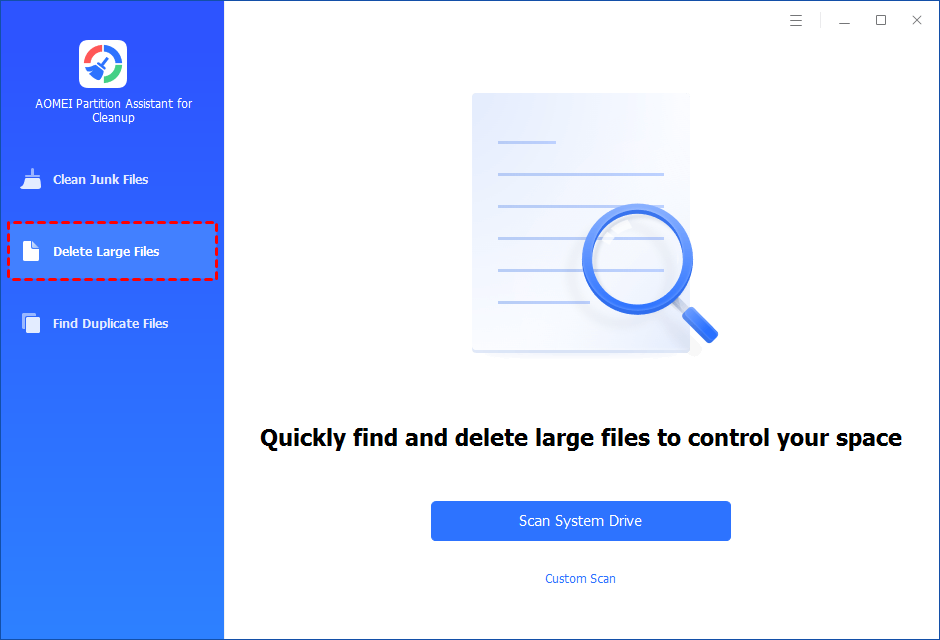
Step 2. You can either click "Scan System Drive" to start the scan of your system C: drive. Or, click "Custom Scan" to manually select paths to be scanned. (Here, we take the "Custom Scan" as an example.)
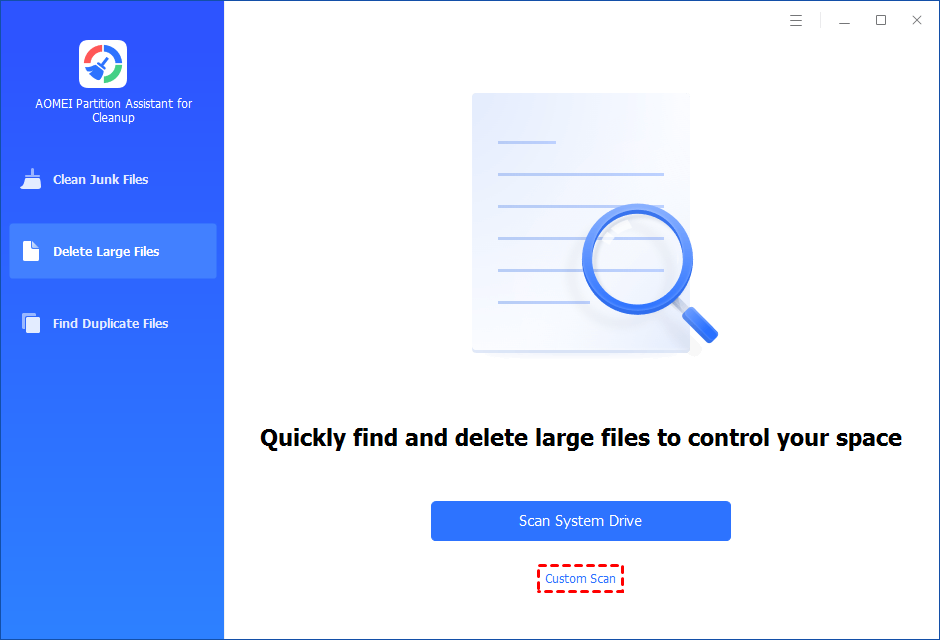
Step 3. After clicking "Custom Scan", all local and external drives on your PC and the common Desktop, Documents, and Downloads paths will be displayed. You can manually select paths to be scanned. Once necessary paths are added, you can click the "Scan Now" button to start the scan process.

Step 4. The scan process might take time. After the scan is complete, all large files found will be listed.
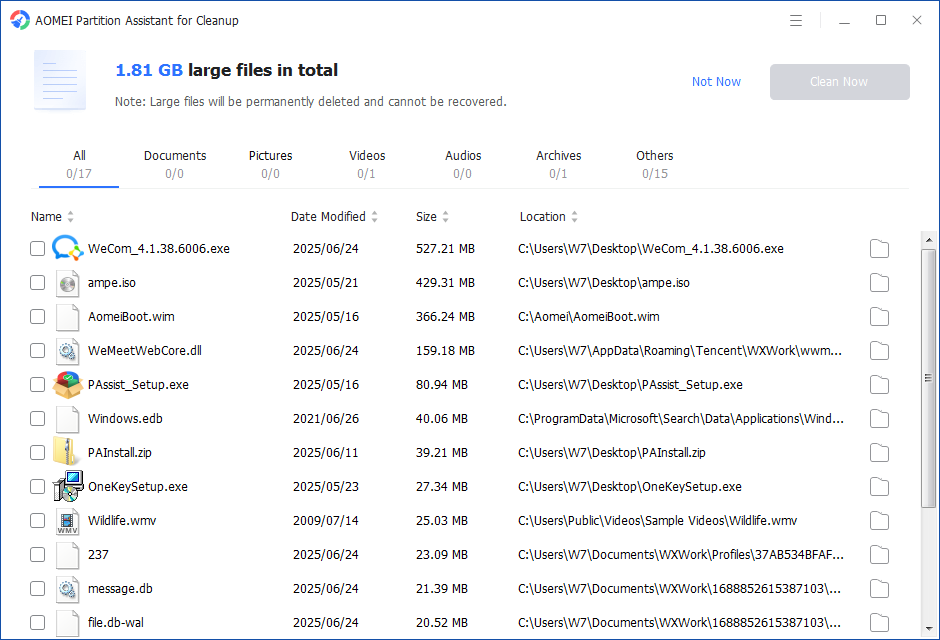
Step 5. You can also check the large files and click the button behind to locate them.
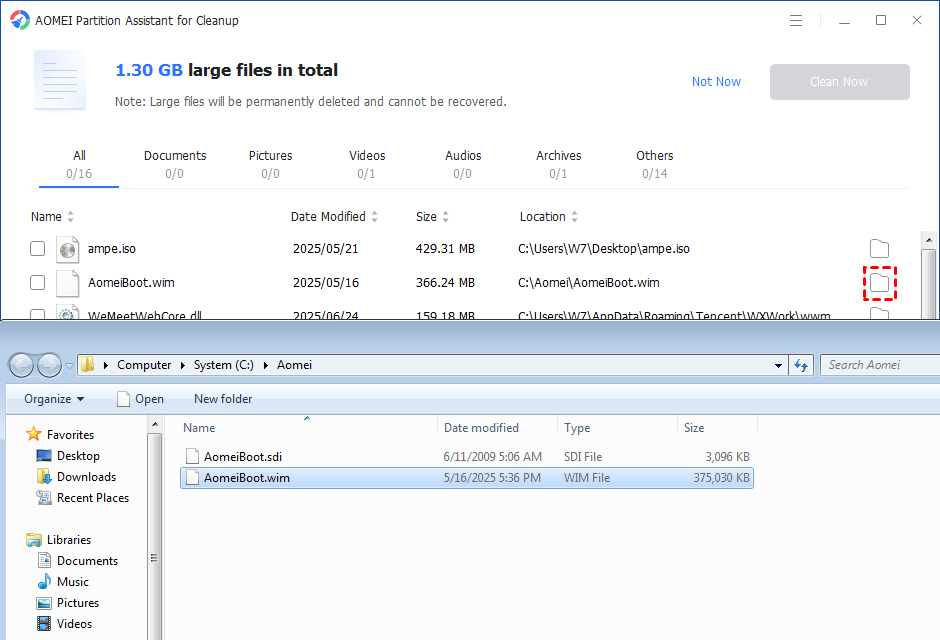
Step 6. Tick the files you want to delete, and then click the "Clean Now" button to start the deletion.
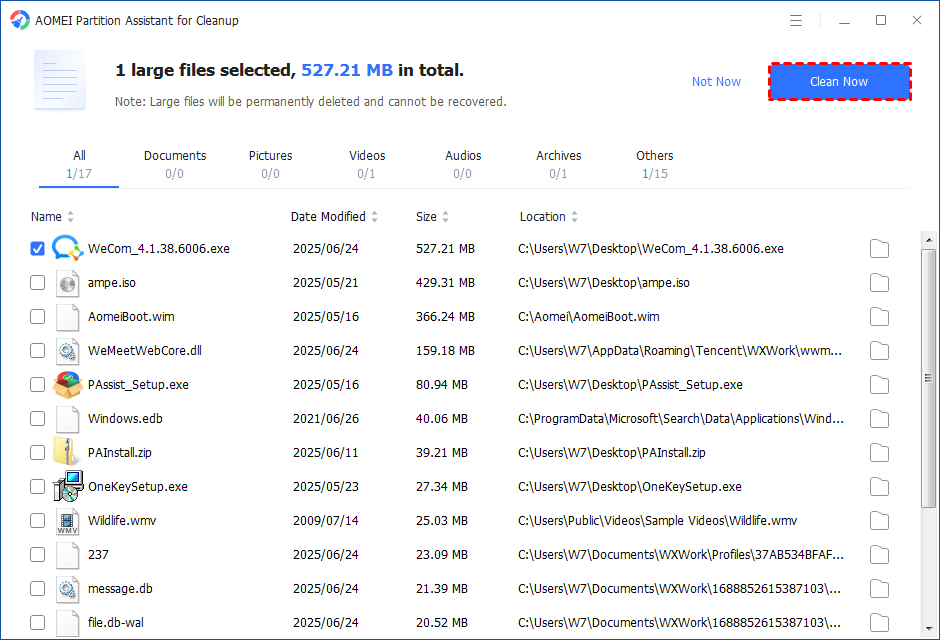
Step 7. The deletion might take time. After the process is finished, the selected files will be deleted, and you will get a cleaning completed window displaying how much data you deleted in total.
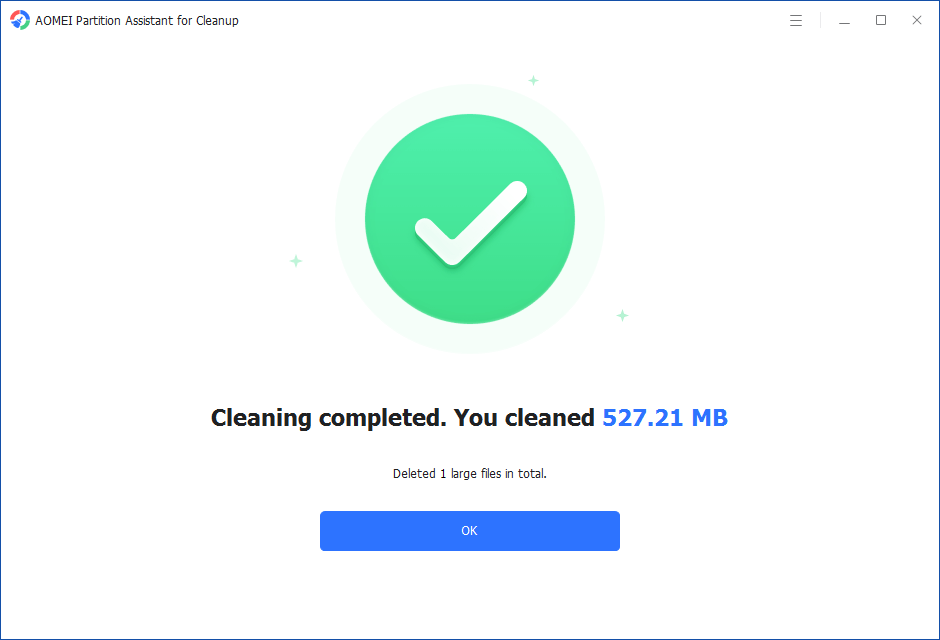
Step 5. Just for a while, the large files will be deleted successfully, and then you will see a warm notification suggesting you clean up your PC regularly.
Further tip: How to disable hibernate in Windows 11?
To disable hibernation in Windows 11, follow these steps:
Step 1. Press Windows key + X and select Command Prompt (Admin) or Windows PowerShell (Admin).
Step 2. In the command prompt window, type the following command and press Enter:
powercfg.exe / hibernate off
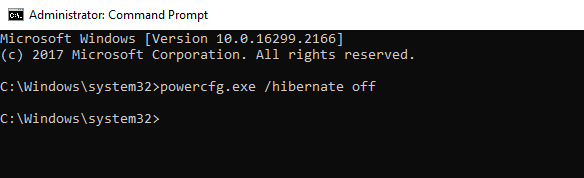
Step 3. Once hibernation is disabled, the hiberfil.sys file (which is used for hibernation) should be deleted automatically. You can verify this by navigating to your *C:* drive and checking if the file is gone.
Optional: How to disable fast startup in Windows 10
Sometimes, disabling Fast Startup can help improve system performance. To do this:
Step 1. Go to Control Panel > Power Options > Choose what the power buttons do.
Step 2. Click on Change settings that are currently unavailable.
Step 3. Uncheck Turn on fast startup (recommended).
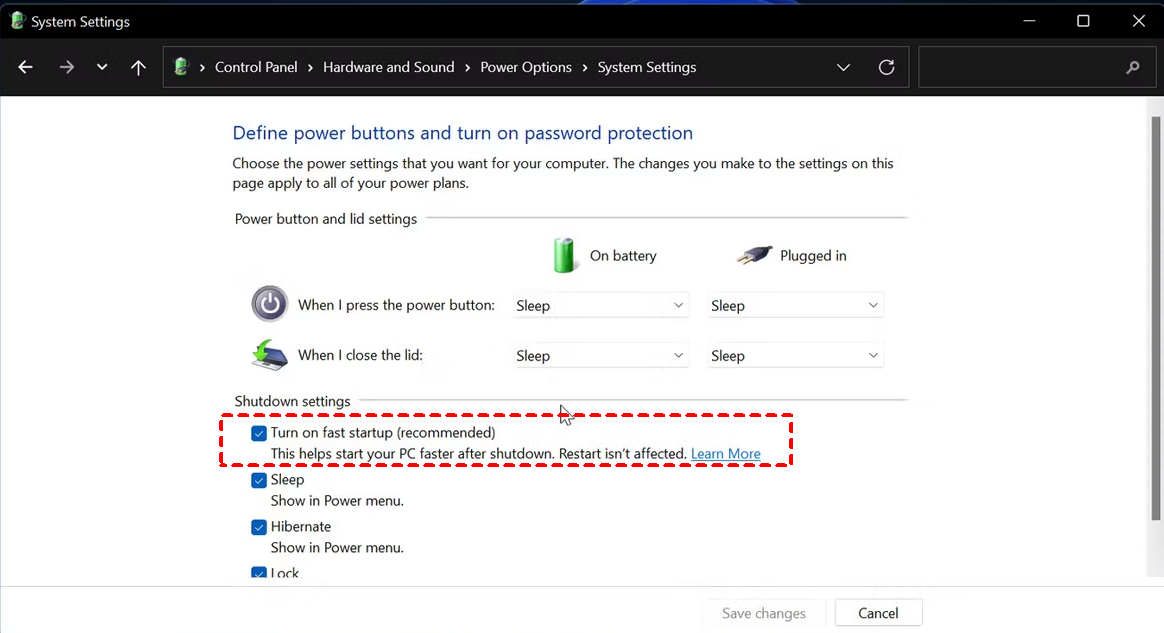
Step 4. Click Save changes.
Conclusion
When the hibernation file in Windows 11 becomes extremely huge, it can waste valuable storage space and slow down your system. Disabling hibernation through Command Prompt can solve the problem, but for many users, a professional tool like PartitionAssistant Cleanup is a safer and easier choice. It not only helps remove the massive hibernation file but also offers powerful cleanup features such as deleting junk files, removing large files, and finding duplicates. With this tool, you can free up disk space more effectively and keep your Windows 11 computer running smoothly.
PartitionAssistant CleanupFree Up Disk Space To Keep Your PC Running Smoothly and Efficiently
