
 AOMEI Partition Assistant
How to Fix the “CS Go VAC Was Unable to Verify Your Game Session” Error
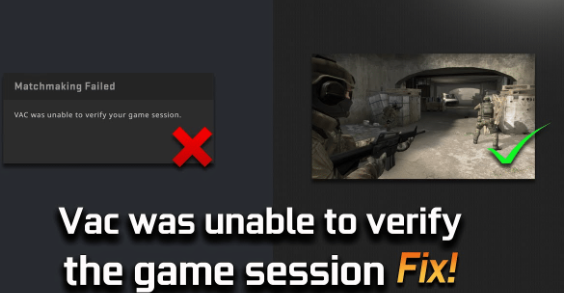
Recently, when some players start the game, they receive the error message "VAC was unable to verify your session." If you are having a problem and are unclear on how to address it, this article will help you.

By Lucas / Updated on December 11, 2024


What does the "VAC Unable to Verify Game Session" Error Mean?
To understand what this error message means, you must first understand how VAC works. VAC, often known as Valve's Anti-Cheat, is a software tool developed by Valve, the same company that owns several famous Steam games such as Counter-Strike and Day of Defeat. This program integrates with Steam and detects users who try to enter a gaming session with hack or cheat software activated.
Not only does it identify an unauthorized software or script running alongside the game, but it also identifies any changes to the game files. When the program identifies unfair play, it instantly bans the user.
In light of this, the error message "VAC was unable to verify your game session" indicates that VAC, an anti-cheat program, was unable to verify your game session due to some tampering in your game files or the detection of a third-party program or script that attempted to alter game processing. Did you run a software that caused this problem or make unauthorized modifications to the game files when it occurred? If so, ensure that VAC has not blacklisted you.
About reasons, this occurs when the Valve Anti-Cheat (VAC) system is unable to authenticate a player's gaming session, leading to restrictions or outright bans from certain game servers.
Causes of the Error:
-
Network Connectivity Issues: Poor internet connection or network disruptions can prevent VAC from verifying your game session, triggering this error.
-
Corrupted Game Files: Damaged or corrupted game files within your Steam library can interfere with the VAC authentication process, resulting in the error message.
Perform some preliminary checks
If you haven't already, run some preliminary checks. Leave your gaming session, restart it, and try again with matchmaking. Re-launch the Steam client.
After logging out, re-enter Steam. Restart your Windows machine. Disable Windows Defender or any other antivirus program you use, and then enable the Steam client and directory folders.
If you've been using a VPN, it's time to disconnect. If none of these methods work, it's time to find another simple solution.
How to fix CS Go VAC Was Unable to Verify Your Game Session
1. Checking Network Connectivity:
Ensure a stable internet connection to prevent connectivity issues:
-
Restart Your Router: Power cycle your router by unplugging it, waiting for a few seconds, and then plugging it back in. This can resolve temporary network glitches.
-
Connect via Ethernet: If possible, use a wired Ethernet connection instead of Wi-Fi to ensure a more stable and reliable network connection.
-
Disable Background Downloads: Pause or cancel any ongoing downloads or updates on Steam that might be consuming bandwidth and causing network congestion.
-
Close Bandwidth-Intensive Applications: Temporarily close applications or services that heavily utilize bandwidth, such as streaming platforms or large file downloads, to free up resources for gaming.
2. Run the Game as an Administrator
For the same reason we gave Steam client administrator rights, you should run the CS: Go or any other game as an administrator to ensure that limited access isn't resulting in the error under discussion. Here are the steps you need to follow:
- Paste the following path in Windows File Explorer:
C:\Program Files (x86)\Steam\steamapps\common - Open the folder of the game you're having trouble with.
- Find the game's executable file.
- Right-click on it and select Properties.
- Navigate to the Compatibility tab in the Properties window.
- Check the box for Run this program as an administrator.
3. Rule out interference from other programs
Although you can only be banned or receive the error under discussion if you attempt to enter a gaming session hosted on a VAC-secured server using a cheat tool, you may see this problem when playing other single-player or offline games where cheating is permitted. So, make sure you're not using a cheat tool for any Steam game other than CS:GO.
If so, you should temporarily shut it. Similarly, make sure that no such background programs or processes are running, which you may not notice but might be causing the problem.
For more information, visit our post on how to stop background programs in Windows 11. If the issue remains after stopping these apps, use the next way.
4. Verify the Integrity of Game Files
The problem "VAC was unable to verify your game session" might arise as a result of faulty game file installation. It implies that while you may not be using any cheat tools or making illegal changes to game files, Steam may consider incorrect file installation to be a violation of VAC requirements.
As a result, you will receive an error notice. To rule out this possibility, you can check the integrity of the game files, which you can do using Steam.
Here are the steps to follow:
- Log into your Steam account.
- Select Properties from the menu that appears when you right-click the game where the problem is occurring.
- In the left sidebar, select the Local Files tab.
- In the right pane, choose Verify the integrity of game files.
5. Repair the Steam Library Folder
Repairing the Steam Library folder also has a good chance of resolving the issue. Follow these steps to run the repair as a last resort:
- Log in to your Steam account.
- In the top-left corner, click Steam and select Settings.
- In the left sidebar, click the Downloads tab.
- In the right pane, click Steam Library Folders
- Next to a storage location, click on the three horizontal dots.
- Hit Repair Folder.
FAQs
-
How do I know if I've been banned by VAC? If you've been banned by VAC, you'll receive a notification upon attempting to join a VAC-secured server, indicating the reason for the ban.
-
Can using VPNs cause the "VAC Was Unable to Verify Your Game Session" error? Yes, using certain VPN services can interfere with VAC authentication and lead to an error message. It's advisable to disable VPNs while playing games on Steam.
-
Will reinstalling Steam fix the VAC error? Reinstalling Steam can sometimes resolve persistent issues, including the VAC error. However, it's recommended to try other troubleshooting steps first before resorting to reinstalling the entire application.
-
Can firewall settings affect VAC authentication? Yes, restrictive firewall settings can prevent VAC from verifying your game session. Ensure that Steam and its associated services are allowed through your firewall settings.
-
Is the VAC error permanent? The VAC error is usually temporary and can be resolved by troubleshooting steps outlined in this guide. However, repeated violations of VAC policies can result in permanent bans from affected game servers.
-
Does VAC affect all games on Steam? VAC only applies to games that utilize the Valve Anti-Cheat system. Not all games on Steam are VAC-protected, so encountering the error may depend on the specific game you're playing.
Conclusion
Encountering the "CS Go VAC Unable to Verify Game Session" error can be a frustrating experience for gamers, but with the right approach, it's a hurdle that can be overcome. By following the steps outlined in this guide and implementing preventive measures, you can minimize the occurrence of this error and get back to enjoying your favorite games without interruption.
