
 AOMEI Partition Assistant
Troubleshooting Guide for "Hard Drive Won't Power Up" Issue
Encountering the issue of "hard drive won't power up" can be a major setback for users. In this guide, we will dive into the common causes behind this issue and provide actionable steps to troubleshoot and fix the problem efficiently.

By Hedy / Updated on February 26, 2024


Introduction
Encountering the frustrating issue of a "hard drive won't power up" can cause stress and uncertainty for users. Whether it's an internal or external hard drive, the inability of the device to start up can lead to data loss and disruption in workflow. In this comprehensive troubleshooting guide, we will explore the common causes behind this problem and provide practical solutions to help you get your hard drive back up and running smoothly.
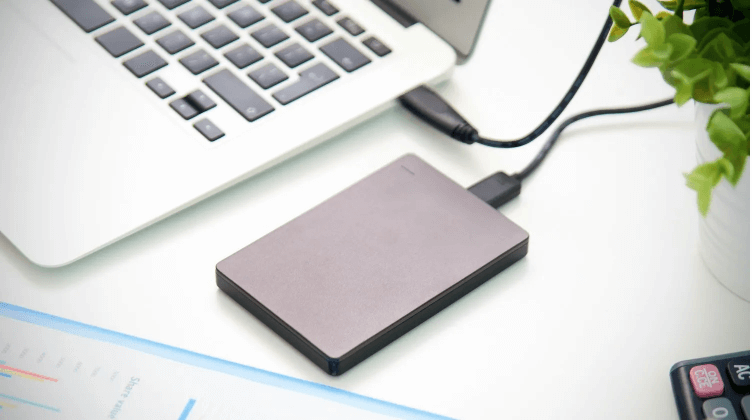
Overview of the Problem
When a hard drive refuses to power up, it hinders users from accessing their stored data and carrying out essential tasks. The issue can stem from various factors, including hardware failures, power supply issues, or internal component malfunctions. Understanding the root causes is crucial in diagnosing and resolving the problem effectively.
Common Causes of the Problem
1. Power Supply Failure: A faulty power source or cable connection can prevent the hard drive from receiving the necessary power to start up.
2. Internal Component Damage: Damage to critical components within the hard drive, such as the circuit board or motor, can result in power-related issues.
3. Firmware Corruption: Corrupted firmware or software within the hard drive can disrupt the startup process and lead to power failures.
Solutions to Fix the Issue
Solution 1: Check Power Supply and Connections
- **Step 1:** Ensure the power source is functioning correctly and the cable is securely connected to the hard drive.
- **Step 2:** Try using a different power outlet or cable to rule out issues with the current setup.
- **Step 3:** Verify that the power adapter is supplying the correct voltage to the hard drive.
- **Step 4:** Test the hard drive on another device to see if the power issue persists. - **Step 5:** If needed, consult with a professional technician to assess and repair any power-related issues.
Solution 2: Inspect Internal Components
- **Step 1:** Open the hard drive enclosure carefully to access the internal components.
- **Step 2:** Examine the circuit board for any visible damage or signs of short circuits.
- **Step 3:** Check the motor and other crucial components for physical damage or malfunctions.
- **Step 4:** Clean any debris or dust inside the hard drive that may be affecting its performance.
- **Step 5:** If necessary, consider replacing damaged components or seeking professional repair services.
Solution 3: Update Firmware and Software
- **Step 1:** Check for firmware updates or software patches released by the hard drive manufacturer.
- **Step 2:** Download and install the latest firmware update for your specific hard drive model.
- **Step 3:** Follow the manufacturer's instructions carefully to update the firmware without any interruptions.
- **Step 4:** Reboot the hard drive after the update to see if the power-up issue has been resolved.
- **Step 5:** If the problem persists, contact technical support for further assistance.
FAQ
Q1: Can a sudden power surge cause a hard drive to fail to power up?
A1: Yes, power surges can damage the internal components of a hard drive and lead to startup issues.
Q2: Is it possible to recover data from a hard drive that won't power up?
A2: Recovering data from a non-powering hard drive can be challenging, but professional data recovery services may offer solutions.
Q3: Why does the hard drive make clicking noises but fail to power up?
A3: Clicking noises often indicate mechanical failures within the hard drive, which can prevent it from starting up successfully.
Q4: Are there any DIY methods to fix a hard drive that won't power up?
A4: While troubleshooting power issues at home is possible, complex hardware repairs are best left to professionals to avoid further damage.
Q5: Can overheating cause a hard drive to stop powering up?
A5: Excessive heat can damage internal components of a hard drive and lead to power-related failures.
Key Technical Terms
1. Power Supply: The device that provides electrical power to components within a computer or hard drive.
2. Circuit Board: The primary component that controls the flow of electricity in electronic devices.
3. Firmware: Software embedded within hardware that controls its operation and functionality.
4. Data Recovery: The process of retrieving lost or inaccessible data from storage devices like hard drives.
5. Component Replacement: The act of changing damaged hardware components within a device to restore functionality.
Tips
1. Regularly backup important data stored on your hard drive to prevent data loss in case of power-related issues.
2. Use a surge protector to safeguard your hard drive from sudden power surges that may damage its components.
3. Avoid sudden power interruptions or fluctuations by investing in a stable power source for your hard drive.
Conclusion
Facing the challenge of a "hard drive won't power up" issue can be daunting, but with the right troubleshooting steps and knowledge, you can effectively diagnose and resolve the problem. By following the solutions provided in this guide, along with implementing preventive measures, you can ensure the smooth functioning of your hard drive and safeguard your valuable data. Remember to approach hardware issues with caution and seek professional assistance when needed to avoid further damage to your hard drive.
