
 AOMEI Partition Assistant
Export Your Outlook Contacts Effortlessly: A Comprehensive Guide
Exporting contacts from Outlook can be a vital task, whether you're switching devices, migrating to a new email service, or simply backing up your data. This guide aims to simplify the process for you, providing clear steps, insights, and troubleshooting tips to ensure a seamless experience.

By Hedy / Updated on February 27, 2024


Understanding the Basics
What is Outlook?
Outlook is a widely-used email management application developed by Microsoft, known for its robust features, including email organization, calendar management, task tracking, and contact management.
Why Export Outlook Contacts?
Exporting Outlook contacts offers several benefits, including data backup, seamless migration to another platform, sharing contacts with others, and organizing contacts in various formats for different purposes.
Step-by-Step Guide to Exporting Contacts
Accessing Contacts in Outlook
To begin, launch Outlook on your device and navigate to the Contacts section. Here, you'll find all your saved contacts organized for easy access.
Selecting Contacts for Export
Choose the contacts you want to export. You can select individual contacts or multiple contacts by holding down the Ctrl key while clicking on each contact.
Exporting Contacts
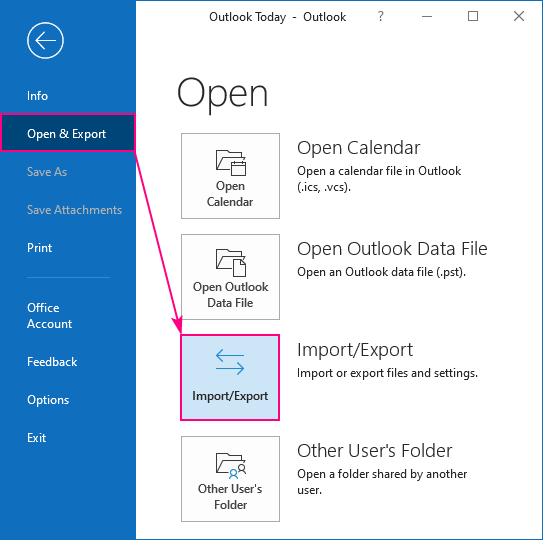
Once you've selected the desired contacts, navigate to the File menu and select "Export" or "Save As." Choose the file format for export, such as CSV or PST, depending on your preferences and requirements.
Choosing Export Options
Follow the on-screen prompts to customize export options, including selecting fields to export, choosing a destination folder, and specifying file format settings. Ensure compatibility with the destination platform if you're migrating contacts.
Completing the Export Process
Review your selections and confirm the export process. Outlook will proceed to export the selected contacts to the specified file format and location.
Troubleshooting and Tips
Troubleshooting Common Export Issues
If you encounter any errors or issues during the export process, ensure that your Outlook application is up to date, and verify that you have sufficient permissions to export contacts. Additionally, check for any conflicting settings or restrictions that may impede the export.
Optimizing Contact Data for Export
Before exporting contacts, it's advisable to clean up your contact list by removing duplicates, updating outdated information, and organizing contacts into relevant categories or groups. This ensures that you export only the most accurate and relevant data.
How Can I Export My Contacts from Outlook?
Exporting Contacts to CSV Format
One of the most common methods to export contacts from Outlook is to save them in CSV (Comma Separated Values) format. This format is widely supported and can be easily imported into various email clients and contact management applications.
Exporting Contacts to PST Format
Alternatively, you can export contacts to PST (Personal Storage Table) format, which is a proprietary format used by Microsoft Outlook to store data, including emails, contacts, calendars, and more. PST files can be imported back into Outlook or other compatible applications.
FAQs
Can I export Outlook contacts to Google Contacts?
Yes, you can export Outlook contacts to Google Contacts by first exporting them to a CSV file from Outlook and then importing the CSV file into Google Contacts.
Will exporting contacts from Outlook delete them from my account?
No, exporting contacts from Outlook will not delete them from your account. It simply creates a copy of your contacts in the specified file format without affecting the original data in Outlook.
Can I export contacts from Outlook on a mobile device?
Yes, you can export contacts from Outlook on a mobile device by accessing the contacts section within the Outlook app and following the same export process as on a desktop.
What should I do if I encounter an error during the export process?
If you encounter an error during the export process, double-check your settings and permissions, ensure that Outlook is updated, and try exporting again. If the issue persists, consult Microsoft support for further assistance.
Is it possible to schedule automatic exports of Outlook contacts?
Outlook does not natively support automatic exports of contacts. However, you can explore third-party tools or scripts that offer this functionality for automated backups or data synchronization.
Can I export contacts from multiple email accounts in Outlook simultaneously?
Yes, you can export contacts from multiple email accounts in Outlook simultaneously by selecting contacts from each account before initiating the export process.
Conclusion
Exporting contacts from Outlook is a straightforward process that offers invaluable benefits in terms of data management, backup, and migration. By following the steps outlined in this guide and leveraging the troubleshooting tips provided, you can export your contacts effortlessly and efficiently.
Remember to regularly back up your contacts to ensure data security and accessibility across different platforms and devices.
