
 AOMEI Partition Assistant
Turbocharge Your Windows 8 Connectivity: Ralink 802.11 b/g/n WiFi Adapter Driver Unleashed!
Dive into the world of enhanced connectivity as we unravel the secrets of the Ralink 802.11 b g n WiFi Adapter Driver Windows 8. From troubleshooting tips to unlocking its full potential, discover a seamless and accelerated wireless experience like never before. Elevate your Windows 8 connectivity – the Ralink way!

By Hedy / Updated on January 15, 2024


In the fast-paced digital era, a seamless and swift internet connection is crucial for an optimal computing experience. Windows 8 users, in particular, often encounter connectivity issues that can hinder their workflow. One key player in the connectivity game is the Ralink 802.11 b/g/n WiFi Adapter Driver. In this guide, we'll explore the common problems users face, delve into the potential causes, and unleash the power of solutions to Ralink 802.11 b g n WiFi Adapter Driver Windows 8.
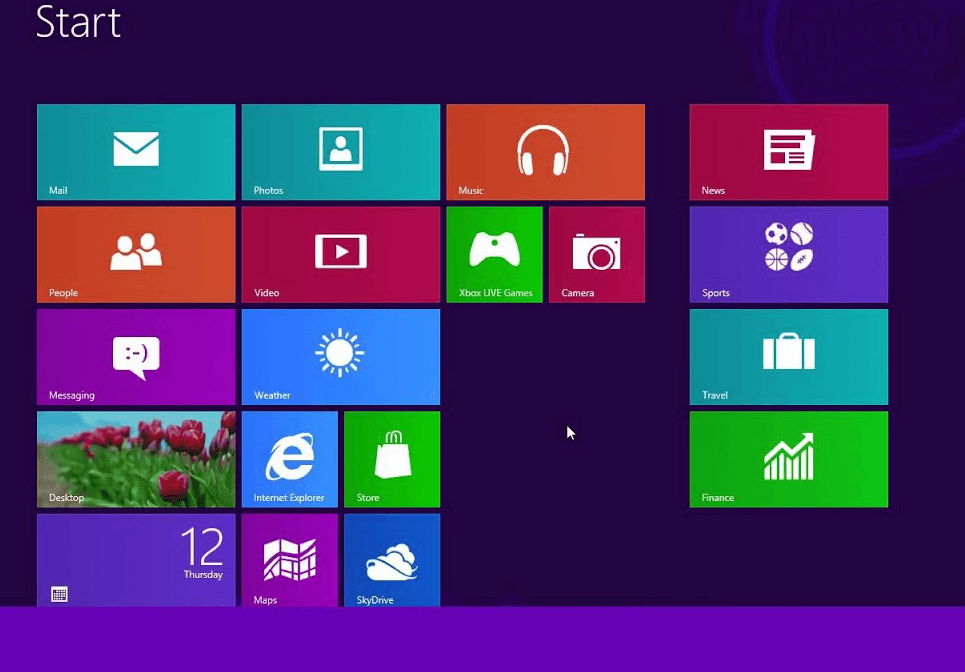
Unveiling the Problem: Ralink 802.11 b/g/n WiFi Adapter Driver Woes
1. Connectivity Woes Unveiled
Windows 8 users may find themselves grappling with sluggish or unstable WiFi connections. Understanding the intricacies of this issue is paramount for effective resolution.
2. Root Causes Explored
The connectivity dilemma can be attributed to various factors. Three primary culprits include outdated drivers, conflicting software, and interference from external devices. Let's dissect each in detail.
Outdated Drivers
The Ralink 802.11 b/g/n WiFi Adapter Driver, when outdated, may struggle to keep up with the latest network protocols, resulting in connectivity issues.
Conflicting Software
Incompatible software or conflicting drivers can create a chaotic networking environment, causing disruptions in the Windows 8 connectivity landscape.
External Interference
External devices emitting signals in the same frequency range as your WiFi can interfere with the Ralink driver's performance, leading to connectivity hiccups.
Solutions Unleashed: Resolving the Ralink 802.11 b/g/n WiFi Adapter Driver Conundrum
1. Update Your Driver
A Step-by-Step Guide Keeping your Ralink driver up-to-date is paramount. Follow these steps to ensure your driver is in its prime:
Step 1:** Identify your current driver version in Device Manager.
Step 2:** Visit the official Ralink website or your device manufacturer's support page.
Step 3:** Download the latest compatible driver.
Step 4:** Install the new driver and restart your system.
Step 5:** Verify the successful update in Device Manager.
2. Software Harmony: Ensuring Compatibility
To address conflicts with other software, follow these steps:
Step 1:** Identify conflicting software through Task Manager.
Step 2:** Uninstall or update conflicting software.
Step 3:** Reboot your system for changes to take effect.
3. Managing External Interference
Mitigate external interference with these steps:
Step 1:** Identify devices causing interference.
Step 2:** Reposition or turn off conflicting devices.
Step 3:** Consider changing your WiFi channel for optimal performance.
FAQ: Answering Your Burning Questions
Q:** How do I check my current Ralink driver version?
A:** Navigate to Device Manager, locate your WiFi adapter, right-click, and select Properties. Under the Driver tab, find the Driver Version.
Q:** Can I update the Ralink driver automatically?
A:** Yes, you can use third-party tools or rely on Windows Update to automatically update your Ralink driver.
Q:** What other software might conflict with the Ralink driver?
A:** Antivirus programs, VPN software, or outdated network drivers can potentially clash with the Ralink driver.
Q:** Should I always choose the latest driver version?
A:** While newer versions often bring improvements, choose a driver version that is compatible with your system and has been tested for stability.
Q:** How frequently should I update my Ralink driver?
A:** Regularly check for updates and update the driver at least once every few months or when experiencing connectivity issues.
Q:** Is it necessary to restart my system after updating the driver?
A:** Yes, a system restart ensures proper implementation of the updated driver.
Demystifying Technical Terms
1. Driver Version
This refers to the specific release of the Ralink 802.11 b/g/n WiFi Adapter Driver, indicating its features, compatibility, and improvements.
2. Compatibility
Compatibility measures the ability of the driver to work seamlessly with your Windows 8 system and other software without conflicts.
3. Interference
Interference occurs when external devices emit signals that disrupt the normal functioning of the Ralink driver, leading to connectivity issues.
Pro Tips for an Enhanced Connectivity Experience
1. Regularly Update Your Ralink Driver
Stay ahead of connectivity issues by ensuring your Ralink driver is always up-to-date.
2. Optimize Your WiFi Channel
Experiment with different WiFi channels to find the one with the least interference for optimal performance.
3. Invest in Quality Antivirus Software
A robust antivirus program can prevent potential conflicts and enhance the overall security of your system.
Conclusion
In the realm of Windows 8 connectivity, the Ralink 802.11 b/g/n WiFi Adapter Driver plays a pivotal role. By understanding and addressing common issues, updating drivers, and optimizing your system, you can unleash the full potential of your network connectivity. Keep your drivers updated, resolve conflicts, and embrace a seamless online experience on your Ralink 802.11 b g n WiFi Adapter Driver Windows 8.
