
 AOMEI Partition Assistant
Elevate Your Wireless Connectivity with Ralink 802.11 N WLAN USB Driver for Windows 10!
Unleash the power of your wireless capabilities through the Ralink 802.11 N WLAN USB driver Windows 10. Dive into a comprehensive guide that explores the challenges, solutions, and optimizations for a heightened wireless experience. Elevate your connectivity and embrace the future of wireless excellence!

By Hedy / Updated on January 19, 2024


In a world where seamless connectivity is non-negotiable, having the right tools at your disposal becomes paramount. When it comes to wireless performance on Windows 10, the Ralink 802.11 N WLAN USB driver Windows 10 emerges as a game-changer. This article delves into the intricacies of enhancing your wireless experience, addressing common issues, providing effective solutions, and shedding light on essential tech terms.
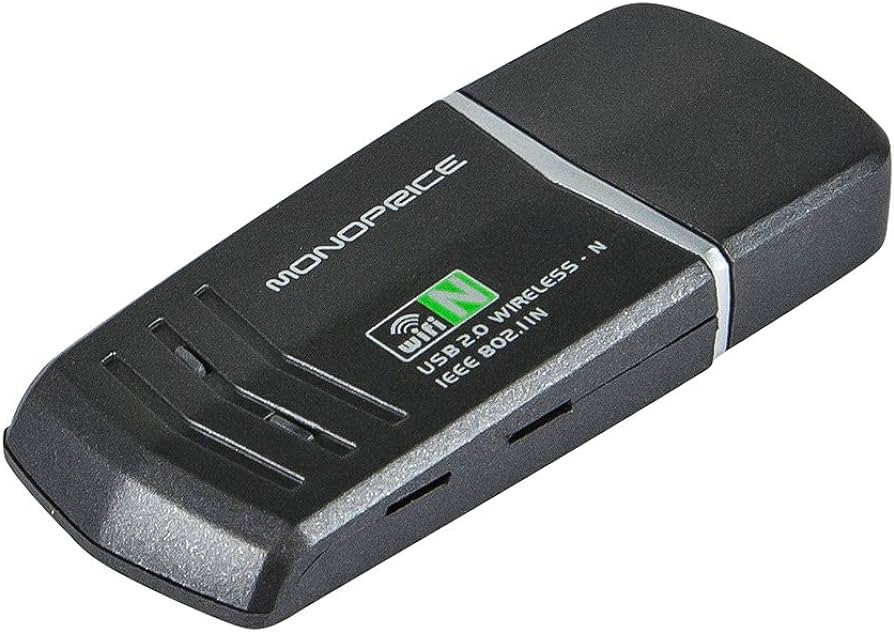
Overview: Unraveling Connectivity Challenges
In the quest for optimal wireless connectivity, users often encounter challenges that hinder their experience. Understanding the core problem is the first step toward finding a suitable solution. Issues like inconsistent signal strength dropped connections, and slow internet speeds can be attributed to various causes.
Common Causes: Demystifying the Wireless Dilemma
1. **Outdated Drivers:** Using an outdated Ralink 802.11 N WLAN USB driver can lead to compatibility issues and degraded performance.
2. **Interference:** Wireless signals can be disrupted by various electronic devices, hindering the smooth flow of data.
3. **Router Placement:** Incorrect placement of the router may result in signal dead zones and poor connectivity.
Solutions: Empowering Your Wireless Experience
To overcome the challenges mentioned, implement these solutions:
Solution 1: Update Your Ralink 802.11 N WLAN USB Driver
- Navigate to the device manager. - Locate the Ralink 802.11 N WLAN USB driver.
- Right-click and select "Update driver."
- Follow the on-screen instructions to complete the update.
Solution 2: Optimize Your Wireless Environment
- Identify electronic devices causing interference and relocate them.
- Ensure your router is placed in a central location for optimal coverage.
- Invest in signal boosters or range extenders if needed.
Solution 3: Perform Router Maintenance
- Regularly update your router's firmware.
- Change the Wi-Fi channel to reduce interference.
- Secure your network with a strong password to prevent unauthorized access.
FAQ: Addressing Your Wireless Queries
*Q1: How can I check if my Ralink 802.11 N WLAN USB driver is outdated?*
- A: Access the device manager, locate the driver, right-click, and select "Properties." Check for the driver version in the "Driver" tab.
*Q2: Can interference from other devices affect my wireless connection?*
- A: Yes, electronic devices like cordless phones and microwave ovens can interfere with wireless signals.
*Q3: What is the ideal router placement for optimal connectivity?*
- A: Place the router in a central location, away from walls and obstructions, for even signal distribution.
*Q4: Are signal boosters effective in improving Wi-Fi range?*
- A: Yes, signal boosters or range extenders can enhance Wi-Fi coverage in areas with weak signals.
*Q5: How often should I update my router's firmware?*
- A: Check for firmware updates quarterly and install them as needed to ensure optimal router performance.
Tech Terms: Decoding Connectivity Jargon
1. **Wireless Protocol:** The set of rules governing communication between devices in a wireless network.
2. **Bandwidth:** The maximum rate of data transfer across a network.
3. **Router Firmware:** Software embedded in a router, responsible for its functionality.
4. **Frequency Channels:** Divisions in the wireless spectrum used by Wi-Fi networks.
5. **Signal-to-Noise Ratio (SNR):** A measure of signal quality in a wireless connection.
Conclusion: A Future of Enhanced Wireless Connectivity
As we navigate the complexities of wireless connectivity, the Ralink 802.11 N WLAN USB driver Windows 10 stands as a beacon of reliability. Elevate your wireless experience on Windows 10 by implementing the solutions provided, understanding essential tech terms, and embracing a future of seamless connectivity. Unleash the power of Ralink and take your wireless journey to new heights!
