
 AOMEI Partition Assistant
Can’t Download Realtek Audio Driver in Windows 11
This article mostly gives techniques for getting Realtek audio drivers in Windows 11. If you can’t install Realtek high definition audio driver, you can quickly fix the issue via this post.

By Lucas / Updated on February 2, 2024


Why Realtek Audio driver can’t be installed in Windows 11?
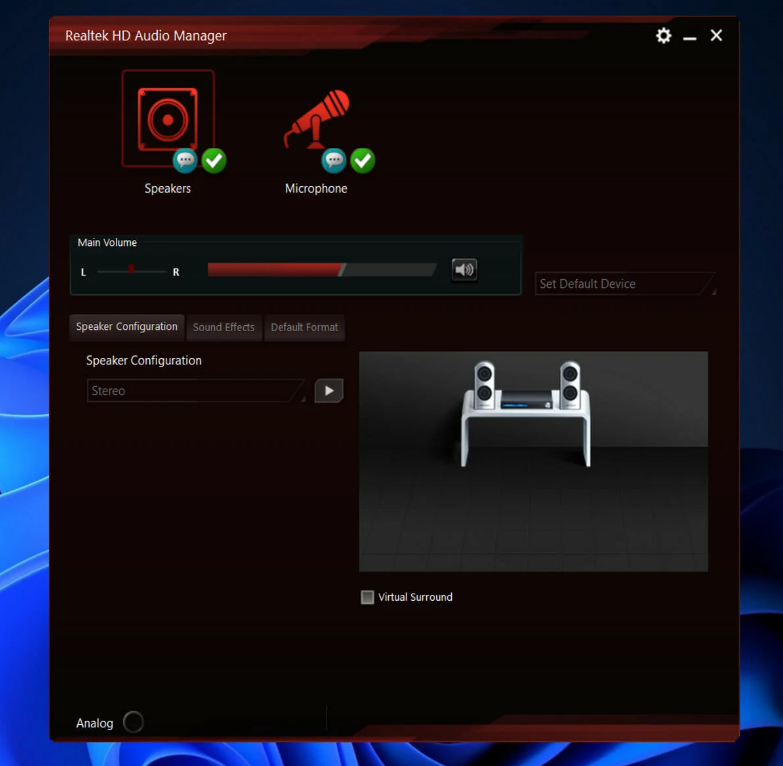
Realtek audio driver is a software component that enables communication between the operating system and the Realtek audio hardware on your computer. It ensures that your computer's audio hardware functions properly and can deliver sound to your speakers or headphones.
Incompatible Driver Version
Ensure that you are downloading the correct version of the Realtek Audio driver that is compatible with your Windows 11 operating system.
Driver Signature Enforcement
Windows has a feature called Driver Signature Enforcement, which requires that all drivers be signed by Microsoft to ensure their authenticity. If the Realtek Audio driver is not signed or has an issue with the signature, it might not install.
Windows Update
Ensure that your Windows 11 operating system is up to date with the latest updates. Sometimes, a system update may resolve compatibility issues and improve the installation process.
How to download/install Realtek audio driver in Windows 11 for different PC
On 3/4/2023, the most recent Realtek audio driver for Windows 11 for Intel was published. Its current version is 6.0.9456.1. This Intel Realtek HD audio driver for Windows 11 is for a 3.5mm audio jack and may be installed on the Intel® NUC 11 Enthusiast Kit & Mini PC - NUC11PHKi7. If you wish to attach a microphone or headset to the audio jack or utilize the TOSLINK connection on the back of the Intel NUC, you'll need this sound driver.
To install Realtek audio driver in Windows 11, you may need to uninstall previous Realtek Audio Drivers. It’s very simple.Open the "Device Manager" by right-clicking on the Start button and selecting "Device Manager." Expand the "Sound, video and game controllers" section. Right-click on your Realtek audio device and choose "Uninstall device." Check the box that says "Delete the driver software for this device" if available. Click "Uninstall" and restart your computer if prompted.
1. Download Realtek audio driver for HP in Windows 11
Go to the driver section of HP’s official website, and select your device from the option listed. Enter the product name or serial number in the provided text field, and click the Submit button.
Click on the All drivers entry to check out the various available ones. Also, ensure that the latest iteration is selected as the operating system. If it isn’t, click on Choose a different OS and select Windows 11.
Locate the Realtek audio driver, and click on the Download option next to it.
Once the setup is downloaded, click on it to launch the installer.
Follow the on-screen instructions to complete the installation process, and restart the computer once it’s done for the changes to come into effect fully.
2. Download Realtek audio driver for Dell in Windows 11
Go to the driver downloads section on Dell’s website, enter a product identifier in the designated text field, and click Search. Then, click the Find drivers option to search for the Realtek audio driver manually.
Enter Realtek audio in the Keyword text field and choose Windows 11 from the Operating system dropdown menu. Scroll down and click the Download button next to the Realtek audio driver.
Install and follow the on-screen instructions to complete the process.
3. Download Realtek audio driver for Lenovo in Windows 11
Go to the technical support page for Lenovo, hover the cursor over the PC from the options listed here, and select View PC Support. Enter the device name in the designated text field and select the appropriate option once it appears in the search results.
Select Drivers & Software from the navigation pane on the left. You need to select the Manual update tab.
Click on the Audio entry from the various components listed here, then click on Realtek audio driver for Windows 11.
Click on the Download icon next to the Realtek audio driver.
Follow the on-screen instructions to complete the installation process.
To sum up
If the audio driver has some problems, you can try to update your driver or check Windows 11 update. Or you can reinstall new Realtek audio driver in Windows 11. Based on your specific computer model and the version of the Realtek Audio driver you are installing, the specific solution might be a little different. So try using the guide for a quicker experience, hope you can fix Realtek audio driver installation problems.
